

How to Batch Translate PDFs
Using the AI capabilities of PDFelement, you can either translate every word or the entire PDF document. Besides this, it allows users to choose a specific language by extending the list of target languages. The tool assists individuals in setting the page range for their document translation. So, dive into the stepwise guide and translate multiple documents at once:
-
Commence the tool and navigate to the “Open PDF” button to import your desired PDF on the platform for translation.
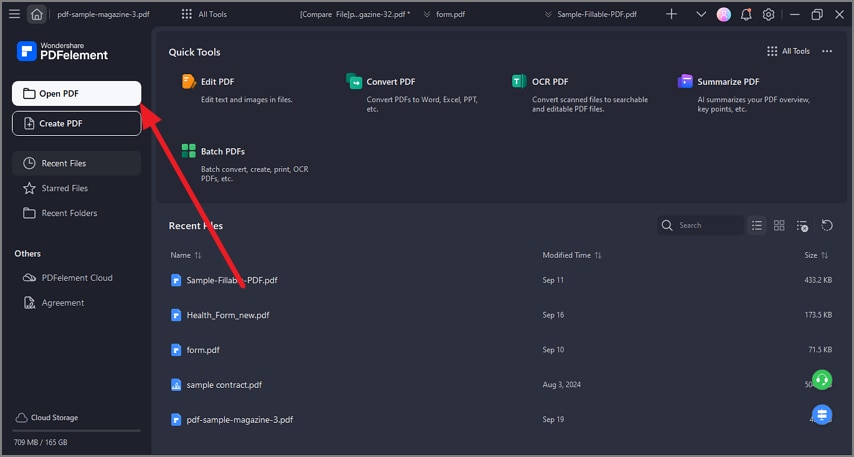 A screenshot of the application interface highlighting the open PDF button.
 -
Access the “AI Assistant” option from the top toolbar and extend the menu for “AI Translate.” Afterward, click on the “PDF Translator” option from the floating menu.
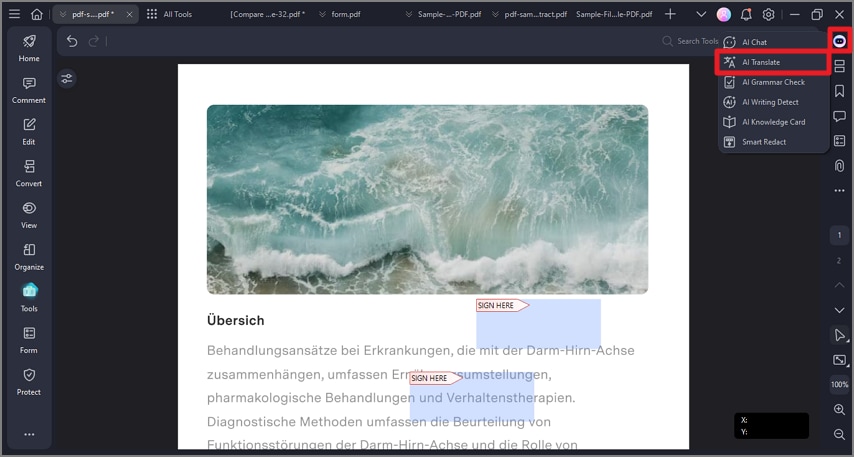 A screenshot of the AI assistant menu highlighting the AI Translate option.
 -
From the “PDF Translator” panel, extend the menu to “Target Language” and choose your desired one. Set the “Page Range” accordingly and head to the “Batch Translate” button at the bottom of your screen.
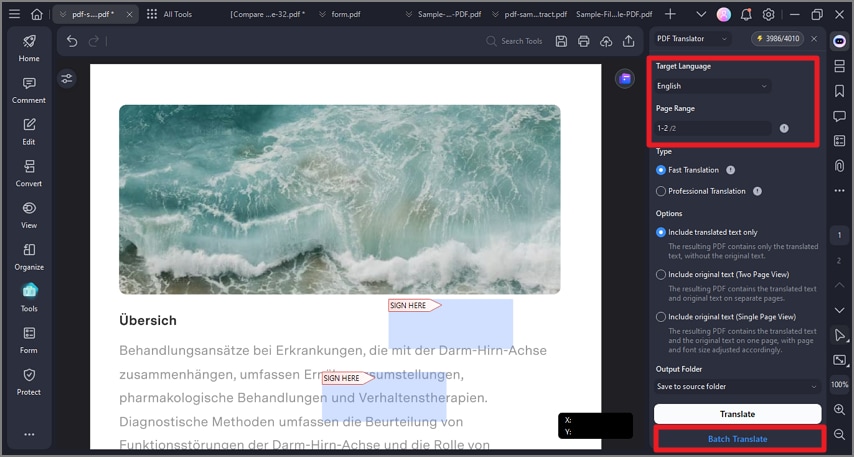 A screenshot of the language selection interface showing batch translation options.
 -
Following this, press the “Add File” button to choose the “Add Files” option from the list and import another PDF.
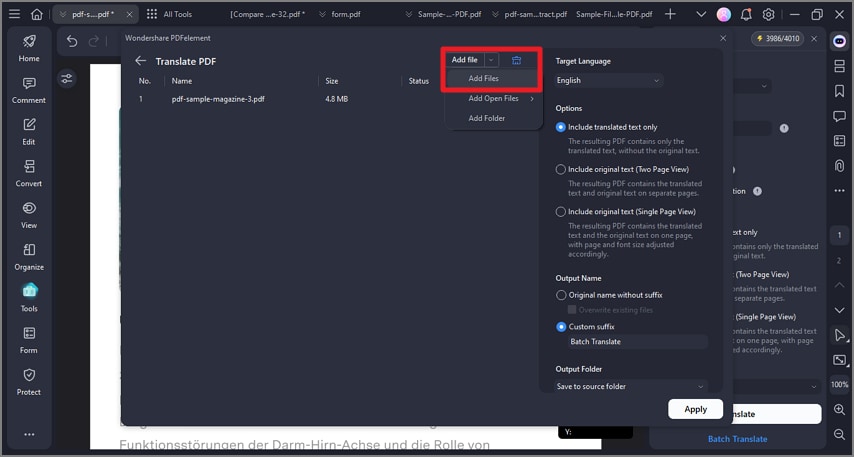 A screenshot of the batch translation interface showing an additional file added.
 -
In the end, head to the “Apply” button to translate all the imported files on the tool at once.
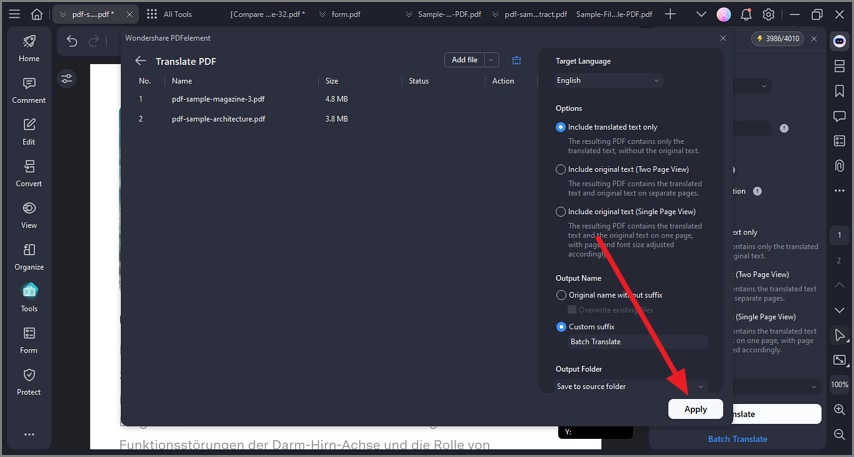 A screenshot of the translate settings interface highlighting the apply options.