

How to Change PDF Page Size on Mac
Modifying the page size of your PDF document is made simple with Wondershare PDFelement for Mac.
- Begin by clicking the "Organize" button situated in the upper left corner of the interface.
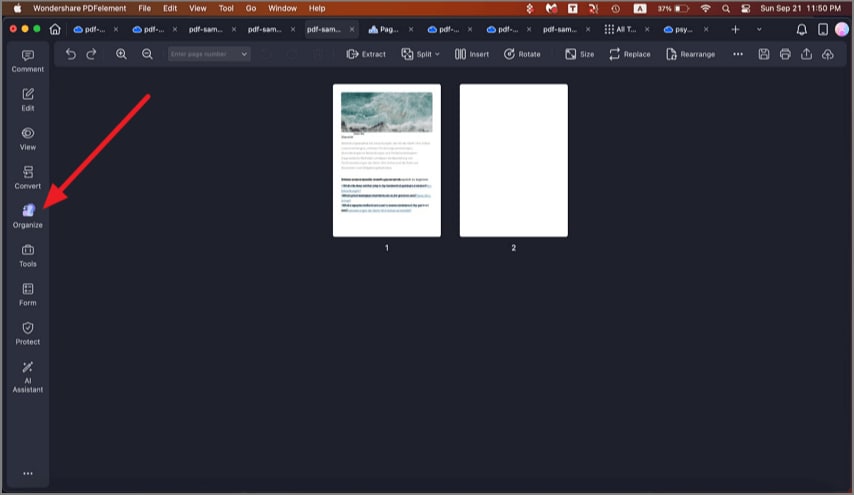
A screenshot highlighting the Organize button in the toolbar.
- In the ensuing window, locate and click the "Size" button.
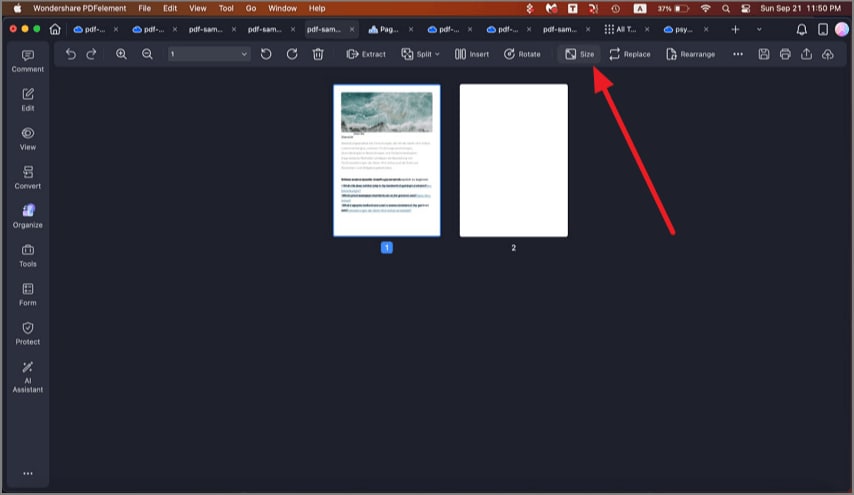
A screenshot highlighting the page size adjustment button.
- The "Page Size" panel will appear on the right-hand side. Here, you can fine-tune your changes. Select your desired "Page Size," and either opt for a fixed size or customize the dimensions as needed. Additionally, choose the appropriate page orientation to suit your requirements.
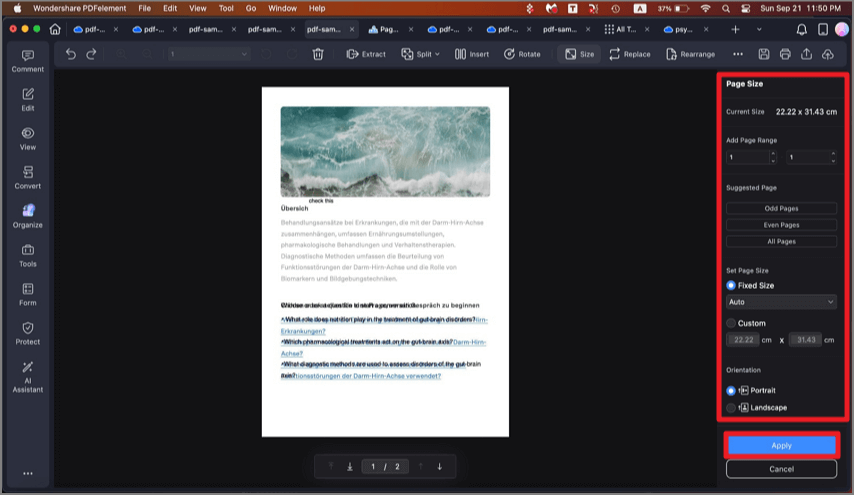
A screenshot of the page size settings panel.
Once you've configured your preferences, solidify your changes by clicking the ‘Apply’ button. Your PDF page size will be updated accordingly.