

How to compare PDFs on Mac
PDFelement allows you to quickly identify the content difference between two PDF files on Mac.
- Navigate to the homepage of PDFelement for Mac and select the "Compare PDFs" tab.
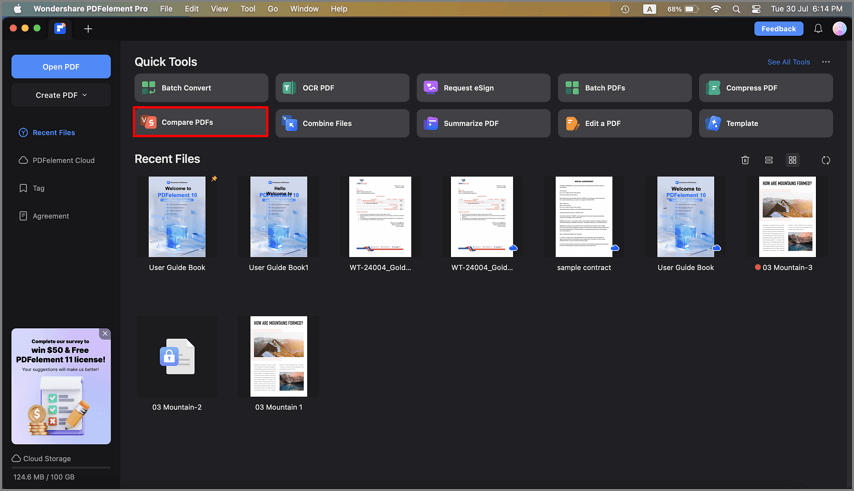
A screenshot of the application interface highlighting the Compare PDFs tab.
- In the Compare PDF window that appears, upload the two PDF files you want to compare by adding them to the "Old File" and "New File" boxes.
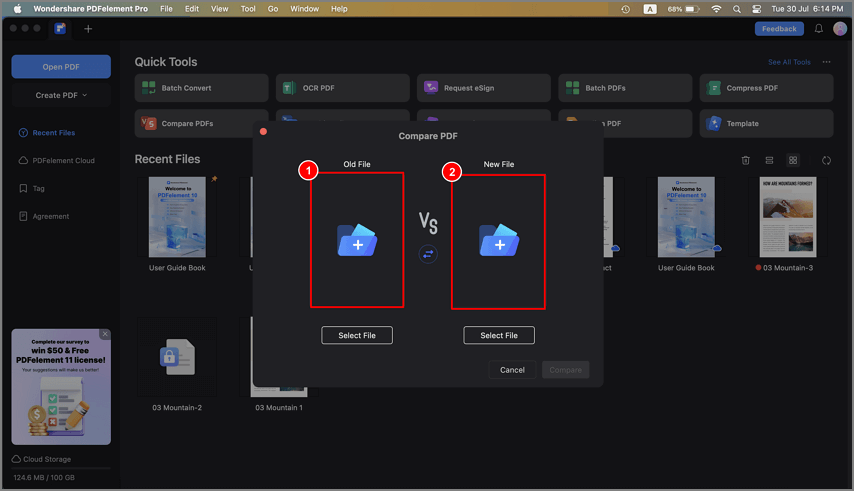
A screenshot of the comparison setup interface showing two files uploaded.
- Once both files are uploaded, click the "Compare" button to initiate the comparison process.
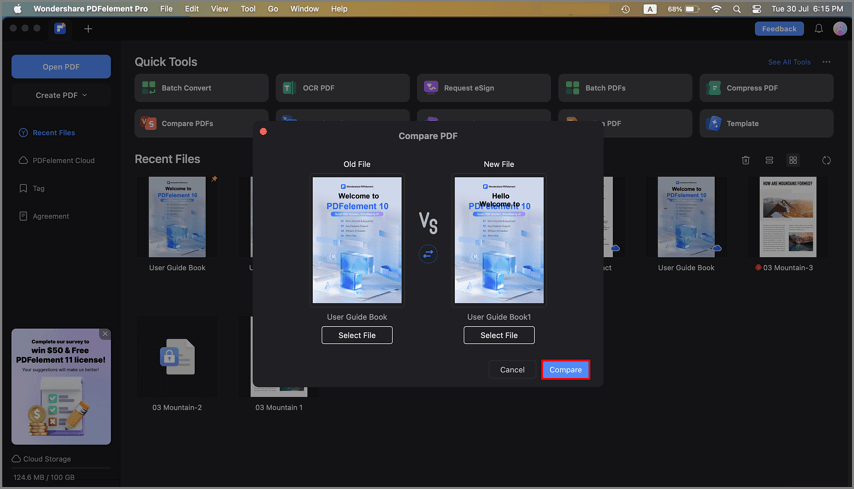
A screenshot highlighting the button used to start PDF comparison.
- PDFelement will then display the two PDF files side by side, highlighting deletions, modifications, and insertions in distinct colors.
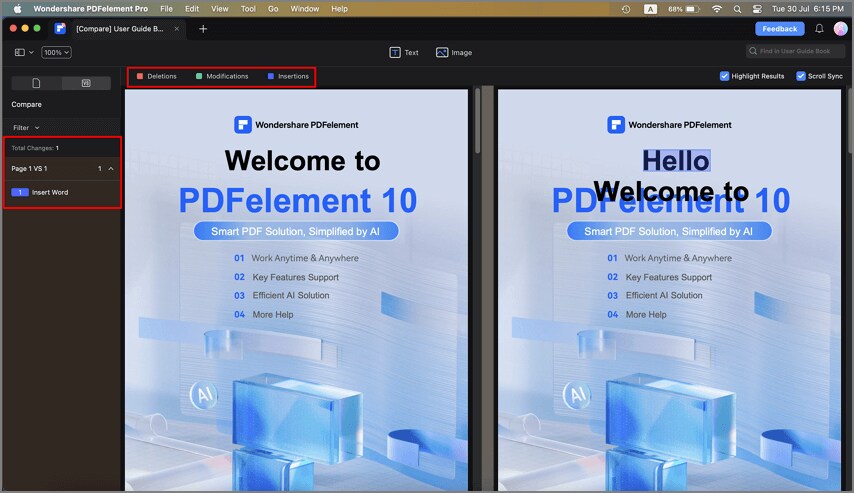
A screenshot showing comparison results with differences highlighted in different colors.
- Use the left Compare Panel to filter and navigate through the identified differences effortlessly.
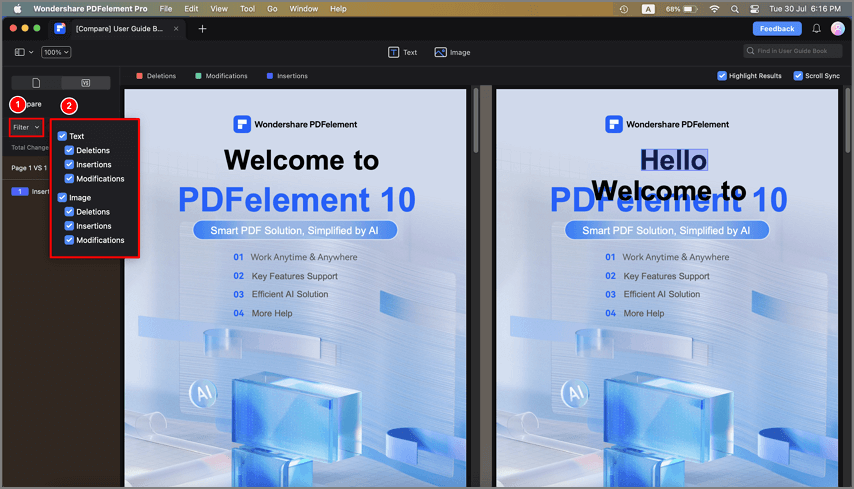
A screenshot of the comparison tools displaying filter options.