

How to Convert PDF to Image on Mac
You can easily export or convert PDF pages into images with PDFelement for Mac.
Click the Convert PDF Tool from the Tool Tab on the Homepage, and browse your computer to select the PDF file you want to convert.
Note:
If the Convert PDF Tool doesn’t appear in the Tool Tab, click the Customize Tool Button to add it to the Homepage Tool Bar.
A screenshot of the PDF Converter homepage.
In the pop-up dialog, you can select convert "Each page as a separate image" or "All pages into a single image" and set the name, tag, format, and location of the output files. After completing your settings, click Convert.
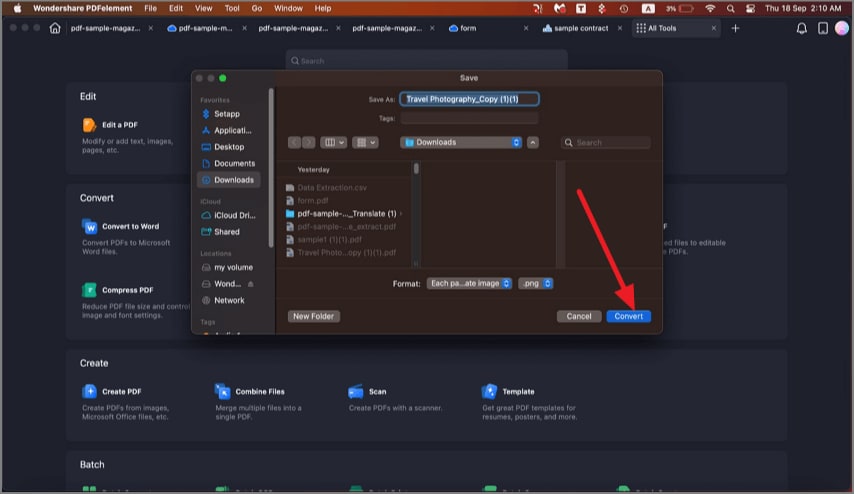
A screenshot of the conversion settings panel.
Alternatively, you can convert PDF pages to one or multiple images by using the Export Tool. Click File > Export To, select convert "Each page as a separate image" or "All pages into a single image," and manage the settings of the output images as you like.

A screenshot of the conversion interface showing image output options.