

How to Create PDF Files from Any File
How to create PDF files with PDFelement? Efficient methods are listed below.
1. Create PDF from file explorer.
You can use PDFelement to create a PDF from any type of printable files.
- Open the PDFelement on your desktop, and you will see the homepage. Then click on Create a PDF > From File.
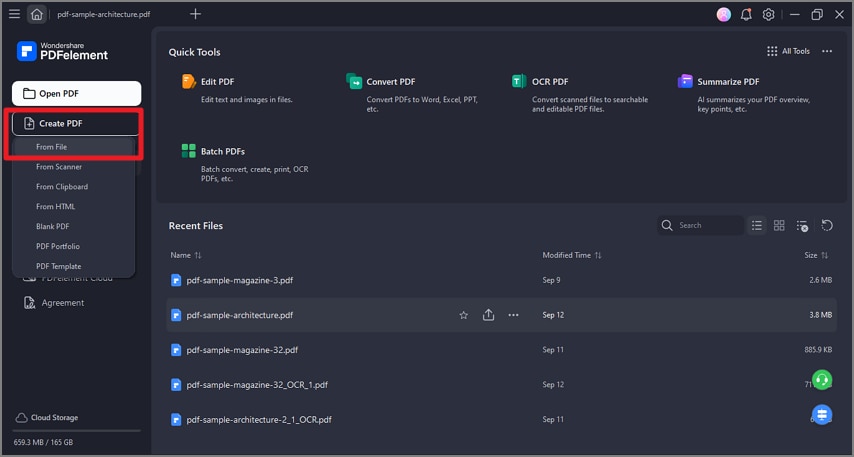
A screenshot of the file explorer interface showing the option to create a PDF from selected files.
- If you have opened a PDF, go to File > Create > From File.
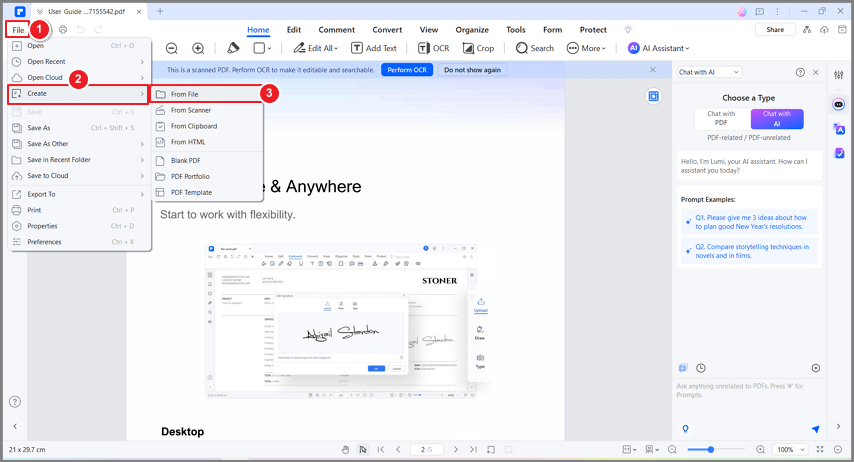
A screenshot of the PDF creation interface displaying file-based creation options.
2. Create PDF by drag and drop.
Simply drag the file into the program window if it is open, or convert quickly from within Windows Explorer.
- Drag the document you want to convert on to the PDFelement desktop icon
 .
. - If the PDFelement is open, drag the file directly into the application window.
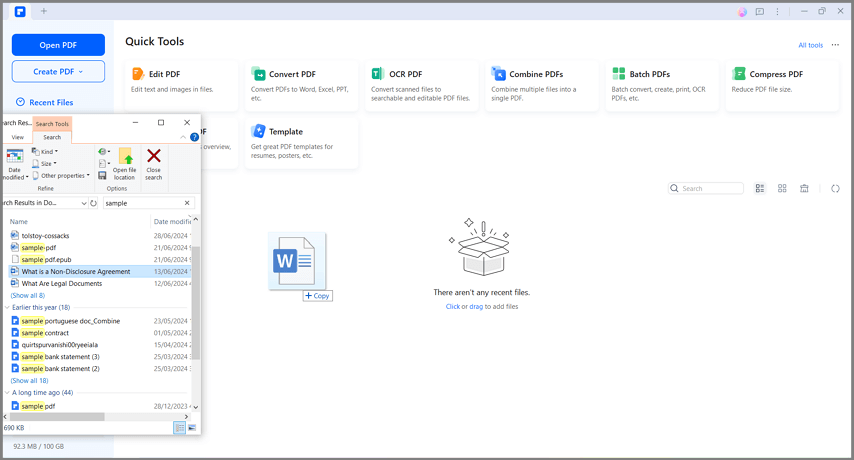
A screenshot of the PDFelement interface showing a file being dragged into the application for PDF creation.
3. Create PDF by right click.
PDFelement is compatible with the Windows system and enables users to create PDF files directly by right-clicking the other formats of documents, including Word, Excel, PowerPoint, text, and images.
- Right click the target document.
- Click the "Convert to PDF with Wondershare PDFelement" button on the menu.
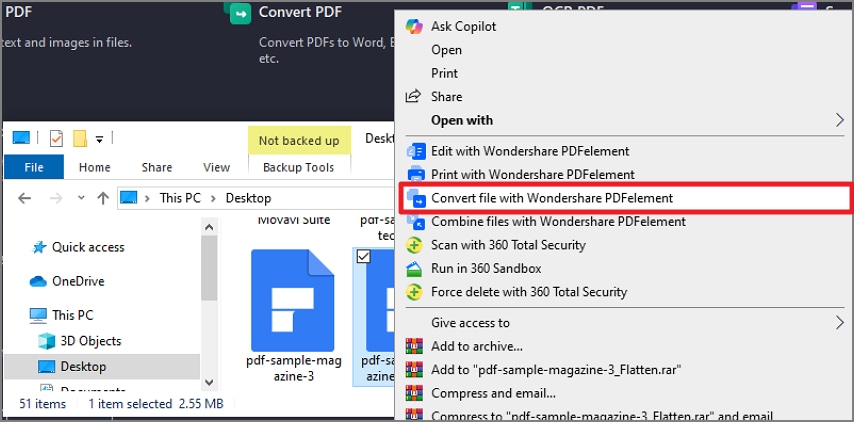
A screenshot of the windows explorer interface highlighting the option to convert files to PDF format.
- This will start the creation process. Within a few seconds, the document will be created to PDF format.
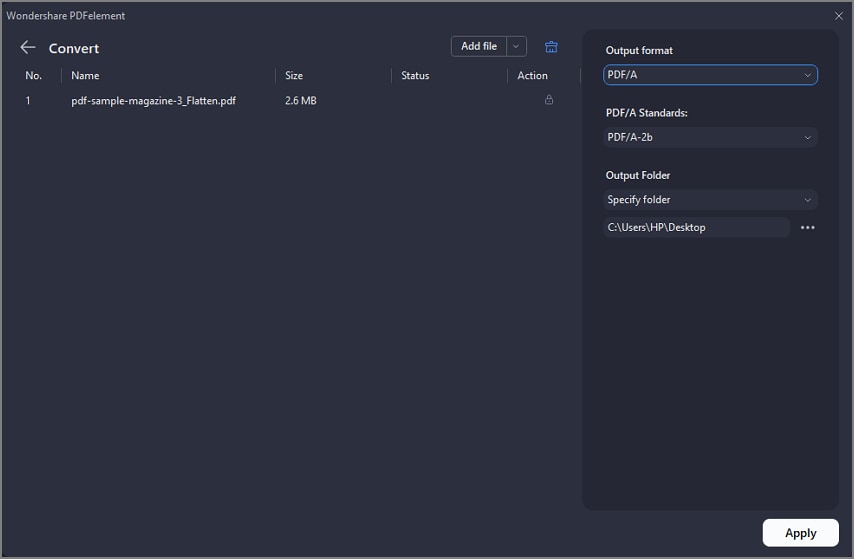
A screenshot showing the PDF creation process in progress using PDFelement.
- The created PDF file will be open in PDFelement and you can press "Ctrl + S" to save it.
4. Create PDF in Microsoft Office.
PDFelement also enables you to create PDF files in in Microsoft Office software like Word/Excel/PPT.
- Open a Word/Excel/PPT file. There is a “PDFelement” button on the menu.
- Click on " PDFelement > Create PDF " button to quickly create a PDFdocument.
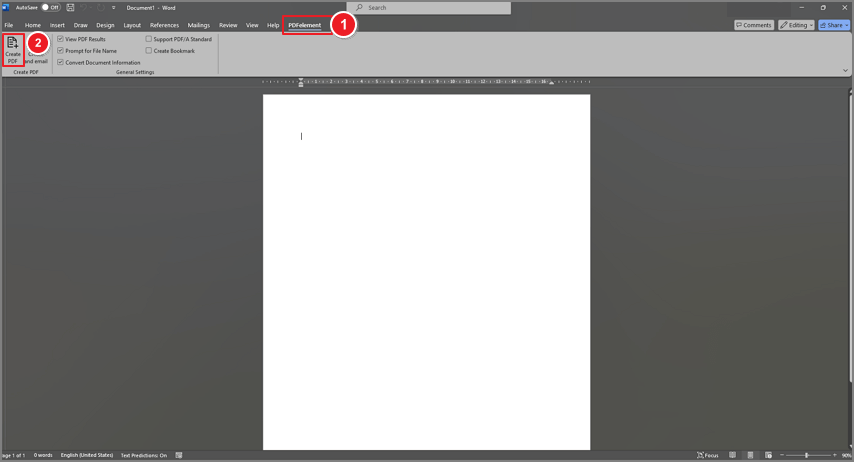
A screenshot of a Microsoft Office application displaying the option to create a PDF with PDFelement.