

How to Customize AI Prompt on Mac
Customize the responses of Lumi, your AI reading assistant, to match your unique requirements. Follow these steps:
- Begin by opening the AI Sidebar. To do this, click the "AI Assistant" option from the dropdown list under the "Tools" tab.
- Within the AI Sidebar, locate and select the "Custom Prompts" option at the bottom of the panel.
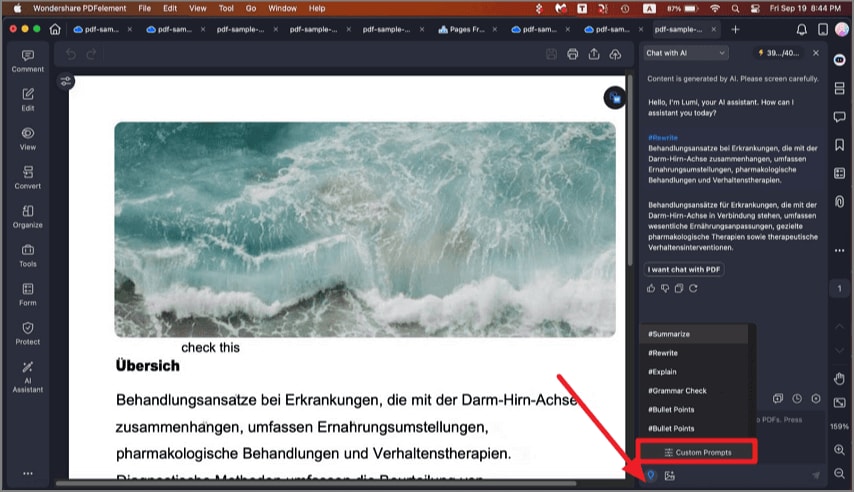
A screenshot of the custom AI prompt interface on Mac.
- In the pop-up "Custom Prompts" window, click the "Add" button to create a new custom prompt.
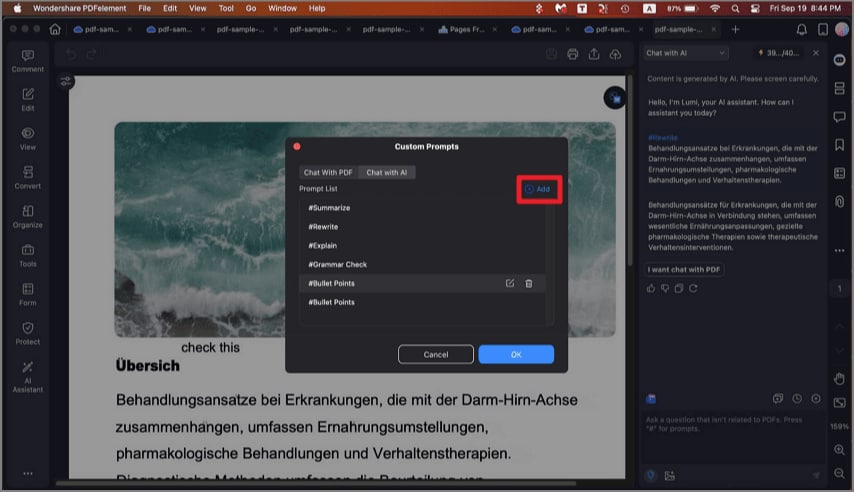
A screenshot showing an AI prompt added on Mac.
- Assign a meaningful name to your custom prompt, such as "Bullet Points". In the "Prompt Content" field, specify the instructions you want the AI to follow. For instance, you can input "Break the content into bullet points". Save your custom prompt settings by clicking "Add".
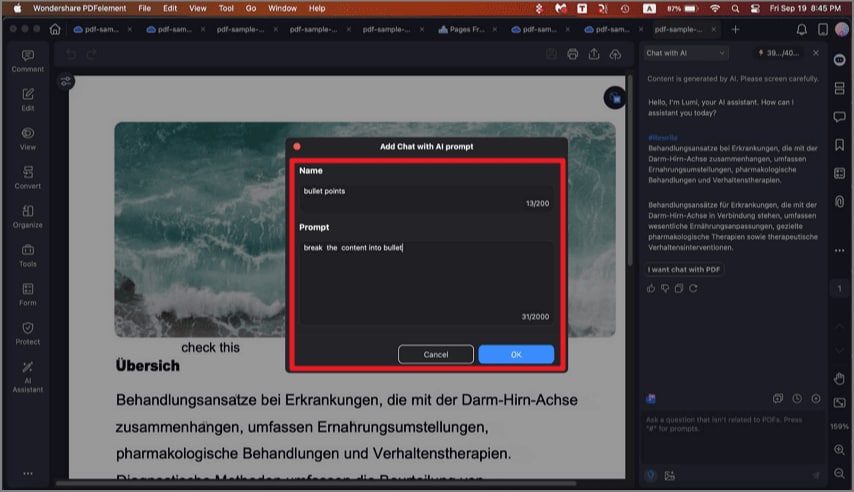
A screenshot of the AI prompt configuration dialog on Mac.
- Now that you've created your tailored prompt. When you encounter content that you want to transform into bullet points, follow these steps.
- Select the "Bullet Points" command from the available options in the text box.
- Input or paste the text you wish to convert into bullet points.
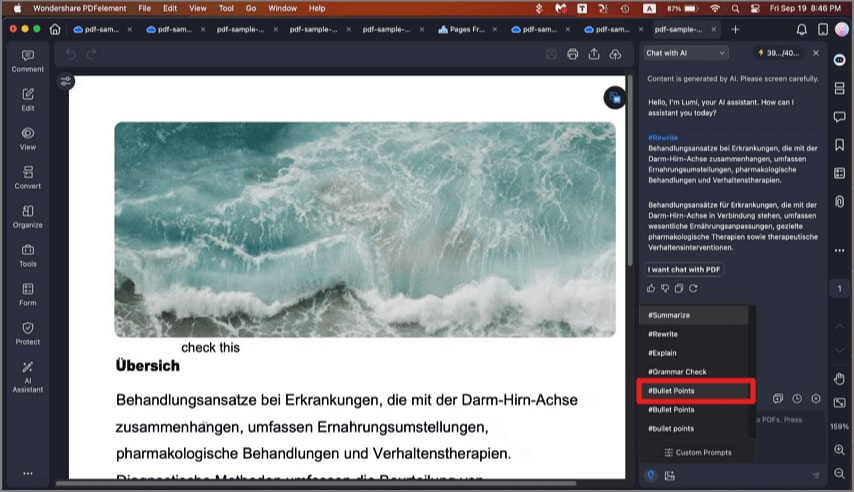
A screenshot of the AI assistant using a custom prompt on Mac.
- Click the "Send" button to kickstart the process. Lumi, powered by advanced AI technology, will promptly analyze the provided text and craft organized bullet points based on your custom prompt.
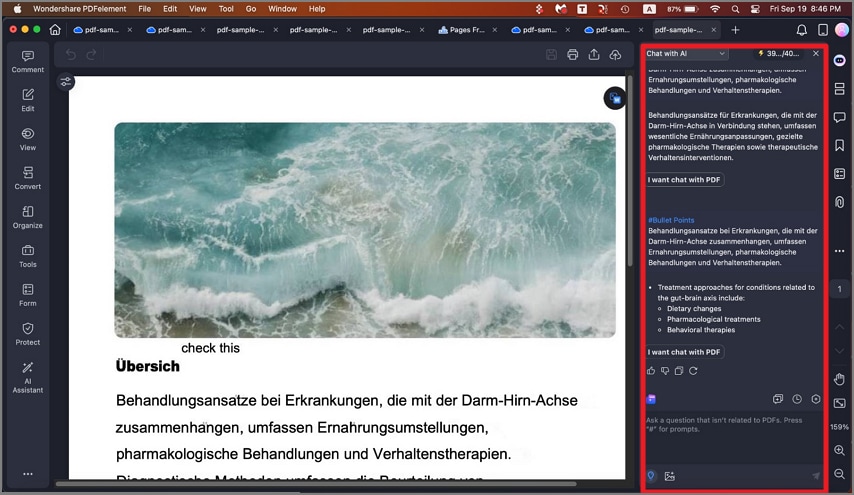
A screenshot showing the output from a custom AI prompt.