
How to Delete Pages from PDF on Mac
In PDFelement for Mac, it's effortless to delete pages from PDF files.
Open one file and click the "Organize" button on the top left.
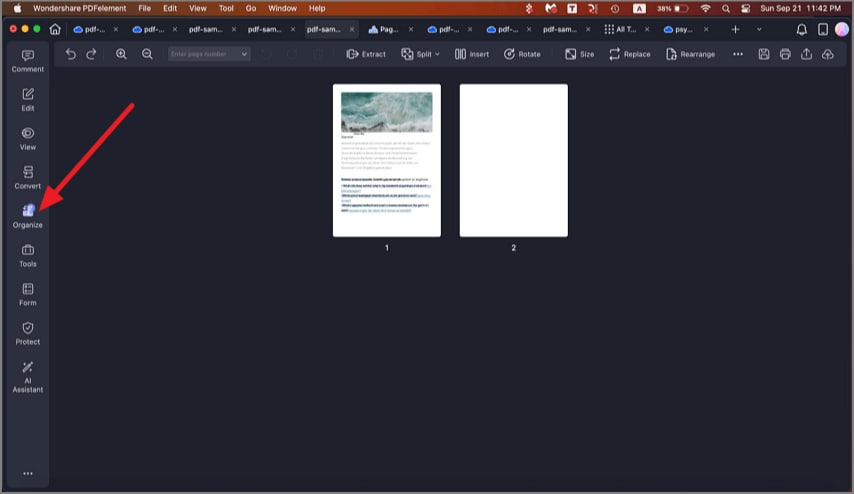
A screenshot highlighting the Organize button.
In the pop-up window, click the "Delete" button. Click a single page by holding the Command key to select multiple pages at the same time, or select the "Page Range" in the right-side panel.
Click the "Delete" button or press the Delete key on your keyboard to remove the selected pages.
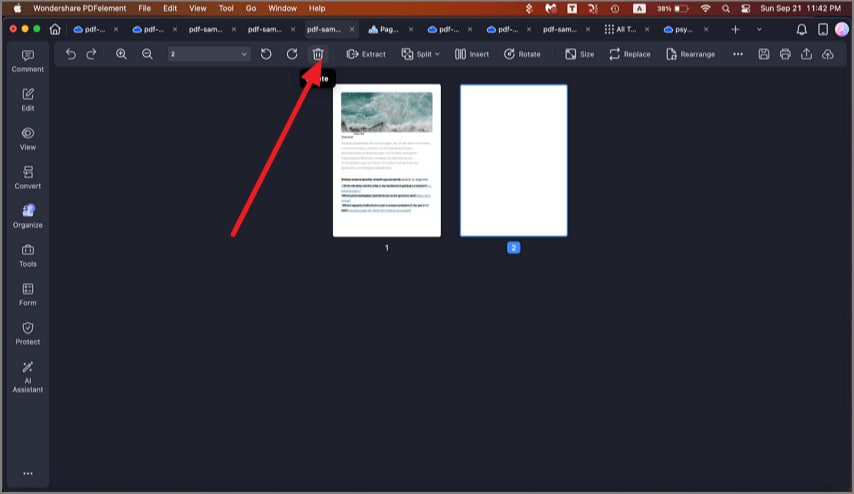
A screenshot of pages selected for deletion.
Alternatively, you can go to the Thumbnail Panel, right-click a page you want to remove, and select the "Delete" option in the drop-down menu.
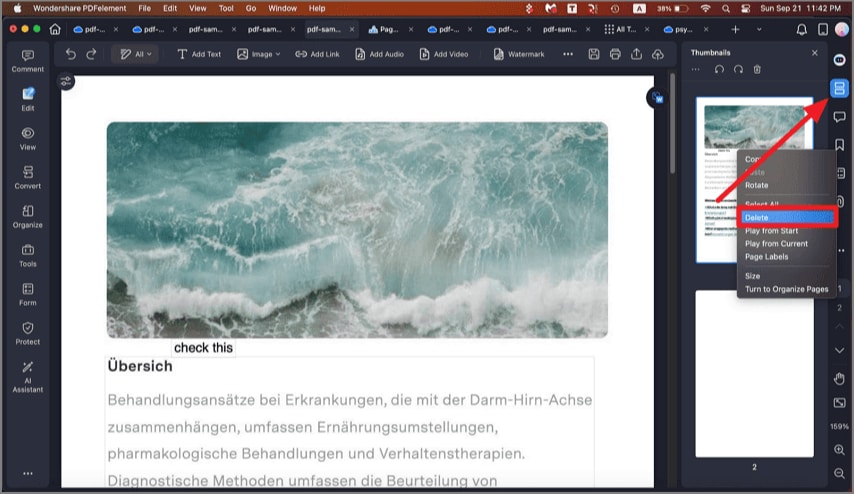
A screenshot of page thumbnails showing a page marked for deletion.