

How to Detect AI-Written Text
Discovering AI-generated content in your PDFs is a breeze with Lumi, our AI reading assistant. Follow these steps to determine whether your PDF content has been generated by an AI algorithm:
- Start by opening the PDF document you wish to analyze in PDFelement.
- Click on the "AI Assistant" button located under the "Home" tab. From the drop-down menu, click on the "AI Generation Detect" button.
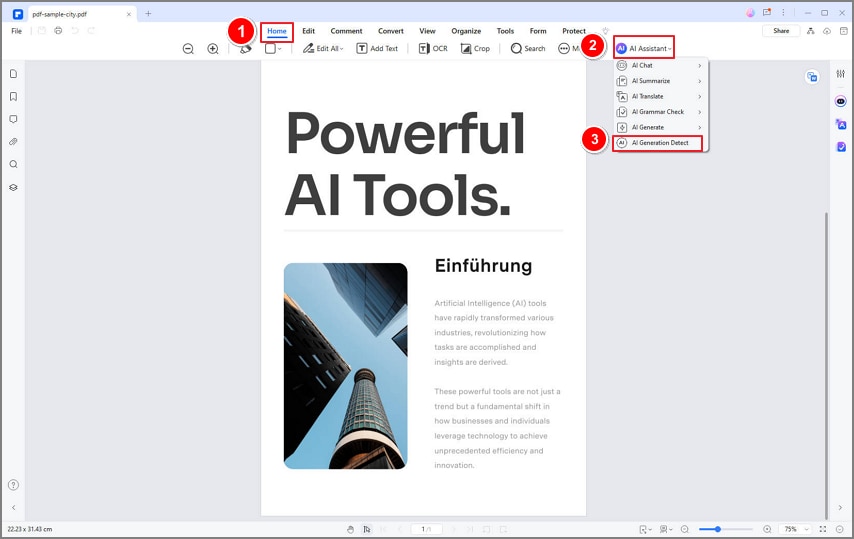
A screenshot of the AI tools menu showing written content detection.
- Lumi, our advanced AI reading assistant, will comprehensively analyze the entire content of the PDF. It will promptly notify you whether the content is categorized as Human-Written, AI-Written, or Partially AI-Written. Any AI-generated portions will be highlighted for your reference.
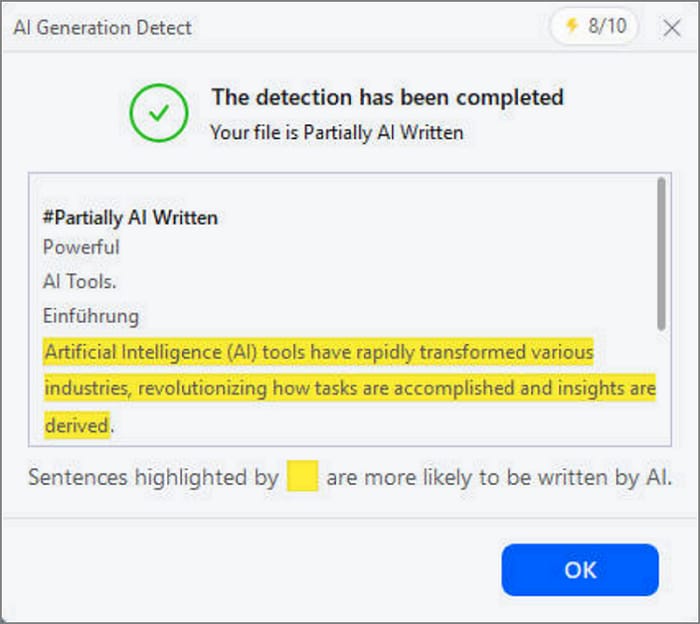
A screenshot displaying the AI-written content detection results.
To detect AI-written text from external sources or specific parts of the PDF, utilize the "AI Generation Detect" command in the AI Sidebar.
- Click on the "AI Sidebar" icon situated on the right side of the interface. Then, select "Chat with AI.” Click the Lightbulb icon at the bottom, then, select the "AI Generation Detect" command and paste the text you wish to analyze into the designated text box.
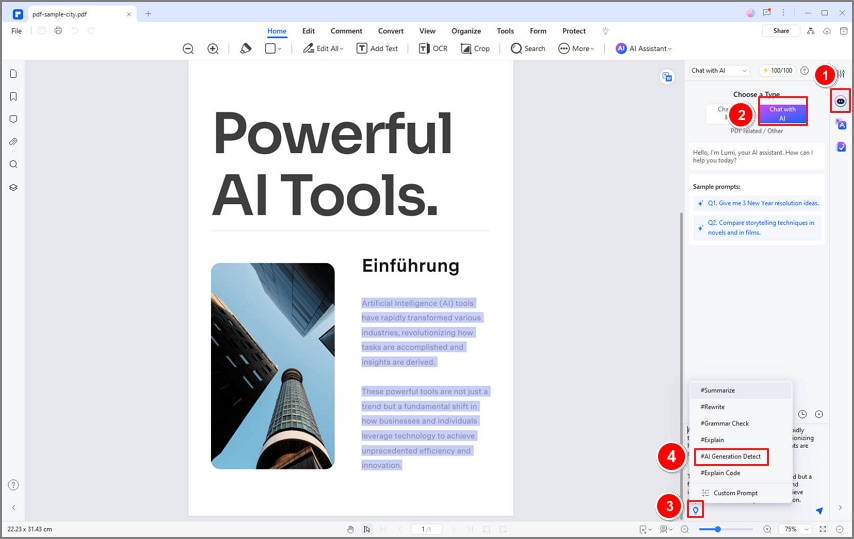
A screenshot of the AI writing detect command interface.
- For swift access, highlight the text directly within your PDF. Click on the "AI" button in the floating toolbar and choose the "AI Generation Detect" option.
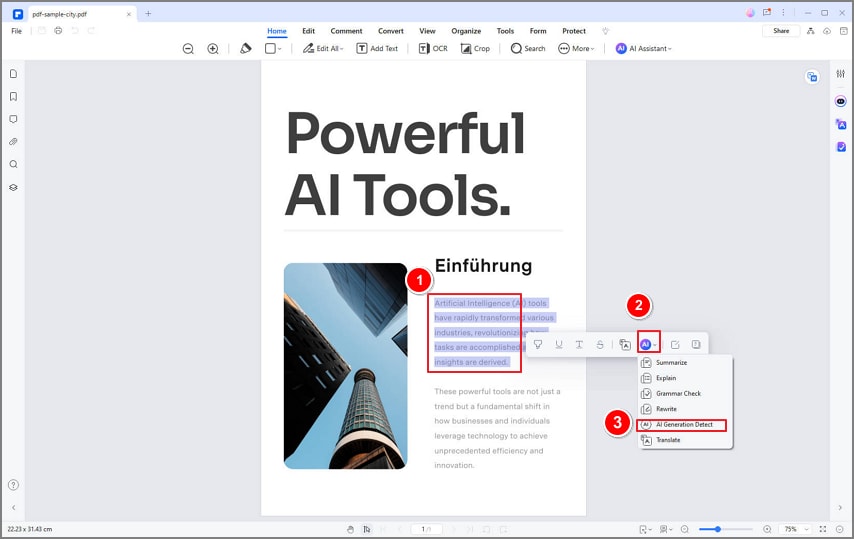
A screenshot of the floating AI detection toolbar.
- Lumi will swiftly analyze the provided text to determine whether it's Human-Written, AI-Written, or Partially AI-Written. Any AI-generated segments will be clearly highlighted for your convenience.
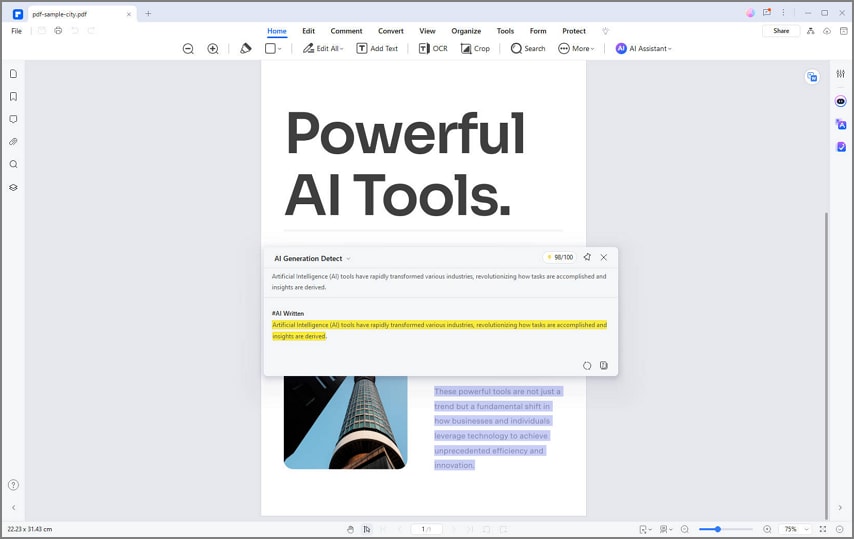
A screenshot displaying AI detection results from the floating toolbar.