

Extract data from PDF.
PDFelement can assist you in extracting data from fillable form fields and other kinds of PDFs to CSV files, where you can manage the collected data.
Index
1. Extract data from PDF form fields.
- If your PDF file is the fillable form, you can click the "Form" > "Extract Data" button, then select the option of "Extract data from form fields in PDF" and click the "Apply" button. If your PDF file does not contain the fillable form, please refer to the chapters of "How to Turn PDF to Fillable Form Automatically" or "How to Make Fillable PDF Form Manually" to create the fillable forms first. (If you have not installed the OCR plugin yet, when you click the "Extract Data" button, it will ask you to download OCR first.)
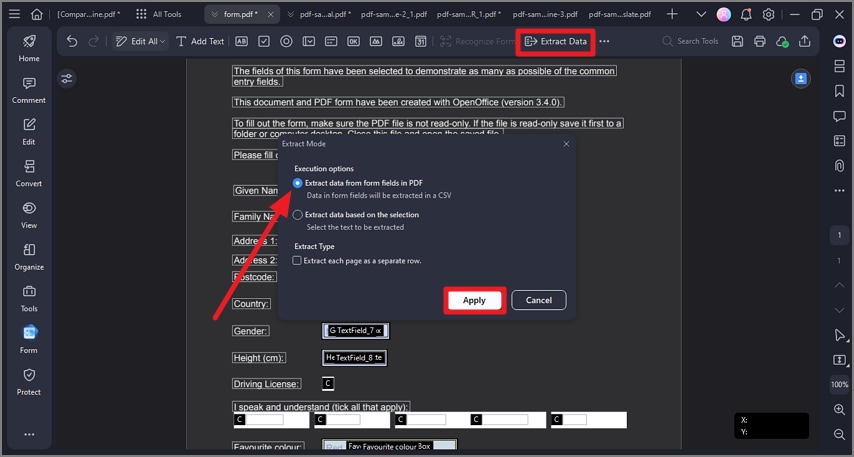
A screenshot of the data extraction dialog showing form fields settings for extraction.
2. Extract data from selected PDF text.
- If your PDF file does not contain any form fields, you can still use our program to extract data from the marked areas whether it is a scanned PDF or a regular PDF.
- After opening your PDF file in the program, click the "Form">"Extract Data" button and choose "Extract data based on selection".
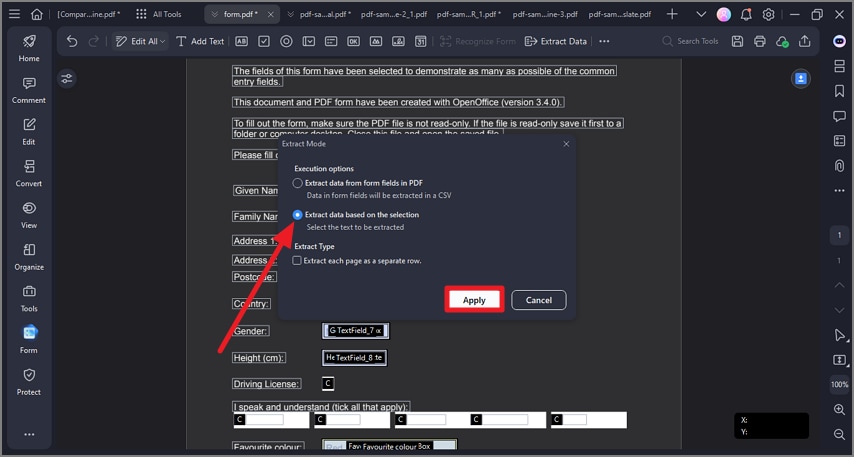
A screenshot of the data extraction dialog showing the extract data based on the selection option.
- Click the "Apply" button, then use your mouse to select the area in the pages you want to extract, and choose the language of your file in the "Languages Recognition" tab.
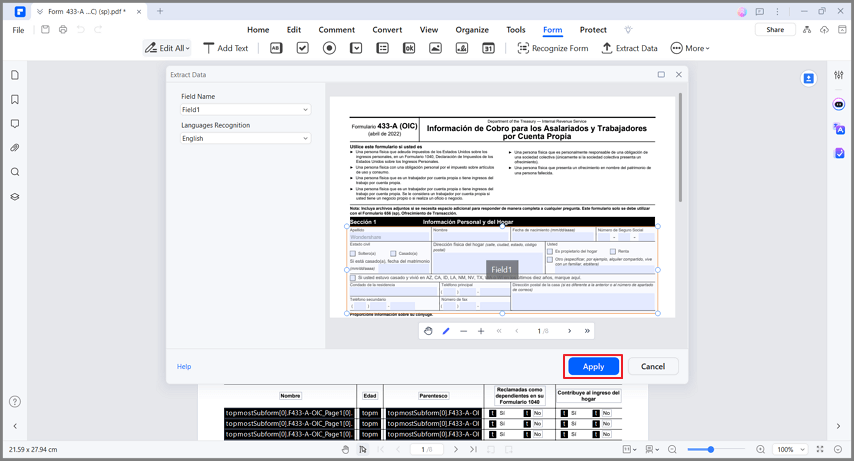
A screenshot of the extraction interface displaying selected data regions.
- After selecting all the areas you want to extract, please set the language of the selected texts in the "Language Recognition" option. Next, click the "Apply" button, then save the .csv file in your local folder.
3. Extract data for batch process.
The batch process is an excellent tool if you have a form that has been filled in multiple times to collect different data, or if you have PDFs that you need to extract data from the same area.
- After opening the program, please click the "Tool" > "Batch Process" > "Extract Data" button.
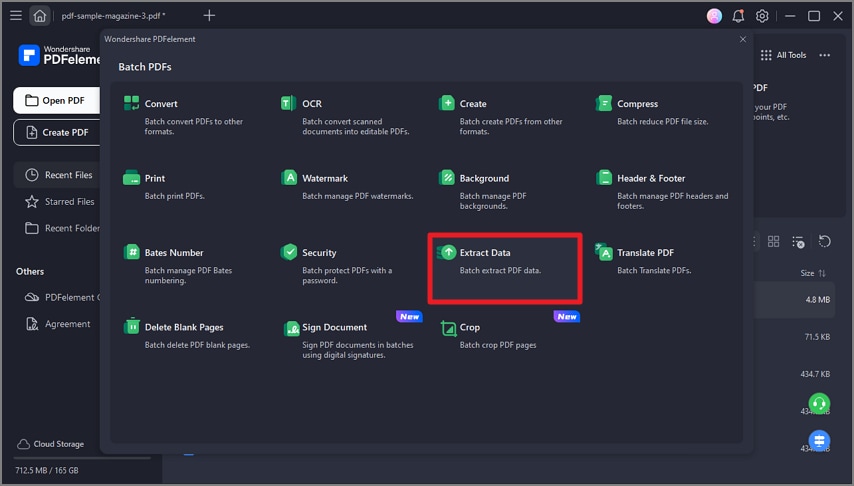
A screenshot of the homepage showing the extract data feature.
- In the Extract Data window, add multiple files whose data you want to collect. Please note data extraction process is only supported on documents with form fields. If you add non-interactive forms, there will be a " " mark in the document's status. Click the "..." button to select the output folder. Next, click "Apply" to start the process. After completing, you can open the extracted .csv file in the output folder.
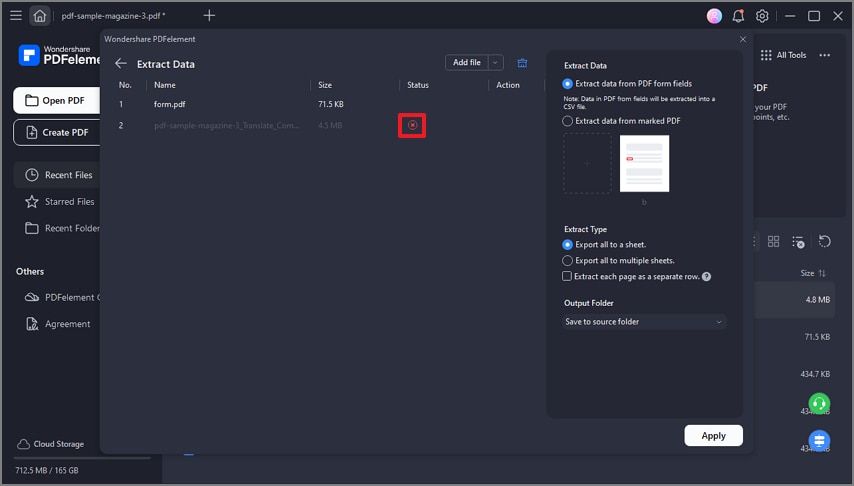
A screenshot of the batch extraction settings showing applied configurations.