
How to Extract Pages from PDF on Mac
This feature allows you to select single or multiple pages from any PDF document and save them as a separate file for easier sharing or focused review. PDFelement's organized page view displays thumbnails for easy selection, and you can choose pages by clicking them individually or selecting a range. Follow the steps mentioned below to learn how to extract pages from a document with PDFelement:
Step 1. Once you have opened the document within the tool's interface, go to the sidebar on the left and press the "Organize" button. In the toolbar located at the top, choose and click on the "Extract" option.
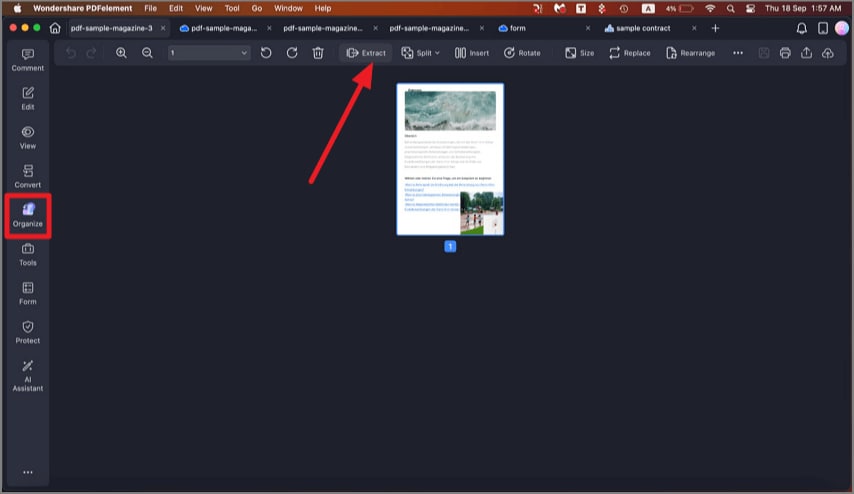
A screenshot of the Organize panel highlighting the extract feature.
Step 2. In the following small window, click on the "OK" button after configuring the extraction settings in the following interface.
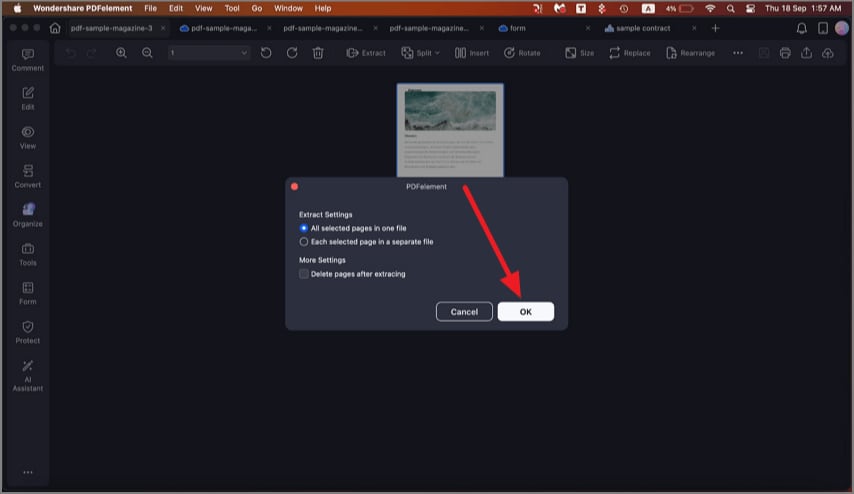
A screenshot of the extract pages dialog.