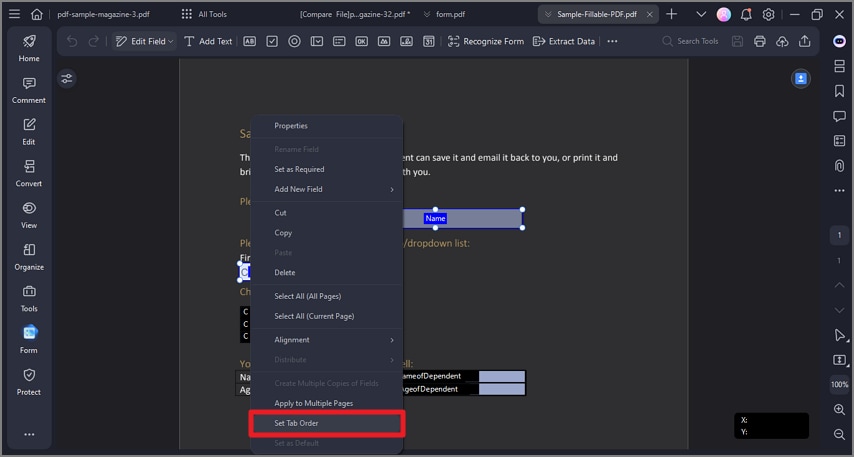
PDF form properties.
When you add the text field, check box or radio button, etc., you can drag the edge of the box to resize it or move it to another place. Press the Delete key to delete it. When you open an interactive form in PDFelement, you can right-click a form field and select the "Properties" option to change the settings of the field in the pop-up Properties dialog box. For different fields or boxes, you will get different properties. Here is an example of the Text Field Properties:
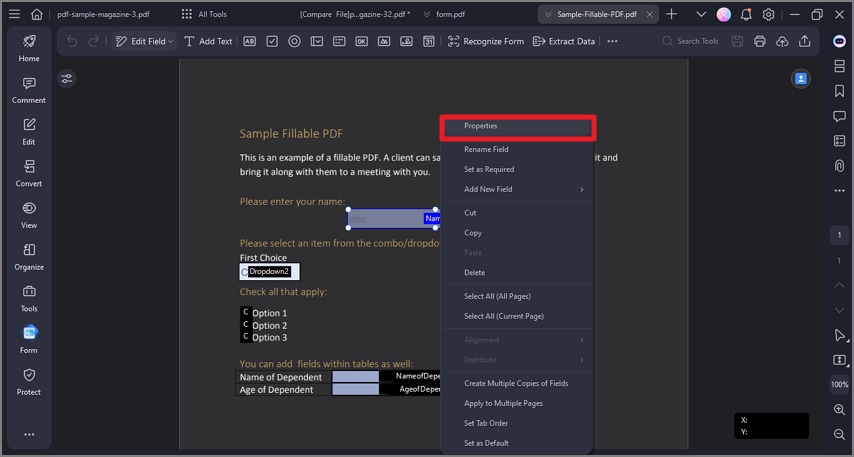
(Note: You can hold the Ctrl key and select multiple fields or boxes at the same time, right-click one to choose Properties, and the common properties will be enabled to change. Then the properties for all the selected fields or boxes will be changed)
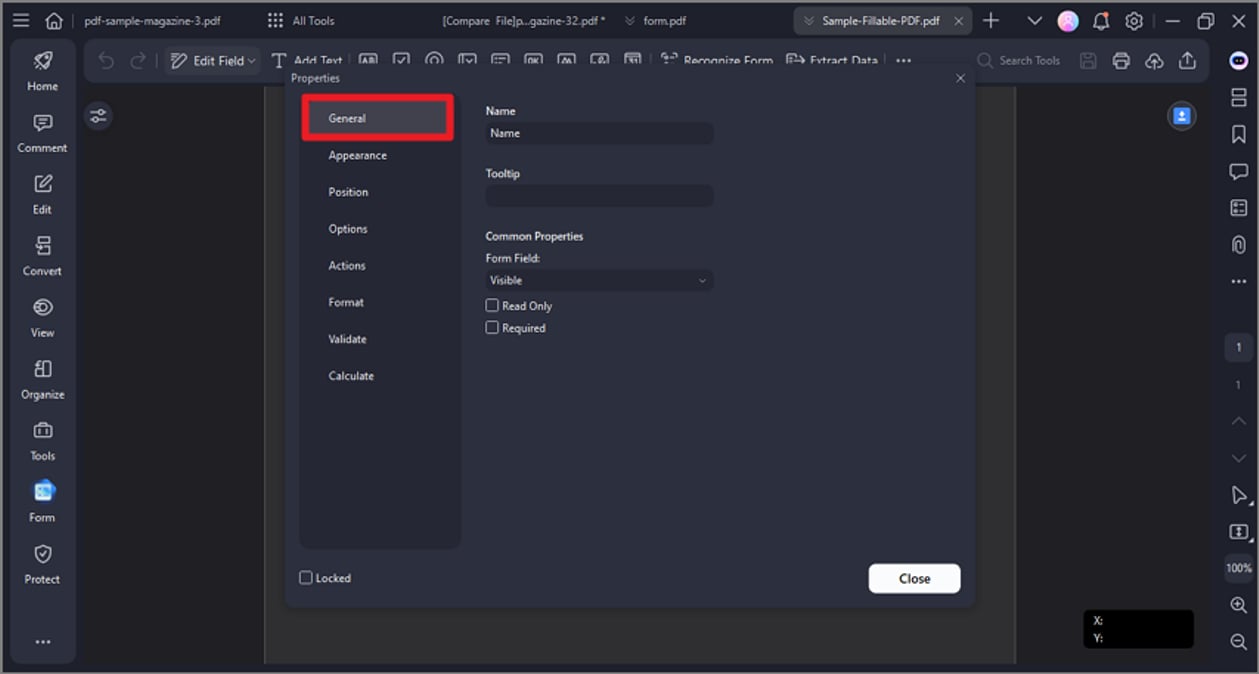
- General: You can set the field name, tooltip, and common properties.
- Appearance: You can set borders and colors, and the font/size/color of the filled-in text.
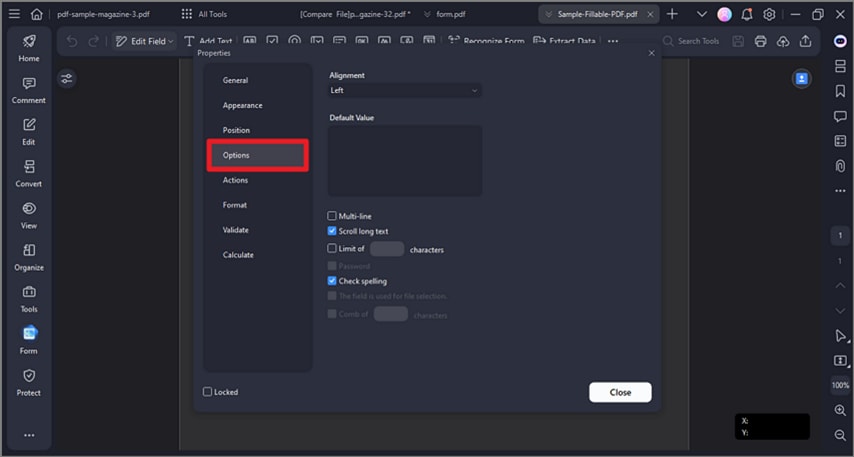
- Options: You can set the alignment of the filled-in text and the default value of the field. Set multi-line, scroll long-text, password, or limit the characters available for that text field. It also has the spell check function of the filled-in text.
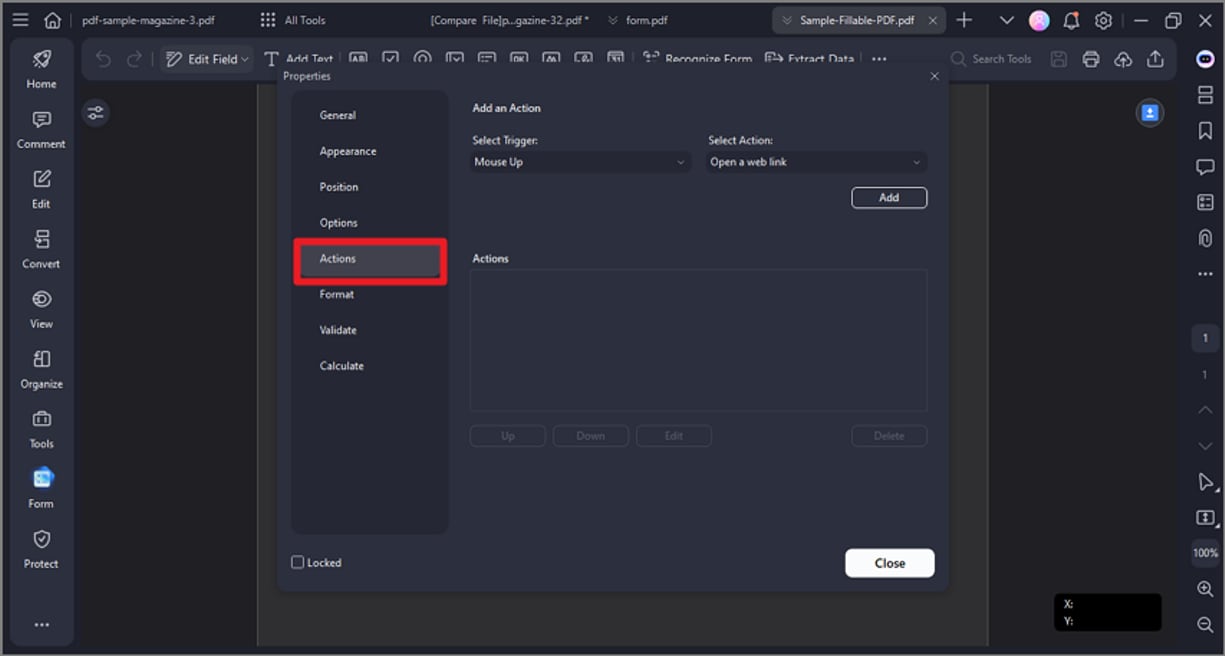
- Actions: You can set the field actions. For example, you can choose "Open a web link" in the "Action", and click the "Add" button to enter the website link in the new dialog box.
- Format: Set the format category for this field.
- Validate: Set the value of this field.
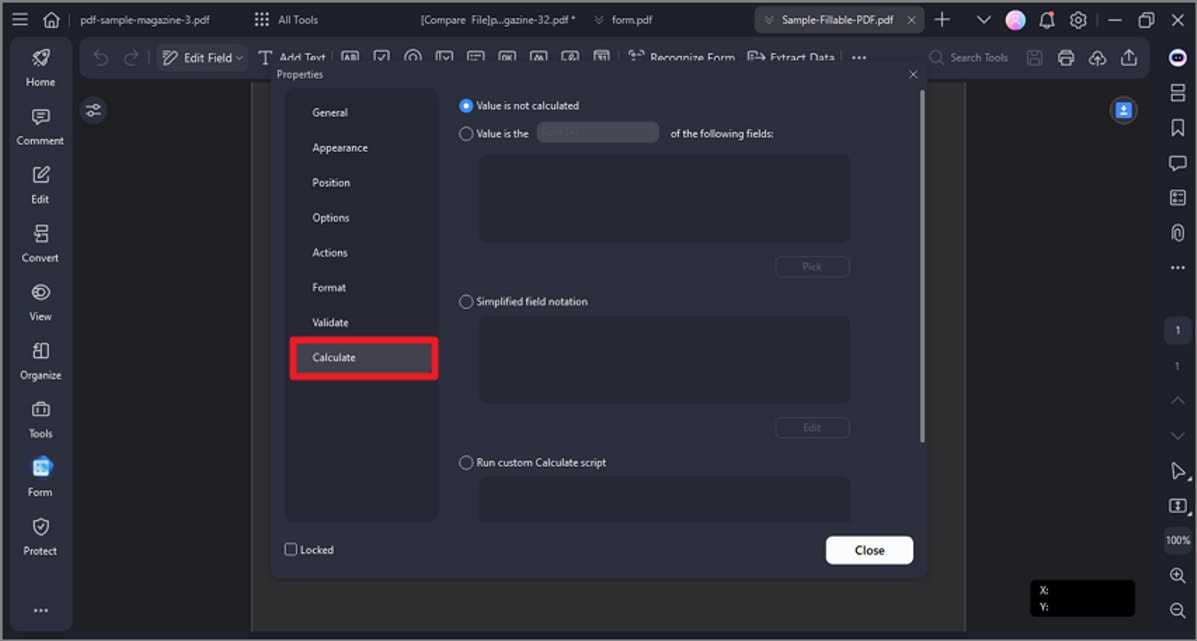
- Calculate: Set the calculation of the fields. Choose the calculation as you want, and click the "Pick" button to pick the fields that you want to calculate. For example, the following is the Cash [Year 1] properties, so it means Cash [Year 1] = Cash [Year 2] + Cash [Year 3].
Set tab order.
You can set the tab order of the form field you created. The order number will show in the top left corner of the form field. By default, the tab order is the order of creating these fields and buttons. You can change to set the tab order as needed. The tab order will decide the order of data when you try to extract data from the PDF form using the Extract Data feature.
- After opening the interactive form PDF file in PDFelement, please a form field, then right-click it to choose "Set Tab Order".
- The default order will show, then you can click the field or button one by one as the new order you want. After setting, click the "Preview" button, and fill in the field or button using the Tab key in the order you set.