

How to Decline to Sign
PDFelement is an all-in-one PDF editing tool with a "Decline to Sign" feature, enabling users to refuse document signatures, while accepting and editing them.
Sometimes, you receive documents for agreement but might not want to sign them. Refusing to sign can protect you from potential legal or personal risks, ensuring your consent is not misused. If you have such documents, follow this guide to understand how to use the "Decline to Sign" feature effectively.
- Upon reaching the homepage of PDFelement after downloading and installing this tool, navigate to the "Agreement" section on the left side. You'll now see the documents you've received for adding a signature. Tap on the document you wish to review and decline to sign.
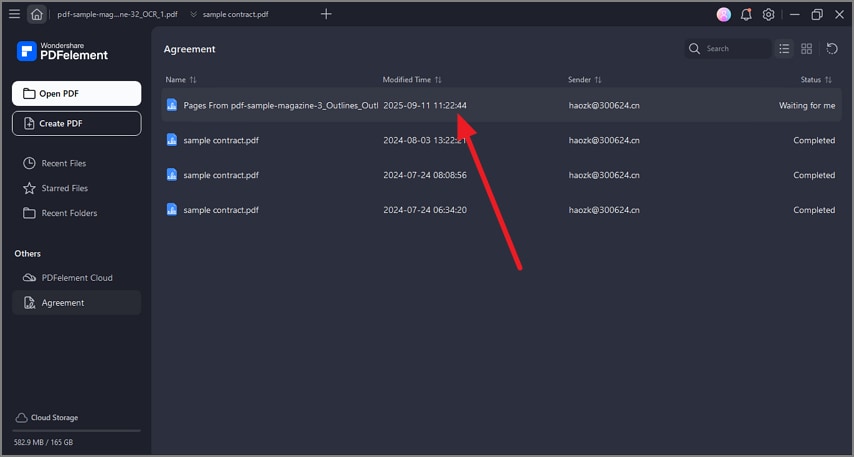
A screenshot of the agreement document list.
- When the document is opened within the Fill & Sign interface, head to the “Horizontal Three-Dotted” icon and choose the “Decline to Sign” option from the drop-down menu.
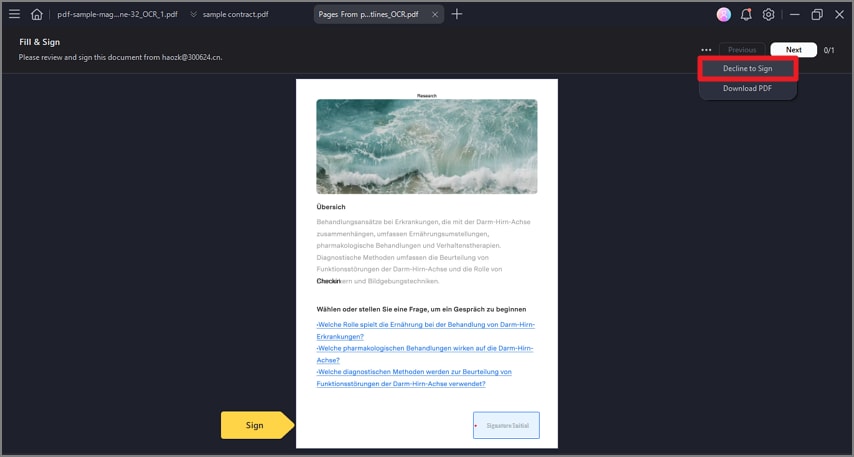
A screenshot of the agreement interface showing the decline option.
- In the “Decline to Sign” dialogue box, write down the reason for not signing the document in the provided text space. After doing so, hit the "Decline" button to confirm your decision and prevent the document from being signed.
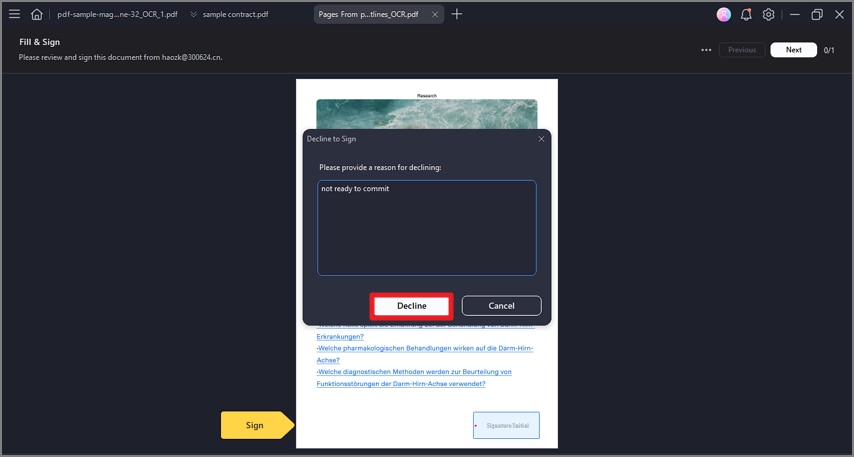
A screenshot of a dialog displaying a text field for entering a decline reason.