

How to Use Intelligent Image Editing
PDFelement goes beyond your imagination and offers intelligent technology that seamlessly helps you translate, rewrite, and summarize PDF.
One of the latest and most advanced AI features of this software is Intelligent Image Editing, which includes various tools. You can remove the background, enhance the quality of the image, generate objects or persons, and more. Other than that, there are various editing options as well, like opacity and changing the rotation. Let’s learn how to use this feature to edit PDF images with the following steps:
How to Use Intelligent Image Editing
-
After you click the “Open PDF” button and import the PDF, choose any image to open a side vertical toolbar. Now, press the “Intelligent Image Editing” icon from the menu and open a new dialogue box.
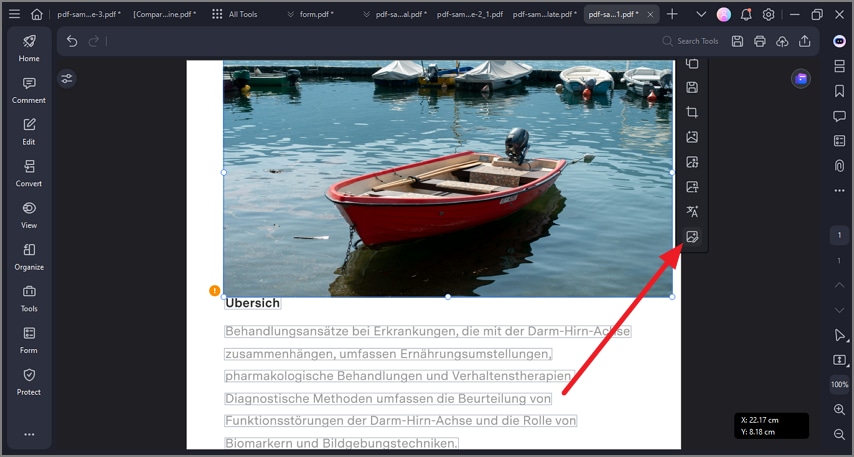 A screenshot of the tools panel highlighting the AI Image Editing option.
 -
From under the “Intelligent Tools” section, access all the image editing tools that you can use one by one.
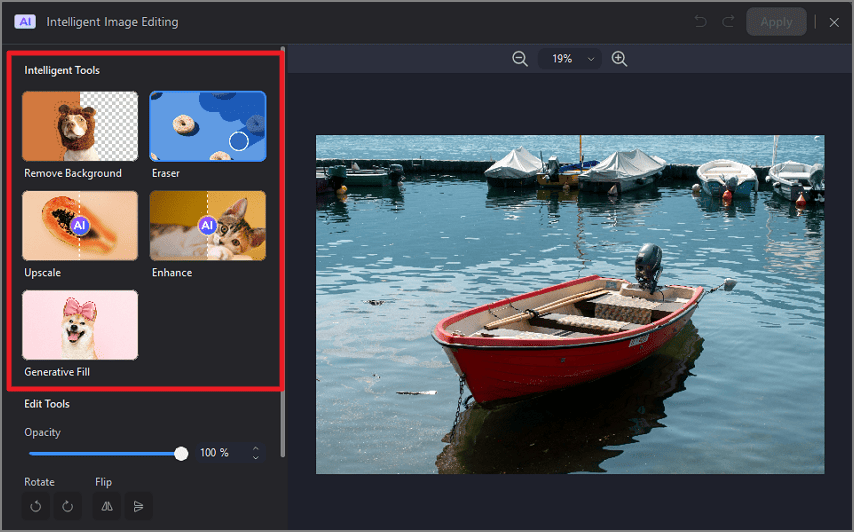 A screenshot of the intelligent image editing interface highlighting the Eraser tool.
 -
On the “Eraser” option, set the “Size” from the scale or choose from the drop-down “20(pt)” option and choose an object in the image. Once selected, hit the “Perform Removal” button to start the removal process.
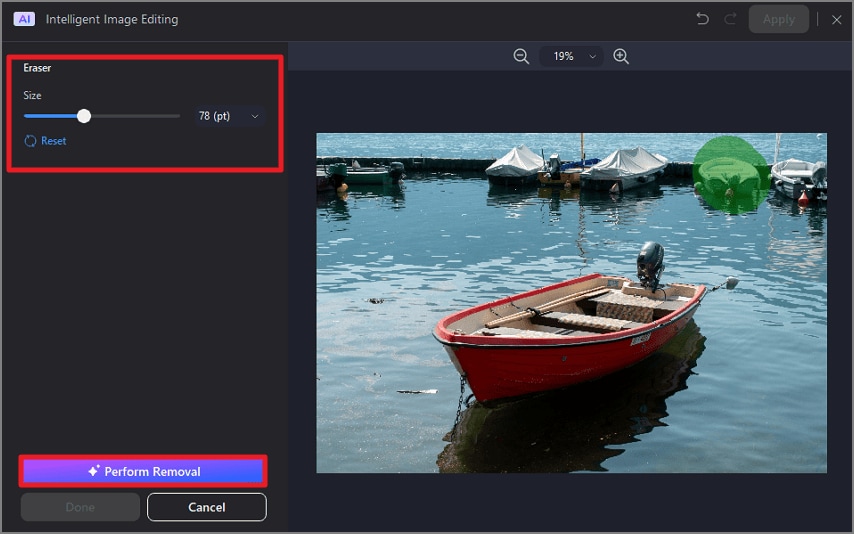 A screenshot showing an object selected for removal.
 -
Now, head to the “Upscale” tool, choose any upscale options from “2X” to “8X” quality, and press “Done” when the image is upscaled.
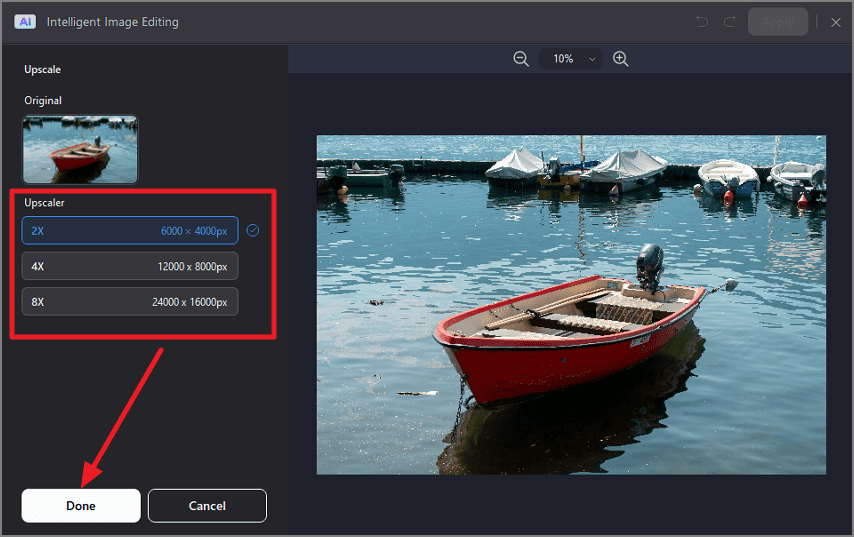 A screenshot of the image enhancement panel showing the upscale option.
 -
Upon clicking the “Enhance” tool, the enhancement process will automatically start and display results in a separate window. If satisfied, press the “Done” button and proceed.
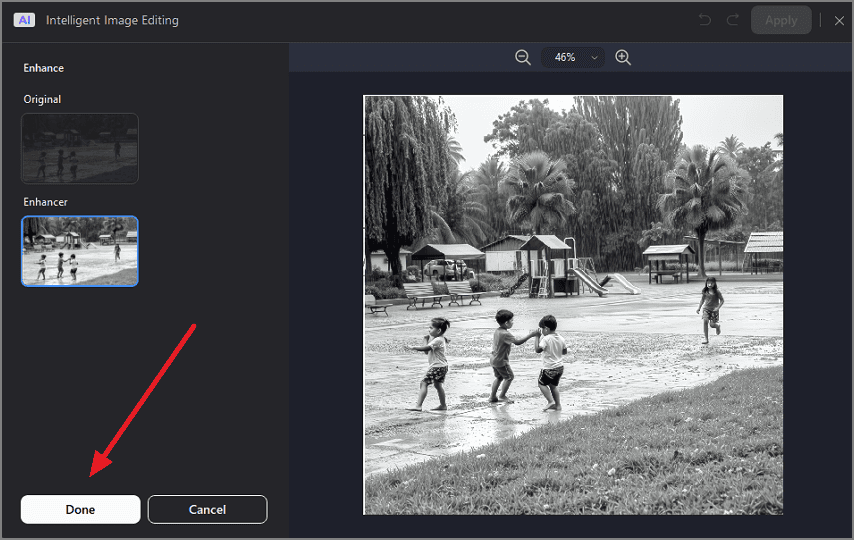 A screenshot displaying an enhanced image result.
 -
After the “Generative Fill” tool is opened, write the desired prompt under the “Make Whatever You Image” section box and adjust the “Brush Size” option. Next, highlight the area where you want to generate the image and press “Generate.”
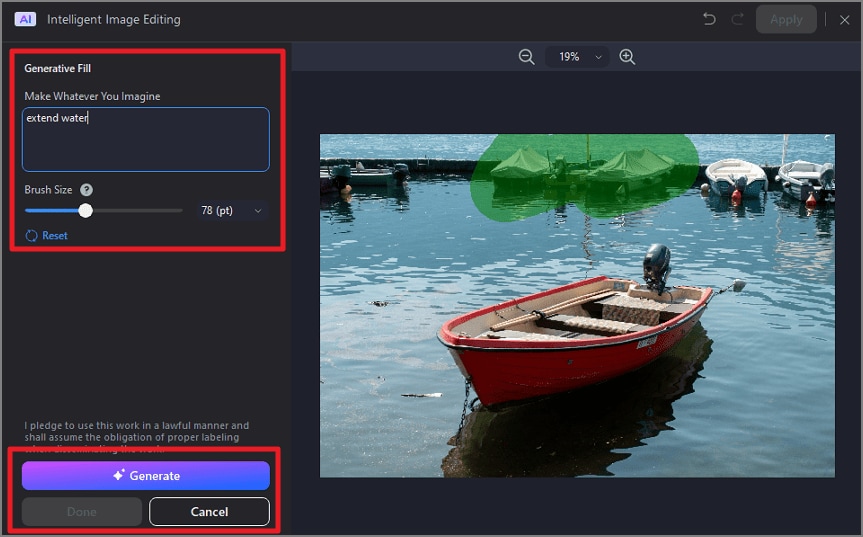 A screenshot of the generative fill interface showing an object generated.
 -
Afterward, choose the “Remove Background” option from the main “Intelligent Image Editing” window, and hit “Apply” when the background is removed.
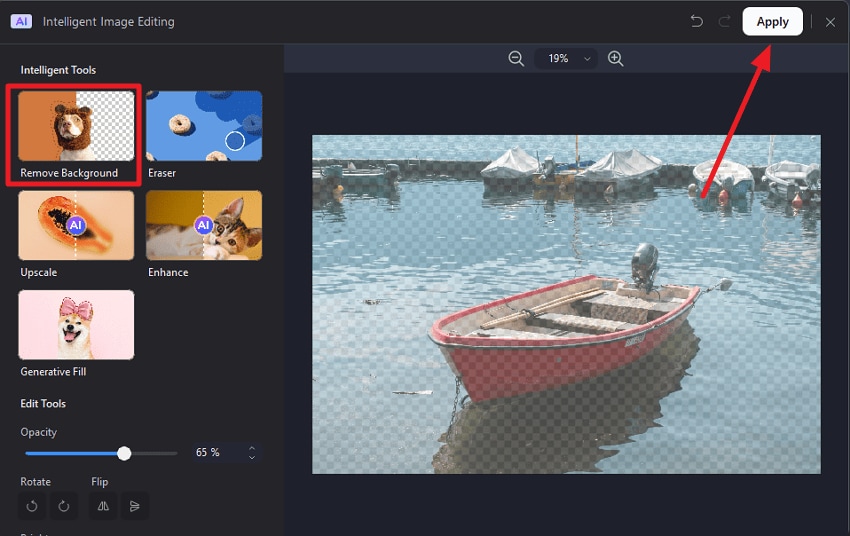 A screenshot of the intelligent image editing interface highlighting the background removal tool.