

How to Open PDF on Mac from Homepage
You can open PDF files from the Homepage of the program.
- After opening PDFelement for Mac, click the "Open" button or the "Create PDF" button in the Tool Tab and browse your computer to open a PDF file, or select multiple PDF files to open them at once.
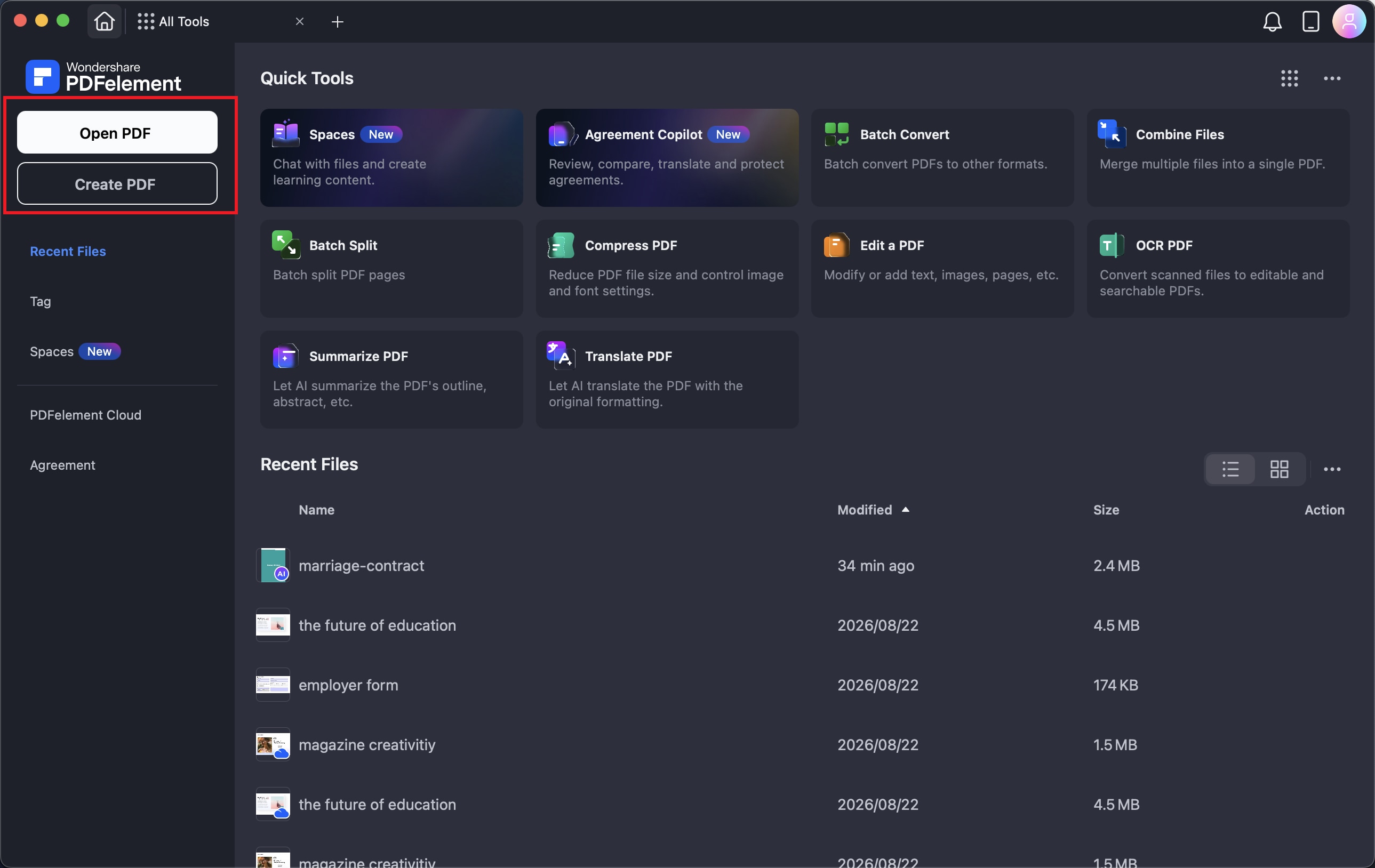
A screenshot of the homepage showing the option to open a PDF.
- You can choose a PDF file under the Recent List and open it directly.
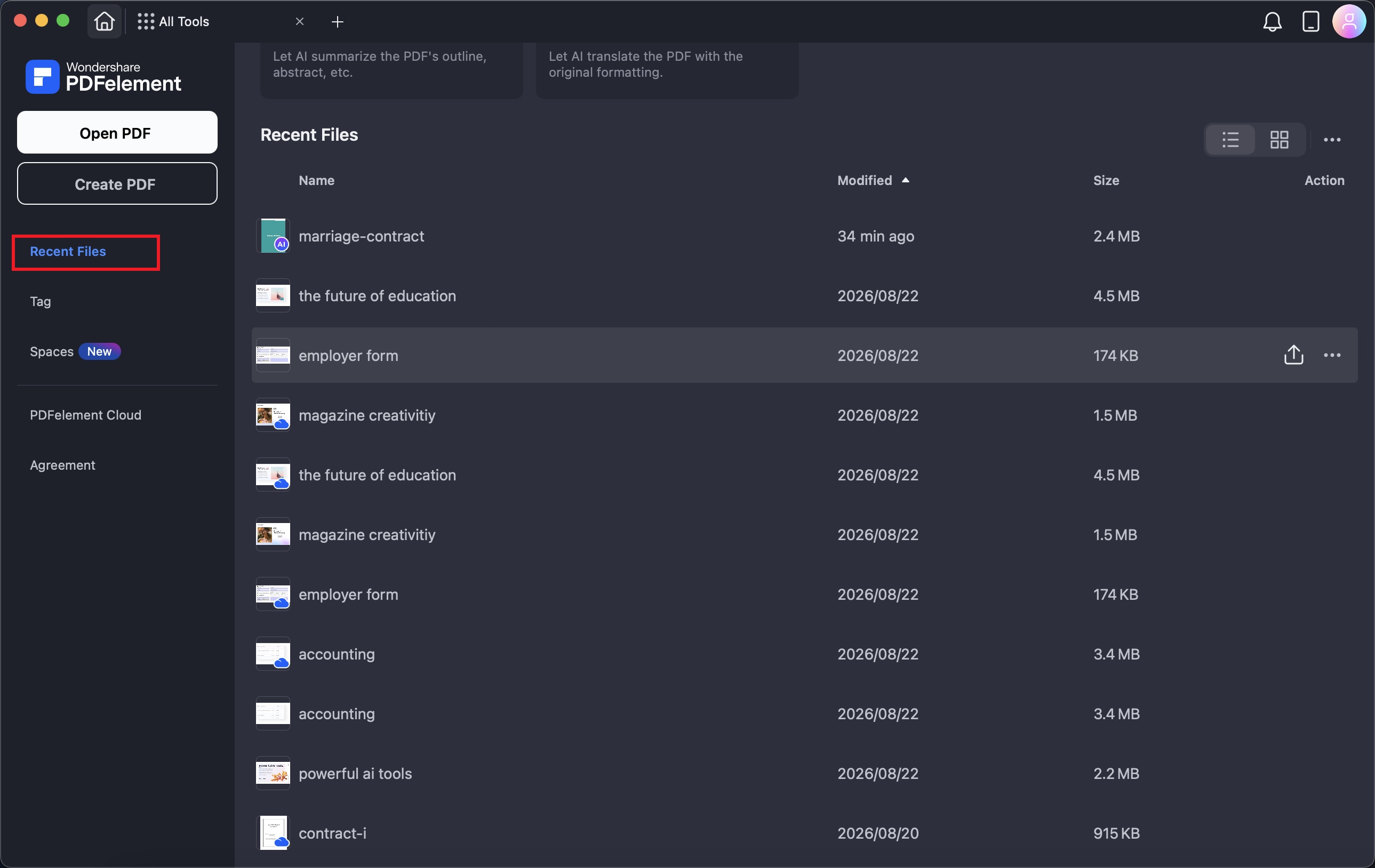
A screenshot of the recent files list displaying a PDF.
- If you have already saved files in Wondershare Cloud, you can open files from the "PDFelement Cloud" tab by clicking the file icon or the "Open" option under the "..." button. Note: Please click the "Refresh" button first to make sure you always open the latest version of the document.
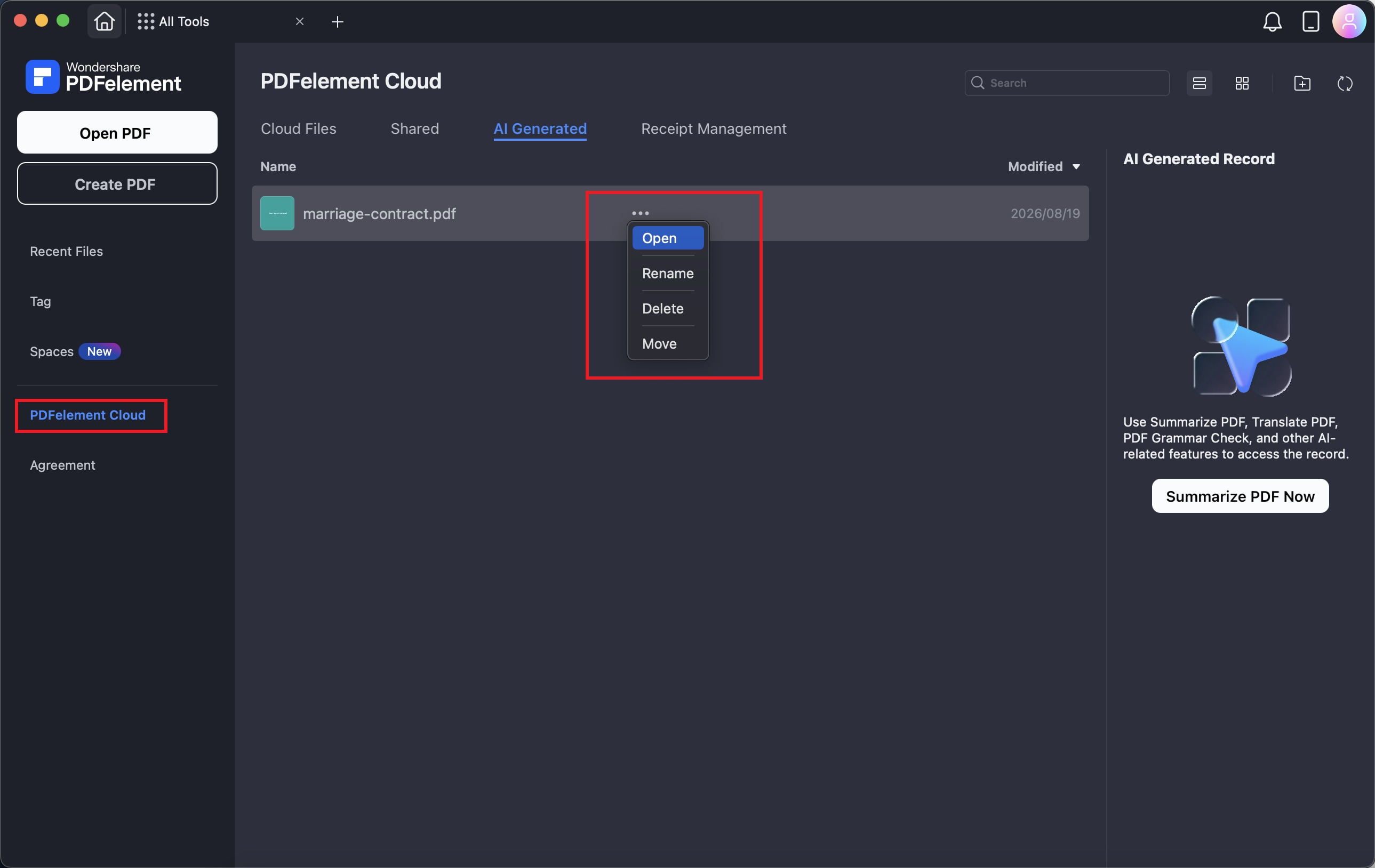
A screenshot of the cloud file browser showing a PDF selected.
- If you have used tags to organize your PDFs, you can directly go to the Tag tab to open them easily.
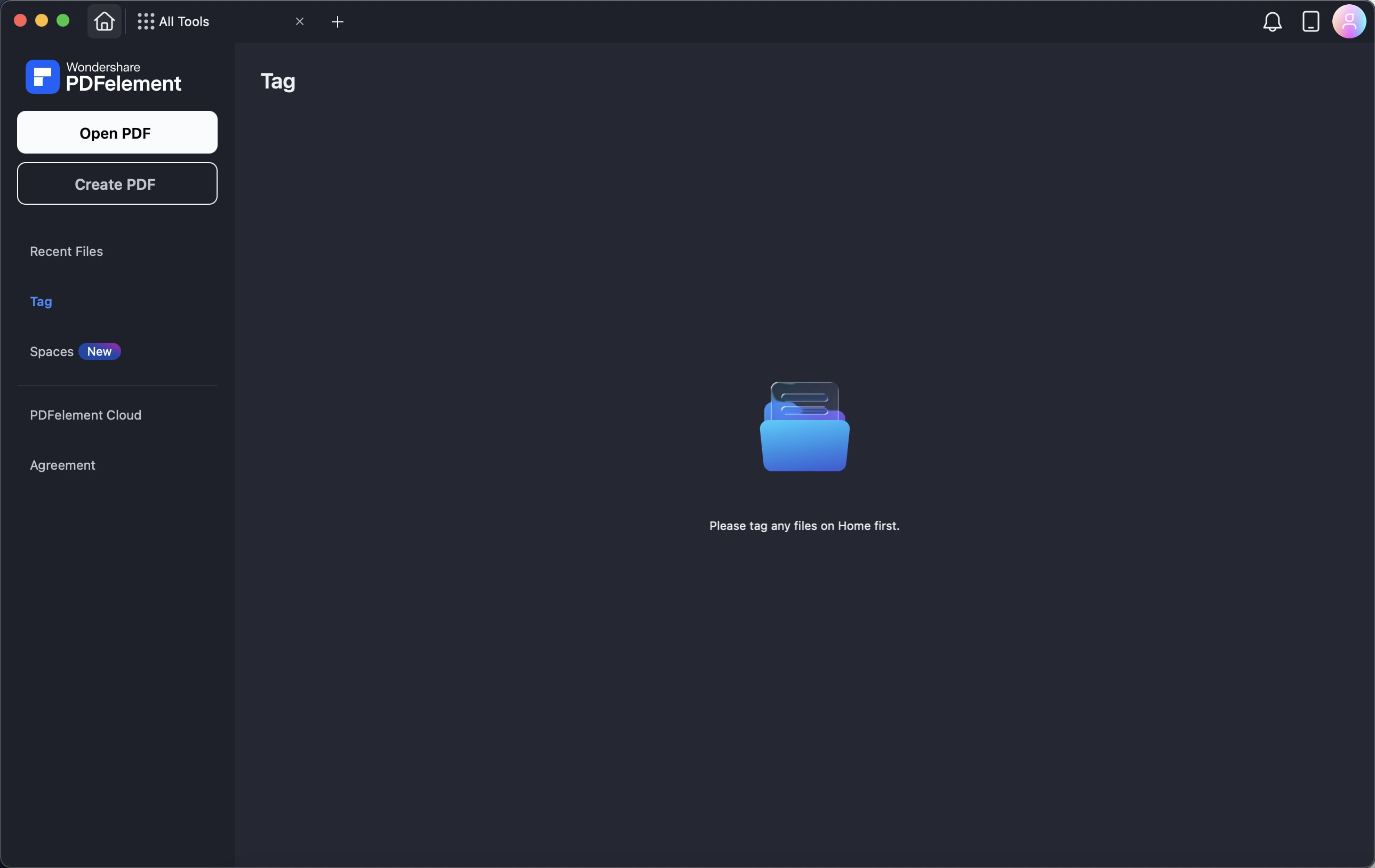
A screenshot of the tagged files list displaying the PDFs.