

How to Print PDF on Mac
- Click the "File" > "Print" button on the toolbar or hit "Command + P" on the keyboards to activate the print command window.
- In the pop-up Print window, choose the printer, set the copies you need to print and customize the pages. You can preview the printed document in the preview window.
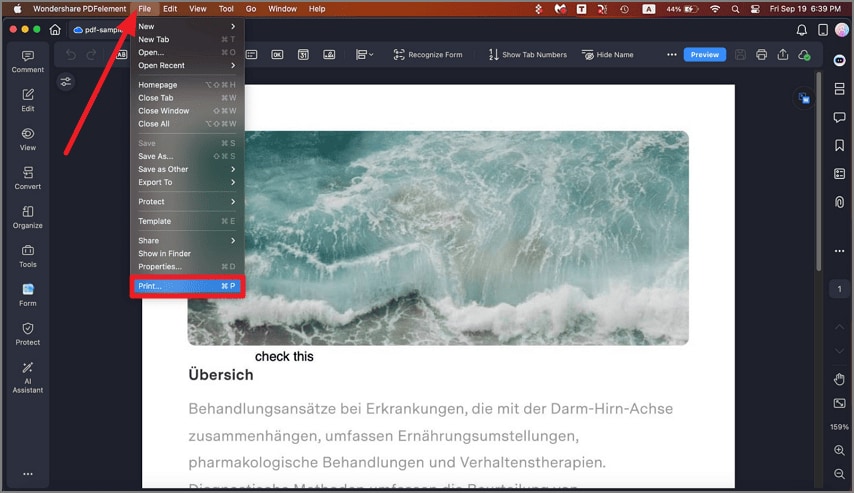
A screenshot of the File menu highlighting the Print option.
- In "Show details" at the bottom, you can choose the paper size, orientation, boarder, etc.
- After the settings, click "Print", and then you will get the paper copy.
If you experience a failure to edit the PDF text after clicking the "Text" button, or if the converted word file is non-editable, you may need to perform OCR on these files first.
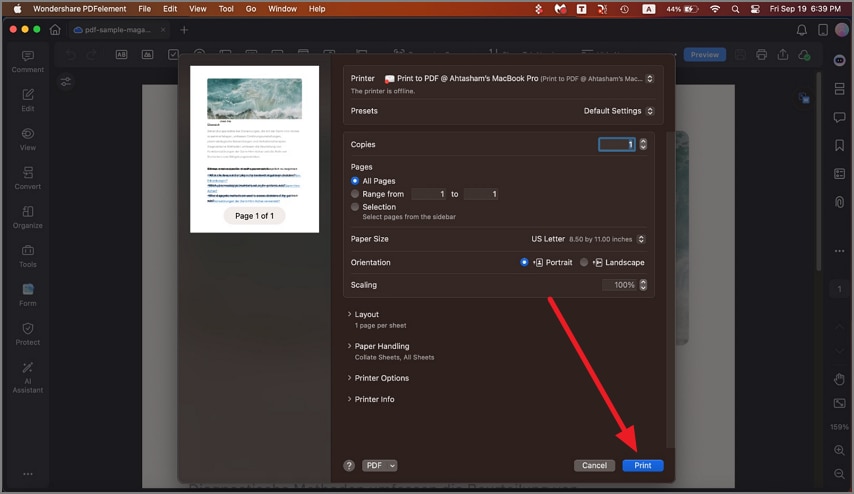
A screenshot of the print dialog showing copy settings.