

Index
How to Read PDF Files
PDFelement offers a rich and versatile PDF reading experience designed to enhance user engagement and comprehension. It provides several reading modes which users can select and customize according to their needs.
View PDF in Full Screen
- Open the document in PDFelement, access the right sidebar, click “More Viewing Mode,” and choose “Full Screen.” Press ESC to exit.
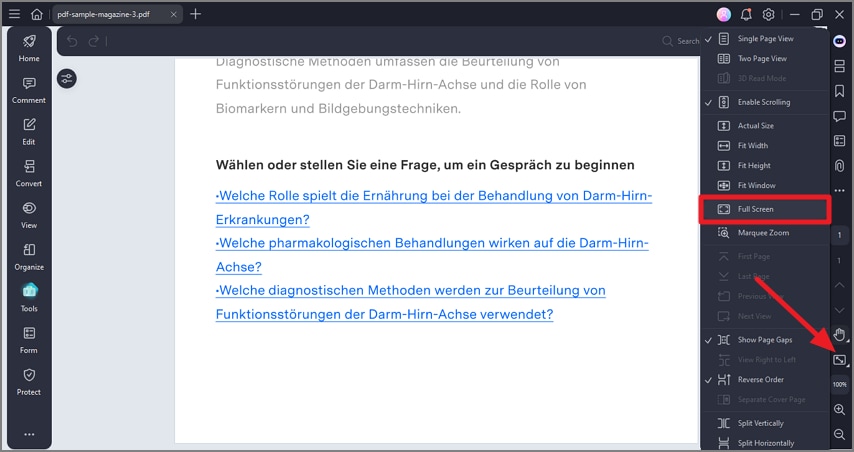
A screenshot of the view options menu showing full-screen mode option.
Adjust Reading Background
- Click “View” on the left sidebar, select “Background,” and choose a background color or style for your reading mode.
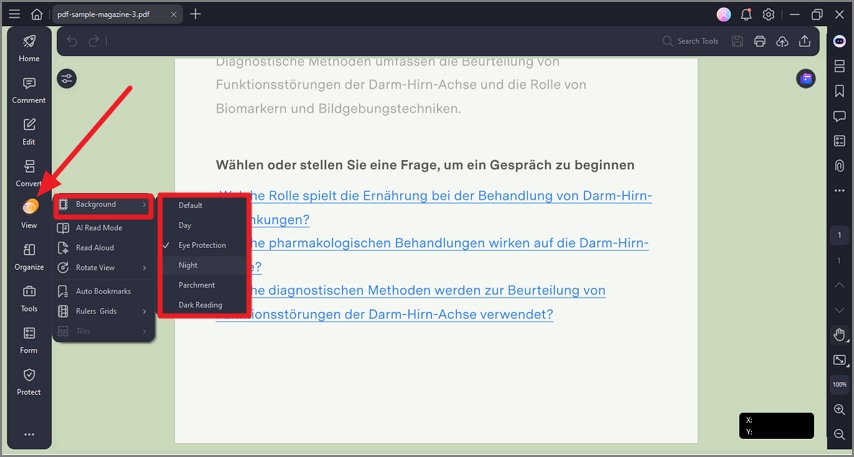
A screenshot of the reading settings showing background color adjustment options.
Change Page Orientation
- Go to “View” > “Rotate View” to rotate the document clockwise or counterclockwise as needed.
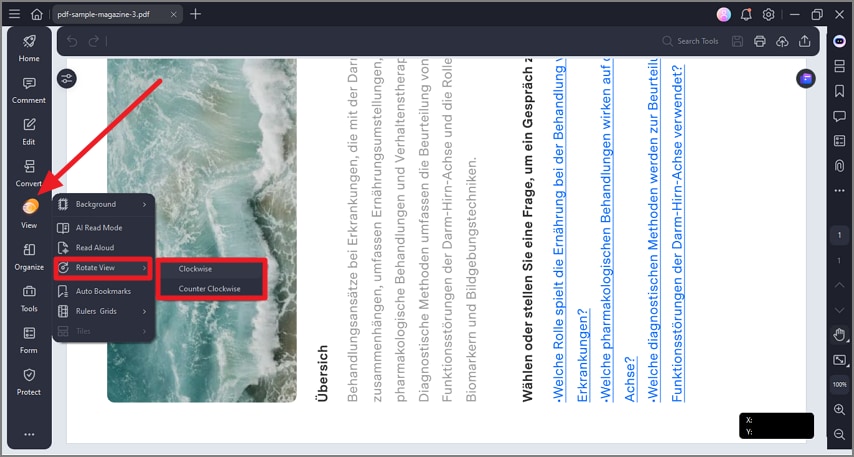
A screenshot of the page settings displaying orientation options.
Page Viewing Options
- Select “More View Modes” to choose “Single View,” “Two Page View,” or enable scrolling for continuous reading.
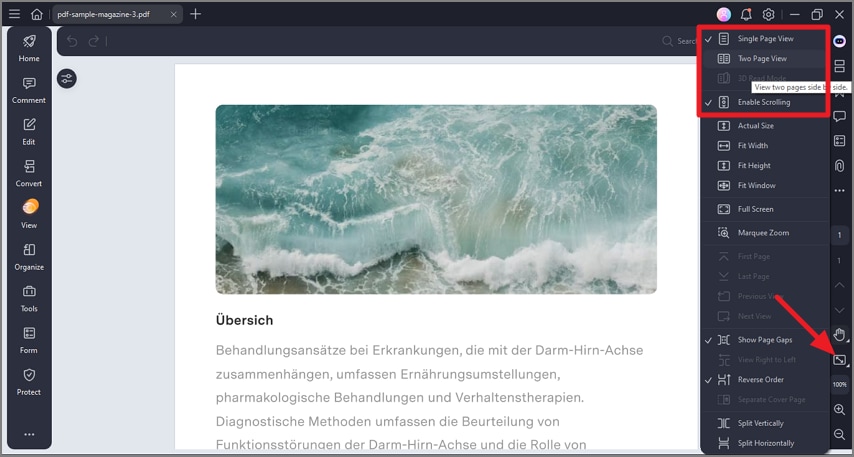
A screenshot of the interface showing page viewing configuration options.
Multiple Page Layout Options
- Click “More View Modes” and choose “Fit Window,” “Fit Width or Height,” or “Actual Size” as preferred.
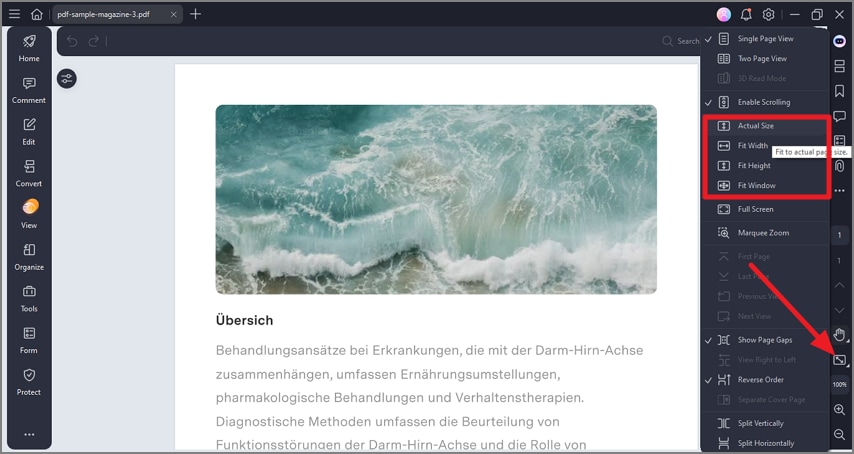
A screenshot of the layout menu displaying multiple page arrangement options.
Adjust View Preferences
- Click the “Three Bars” icon at the top-left, open “Preferences,” expand “Default Page Layout,” select your option, and click “Apply.”
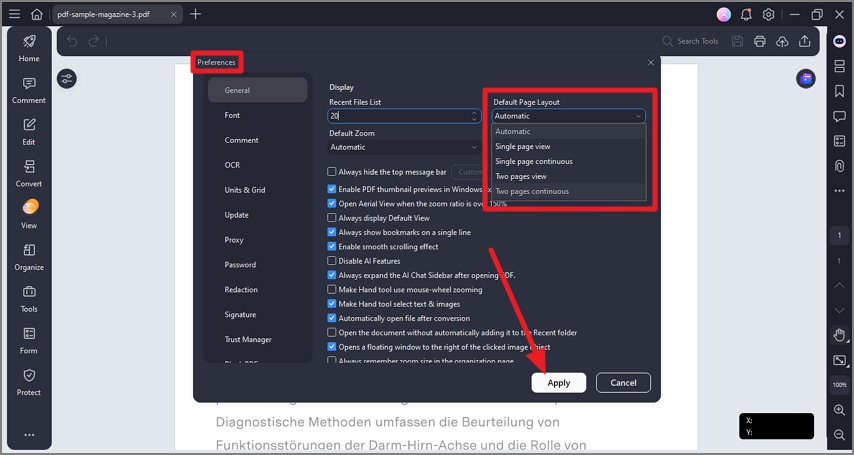
A screenshot of the view preferences panel with adjustable display settings.
AI Read Mode
- Click “View” on the left sidebar and choose “AI Read Mode” to enter. Use the bottom toolbar and right panel to chat with the document and access AI reading features.
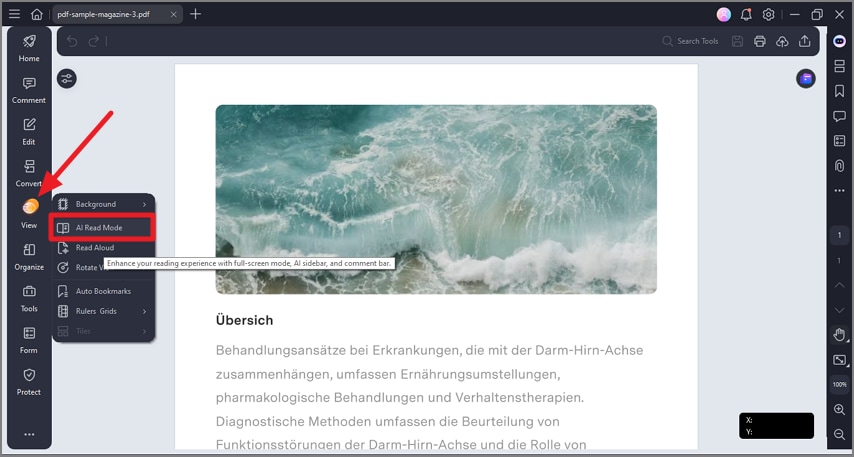
A screenshot of the interface highlighting the AI Read Mode option.
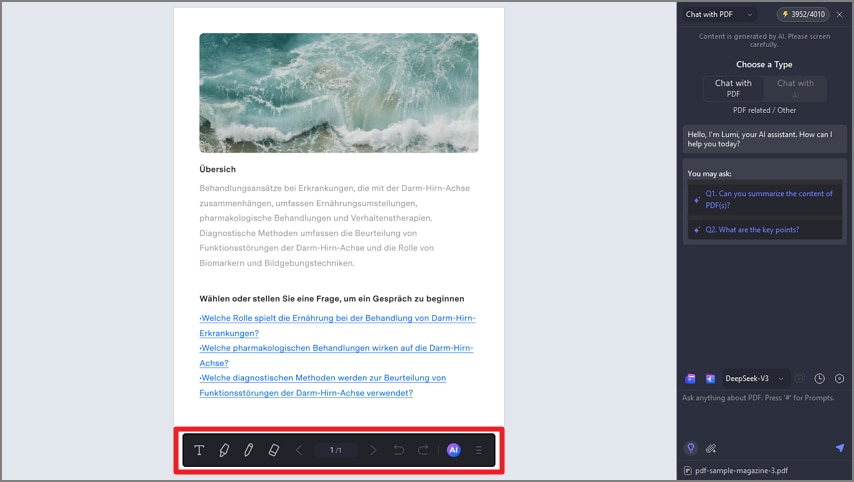
A screenshot of a document displayed in AI reading mode.
Read Aloud Mode
- Click “View” on the left sidebar and select “Read Aloud.” The tool narrates the text. Use Pause/Stop options, configure via Settings, then click Apply.
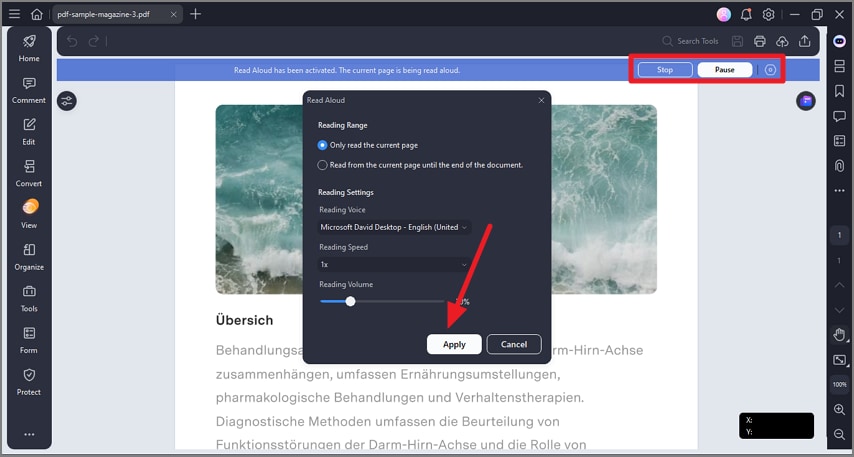
A screenshot of the reading controls showing the Read Aloud option enabled.