How to Read PDF with PDFelement for Mac
PDFelement for Mac delivers an engaging and flexible PDF reading experience tailored to improve user interaction and understanding. The tool features multiple reading modes, allowing users to choose the one that best suits their preferences. Additionally, these modes can be personalized to meet individual needs and requirements. Below is an overview of the reading options available in PDFelement for Mac and steps on how to utilize them effectively:
1. Document Layout
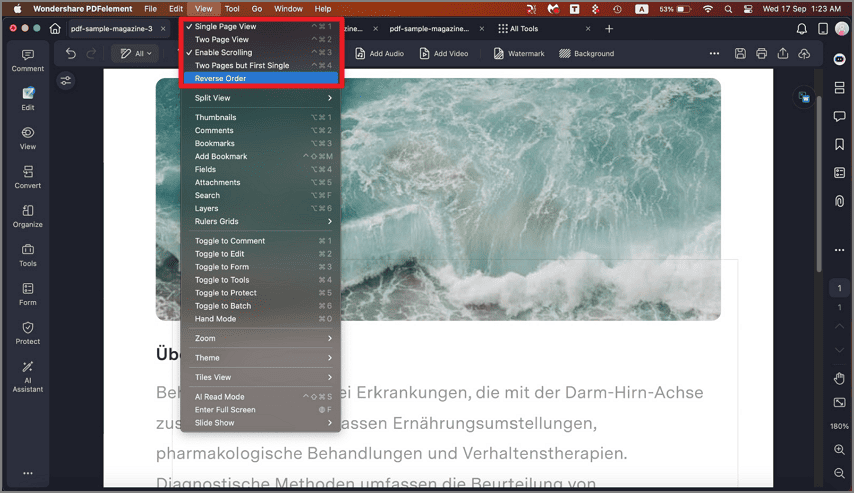
Begin by opening PDFelement on your Mac and importing your document. Now, head to the top menu bar and click on the "View" option. Next, choose the "Page View" from the options provided for your page layout.
- Single Page View: View one page in the document pane at a time.
- Enable Scrolling: Arrange pages in the document pane in a continuous vertical column with scrolling enabled.
- Two Page View: Arrange pages side by side, displaying two pages at a time.
- Two Page Scrolling: Arrange pages side by side in a continuous vertical column with scrolling enabled.
2. Layout from View More
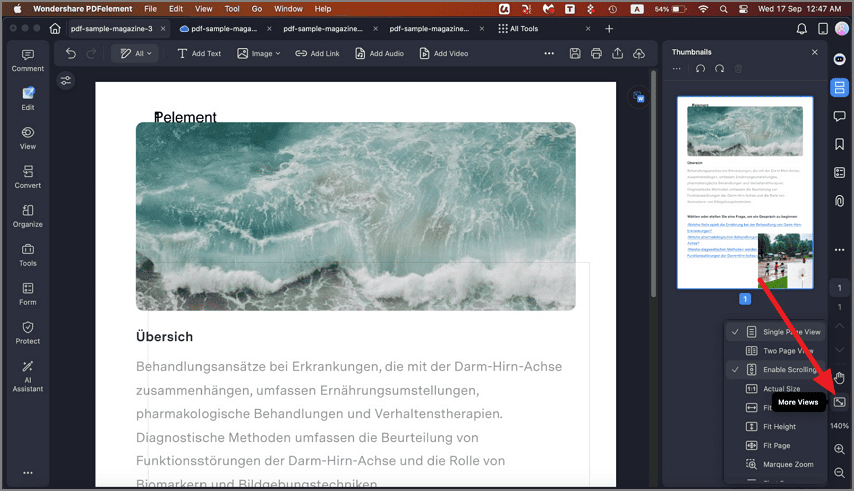
Another method to select the layout for page viewing is to access the sidebar on the right and choose the "More View Mode" option. From here, select the layout of your choice and click on it.
3. Zoom
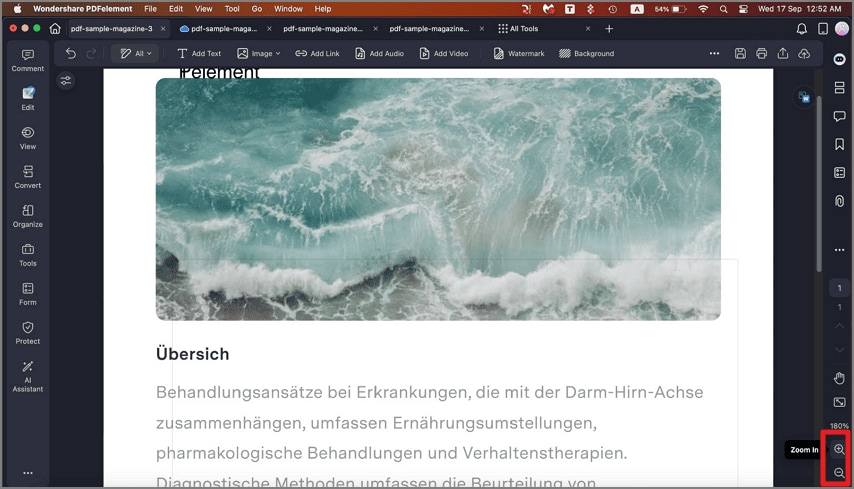
To read the PDF in zoom in or zoom out mode, head to the right sidebar and click on the respective "Magnifying Glass" icon. You can increase and decrease the zoom according to your preferences.
4. Split View
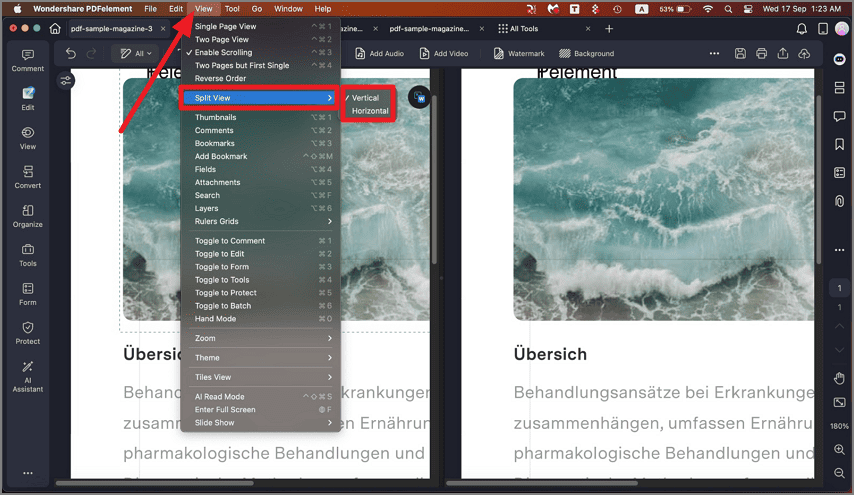
Step 1. To read the document in split, head to the "View" option on the menu bar and click on the "Split View" option. Now choose your split option by clicking on it.
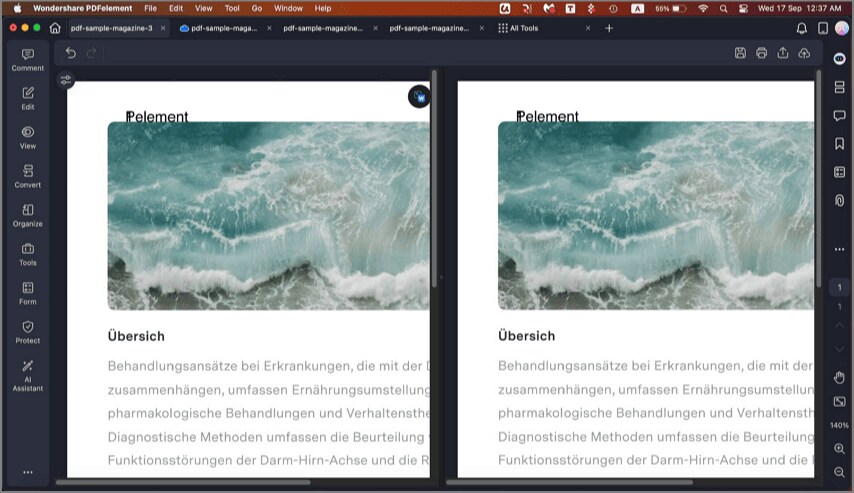
Step 2. The tool will split the document into two for you to read it conveniently.
5. Zoom From Menu Bar
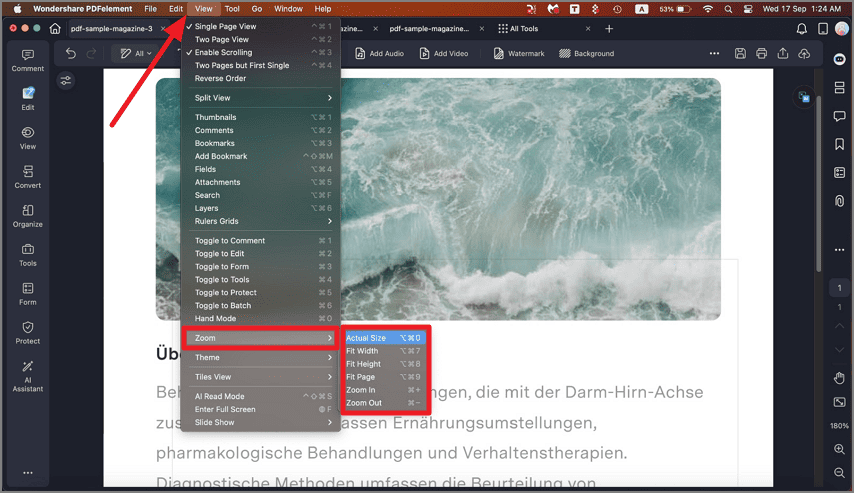
Head to the menu bar at the top and scroll through the list to find the "Zoom" option. Now select your desired zoom option by clicking on it and reading the PDF.
6. AI Read Mode
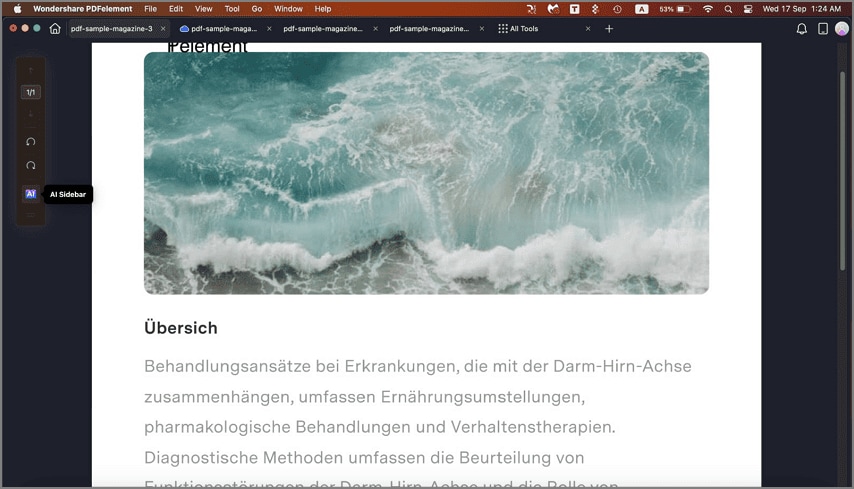
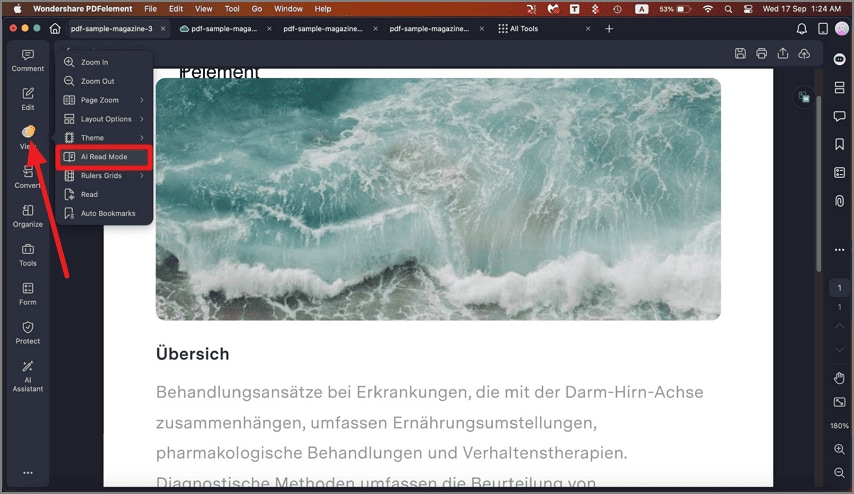
Step 1. To enable the AI Read Mode, access the "View" option from the sidebar on the left and click on the "AI Read Mode."
Step 2. The AI reading mode will be enabled with a sidebar on the left. You can rotate the document and apply actions such as summarize or explain using the sidebar.