

Upload PDF to Cloud on Mac
Wondershare Cloud allows you to transfer documents across devices. For example, you can upload a file to Wondershare Cloud from your Mac at your office, keep your files in sync, and access it from your mobile phone at home. With PDFelement for Mac, you can collaborate files smoothly and manage your work efficiently.
1. Share from the File Menu.
- Go to "File" > "Share" > "Wondershare Cloud" on the Top Menu to upload the file to this platform.
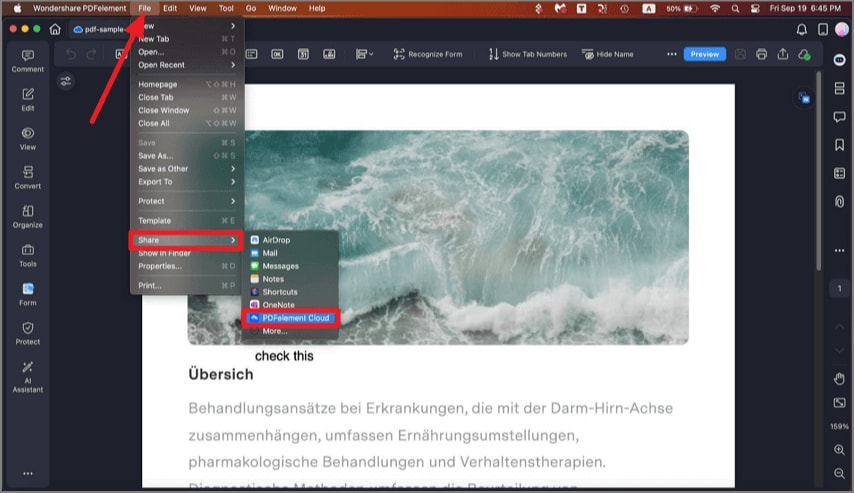
A screenshot of the sharing interface showing cloud options.
- And then click the "Upload" button in the pop-up window.
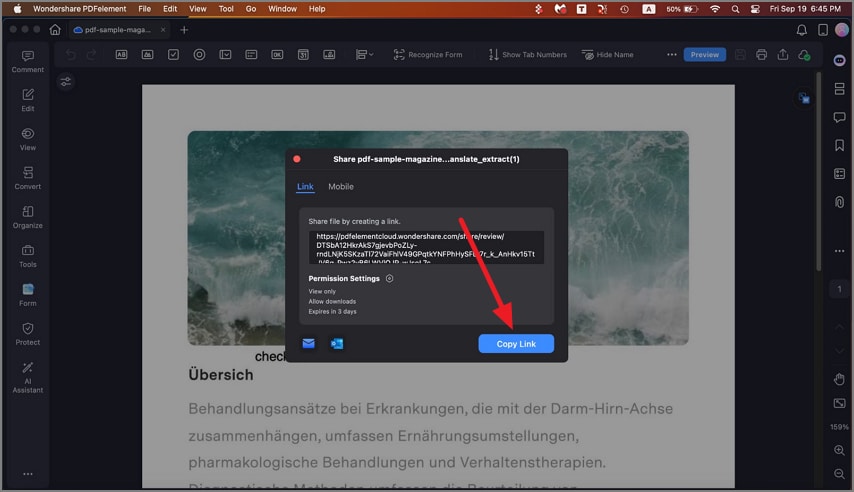
A screenshot showing a PDF uploaded to cloud storage.
- Once the file is uploaded, click "OK" to complete.
2. Upload PDF to cloud from the Homepage.
- Or you can also share a PDF document to Wondershare Cloud on the Homepage. Find the PDF file you want to upload in the Recent List, click the "…" button on the bottom right side, and select the "Upload to PDFelement Cloud" option.
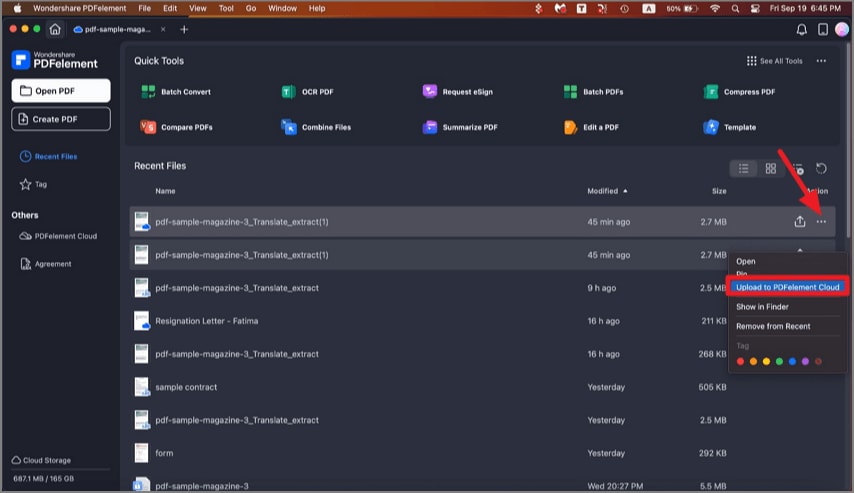
A screenshot of the homepage highlighting the share to cloud option.
- The Transfer List will pop up to display the uploading progress.
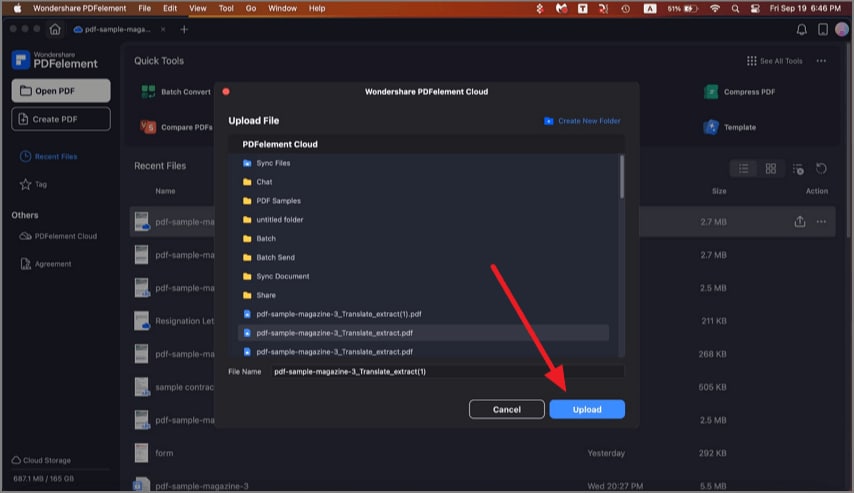
A screenshot showing a file upload option on the homepage.
3. Upload PDF to cloud from the PDFelement Cloud tab.
- Alternatively, you can go to the PDFelement Cloud tab on the Homepage to upload files by clicking the "Upload File" button, the "Upload" icon on the top right corner, or drag-and-drop directly.
- You can also create a new folder within the Cloud and upload a PDF file to the folder.
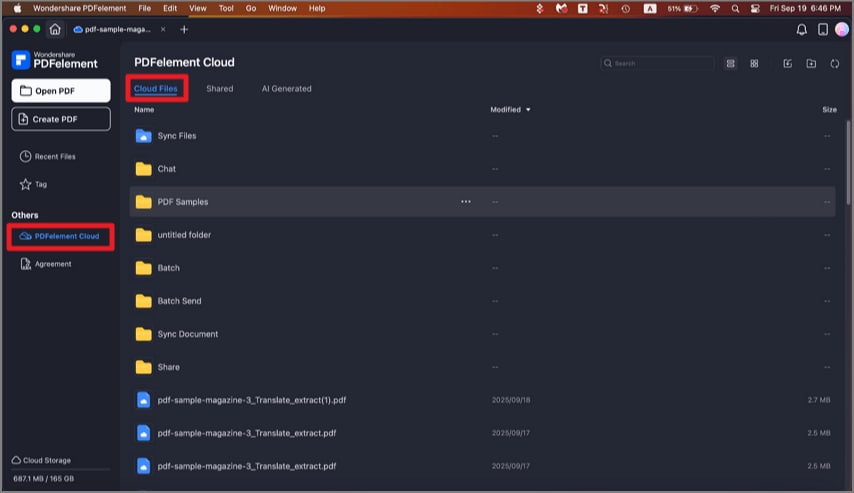
A screenshot highlighting the cloud upload button.
- After uploading files to Wondershare Cloud, you can share them with others by creating a file link. Click the "..." button on the file icon and select the "Share by Link" option in the drop-down menu. Share this link with others, and they can directly open the shared PDFs in an internet browser.
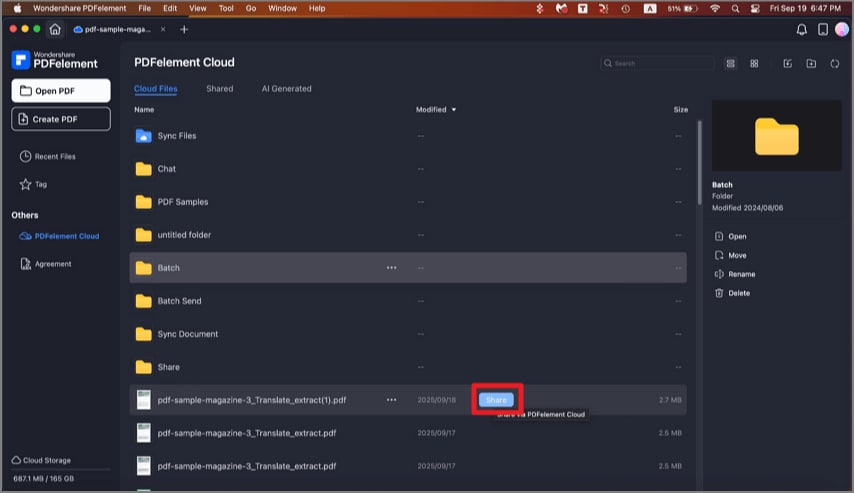
A screenshot of the sharing interface showing a generated share link.
- You can also remove an uploaded file from the Cloud as needed.