How to Translate PDF on Mac with PDFelement
PDFelement's Professional Translation Mode ensures precise handling of context, terminology, and specialized language. Although the process may take a little longer, the results are highly accurate and tailored to specific industries. By refining the AI translation feature, this mode provides superior, industry-focused translations. Consider the steps mentioned below to know how to change the language of the document on your Mac:
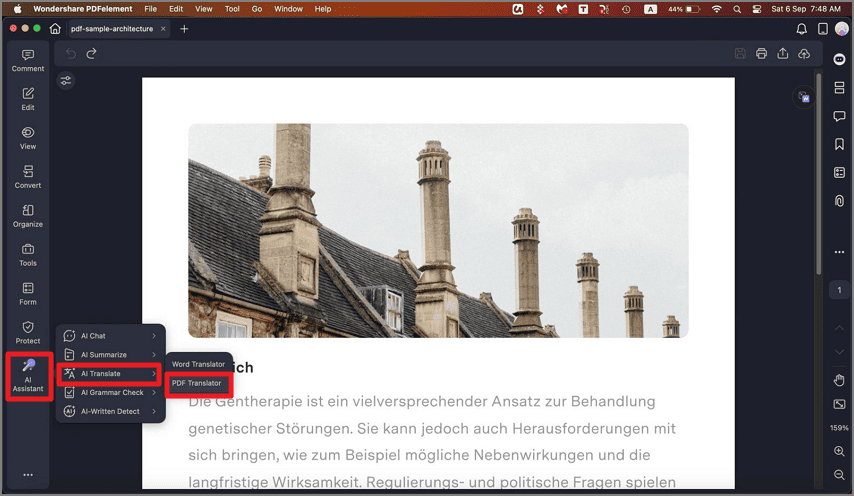
Step 1. After importing your PDF document into the tool, open the sidebar on the left and click the "AI Translate" option after pressing "AI Assistant." From the expanded menu, select "PDF Translator."
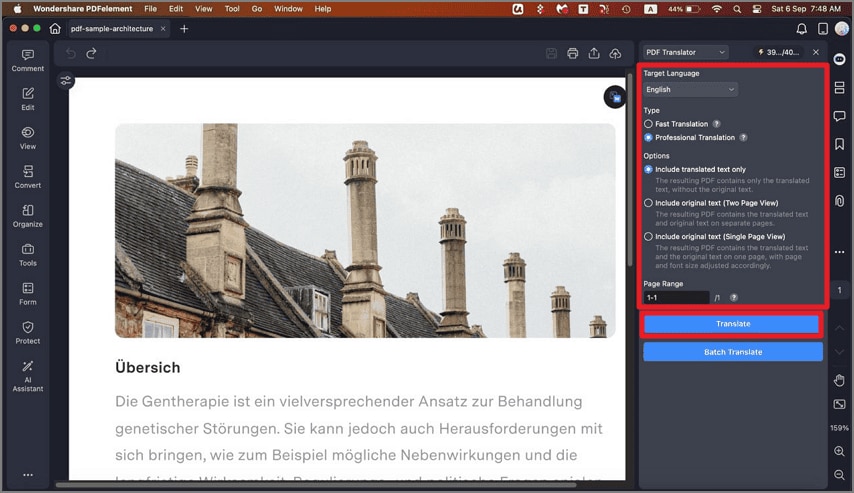
Step 2. Head to the panel on the right and choose "Target Language" and configure other settings. Enable the "Professional Translation" option and adjust any other settings as needed. Finally, click the "Translate" button to start the process.
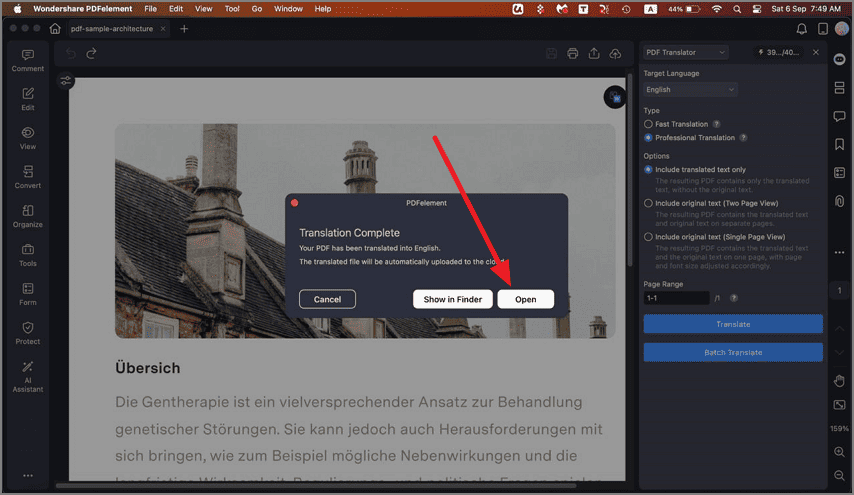
Step 3. Once the translation is complete, review the translated document to your device by clicking the "Open" button.