

In this article
- Understanding TIFF to Excel Conversion
- Method 1: Convert TIFF to Excel Using PDFelement (Best for Accuracy)
- Method 2: Use a TIFF to Excel Converter Online
- Desktop vs. Online Converters: Which Should You Choose?
- Best Practices for High-Quality TIFF to Excel Conversion
- Understanding Excel Formats After Conversion
- Frequently Asked Questions (FAQ)
Converting a TIFF to Excel is a highly sought-after process in data management, accounting, and administration. The TIFF (Tagged Image File Format) is widely used worldwide for storing high-quality raster graphics and scanned documents. However, because TIFF is an image format, you cannot easily edit, calculate, or analyze the financial data or tables locked inside it.
To manipulate that data, you need to transform the image into a functional spreadsheet. Whether you need a secure desktop solution or a quick TIFF to Excel converter online, choosing the right method is essential for preserving the formatting and accuracy of your data. This comprehensive guide will walk you through the most effective ways to convert TIFF to Excel, leveraging Optical Character Recognition (OCR) technology.


 G2 Rating: 4.5/5 |
 100% Secure
Understanding TIFF to Excel Conversion
Before diving into the steps, it is helpful to understand why this specific conversion requires specialized tools and how the underlying technology works.
What is a TIFF File?
TIFF (or TIF) stands for Tagged Image File Format. It is a computer file format for storing raster graphics images, popular among graphic artists, the publishing industry, and photographers. In the business world, TIFF is frequently used as the default output format for heavy-duty office scanners. When you scan an invoice, receipt, or multipage contract, it is often saved as a TIFF file because the format supports multiple pages and lossless compression, ensuring high image fidelity.
Why Convert TIFF to Excel?
While TIFF is excellent for archiving documents, it is entirely static. If a vendor sends you a scanned invoice in TIFF format, the tables and numbers are essentially just a "photograph" of the data. You cannot run a sum function, sort the columns, or copy the text directly into your financial software. By converting the TIF to Excel, you transform an uneditable picture into a dynamic, editable spreadsheet where data analysis becomes possible.
The Crucial Role of OCR Technology
You cannot just rename a .tiff file to .xlsx and expect it to work. To bridge the gap between an image and text, you need OCR (Optical Character Recognition). OCR software scans the image, identifies the shapes of letters and numbers, and translates them into machine-readable text. A high-quality TIFF to Excel converter will not only recognize the text but also recognize the lines and borders of tables, recreating the exact grid structure in Microsoft Excel.
Method 1: Convert TIFF to Excel Using PDFelement (Best for Accuracy)
For professionals dealing with sensitive data, complex tables, or large batches of files, desktop software with robust OCR is the best approach. PDFelement is a powerful document management program that delivers outstanding results when it comes to TIFF to Excel conversion. It boasts highly accurate OCR that supports dozens of languages, ensuring your data is extracted cleanly without losing its original structure.
Here are the 3 steps to convert TIFF to Excel with PDFelement:
G2 Rating: 4.5/5 |100% Secure
Step 1Open a Tiff
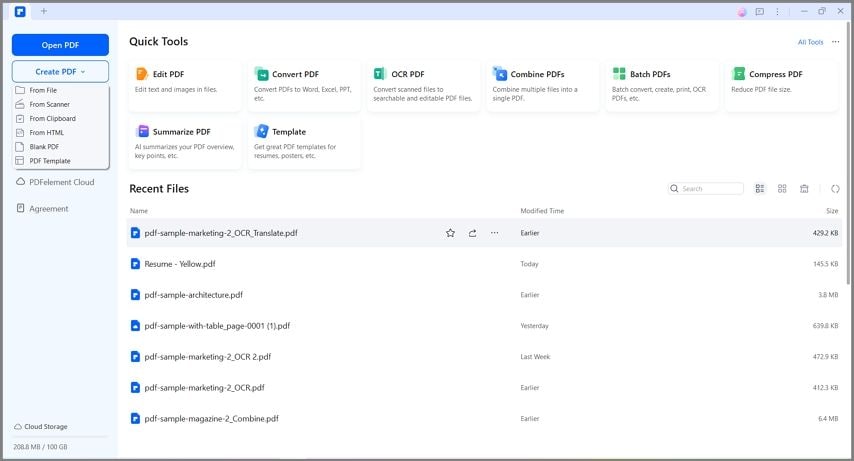
First, launch PDFelement on your computer. You can simply drag and drop your .tiff or .tif file directly into the program interface to open it. Alternatively, you can use the "Create PDF" option on the home screen to browse your computer and select the TIFF file you wish to load. The software will instantly display your image as a document.
Step 2Convert with OCR
Once the image is open, you need to make the text recognizable. Click on the "Tool" or "Convert" tab at the top of the screen and press the "OCR" button. A prompt will appear asking you to download the OCR component if you haven't already. Once active, select the "Scan to Editable Text" option. Make sure to click the "Change Language" button to select the correct language of your TIFF file's content. This drastically improves the accuracy of the character recognition.

Step 3Convert Tiff to Excel
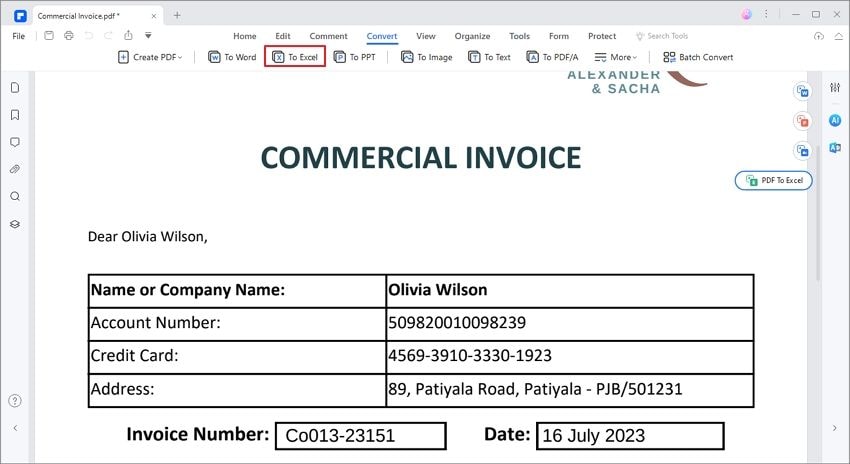
After the OCR process is complete, the document is now fully editable text. Go to the "Convert" tab and select the "To Excel" button. Choose your output folder and click save. The program will seamlessly convert TIFF to Excel, preserving your rows, columns, and numerical data.
Why Choose PDFelement for Desktop Conversion?
PDFelement means that you have got one of the best programs to make your document files highly interactive. It has functionalities that are easy to understand and highly dependable, even for users with no prior experience. From line-by-line editing to advanced data extraction, PDFelement ensures your sensitive files never have to be uploaded to an external server.
G2 Rating: 4.5/5 |100% Secure
Method 2: Use a TIFF to Excel Converter Online
If you are not working with confidential information and simply need to extract a small table from a single image quickly, using a TIFF to Excel converter online is an excellent alternative.
How Web-Based Converters Work
Online converters utilize cloud-based servers equipped with OCR technology. You upload your file to their website, their servers process the image, perform the OCR, and provide you with an Excel file to download. Popular platforms include Zamzar, Online2PDF, and ASPOSE.
Step-by-Step Guide for Online Conversion
1. Navigate to the Converter: Open your web browser and search for a reputable online converter.
2. Upload the File: Click the "Choose Files" button and select your .tiff file. Most free services have a file size limit (often between 10MB and 50MB).
3. Select Output Format: Ensure the output or "Convert To" dropdown is set to Microsoft Excel (usually .xlsx).
4. Initiate Conversion: Click "Convert Now." The website will upload your file and begin the OCR process.
5. Download the Result: Once finished, a download link will appear. Click it to save your new Excel spreadsheet to your local drive.
Pros and Cons of Online Tools
Desktop vs. Online Converters: Which Should You Choose?
Deciding between an online tool and a desktop program ultimately depends on your workflow. Here is a quick comparison framework to help you choose:
| Feature | Desktop Software (e.g., PDFelement) | Online Converters |
|---|---|---|
| Data Privacy & Security | High - Files are processed locally on your machine. | Low to Medium - Files must be uploaded to a third-party cloud server. |
| OCR Accuracy | High - Advanced OCR engines handle complex layouts and low-res images well. | Variable - Often struggles with complex formatting or handwritten notes. |
| Batch Processing | Yes - Convert hundreds of TIFFs simultaneously. | Limited - Usually restricted to a few files at a time on free plans. |
| Convenience | Requires initial download and installation. | Instant access via web browser. |
| Cost | One-time purchase or subscription. | Often free (with limitations). |
G2 Rating: 4.5/5 |100% Secure
Best Practices for High-Quality TIFF to Excel Conversion
Even with the best TIFF to Excel converter, the quality of your output relies heavily on the quality of your input. To ensure the OCR engine maps your tables perfectly, keep these best practices in mind:
Ensuring High-Quality Source Files
OCR thrives on contrast and clarity. If you are the one scanning the original documents into TIFF format, ensure your scanner is set to at least 300 DPI (Dots Per Inch). Use black and white or grayscale modes for text-heavy documents, as this reduces noise and helps the OCR software distinguish letters from the background.
Handling Complex Tables and Formatting
If your TIFF file contains merged cells, invisible borders, or densely packed data, the OCR might misalign columns during the Excel conversion. In desktop software like PDFelement, it is often helpful to review the document post-OCR but pre-conversion. You can sometimes manually adjust text boxes to ensure they align properly before exporting to Excel.
Batch Processing Scanned Documents
If you have months' worth of TIFF invoices, converting them one by one is inefficient. Look for batch-processing capabilities. Professional tools allow you to load an entire folder of TIFF files, apply the exact same OCR language settings to all of them, and export them as individual Excel files or even combine them into a single workbook.
Understanding Excel Formats After Conversion
Currently, there are several formats used to manage spreadsheets worldwide. The overall management of Excel has been made easy and reliable, but it helps to know what format you are exporting your TIFF into. Following are the most common current Excel formats:
- XLSX: The default, modern format for Excel workbooks. It is XML-based, highly compressed, and widely supported. Most conversions should use this format.
- XLSM: The Excel Macro-Enabled Workbook format. You would only use this if you plan to add automated VBA macros to the data after conversion.
- XLSB: The Excel Binary Workbook format. Useful for extremely large data sets as it saves and opens faster than XLSX.
- XLTX / XLTM: Excel template formats, used if you want your converted data layout to serve as a blank template for future manual data entry.
Whenever you work on an Excel file after your conversion, you can always change the format by choosing "Save As" and selecting a different extension from the dropdown list.
Frequently Asked Questions (FAQ)
-
Can I convert TIFF to Excel for free?
Yes, you can convert TIFF to Excel online for free using various web-based platforms like Zamzar or Convertio. However, free tools usually have strict limits on file size, page count, and the number of conversions you can perform per day. -
Does Microsoft Excel have built-in OCR for TIFF?
Microsoft Excel has introduced a "Data from Picture" feature in newer versions (like Microsoft 365), which allows you to extract data from an image file. However, it is primarily designed for simple images and clipboard snips, and may struggle with multipage, high-resolution TIFF documents compared to dedicated OCR software. -
Is it safe to use online converters for sensitive financial data?
Generally, no. If your TIFF files contain sensitive financial records, employee information, or proprietary business data, uploading them to a free online converter poses a security and compliance risk. It is much safer to use offline desktop software to ensure the data never leaves your computer. -
How do I fix formatting errors after conversion?
Because OCR is not magic, it may occasionally misread a character (like mistaking a "0" for an "O") or misalign a column. Always quickly proofread your converted Excel file against the original TIFF. You can easily fix these by manually retyping the incorrect cell or using Excel's "Text to Columns" feature to fix any data that clustered into a single column incorrectly.



