
How to Sign a PDF on Mac with or without Preview
How do you add a signature to a PDF on Mac? This article will explain to you the easiest method for signing PDF on Mac with Mac PDF signer.
 100% Secure |
 Powered by AI
 Home > Sign PDF on Different Devices > How to Sign a PDF on Mac with or without Preview
Electronically signing PDF documents has become much more common over the past few years. Many people choose to sign documents digitally now because it saves time and is much less of a hassle. It is a simple way to certify that a document is genuine and confirm the identity of the signer. In this article, we'll cover how to sign PDF on Mac with PDFelement for Mac.



Part 1. How to Sign a PDF on Mac with PDFelement
First, you'll need to download and install PDFelement on your device. This program supports macOS 11 to the latest macOS 26.
Step 1. Import and Review Your PDF Before Signing
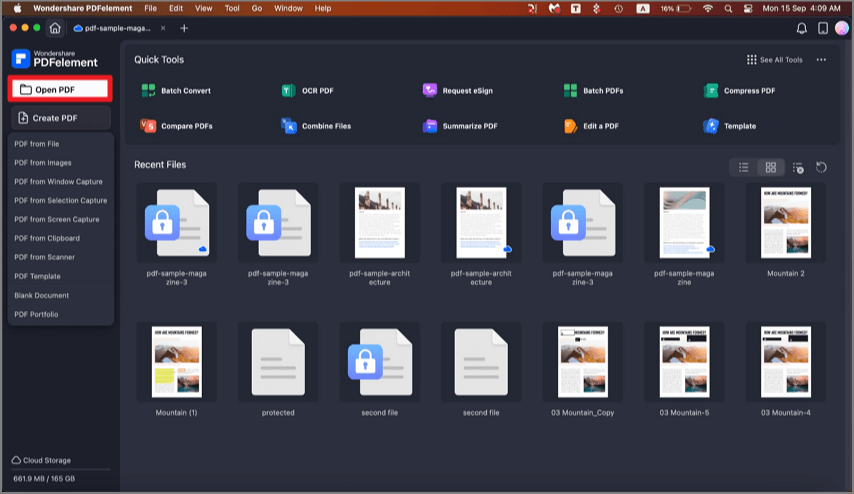
Once you have installed PDFelement, open the PDF file that you want to make changes to. You can do this by clicking the "Open File" button or tapping on "Open" on the Home screen.
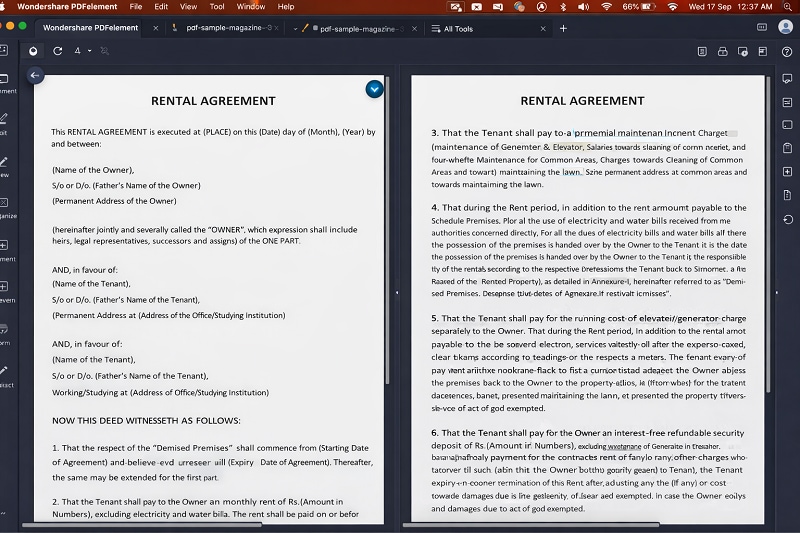
You should review the document carefully before adding your signature. PDFelement provide various view modes for you to examine content more efficiently. For example, you can use Split View to compare different pages and sections side by side for greate accuracy.
Step 2. Sign a PDF on Mac
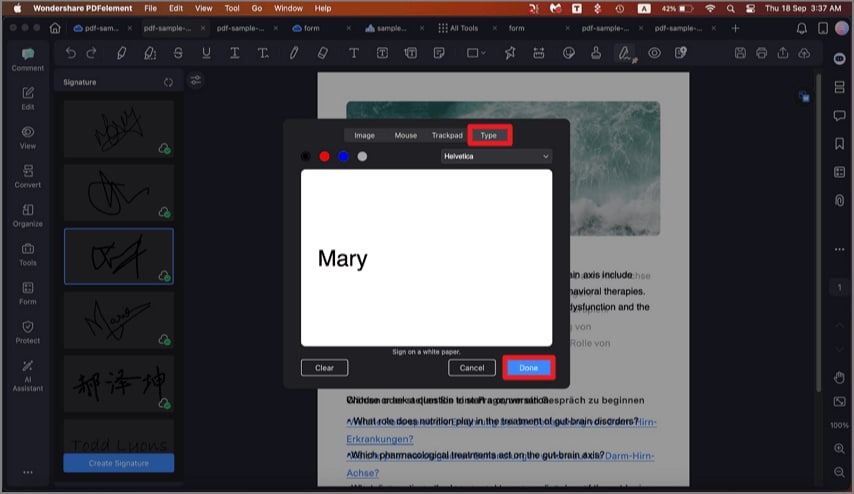
Once your file has been uploaded, choose the "Comments" button on the top toolbar. Select the "Signature" option in the submenu. Then create your signature from the options shown in the window.
- Add a signature from uploaded images. You can take a photo of your handwritten signature with iPhone and then upload the image to your Mac. PDFelement can eliminate unwanted background and ensure your handwritten signature remain crisp and legible.
- Draw a signature using a mouse or trackpad. You can adjust the thickness and style to create a signature that looks natural and professional.
- Create a signature by typing it out. There is a wide range of fonts and colors to match your preference.
Step 3. Sign PDF on Mac with Digital Signature
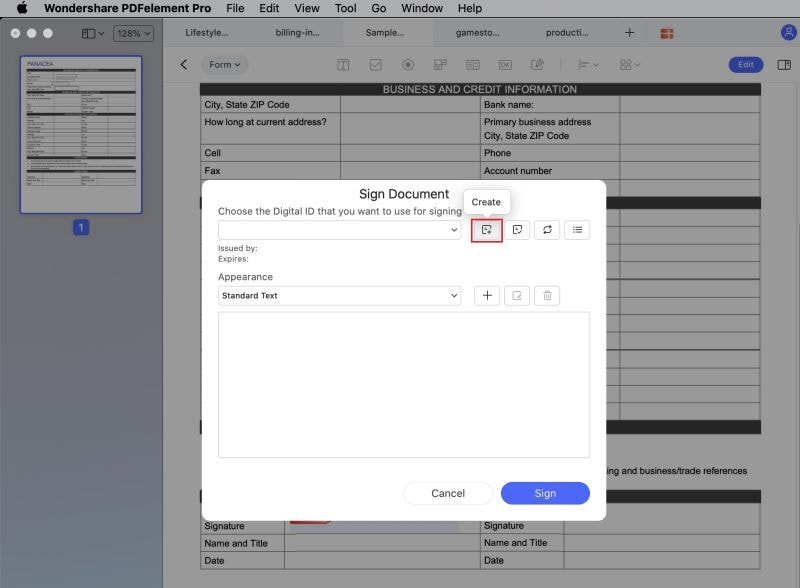
If you want to apply a digital signature to PDF, you can click the "Form" menu on the top toolbar and click the "Digital Signature" icon. In the pop-up window, add your digital signature.
An All-in-one PDF Solution
Although Preview on Mac provides a good option to electronically sign documents, it is still limited. For example, you can only use the camera or trackpad to sign a document, and there are no options to type your signature or use a saved image as your signature. Sometimes, the camera app is not working properly, and if you have a lot of documents to sign, it can be a bit of a hassle. This is why PDFelement is a good choice to sign PDFs as an alternative to Preview.
PDFelement is an all-in-one PDF tool. Its editing features will let you seamlessly alter text and images, as well as organize pages in your PDF. The OCR feature even gives you the possibility of making image-based scanned PDFs searchable and editable. You can also create PDF documents from other document formats or vice versa.
PDFelement will let you create and fill PDF forms. You can also add e-signatures to your document to authorize it, and protect your files with password encryption. This prevents unauthorized users from viewing, copying, editing, or printing your file without entering the right password.
Part 2. How to Sign a PDF on Mac with Preview
Technological advancements have highly digitalized documents. Signing a document is not a big problem now. There ae a number of ways to insert signature in pdf mac. Simple ways to digitally sign pdf on mac are mentioned below. Make sure you follow every method step by step.
Solution 1. Trackpad
Starting from the easiest way to sign pdf documents on mac. Use following steps to do so;
Step 1: Firstly, open the pdf file that you’re willing to sign in “Preview” and click on the toolbox icon given in the upper-hand corner.
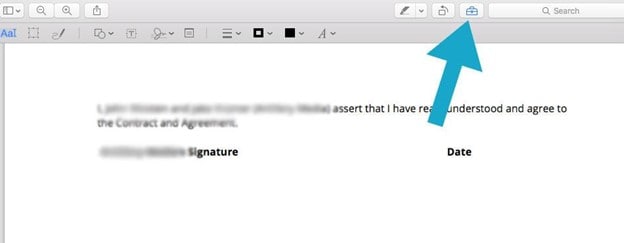
Step 2: On your screen, you will have a signature icon. Click on “Create Signature” option given at the last of the list and start tracking your signature.
Step 3: Here, you will have two options to choose from; trackpad and camera. Click on “Click here to begin” and you can then use trackpad to record the signature.
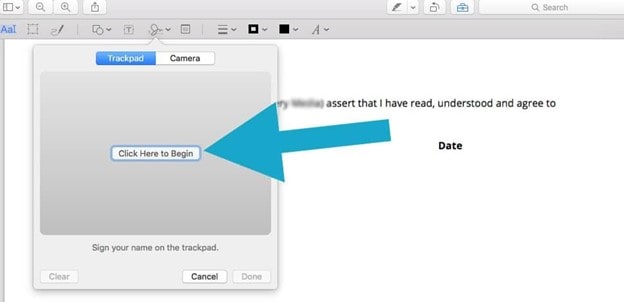
Step 4: Carefully record your signature and click on the option “Done” and then click on the signature you’ve created and insert into the pdf document. Here you will have the option to resize or move the signature too.
Solution 2. Camera
Here are the steps to utilize camera to electronically sign pdf document on mac;
Step 1: Open the pdf file that you want to digitally sign in “Preview” and click on the toolbox icon displayed on your screen.
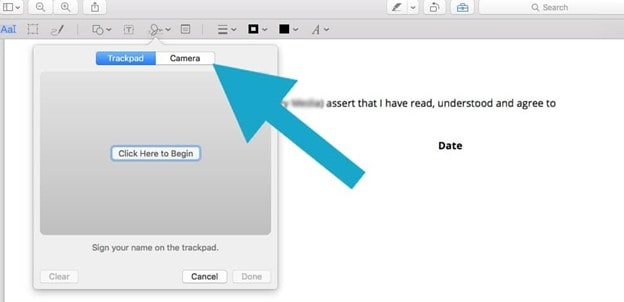
Step 2: Moving on, click on the “Signature” icon and then “Create Signature” to move forward.
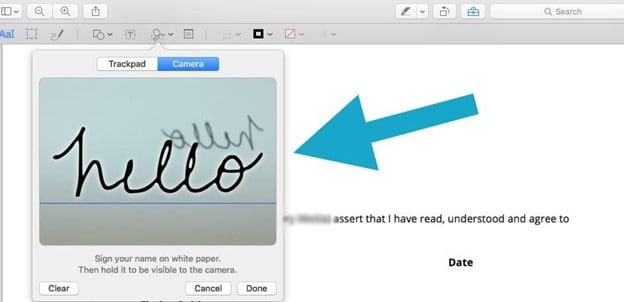
Step 3: Here you need to choose the option of Camera. Once done, you are required to sign your name on a clean white paper and make it visible to the camera of your system.
Step 4: Now, preview will draw a virtual signature using the camera. Check the signature properly and click “Done.” Lastly, you need to click on the signature to insert it into pdf document. Same as the case above, you can resize or move your signature like a regular image.
Part 3. Extra Tip: Sign a Document on iPhone & iPad with Mail App
Here’s the extra tip, you can digitally signature pdf on iPhone & iPad too. Before jumping to the steps, you need to make sure that your iOS is up-to-date. Here are the steps to do so;
Step 1: Firstly, you need to open up the “Mail” App on your mobile device and locate the email with the document that you are willing to sign. Moving on, open the email and then the attached PDF file.
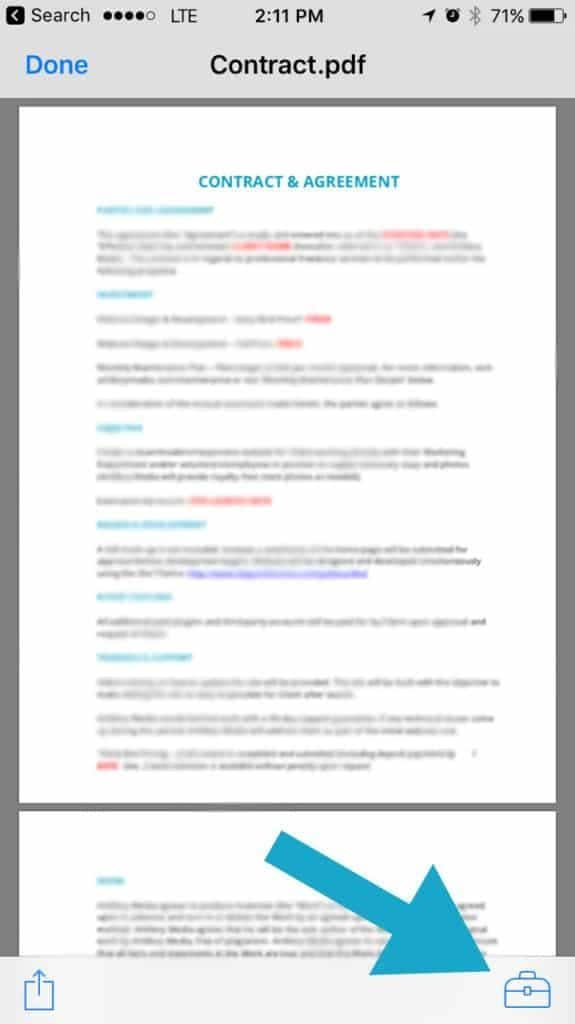
Step 2: Now, you need to click on the toolbox and then the signature icon in the lower-right corner of your screen. Tap on the option “New Signature” and you will have the space to sign with your finger. Once you’ve signed the document, click “Done.”
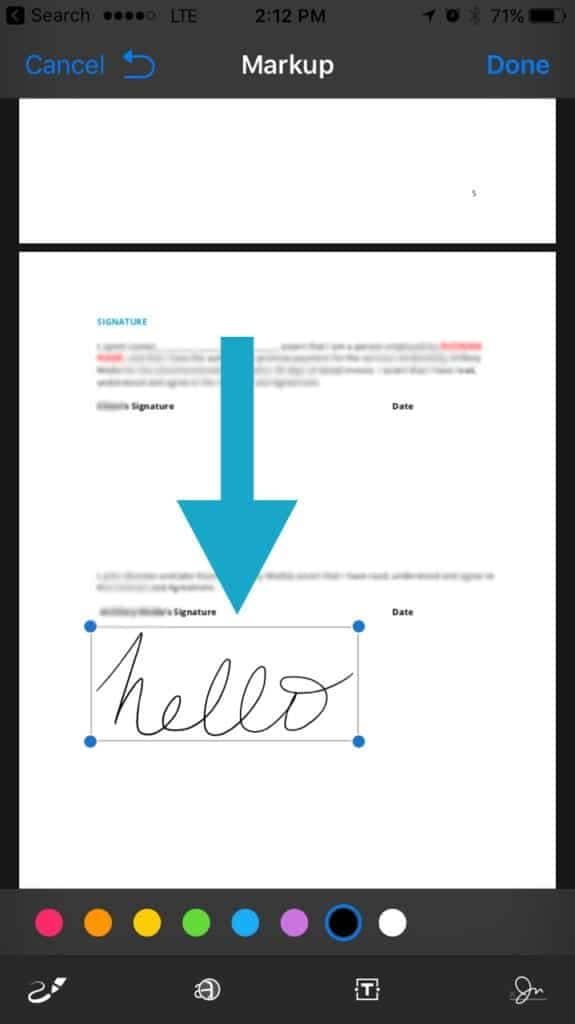
Step 3: Lastly, you can drag and drop the signature wherever you want and you’ll have your document signed electronically.
Free Download or Buy PDFelement right now!
Free Download or Buy PDFelement right now!
Buy PDFelement right now!
Buy PDFelement right now!


Audrey Goodwin
chief Editor
Comment(s)