PDFelement - Organize, Split, and Edit PDFs
Split large PDFs, extract the pages you need, and keep editing in one desktop workflow.
Need to split a PDF in Adobe Acrobat? In current Acrobat desktop versions, open the PDF, choose Organize pages, select Split, and then divide the document by number of pages, maximum file size, or top-level bookmarks. Set the output options and click Split to create the new files. If you only have the free Acrobat Reader desktop app, the full Organize Pages > Split workflow is not included there; Adobe also provides a browser-based Split PDF tool for quick, one-off tasks.
This guide walks through the current Adobe workflow, explains when to use Split instead of Extract, and compares Adobe Acrobat with Wondershare PDFelement for users who regularly need to split, extract, merge, or reorganize PDF pages. The goal is to help you choose the right method for the job rather than simply adding more steps to a basic PDF task.
In this article
How to Split a PDF in Adobe Acrobat
Adobe Acrobat can divide one PDF into several smaller documents without manually copying pages into new files. Adobe's current desktop workflow supports splitting by number of pages, maximum file size, or top-level bookmarks, which makes the tool useful for everything from long reports to bookmarked manuals. You can confirm the current workflow in Adobe's official Split PDF guide.
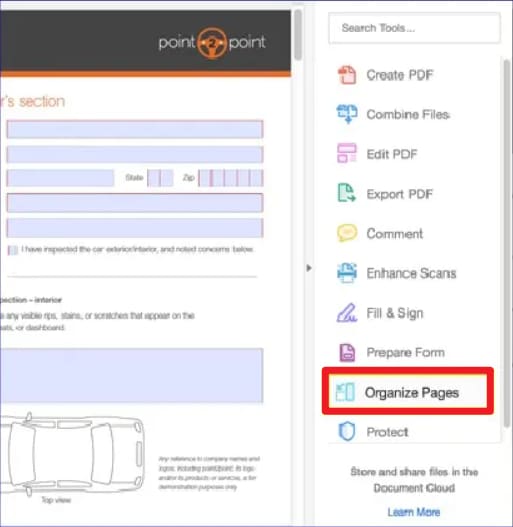
Step 1. Open the PDF and go to Organize Pages.
Launch Adobe Acrobat and open the PDF you want to divide. In the current Acrobat interface, open All tools and choose Organize pages. Depending on your Acrobat layout, Organize Pages may also appear directly in the tools panel.
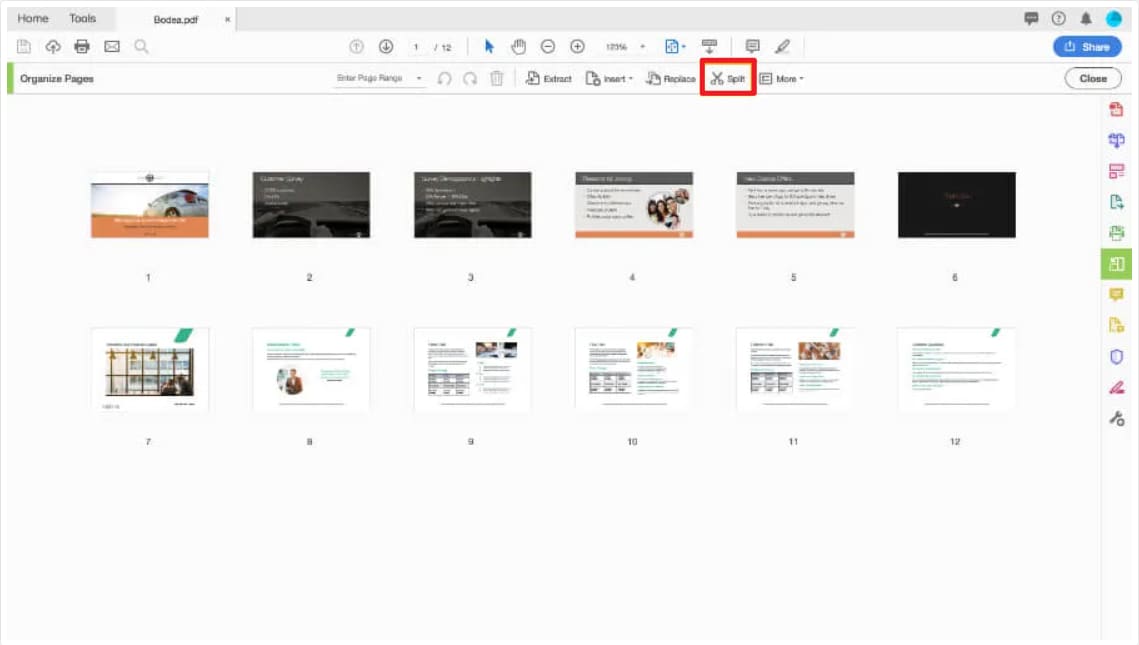
Step 2. Select the Split tool.
With the PDF open in Organize Pages, choose Split. Acrobat will display the settings that control how the original document should be divided into separate PDF files.
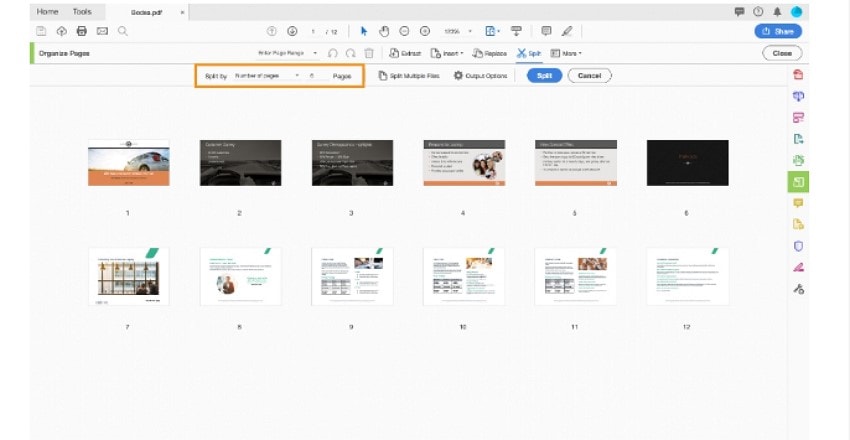
Step 3. Choose how Acrobat should split the PDF.
Open the Split by menu and select the rule that matches your task: number of pages, maximum file size, or top-level bookmarks. This choice matters because each option solves a different problem.
Step 4. Set the split rule.
If you choose Number of pages, enter the maximum number of pages for each output file. Choose File size when you need each PDF to stay under an upload or email limit. Choose Top-level bookmarks when a bookmarked report, manual, or contract should be separated into logical sections.
Step 5. Set the output options.
Click Output Options to choose the destination folder and file-naming preferences. Clear names are especially useful when splitting a long document into many files because they make the output easier to sort and share.
Step 6. Split and verify the new PDFs.
Click OK, then Split. Open a few of the new PDFs to confirm that the page boundaries, file names, bookmarks, links, and other content are where you expect them to be before deleting or archiving the original file.
Tips
If you need to process several PDFs, Acrobat also supports splitting multiple files. For a long report or manual with a consistent bookmark structure, splitting by top-level bookmarks can be faster and less error-prone than entering page ranges manually.
If you only want to save pages 8-12 or a single page from a PDF, Extract is usually a better choice than Split. Also check document permissions if page organization tools are unavailable, because a protected PDF can restrict page extraction or other edits.
Split vs. Extract: Which Adobe Page Tool Should You Use?
A common source of confusion is treating Split and Extract as the same task. Split is designed to divide an entire PDF into multiple documents according to a rule. Extract is better when you only need selected pages. Choosing the right tool keeps the workflow shorter and avoids creating unnecessary files.
Use Split When You Want to Divide the Whole PDF
Split by page count: useful for scanned forms, invoice batches, course packets, or reports that should be divided every few pages.
Split by file size: useful when an email system, client portal, or document-management platform has an upload-size limit.
Split by bookmarks: useful for structured manuals, books, contracts, and reports where top-level bookmarks already define the sections.
Use Extract or Another Page Tool When Split Is Not the Right Fit
Use Extract for selected pages: if you only need page 5, pages 8-12, or one appendix, extracting those pages is more direct than splitting the whole document.
Use other Organize tools for page cleanup: reorder pages when the sequence is wrong, delete pages you do not need, or organize PDF pages when your task involves several page-level changes.
Adobe Acrobat vs. PDFelement for Splitting PDFs
Adobe Acrobat is a strong choice if you already work in the Adobe ecosystem and need its broader PDF and e-signature workflows. Wondershare PDFelement - PDF Editor Wondershare PDFelement Wondershare PDFelement is another full PDF editor that combines page organization with editing, OCR, conversion, forms, protection, and AI-assisted document tools. If you are comparing the two products beyond page splitting, see the full PDFelement vs. Adobe Acrobat comparison.
For this specific task, both desktop editors can split PDFs into smaller documents. Acrobat supports splitting by page count, file size, and top-level bookmarks. PDFelement's current desktop workflow also supports those three split types, while its Organize workspace keeps related actions such as extract, insert, replace, rotate, crop, and delete pages close to the same workflow.
 G2 Rating: 4.5/5 |
 100% Secure
If you regularly reorganize PDFs rather than splitting a file once, it is worth comparing the full workflow instead of choosing a product on the Split button alone. The video below provides an overview of PDFelement's broader PDF editing environment.
PDFelement is particularly useful when splitting is only one step in a larger task. For example, you can split a 200-page report, extract a specific appendix, merge PDF files into a new packet, and then edit or protect the finished document without switching between unrelated utilities.
For a quick page-range split with no desktop installation, a browser tool may be enough. For repeated offline work, large document sets, splitting by file size or bookmarks, or workflows that continue into editing and OCR, a desktop PDF editor is generally the more flexible option.
How to Split a PDF With Wondershare PDFelement
PDFelement's current desktop workflow keeps Split inside the Organize workspace. You can divide a PDF by number of pages, file size, or top-level bookmarks and then control the output naming and destination before creating the new files.
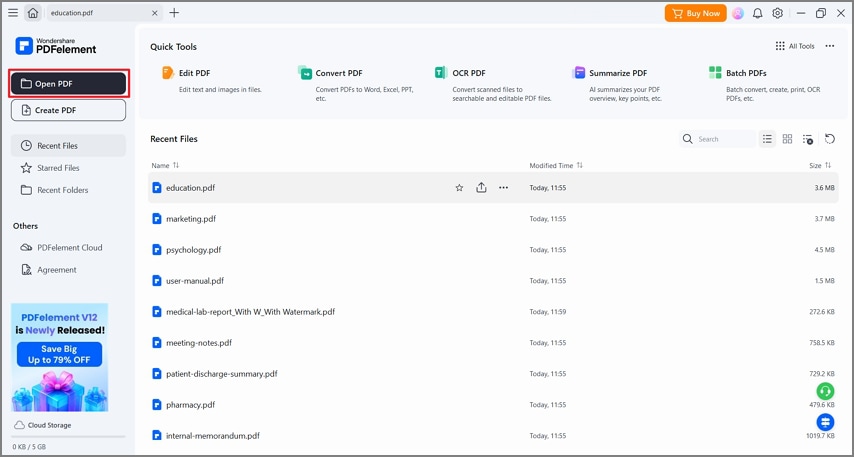
Step 1Open the PDF file with PDFelement.
Launch PDFelement and open the PDF you want to divide. If the file is already in your recent documents, select it from the home screen; otherwise, browse to the file on your computer.
Step 2Open Organize and choose Split PDF.
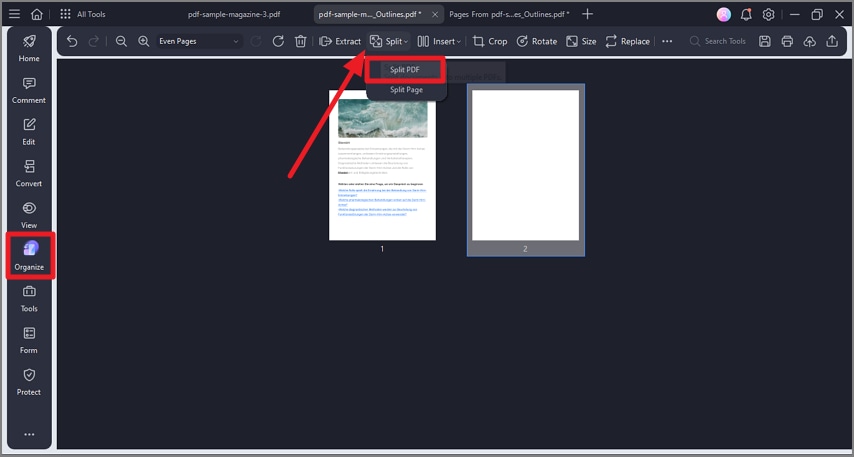
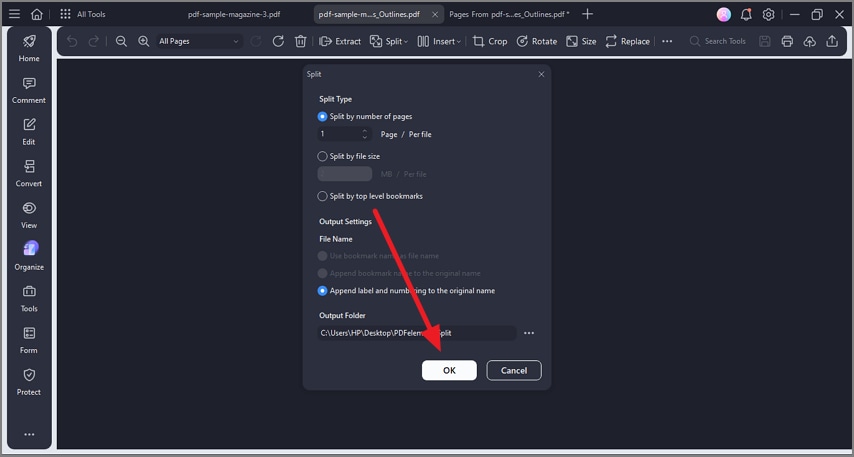
Select Organize from the left sidebar. In the top toolbar, open Split and choose Split PDF. This opens the dialog for document-level splitting.
Step 3Choose the split type and file settings.
Select Split by number of pages, Split by file size, or Split by top-level bookmarks. If you want every page to become its own PDF, choose the page-count option and set it to one page per file. You can also choose how the output files are named.
Step 4Choose the output folder and create the files.
Select the destination folder, review your split settings, and click OK. When the process finishes, open the output folder and check a few files to make sure the page boundaries and file names match your plan.
Tips
If you only need a few selected pages, use an extract-pages workflow instead of splitting the entire document. PDFelement's Organize PDF tools also cover merge, extract, insert, replace, rotate, crop, and delete operations.
Splitting a scanned PDF does not require OCR because you are dividing pages rather than recognizing their text. If you want to search, copy, or edit the text in those scanned pages afterward, run PDF OCR on the relevant output file.
How to Split PDF Files Online
For a quick page-range task, PDFelement Online Split PDF works in a browser without installing desktop software. The current online tool supports custom page ranges and fixed ranges, while the desktop version is the better fit when you need advanced options such as splitting by file size or bookmarks, repeated offline processing, or additional editing after the split.
How to Split PDF Pages Online with PDFelement Online
Step 1Visit the Online Split PDF Tool
Go to PDFelement Online Split PDF in your browser.
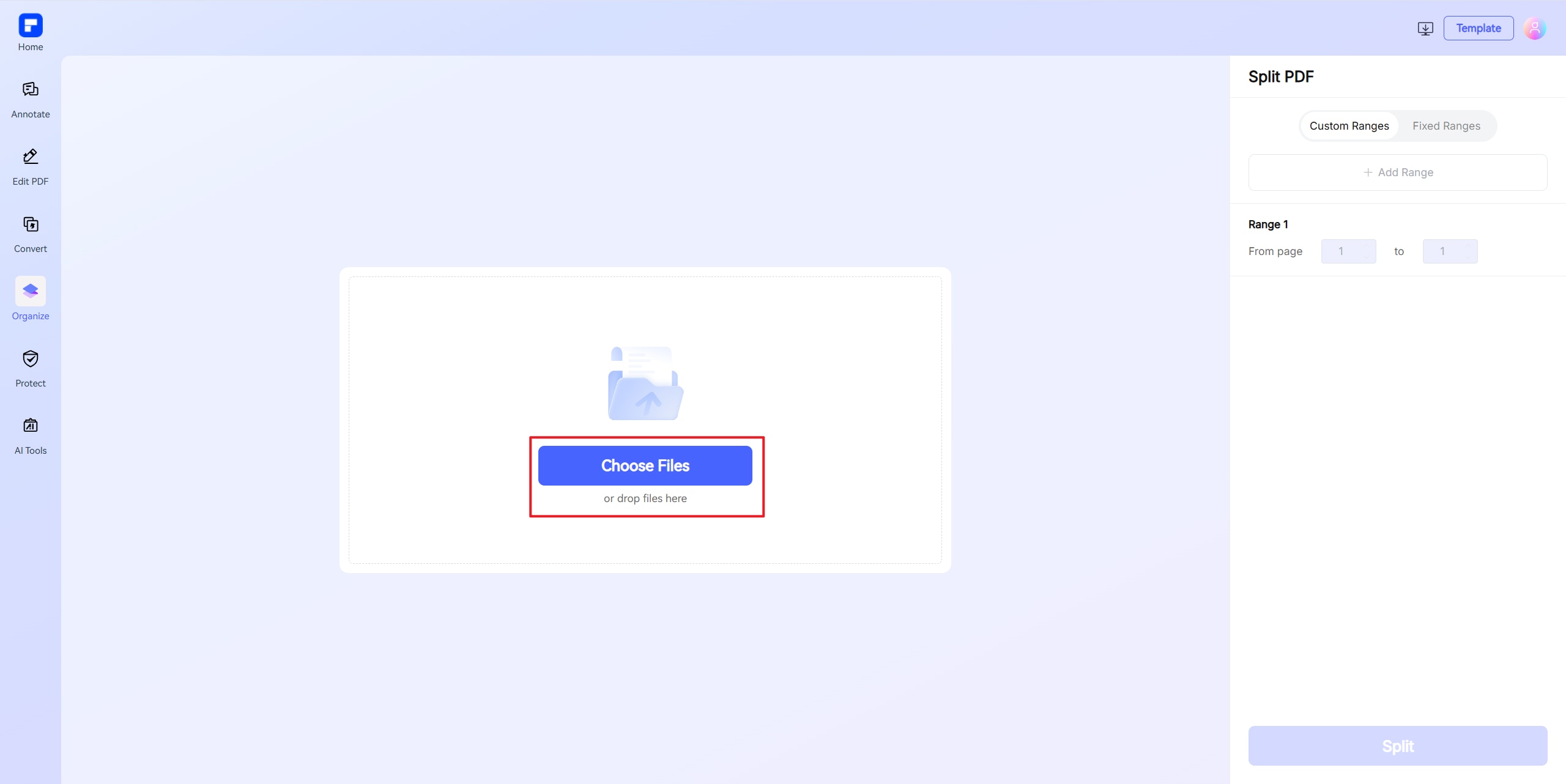
Step 2Upload Your PDF
Click “Choose File” or drag and drop your PDF document into the upload area.
Step 3Choose How You Want to Split the PDF
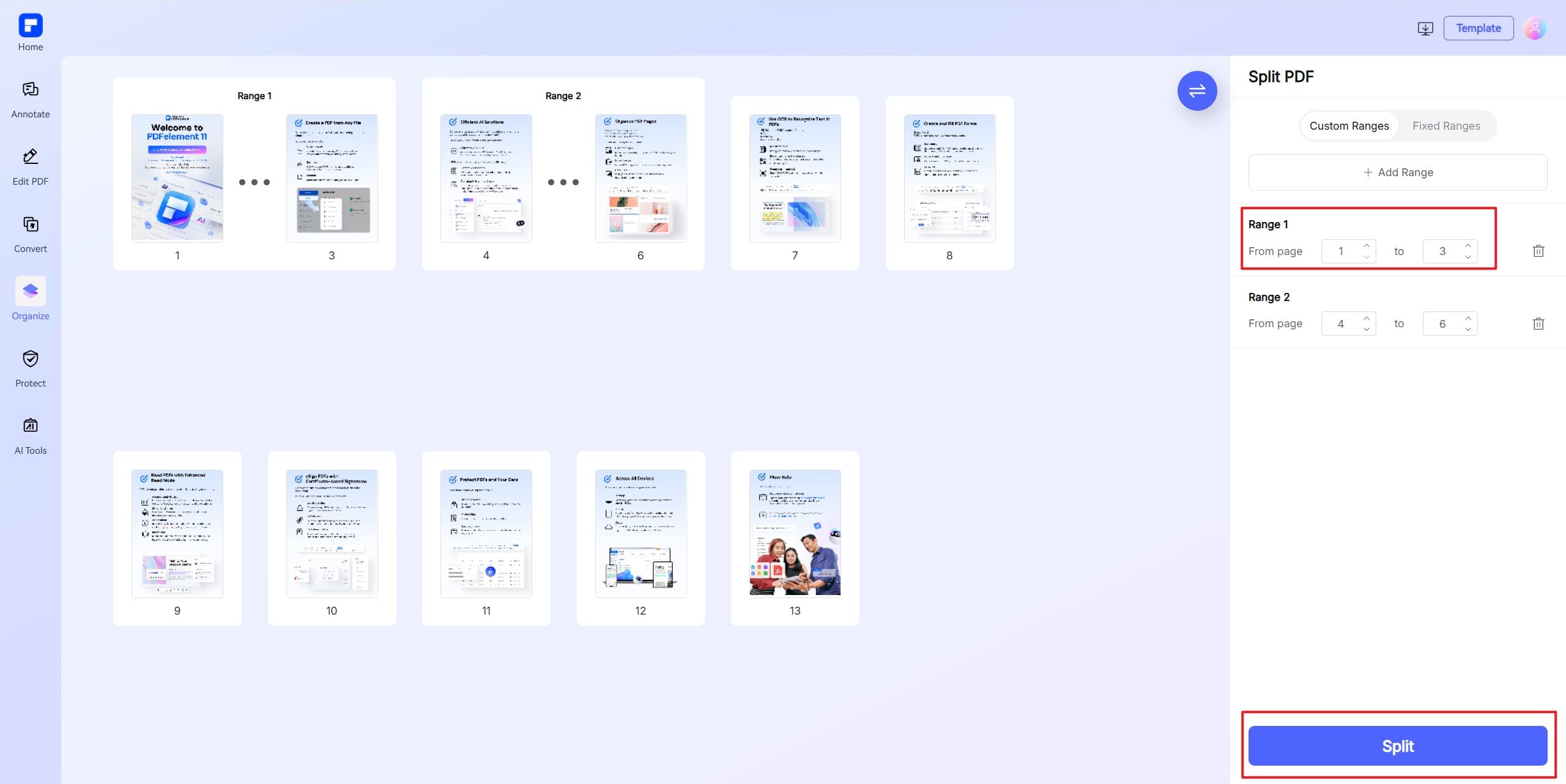
Select the splitting method that best fits your document:
- Use a custom range to create separate PDFs from specific page groups, such as pages 1–3 and 4–8.
- Use a fixed range to divide the PDF at a consistent page interval.
- Use a one-page range when you want to save a specific page as its own PDF.
Step 4Split the PDF
Click the “Split” button and wait for the online tool to process your document and create the new PDF files.
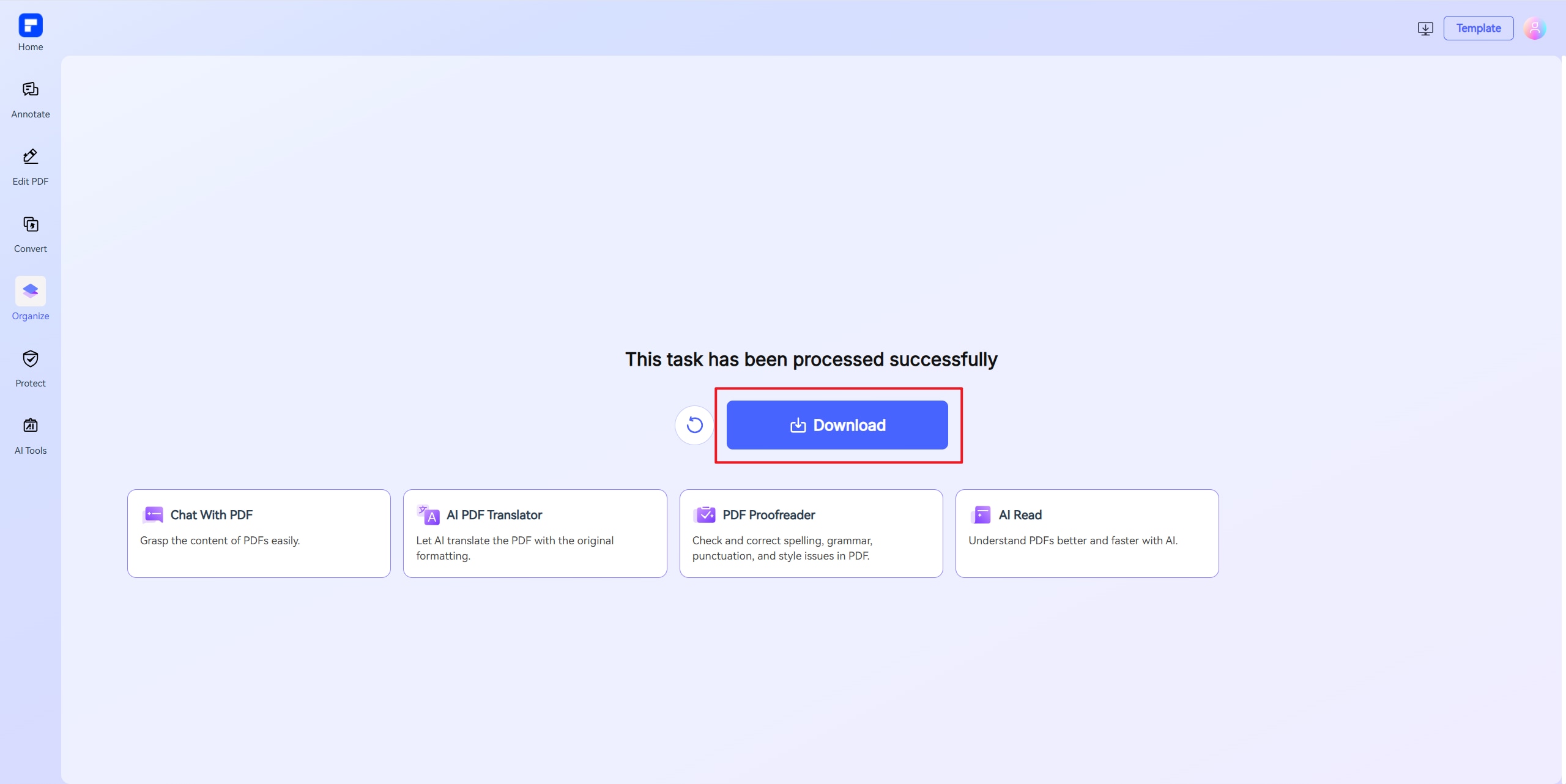
Step 5Download the Split PDF Files
Review the result, then click “Download” to save the split PDF files to your device.
People Also Ask
The questions below cover the points that most often cause confusion when people try to separate PDF pages with Adobe Acrobat or another PDF editor.
1. Can I Split a PDF With Adobe Acrobat Reader?
The free Acrobat Reader desktop app is primarily for viewing, commenting, filling, and signing PDFs; it does not include the full desktop Organize Pages > Split workflow. However, Adobe currently offers a separate online Split PDF tool that works in a browser. Adobe's current online flow uploads the file, asks you to sign in, and lets you place divider lines to create separate page ranges.
2. Does Splitting a PDF Reduce the Quality of the File?
Normally, no. Splitting a PDF separates existing pages into new PDF files instead of re-rendering the page content, so text, images, links, and layout should generally stay intact. Quality is more likely to change when you also compress, convert, resample, or otherwise process the content. Adobe's current Split PDF documentation likewise states that splitting alone preserves the quality of the new PDF files.
3. What Is the Difference Between Splitting and Extracting PDF Pages?
Split divides an entire PDF into multiple files according to a rule such as page count, file size, bookmarks, or page ranges. Extract copies only the pages you select into a new PDF, which is usually the better option when you need one page, one appendix, or a small page range from a larger document.
After splitting or extracting, the resulting files are standard PDFs. You can continue to edit, annotate, merge, compress, protect, or OCR them as long as the document permissions and the PDF software you are using allow those operations.