

Table of Contents
Reading a long PDF on a bright white page can feel harsh, especially at night or in a dim room. PDF dark mode solves part of that problem by changing the reading environment from bright-on-light to light-on-dark, or by applying a darker page background inside a PDF reader. The best method depends on where you read: Chrome is quick for occasional files, while a dedicated PDF reader with dark mode or night mode gives you more control over viewing, commenting, editing, and managing documents.
There is one important detail to understand before changing settings: “dark mode” can mean different things. Some tools only darken the app interface, while the PDF page stays white. Others invert or recolor the document page itself. For comfortable reading, you usually want the second option—a PDF reader night mode or background setting that changes the page area, not just the toolbar.


 G2 Rating: 4.5/5 |
 100% Secure
What PDF Dark Mode Actually Changes
A PDF is designed to preserve layout. That is why a contract, manual, textbook, or report looks nearly the same on different computers and phones. The downside is that PDFs often keep their original white page background even when your operating system or browser is set to dark mode.
A typical dark theme changes the interface around the document: menus, tabs, side panels, and toolbars. This is useful because it reduces glare around the page, but the page itself may remain white. A true dark mode PDF reader setting goes further by changing the reading background or inverting page colors so black text becomes light text on a dark page.
App dark theme vs PDF page night mode
These two settings are easy to confuse:
App dark theme changes the software interface. For example, the top menu bar, sidebar, tabs, and tool icons may become dark gray or black. This makes the app more comfortable, but the PDF content may still appear as black text on a white page.
PDF night mode changes the document viewing area. A reader may show white or light-gray text on a black, gray, sepia, or eye-protection background. This is the setting most people mean when searching for pdf dark mode.
Some apps offer both. That is ideal: you can darken the interface and also switch the document page to night mode.
When dark mode helps and when it does not
Dark mode is most useful in low-light environments, on OLED screens, or when you are reading for a long period and want less screen glare. It may also help when reviewing dense documents late in the day because the screen feels less visually aggressive.
It is not always better. In a bright office or outdoors, dark text on a white background can be easier to read. Some users also find long paragraphs harder to scan in dark mode, especially at low contrast. For accessibility, follow your own comfort and vision needs rather than assuming dark mode is automatically healthier. The American Academy of Ophthalmology notes that digital eye strain is often related to blinking less, screen distance, and prolonged focus, not only screen color.
How To Use PDF Dark Mode in Chrome
Chrome is the fastest option if you want to open a PDF without installing a desktop PDF editor. It works well for quick reading, downloads, forms, and web-hosted PDF files. However, pdf dark mode Chrome support is not as direct as many users expect. Chrome has a dark browser theme, but its built-in PDF viewer does not always convert PDF pages into a true dark reading view.
Open a PDF in Chrome
If the PDF is already online, click the file link and Chrome will usually open it in a browser tab. If the file is stored on your computer, right-click it and choose Open with > Google Chrome. You can also drag the PDF directly into a Chrome window.
Once the file opens, check what you want to change. If the toolbar and browser window are too bright, Chrome’s appearance setting may be enough. If the PDF page itself is too bright, you may need an extension or experimental flag.
Turn on Chrome’s dark appearance
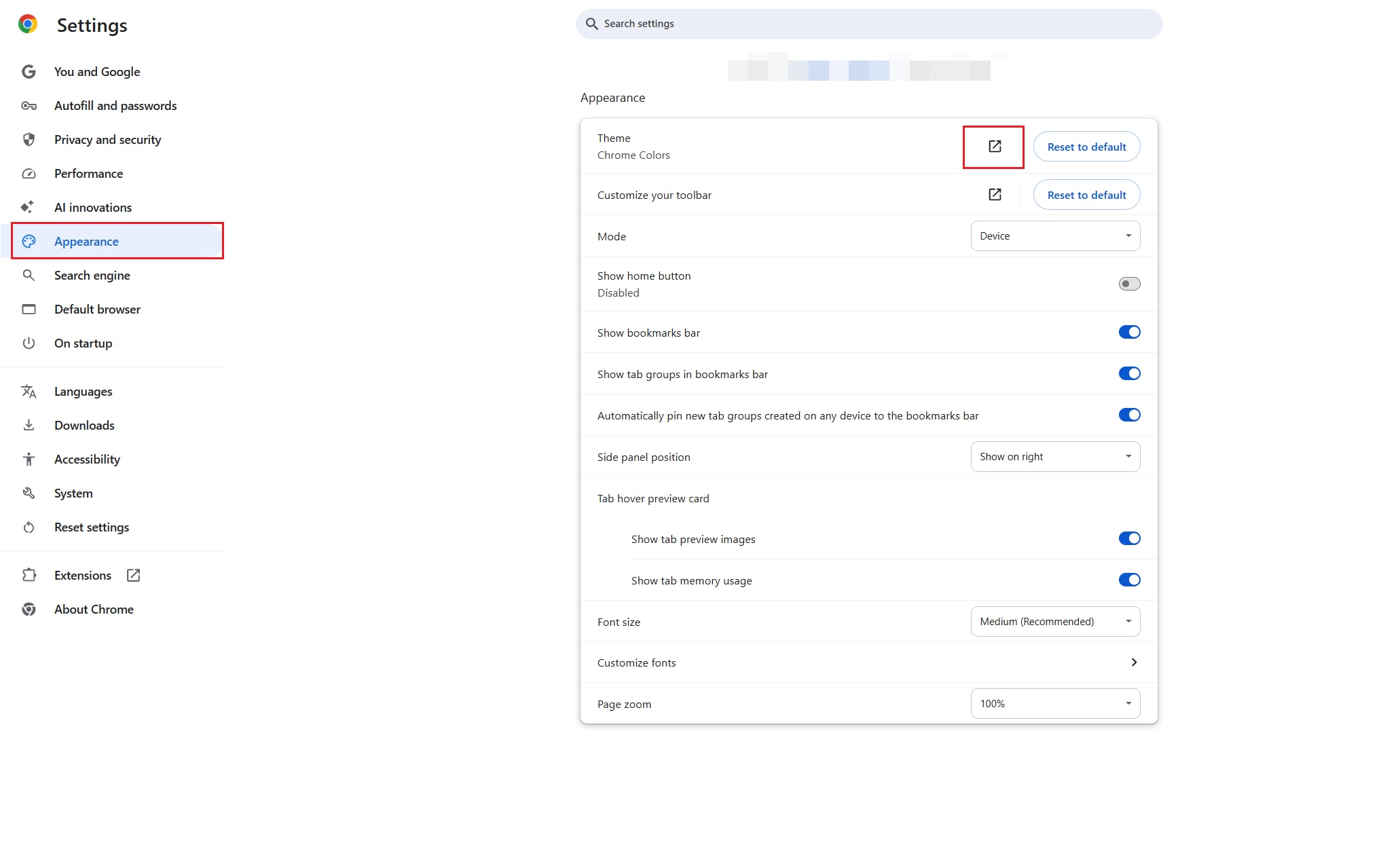
Chrome can follow your system theme or use a dark browser theme. To change it manually, open Chrome and go to Settings > Appearance. Depending on your Chrome version and operating system, you may see theme options or a link to the Chrome Web Store. Choose a dark theme or set your operating system to dark mode so Chrome follows it.
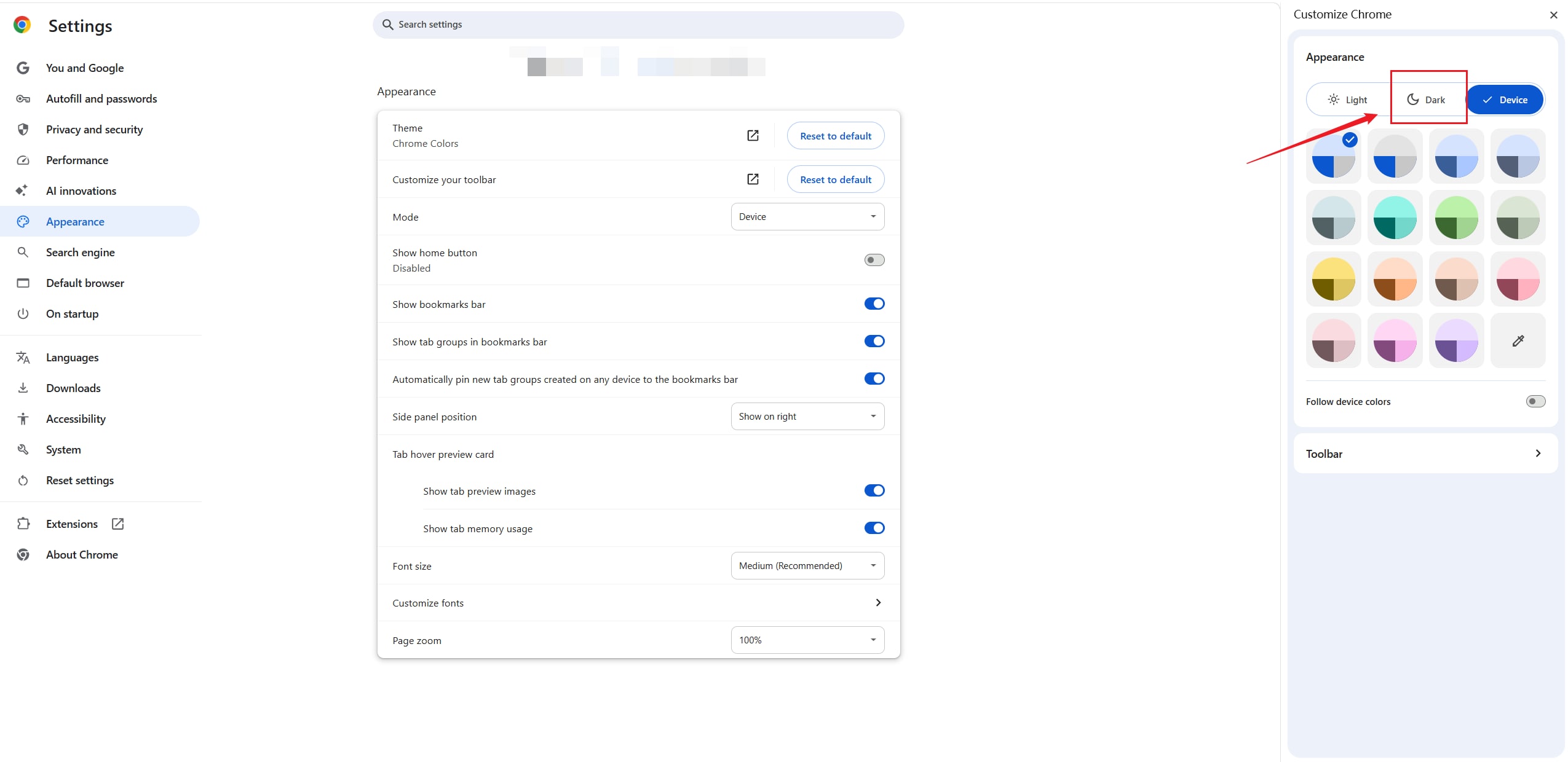
This makes Chrome’s frame and settings darker. It may not change the PDF page color. If your goal is simply to reduce brightness around the document, this is enough. If you want white text on a dark PDF page, continue with the next options.
Try Chrome flags for automatic darkening
Chrome has experimental features available through chrome://flags. One commonly discussed option is Auto Dark Mode for Web Contents. To try it, type chrome://flags in the address bar, search for “dark mode,” and enable the related option if it appears in your version of Chrome. Relaunch the browser when prompted.
This feature can change how web content is rendered, and it may affect PDFs opened in the browser. Because flags are experimental, results can vary. Some PDFs look good; others may show odd colors, inverted images, or hard-to-read diagrams. If a document contains charts, stamps, signatures, or colored highlights, check a few pages before relying on this mode.
Use a Chrome extension for PDF dark mode
For more control, use a reputable dark mode extension from the Chrome Web Store. Extensions such as Dark Reader can adjust brightness, contrast, sepia tone, and inversion. This can be more flexible than Chrome’s built-in appearance settings, especially if you read PDFs from different websites.
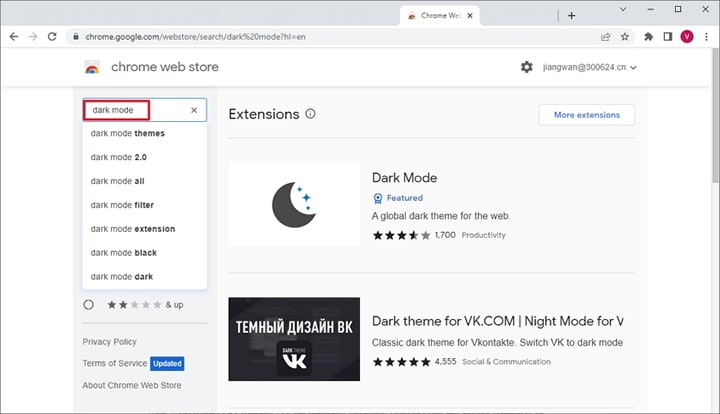
Be selective with extensions. A PDF may contain private work documents, contracts, statements, or academic files. Before installing any extension, check its permissions, reviews, update history, and developer information. The Chrome Web Store Help explains how extensions work and how to manage them.
Troubleshoot PDF dark mode in Chrome
If Chrome dark mode does not work as expected, the problem is usually one of these:
Chrome’s dark theme changed only the browser interface, not the PDF page.
A scanned PDF is actually an image, so text recoloring does not work cleanly.
An extension is inverting images, charts, or signatures along with text.
The PDF is opened inside a website viewer rather than Chrome’s native PDF viewer.
A simple workaround is to download the file and open it in a desktop PDF reader with night mode. Chrome is convenient, but it is not always the most reliable reading environment for long PDFs or sensitive files.
Use a PDF Reader With Dark Mode or Night Mode
If you read PDFs often, a desktop app is usually better than a browser tab. A dedicated PDF reader with dark mode can give you separate controls for the app theme, page background, zoom, page layout, comments, bookmarks, and document management. This matters when you are reading reports, reviewing contracts, annotating research papers, or switching between multiple files.
G2 Rating: 4.5/5 |100% Secure
Wondershare PDFelement: dark theme plus PDF workflow tools
Wondershare PDFelement is a practical option if you want more than basic reading. It supports a dark interface theme and a night-style reading background, so you can reduce glare while working with PDFs. The bigger advantage is that you do not have to leave the same workspace when the reading task turns into a document task.
For example, you might start by reading a PDF in night mode, then need to highlight key clauses, add comments, extract pages, compress the file before sending it, convert it to Word for editing, run OCR on a scanned document, or sign a form. That is where a full PDF editor is more useful than a browser extension. Dark mode helps with comfort; the editing and management tools help you finish the actual PDF work.
Enable the dark theme in PDFelement
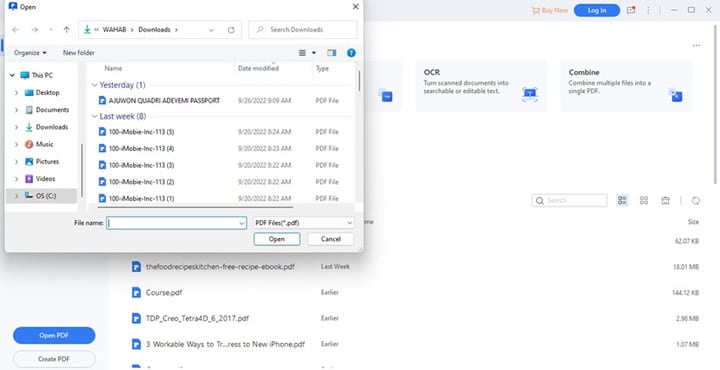
After installing and opening PDFelement, import your PDF from the main screen. Use the Open PDF option and select the file you want to read.
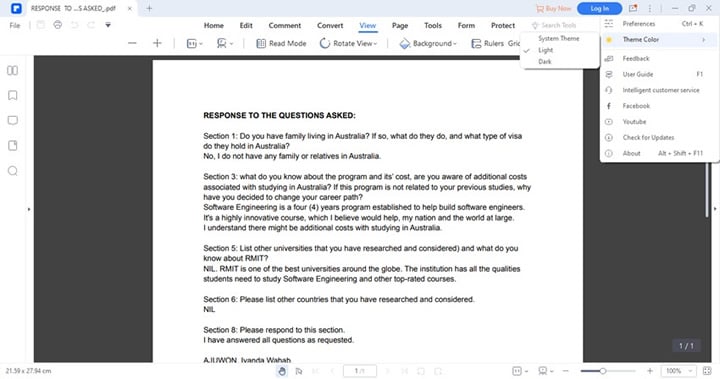
To change the app interface, open the menu in the upper-right area of the window and look for the theme or appearance settings. Choose Theme Color > Dark. The interface should switch to a dark theme, making menus and panels easier on the eyes.
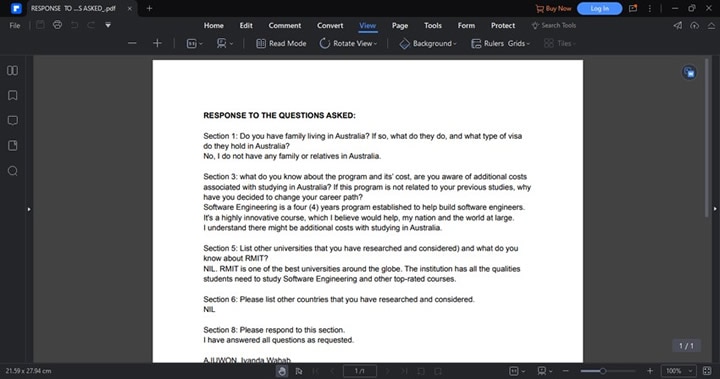
This setting is useful if you work in the editor for long sessions. It darkens the surrounding workspace, which is especially helpful when using thumbnails, comment panels, form tools, or editing features.
Change the PDF reading background to night mode in PDFelement
If you want the document page itself to feel less bright, change the reading background. Open the PDF, go to the View menu, and find the Background option. Choose Night to switch the reading background to a darker mode.
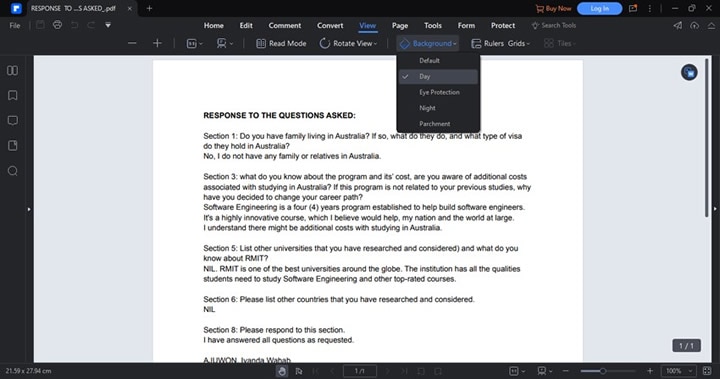
This is the setting to use when the PDF page is the main source of glare. It is especially helpful for text-heavy documents such as manuals, ebooks, reports, and study materials. If the document contains detailed images, charts, or brand colors, scan through several pages after switching modes to make sure nothing important becomes harder to see.
Foxit PDF Reader dark mode
Foxit PDF Reader is another familiar option for people who want a pdf reader dark mode without relying on Chrome. It includes interface skin options and a night mode for reading. This makes it suitable for users who mainly need viewing, commenting, and basic PDF interaction.
To use Foxit PDF Reader dark mode, open Foxit PDF Reader and load your PDF. Go to the application menu and look for the skin or appearance setting. Choose a dark or black skin to darken the interface. This reduces the brightness of the software window, but as with other tools, the interface theme and the page reading mode may be separate settings.
For page-level night reading, open the PDF and go to the View area. Look for Night Mode and turn it on. The document page should switch to a darker reading presentation. If the PDF contains colored diagrams or scanned pages, check the result carefully; night mode can make some visual elements look different.
Browser or desktop reader: which should you use?
Chrome is best when you need speed. If someone sends you a PDF link and you only need to skim it, Chrome is fine. It opens quickly, needs no extra setup, and works across platforms.
A desktop PDF reader with night mode is better for serious reading. It gives you more stable display options and fewer surprises with local files. It is also safer for private documents because you do not have to depend on a browser extension that may request broad permissions.
Use a desktop reader if you need to annotate, sign, organize, convert, OCR, or compress the file after reading. Use Chrome if the file is temporary and the reading task is light.
G2 Rating: 4.5/5 |100% Secure
Best Settings for Comfortable PDF Reading at Night
Dark mode is only one part of comfortable reading. If your eyes still feel tired, the fix may be brightness, contrast, zoom, or page layout rather than the color theme itself.
Start with screen brightness. Many people keep brightness too high at night, then try to solve the discomfort with dark mode alone. Lower the screen brightness until the page no longer feels like a light source in the room. If your monitor supports warm color temperature or night shift settings, try that too. Warmer tones can feel less harsh in the evening, although color-sensitive work should be done with normal color settings.
Zoom also matters. A PDF at 80% zoom may force you to squint, while 125% or 150% can make reading easier. For text-heavy documents, use single-page view or page-width view rather than trying to see a whole page at once. If you are reading on a laptop, full-screen mode can remove distractions and make better use of the display.
For study or review work, combine night mode with restrained annotations. Bright yellow highlights can become intense against a dark page. Softer colors, underlines, or comments may be easier to read later. If you plan to print the document, remember that dark mode is usually a viewing setting; it should not change the actual PDF unless you edit the file’s colors.
A few practical checks help you settle on the right setup:
Use dark mode in dim rooms, but switch back to light mode if you are reading in bright daylight.
Increase zoom before increasing contrast; larger text is often easier than harsher colors.
Check charts, images, signatures, and stamps after enabling night mode.
Take short breaks during long reading sessions instead of relying only on display settings.
The goal is not the darkest possible page. The goal is a page you can read without strain.
Common Problems With PDF Dark Mode
PDF dark mode is useful, but it is not perfect. Some issues come from the way the PDF was created. Others come from how browsers and readers apply color changes.
Scanned PDFs may not convert cleanly
A scanned PDF is often a set of page images rather than real selectable text. Dark mode tools can invert the whole image, but they cannot always separate text from background. The result may look muddy, grainy, or uneven.
If you need to work with a scanned file, OCR can help. In a tool like PDFelement, OCR can recognize text in scanned pages so the document becomes searchable and easier to reuse. OCR does not automatically guarantee perfect dark mode rendering, but it can make the PDF more manageable for reading, copying, commenting, and converting.
Images and charts can look wrong
Automatic dark mode often treats the whole page the same way. That means photos, logos, charts, colored labels, and heat maps may be inverted or recolored. In a casual ebook, this may not matter. In a medical report, financial chart, engineering drawing, or legal exhibit, it can be a serious problem.
If visual accuracy matters, use dark mode for reading text but switch back to normal view before interpreting colors. For documents that depend on exact color meaning, light mode is usually safer.
Forms and signatures need extra care
PDF forms, stamps, and signatures can be affected by aggressive color inversion. A signature may appear white instead of black, or a form field may become harder to see. Before submitting or sharing a completed form, review it in normal view. If the file will be printed, use print preview to confirm the output.
Dark mode does not always change the actual PDF
Most PDF dark mode settings are display preferences. They change how the document looks on your screen, not the PDF file itself. This is usually a good thing because the original document remains unchanged.
If you need to permanently create a dark-background PDF, that is a different workflow. You would need to edit page backgrounds, text colors, or export settings. Be careful with this because changing actual PDF colors can affect printability, accessibility, file size, and professional appearance.
Accessibility depends on contrast, not just color
A dark background with low-contrast gray text can be harder to read than a standard white page. Good accessibility depends on sufficient contrast, readable font size, and clean spacing. The W3C Web Content Accessibility Guidelines explain contrast principles that also apply to digital reading comfort, even though PDFs have their own formatting structure.
If you are preparing a PDF for others, do not assume everyone prefers dark mode. It is usually better to create a clear, accessible standard PDF and let readers choose their own viewing mode.
FAQs About PDF Dark Mode
How do I make a PDF dark mode?
The easiest way is to open the file in a PDF reader with dark mode or night mode and change the viewing background. In PDFelement, you can use a dark app theme and a night reading background. In Foxit PDF Reader, you can use a dark skin and turn on Night Mode from the View area. Chrome users can try a dark theme, Chrome flags, or a dark mode extension.
Does Chrome have a built-in PDF dark mode?
Chrome has dark appearance options, but it does not always provide a dedicated PDF page dark mode switch. The browser theme can darken Chrome’s interface, while experimental flags or extensions may be needed to darken the PDF page itself.
What is the best PDF reader with dark mode?
The best choice depends on your workflow. If you only read occasionally, Chrome with an extension may be enough. If you regularly read, annotate, convert, OCR, sign, or organize PDFs, a desktop tool such as PDFelement is more practical. Foxit PDF Reader is also a common option for users who want a PDF reader with night mode.
Is a PDF reader night mode better than a browser extension?
For long reading sessions, usually yes. A built-in PDF reader night mode is designed for document viewing and is less dependent on browser behavior. Extensions can work well, but they may affect website content, request permissions, or invert images in unpredictable ways.
Why does my PDF stay white in dark mode?
Your app may be changing only the interface theme, not the PDF page background. Look for a setting called Night Mode, Reading Background, Page Color, Replace Document Colors, or Accessibility Colors. If you are in Chrome, you may need an extension or a desktop PDF reader.
Can dark mode damage or change my PDF?
Viewing a PDF in dark mode normally does not change the file. It only changes how the document appears on your screen. The PDF itself remains the same unless you edit page backgrounds, text colors, or other document elements and save those changes.
Does dark mode save battery when reading PDFs?
It can help on OLED or AMOLED screens because black pixels may use less power. On many LCD screens, the battery difference is smaller because the backlight is still active. Battery savings should be treated as a bonus, not the main reason to use PDF dark mode.
Is dark mode always better for your eyes?
No. Dark mode can be more comfortable in low light, but it is not always better in bright environments. Some people read faster and more comfortably with dark text on a light background. Adjust brightness, zoom, and contrast, and take breaks during long reading sessions.
Final Thoughts
PDF dark mode is most useful when you match the method to the task. Chrome is quick for opening a file and testing a dark theme or extension. A dedicated PDF reader with dark mode is better when you read for longer periods or need stable viewing controls. PDFelement is especially useful when reading is only one part of the job—annotating, OCR, converting, compressing, signing, or organizing the PDF can all happen in the same workflow.
If a dark view makes charts, scanned pages, forms, or signatures harder to understand, switch back to normal view before making decisions or sharing the file. Comfortable reading matters, but the document still needs to remain accurate and usable.


