

Bulk signing PDFs saves time and ensures consistency when handling contracts, approvals, or large document batches. It becomes essential when single-file signing increases the risk of errors across multiple pages. However, bulk signing requires a reliable tool that can manage multiple PDFs and signatures without issues. This article explains how to add bulk signature on PDFs efficiently and introduces a robust solution designed to digitally sign multiple files and pages at once.


 G2 Rating: 4.5/5 |
 100% Secure
In this article
- Why Bulk PDF Signing is Essential for Business Productivity
- The Meaning of Bulk PDF Signing Explained
- Digital vs. Electronic Signatures in Bulk Signing Workflows
- Common Problems Users Face When Bulk Signing PDFs
- PDFelement Bulk Signing: Add Digital Signatures to Multiple PDFs
- How to Apply a Digital Signature to Every Page of a PDF
- Desktop vs. Online Tools: Comparing Bulk Signing Solutions
- What to Do When Bulk Signing Isn't Supported
Part 1. Why Bulk PDF Signing is Essential for Business Productivity
When documents pile up and deadlines are tight, signing PDFs one by one quickly becomes a major productivity drain. Bulk signing solves this bottleneck by reducing repetitive actions and keeping large document workflows moving smoothly.
Why Signing PDFs One by One Becomes Impractical
- Contracts and Agreements: Businesses often need to sign multiple contracts at once, such as vendor agreements or client paperwork. Signing each file individually slows approvals and delays project timelines.
- HR Onboarding Documents: Employee onboarding typically involves several forms that require signatures from HR and new hires. Handling these documents one by one increases administrative workload and onboarding time.
- Financial and Compliance Records: Financial audits and compliance processes require signing large volumes of records accurately. Manual, single-file signing increases the risk of missed signatures and compliance errors.
Difference Between Single and Bulk Tasks
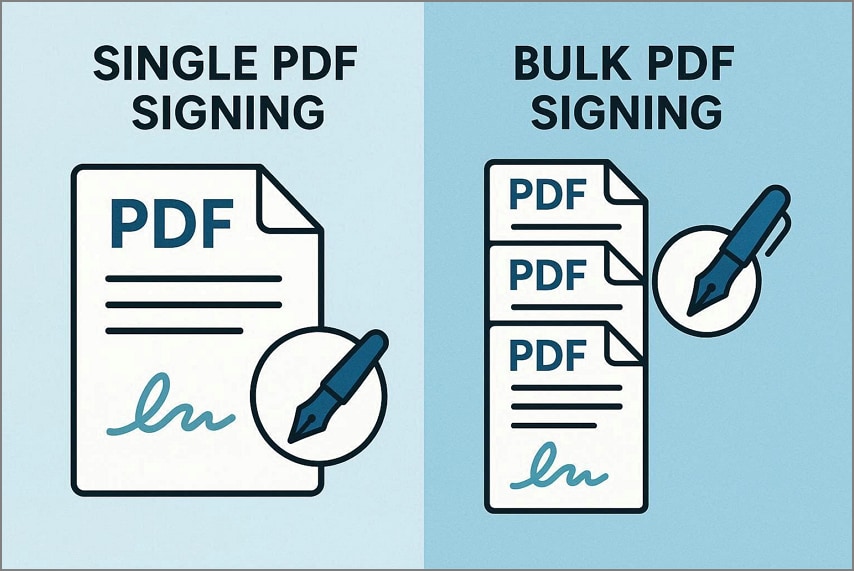
- Signing One PDF Manually: This method requires opening each document separately and repeating the signing steps every time. It works for occasional use but becomes time-consuming and inefficient when handling multiple files.
- Bulk Signing Multiple PDFs or Pages in One Action: Bulk signing allows you to apply a signature across many files or pages at once. It significantly saves time, reduces repetitive work, and ensures consistency across all signed documents.
Part 2. The Meaning of Bulk PDF Signing Explained
The term bulk sign PDF can mean different things depending on the user's goal, which often leads to confusion when choosing the right tool. This section clarifies what users usually expect when searching for bulk PDF signing and sets clear intent around its practical use cases:
Bulk Signing Multiple PDF Files at Once
This process allows users to sign multiple PDF files at once. It eliminates the need to open and sign each file individually, making it ideal for handling contracts, invoices, or forms in high volumes.
Signing All Pages in a Single PDF at Once
This method refers to signing multiple PDF pages at once. It is commonly required for compliance or legal purposes where each page must clearly display an authorized signature.
Clarification: Both use cases are widely referred to as bulk signing, but not all PDF tools support both methods, and bulk signing usually involves secure digital signatures rather than simple image or text annotations.
G2 Rating: 4.5/5 |100% Secure
Part 3. Digital vs. Electronic Signatures in Bulk Signing Workflows
Many users confuse digital signatures with electronic signatures when dealing with bulk signing, which can lead to compliance or workflow issues later. The table below clearly explains how both differ in bulk PDF digital signature workflows, so you can choose the right option from the start:
| Metric | Digital Signature | Electronic Signature |
| Primary Purpose | Ensures document integrity, signer identity verification, and legal authenticity at scale | Indicates user consent or approval with minimal identity validation |
| Suitability for Bulk Signing | Highly suitable for bulk workflows involving multiple files or pages | Limited suitability; often inefficient or restricted for large-scale signing |
| Security Level | High security using encryption and cryptographic hashing | Low to moderate security, often image- or text-based |
| Certificate Requirement | Requires a Digital ID or Digital Signature Certificate (DSC) issued by a trusted authority | No certificate required in most cases |
| Tamper Detection | Automatically detects any changes made after signing | Does not reliably detect document modifications |
| Legal & Compliance Use | Widely accepted for legal, financial, and regulatory bulk processes | Acceptance varies and may not meet compliance needs |
| Scalability | Designed for high-volume document signing with consistent validation | Poor scalability for signing large document sets |
| Typical Bulk Use Case | Contracts, tax filings, corporate approvals, official records | Simple internal approvals or informal agreements |
| Core Value in Bulk Workflows | Integrity + Verification + Scalability | Convenience for low-risk, small-scale signing |
G2 Rating: 4.5/5 |100% Secure
Part 4. Common Problems Users Face When Bulk Signing PDFs
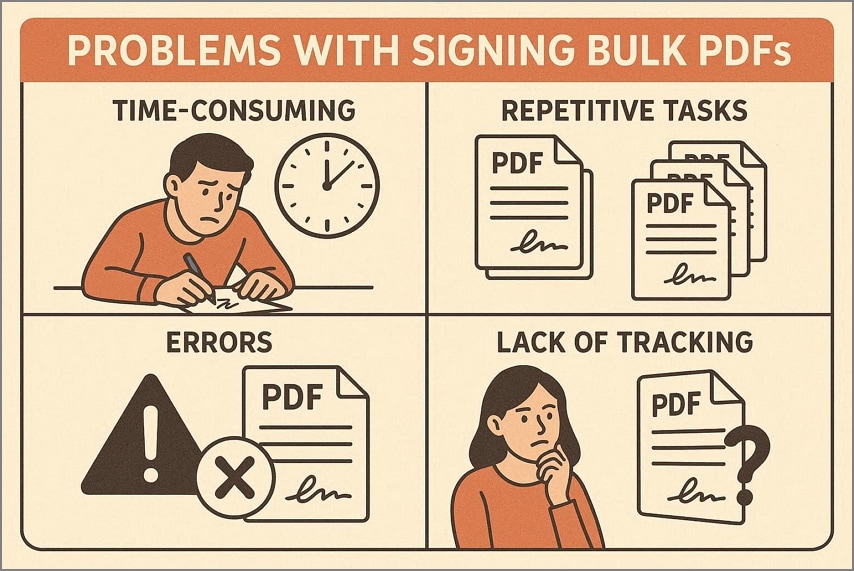
Bulk sign PDF often sounds simple in theory, but users quickly run into practical limitations that slow down the process. This section highlights the most common frustrations people face when trying to sign multiple PDFs efficiently:
- Single-File Signing Limitation: Many PDF tools only support signing one document at a time, forcing users to repeat the same steps for every file. This makes bulk workflows inefficient and time-consuming, especially for large document batches.
- Repetitive Page-by-Page Placement: Some tools require users to manually place the signature on each page of a PDF. This repetition increases effort and significantly slows down signing multi-page documents.
- Slow or Restrictive Tools: Adobe and many online PDF tools can feel sluggish when handling large files or multiple documents. Usage limits, file size restrictions, or subscription barriers further interrupt bulk signing workflows.
- Inconsistent Signature Positioning: Manually placing signatures across files or pages often results in misaligned or uneven placement. This inconsistency can make documents look unprofessional and may cause compliance concerns.
Part 5. PDFelement Bulk Signing: Add Digital Signatures to Multiple PDFs
In fast-paced workflows, signing PDFs one by one creates major delays and reduces overall productivity significantly. Users often face repetitive tasks, like placing signatures on every page of multiple documents manually. Many PDF tools feel slow, restrictive, and increase the risk of inconsistent signature placement across files.
PDFelement solves these problems by supporting batch digital signatures for multiple PDFs efficiently and securely. It allows users to apply the same signature to several documents at once, saving time and effort. The bulk PDF signer software also works seamlessly with existing digital certificates, ensuring verifiable and compliant digital signing. If you want to learn how to batch sign files on PDFelement, follow the guide below:
Step 1Select the Batch PDFs Option to Start
From the main page, select the "Batch PDFs" tab and proceed to the following window.

G2 Rating: 4.5/5 |100% Secure
Step 2Choose the Sign Document Feature
In the next window, click the "Sign Document" option and move to the next window for importing the files.

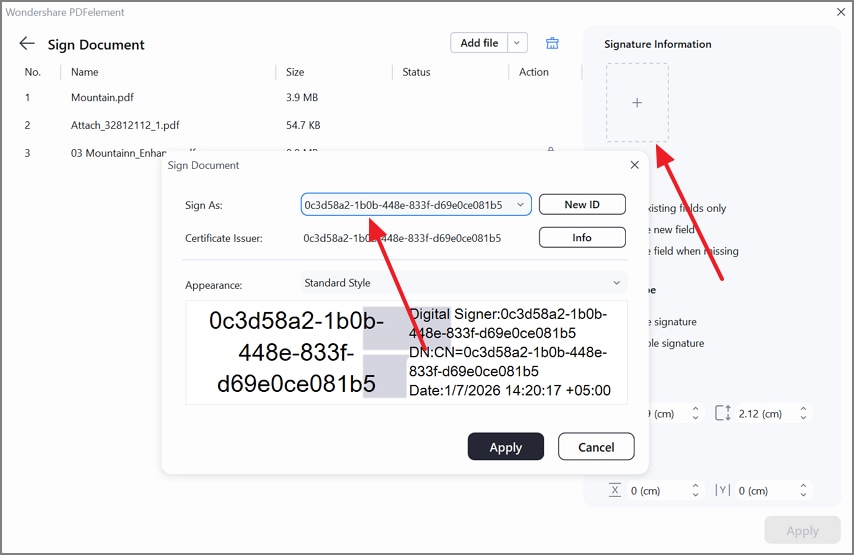
Step 3Choose the Digital Certificate
After the imported files appear in the next interface, click on the "+" button and pick the digital certificate from the following window.
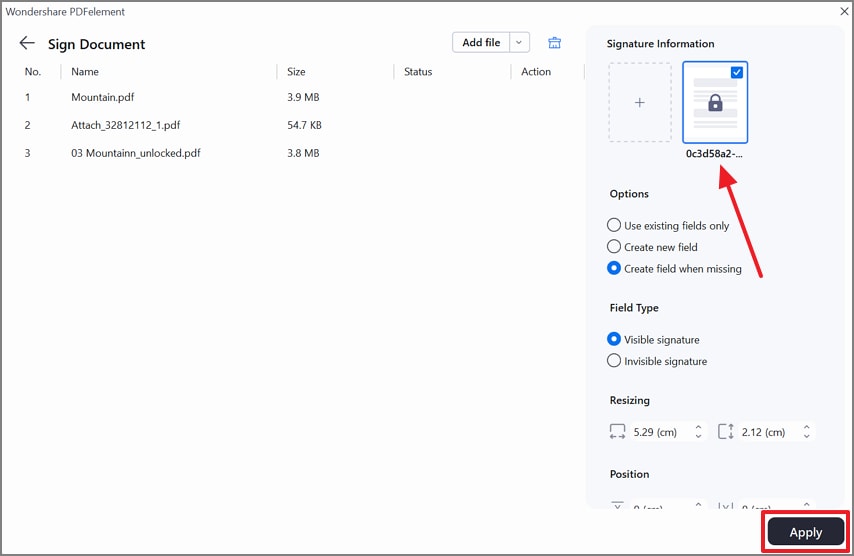
Step 4Enter Signing Details and Apply Changes
Finally, select the field types and other signing settings and click "Apply" to save the signed bulk documents directly on your device.
G2 Rating: 4.5/5 |100% Secure
Outcomes of Bulk Signing with PDFelement
- All PDFs Signed Consistently: Ensures uniform signature placement across every document for a professional appearance.
- No Repetitive Manual Work: Eliminates the need to sign each file or page individually, saving time and effort.
- Reduced Risk of Errors: Minimizes mistakes like misaligned or missing signatures during bulk signing.
Part 6. How to Apply a Digital Signature to Every Page of a PDF
Sometimes, users need to place a signature on every page of a PDF, such as multi-page contracts, agreements, or official records. Signing each page manually is time-consuming, repetitive, and prone to mistakes, making traditional methods inefficient for high-volume workflows. This is where page-level bulk signing comes in, allowing the same signature to be applied across all pages automatically.
Tools that support batch logic, like PDFelement, make this process simple by applying the same digital signature to every page while ensuring consistent placement. This approach saves time, reduces errors, and maintains professional, uniform documents. To learn how to digitally sign all pages in a PDF at once using PDFelement, follow this guide:
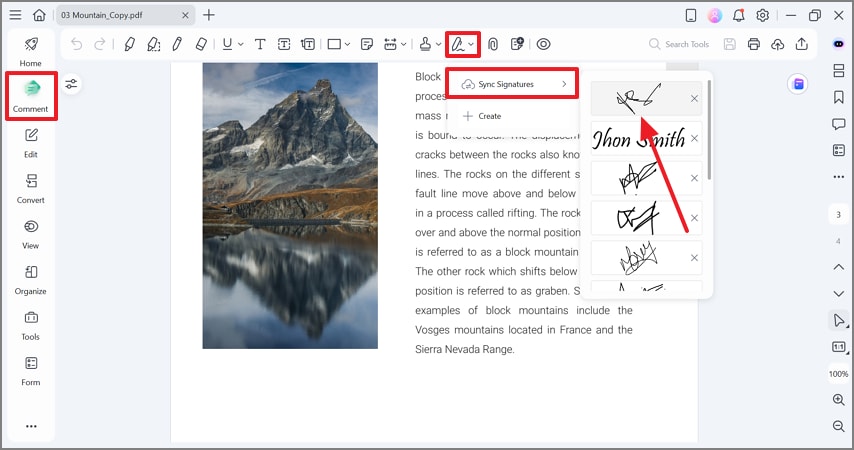
Step 1Add a Signature Using the Comment Mode
After importing the multi-paged PDF file, enter the "Comment" mode from the left sidebar. Now, expand the "Signature" menu from the top and hover the mouse over "Sync Signature" and pick the sign.
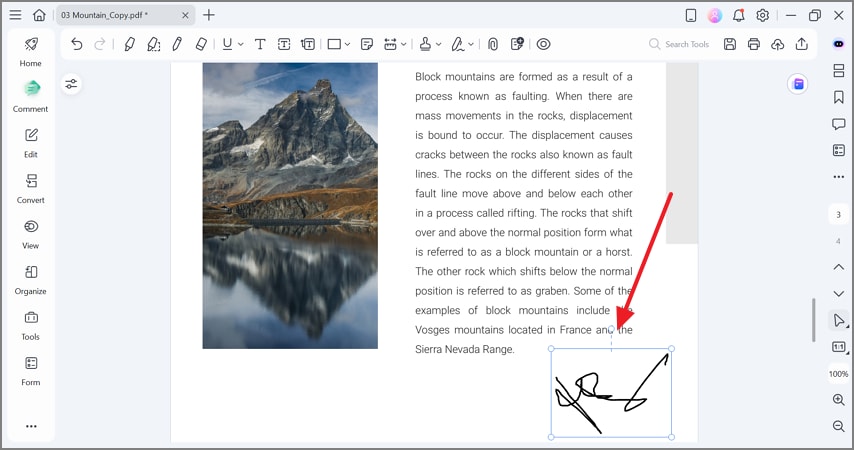
Step 2Add the Signature on All the Pages
After selecting your signature, click on the file where you need to add the signature and repeat the process on all pages of the file.
G2 Rating: 4.5/5 |100% Secure
Part 7. Desktop vs. Online Tools: Comparing Bulk Signing Solutions
Choosing the right bulk signing method can significantly impact efficiency, security, and workflow reliability. The table below compares desktop software and online tools to help you make an informed decision for large-scale signing needs:
| Feature | Desktop Bulk Signing | Online Bulk Signing |
| Batch Capacity | Handles large batches efficiently, ideal for high-volume workflows | Limited support for multiple files; not ideal for large volumes |
| Certificate Control | Full local control over digital certificates and credentials | Certificates may be managed online or limited by the platform |
| File Handling | No need to upload files, keeping documents local and secure | Requires file upload, which may pose security or privacy concerns |
| Speed & Reliability | Typically faster and more stable for multiple PDFs | Slower, dependent on internet speed and server limitations |
| Limitations | Minimal limitations aside from system resources | File size, document count, and subscription tiers often restrict usage |
| Best Use Case | High-volume, secure, and compliance-focused bulk signing | Occasional or small-scale signing with low security needs |
Part 8. What to Do When Bulk Signing Isn't Supported
Not all PDFs are ready for bulk signing, and attempting to sign them without preparation can lead to errors or failed workflows. This section helps you understand the common restrictions and how to manage expectations before starting a batch signing process:
- PDFs that Block Digital Signatures: Some PDFs are locked or encrypted, preventing any digital signatures from being applied until permissions are updated.
- Permission or Certification Restrictions: Documents may have security settings or certifications that restrict editing or signing, requiring administrative access to modify.
- PDFs that Require Form Preparation First: Certain PDFs need fields or signature placeholders added before a signature can be applied, especially interactive or fillable forms.
Why Not All PDFs Can Be Bulk Signed
Bulk signing depends on the PDF's structure and security settings. Password-protected, certified, or poorly formatted documents may block automated or batch signatures. Additionally, documents without designated signature fields often require manual adjustments to ensure each page can accept a digital signature consistently.
G2 Rating: 4.5/5 |100% Secure
How to Check and Prepare Files Before Batch Signing
Before starting a bulk signing workflow, review each PDF for restrictions and verify signature compatibility. Adding signature fields, unlocking documents where permitted, and consolidating multi-page files can save time and prevent errors during batch processing. Tools like PDFelement also provide features to streamline this preparation, ensuring a smoother bulk signing experience.
Frequently Asked Questions
-
How do I bulk sign multiple PDF files at once?
To bulk sign multiple PDFs, you need a tool that supports batch digital signatures, allowing one signature to be applied across many files. PDFelement is a reliable option, letting you sign multiple documents in a single workflow quickly and securely. -
Can I digitally sign all pages in a PDF at the same time?
Yes, page-level bulk signing allows the same digital signature to be applied across every page of a PDF automatically. Tools like PDFelement make this process easy, ensuring consistent placement and saving time on multi-page documents. -
What is the difference between batch sign and bulk sign?
"Batch sign" typically refers to signing multiple files or multiple pages in one operation, while "bulk sign" is often used more generally for any high-volume signing task. Both terms emphasize efficiency, but batch sign usually implies a more structured, automated workflow. -
Is a bulk digital signature legally valid?
Yes, a bulk digital signature is legally valid as long as it uses a verified digital certificate or digital ID. The signature maintains integrity, authenticity, and compliance with digital signing regulations in most countries. -
Does Adobe support bulk PDF signing?
Adobe Acrobat allows some level of multiple-file signing but has limitations for high-volume or page-level bulk signing. For more advanced batch digital signatures, tools like PDFelement provide faster and more scalable options.
Conclusion
Bulk signing PDFs is a practical necessity for anyone handling large volumes of documents regularly. It saves time, eliminates repetitive manual steps, and significantly reduces the risk of signing errors or inconsistencies. For batch workflows, digital signatures are the most reliable option, as they ensure document integrity, identity verification, and legal validity at scale.
To achieve this efficiently, a PDF tool with true batch signing capabilities is essential. PDFelement stands out as a practical and scalable solution, allowing users to bulk sign PDFs securely without repetitive manual work or workflow slowdowns.




