

Table of Contents
- What a Digital Signature Actually Is
- What You Need Before You Create a Digital Signature
- How to Create a Digital Signature in a PDF with PDFelement
- Other Ways to Make a Digital Signature
- How to Check, Share, and Protect a Digitally Signed PDF
- Common Mistakes to Avoid When You Create Your Digital Signature
Signing paperwork should not require printing a file, finding a pen, scanning the page, and emailing a blurry copy back. If you work with contracts, tax forms, HR documents, invoices, approvals, or internal reports, learning how to create digital signature workflows can save time and reduce document tampering risks.
There is one catch: people often use “digital signature” to mean different things. Sometimes they mean a handwritten signature image placed on a page. Sometimes they mean a secure, certificate-based signature that proves the signer’s identity and shows whether the document was changed after signing. This guide explains both, but the main focus is the secure PDF signing process most people are looking for when they ask, “How can I make digital signature for a document?”


 G2 Rating: 4.5/5 |
 100% Secure
What a Digital Signature Actually Is
A digital signature is a security method used to sign a document electronically. In a PDF, it usually relies on a digital ID or certificate. That certificate connects the signature to a signer and helps the recipient verify two things: who signed the document and whether the file has been altered after signing.
This is different from simply pasting an image of your handwritten signature into a document. A signature image may look like your signature, but by itself it does not prove document integrity. Anyone with the image could place it somewhere else. A certificate-based digital signature adds a validation layer.
Digital signature vs. electronic signature
An electronic signature is a broad term. It can include typing your name into a form, drawing your signature with a mouse, clicking “I agree,” or inserting a scanned signature image. Electronic signatures are widely used and can be legally accepted in many situations, depending on the country, document type, and signing process.
A digital signature is a more specific type of electronic signature. It uses cryptographic technology and a certificate. In practice, that means the signed PDF can show a validation status, signer information, signing time, and whether the document changed after the signature was applied.
For a simple internal approval, a typed or drawn signature may be enough. For contracts, compliance files, financial approvals, or official PDF forms, a digital signature is often the better choice.
For general legal background, you can review the U.S. ESIGN Act information from the Federal Trade Commission or electronic identification rules in the EU under eIDAS. Requirements vary, so check your organization’s policy if the document is sensitive.
How is digital signature created?
A digital signature is created by using a digital ID, sometimes called a certificate. The signing software applies that ID to the document and creates a unique encrypted signature value based on the file content.
Here is the simplified version:
- You choose a document to sign.
- You select or create a digital ID.
- The software applies your signature to the document.
- The signed document includes validation information.
- If someone changes the file later, the signature may show as invalid or modified.
You do not need to understand the encryption details to use a digital signature correctly. What matters is choosing the right type of signature for the document and keeping your digital ID secure.
What You Need Before You Create a Digital Signature
Before you create your digital signature, prepare the document and decide what level of trust you need. A quick signature for a team approval is different from a signature on a regulated contract or a document that may be audited later.
A digital ID or signing certificate
For a true digital signature, you need a digital ID. Some PDF applications let you create a self-signed digital ID on your computer. This is convenient for internal documents, small teams, or personal workflows. The recipient can still see whether the PDF changed after signing, but they may need to manually trust your certificate.
For higher-trust use cases, you may need a certificate from a trusted certificate authority or an organization-approved provider. This is common in enterprise, legal, government, and regulated industries.
A self-signed digital ID is usually fine when:
The recipient already knows you and accepts your signing method.
The document is for internal review or approval.
You mainly need tamper detection after signing.
A certificate from a trusted authority is better when the document needs stronger identity assurance or must meet a specific compliance standard.
A PDF signing tool
You need software that can apply and save a digital signature properly. For PDF documents, PDFelement is a practical option because it combines signing with the surrounding PDF work people usually need: editing text, preparing forms, organizing pages, adding comments, converting files, and protecting the final PDF.
That matters because signing is often the last step, not the only step. If you notice a missing date field, an incorrect page order, or a scanned page that needs OCR before signing, you do not want to move the file through several separate tools. You can prepare the PDF, add the signature, and save a clean final version in one workflow.
A final version of the document
Try not to sign a draft. Digital signatures are designed to detect changes. If you sign first and then edit the text, replace a page, or add new form fields, the signature may become invalid or show that the document was modified.
Before signing, check the basics: names, dates, amounts, page order, attachments, blank fields, and required initials. If the PDF was created from a scan, make sure the text is readable. If it needs OCR, editing, compression, or page cleanup, handle that before you sign.
How to Create a Digital Signature in a PDF with PDFelement
If your main question is “how to make digital signature in a PDF,” the workflow below shows the core process in PDFelement. The exact labels may vary slightly by version or operating system, but the signing logic is the same: open the PDF, choose the signature location, create or select your digital ID, then sign and save.
G2 Rating: 4.5/5 |100% Secure
Step 1: Open the PDF file
Launch PDFelement and open the PDF you want to sign. You can usually do this from the home screen by selecting Open File, then choosing the document from your computer.
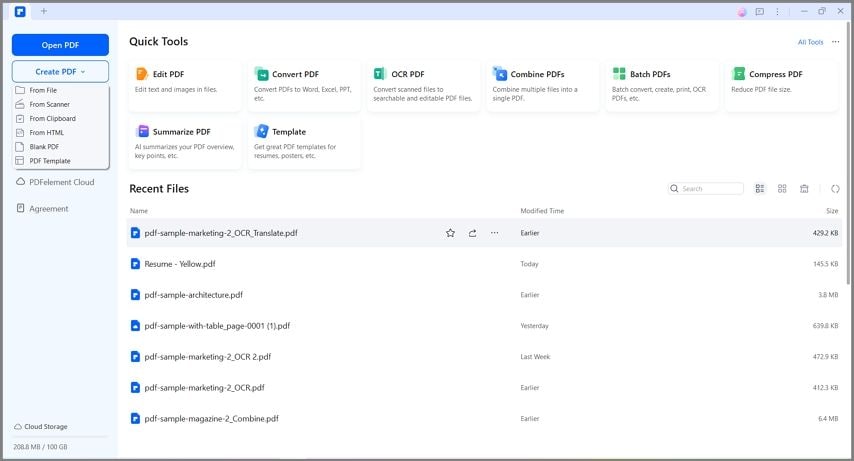
Take a moment to review the document before going to the signature step. If the file is a contract or form, scroll through every page. Small errors are easier to fix now than after the signature is applied.
If you need to make edits, do them first. For example, you may need to correct text, insert a missing page, fill form fields, add comments, or run OCR on a scanned document. Once the signed version is saved, further editing can affect signature validation.
Step 2: Select the signature area
Go to the signing or protection area in PDFelement and choose the option to sign the document. Then click and drag on the PDF page where the signature should appear. This area is usually near a signature line, approval block, or designated signing field.
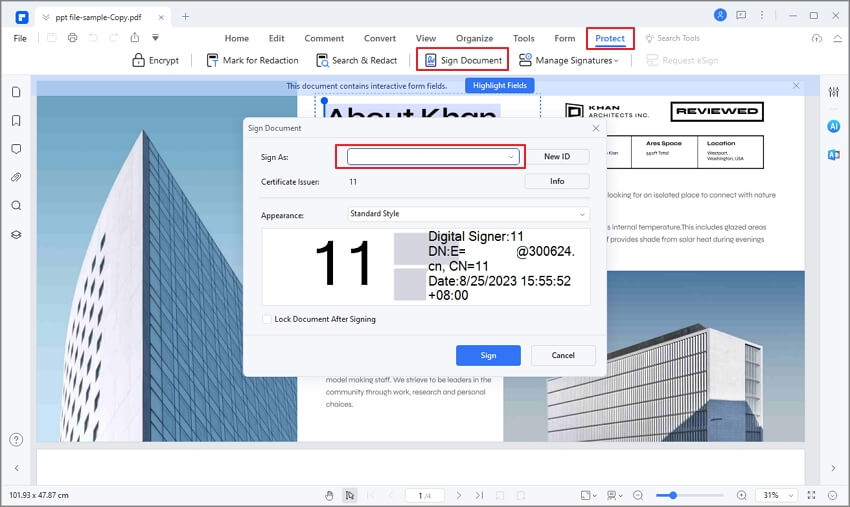
Placement matters more than people realize. Put the signature where a reviewer expects to find it. If the document includes multiple signers, use the correct line and avoid covering names, dates, or terms. For forms, keep the signature inside the assigned field so the layout remains professional.
Step 3: Create or choose a digital ID
If you already have a digital ID, select it. If not, choose the option to create a new ID. You may be asked to enter details such as your name, email address, organization, country or region, and password.
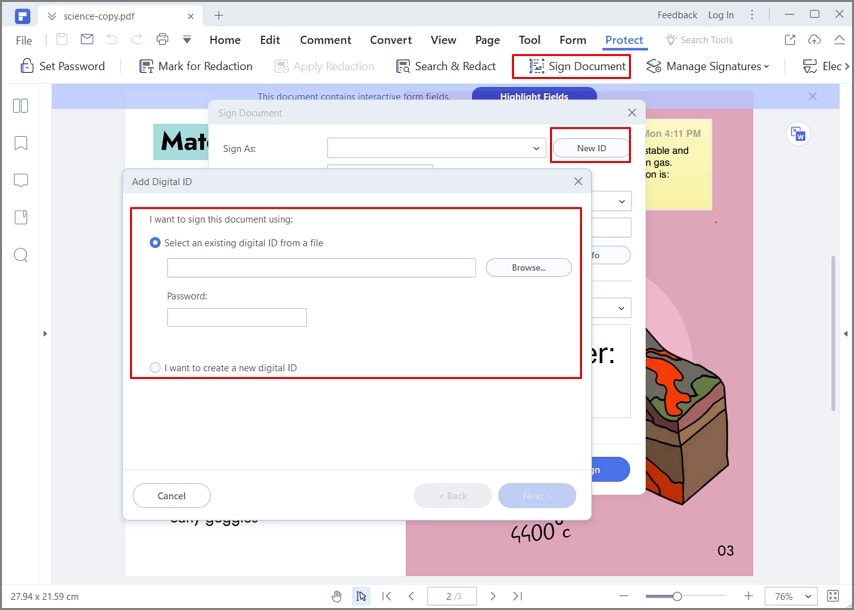
Use accurate information, especially for business documents. Recipients may see these details when they inspect the signature. Choose a strong password for the digital ID and store it safely. If someone else can access your certificate and password, they may be able to sign documents as you.
After creating or selecting the digital ID, confirm the signature appearance. Some workflows display a standard digital signature block with signer details and timestamp information. Others may allow a visible signature style. A clean, simple appearance is usually best for business files.
Step 4: Sign and save the final PDF
Click Sign to apply the digital signature. PDFelement may prompt you to save the file. It is smart to save the signed version as a separate file, such as:
Contract_ClientName_signed_2025-02-14.pdf
This protects the unsigned working copy and makes the final version easier to identify later. After saving, reopen the PDF and check the signature status. If the validation panel shows that the document has not been modified since signing, the file is ready to send.
Other Ways to Make a Digital Signature
PDFelement is a strong fit for PDF-based signing, especially if you also need to edit, convert, OCR, annotate, or organize documents before signing. Still, there are other ways to create digital signature workflows depending on your document type, legal requirements, and team setup.
G2 Rating: 4.5/5 |100% Secure
Use a certificate authority for higher-trust signing
If your company, client, or regulator requires identity-backed certificates, you may need a digital certificate from a certificate authority or approved trust service provider. These certificates go through a stronger identity verification process than a self-signed ID.
This route is common for procurement contracts, cross-border business documents, government forms, and industries with strict audit requirements. It may take longer to set up, but it gives recipients more confidence that the signer’s identity was verified by a trusted third party.
Before buying or requesting a certificate, ask the recipient what type they accept. Some organizations require a specific trust provider or certificate level.
Use built-in PDF signing tools
Some PDF readers and editors include basic signing features. These may let you create a self-signed digital ID, draw a signature, or place a signature image. They can be useful for one-off documents.
The limitation is that basic tools may not support the full workflow around the PDF. For example, if the file needs page reordering, OCR, form field edits, compression, or conversion from Word to PDF before signing, you may need a more capable PDF editor. That is where a dedicated tool such as PDFelement can reduce friction.
Use an online e-signature platform
E-signature platforms are useful when several people need to sign in a specific order. They often provide email invitations, reminders, audit trails, and signer authentication options. If you manage sales contracts, HR onboarding packets, or vendor approvals, that workflow can be helpful.
The tradeoff is that you usually upload the document to a cloud service. For confidential files, check your company’s data policy first. Also confirm whether the platform creates a certificate-based digital signature or a broader electronic signature record. Both can be useful, but they are not always the same thing.
Create a signature image for informal documents
If you only need a visual signature, you can draw your signature on a phone, tablet, or computer and insert it into a document. This is the method many people mean when they search “create my digital signature,” but it is better described as creating an electronic signature image.
Use it for low-risk paperwork, not for files that require tamper evidence or identity validation. If you do use a signature image, keep the image file private and avoid storing it in shared folders.
How to Check, Share, and Protect a Digitally Signed PDF
Creating the signature is only part of the job. The way you handle the signed PDF afterward affects whether recipients can validate it and whether the document remains trustworthy.
Verify the signature before sending
After signing, open the PDF and inspect the signature status. Many PDF applications display a message such as “Signed and all signatures are valid” or “Document has been modified since signing.” If the signature is not trusted, the recipient may need to trust your certificate, especially if you used a self-signed digital ID.
Do not ignore warning icons. They do not always mean fraud, but they do mean something needs attention. A common warning appears when the certificate is self-signed or not trusted by the viewer’s system. Another appears when the document changed after signing.
Avoid edits after signing
A digital signature protects the version of the file that existed at the time of signing. If you edit the text, crop pages, insert images, add form fields, or reorganize pages afterward, the signature may no longer validate as expected.
If you discover an error after signing, the cleanest approach is usually to return to the unsigned copy, make the correction, and sign a new final version. If multiple people have already signed, coordinate carefully because the corrected document may require everyone to sign again.
Send the PDF in a validation-friendly way
Send the signed PDF as a PDF attachment or through an approved document system. Avoid converting it to Word, printing it to a new PDF, flattening it unnecessarily, or compressing it with a tool that rewrites the file structure in a way that affects signatures.
If file size is a problem, compress the PDF before signing. If you need to combine several attachments into one package, do that before signing. Think of the signature as the seal at the end of the process.
Keep your digital ID secure
Your digital ID is part of your signing identity. Protect it the way you would protect a company password or access token. Use a strong password, do not share the certificate file casually, and remove it from old devices when you no longer use them.
If you believe your digital ID has been copied or compromised, stop using it and create a new one. For organization-issued certificates, report the issue to your IT or compliance team.
Common Mistakes to Avoid When You Create Your Digital Signature
The most common mistake is signing too early. People sign a PDF, then remember that they need to add a date, correct a typo, or attach another page. That creates a messy version-control problem. Prepare first, sign last.
Another mistake is confusing a signature picture with a secure digital signature. A visual signature can be appropriate for informal approvals, but it does not offer the same tamper evidence as a certificate-based signature. If the recipient asked for a digitally signed PDF, confirm what they mean before sending a scanned signature image.
Be careful with online tools for confidential documents. Many are convenient, but not every file should be uploaded to a browser-based service. Contracts, IDs, financial statements, legal documents, and HR records may require approved software or company-managed storage.
Do not reuse a weak digital ID password. If your signing certificate is protected by “123456” or the same password you use elsewhere, the document security benefits are weakened. A digital signature is only as trustworthy as the process around it.
Finally, avoid changing the signed PDF after the fact. Even harmless-looking edits can affect validation. If the signed document needs to remain official, preserve it exactly as signed and create a separate revised version if changes are needed.
People Also Ask
-
How can I make digital signature for a PDF?
You can make a digital signature for a PDF by opening the file in a PDF signing tool, choosing the signing location, creating or selecting a digital ID, and applying the signature. In PDFelement, the process starts by opening the PDF, selecting the signing option, drawing the signature area, creating a new digital ID if needed, and saving the signed PDF. -
Is a digital signature the same as a scanned handwritten signature?
No. A scanned handwritten signature is only an image of your signature. A digital signature uses a certificate-based process that can verify signer information and detect whether the document changed after signing. A scanned signature may be enough for informal files, but a digital signature is better for documents that need validation. -
How is digital signature created technically?
Technically, a digital signature is created using cryptography. The signing software uses your digital ID to create a unique encrypted value connected to the document’s contents. If the PDF is changed later, the signature validation can show that the file no longer matches the signed version. -
Can I create my digital signature for free?
You can often create a self-signed digital ID for free inside PDF software. This may be enough for personal or internal use. If you need a certificate from a trusted authority, there may be a cost, and the provider may require identity verification. -
Do I need a certificate authority to create your digital signature?
Not always. For many everyday PDF workflows, a self-signed digital ID can work. For legal, government, enterprise, or regulated documents, the recipient may require a certificate issued by a trusted certificate authority or approved trust service provider. -
Can I edit a PDF after adding a digital signature?
You may be able to edit the PDF, but doing so can invalidate the signature or show that the document was modified after signing. The safest workflow is to finish all edits, form filling, OCR, page organization, and compression before applying the digital signature. -
What is the safest way to send a digitally signed PDF?
Send the signed PDF in its original format, either as an attachment or through an approved document management system. Avoid converting, printing, flattening, or editing the file after signing. If the recipient needs to validate the signature, they should open it in a PDF viewer that supports signature verification. -
Why does my digital signature show as not trusted?
A signature may show as not trusted if the certificate is self-signed or not recognized by the recipient’s PDF viewer. It does not always mean the document was changed. The recipient may need to trust your certificate, or you may need to use a certificate from a recognized authority for higher-trust documents.


