

Table of Contents
- How to Think About the Signature of Your Name
- Signature Ideas for My Name: Popular Styles to Try
- How to Design a Name Signature That Looks Natural
- Different Types of Signatures for My Name and When to Use Them
- How to Add a Signature of My Name to a PDF with PDFelement
- Signature Sample of My Name: Quick Templates You Can Adapt
A signature is more than a decorative version of your name. It needs to feel personal, look consistent, and work in the places where you actually use it: contracts, forms, letters, invoices, approval pages, school documents, or creative work. If you searched for a “signature of my name,” you are probably looking for two things at once: design inspiration and a practical way to use that signature on real documents.
The good news is that you do not need to be a calligrapher to create a good name signature. A strong signature usually comes from a few simple choices: which part of your name to emphasize, how readable it should be, how fast you can write it, and whether it should look formal, stylish, simple, or artistic.
This guide walks through signature ideas, different types of signatures for your name, design rules that keep your signature usable, and a practical PDF workflow for applying your signature to documents.


 G2 Rating: 4.5/5 |
 100% Secure
How to Think About the Signature of Your Name
Before choosing a style, it helps to separate three related ideas: the visual design of your name signature, your handwritten signature, and an electronic signature used on a document. They often overlap, but they are not exactly the same.
A name signature is the visual mark you use to represent your name. It may be handwritten, typed in a script font, drawn with a stylus, or saved as an image. A legal or official signature is the mark you consistently use to approve or confirm something. An electronic signature is a digital form of signing a document, which may be typed, drawn, uploaded as an image, or created through a signing tool.
What Makes a Name Signature Work?
A good signature of your name should satisfy three practical conditions.
First, it should be recognizable as yours. It does not have to be fully readable, but it should not look like a random scribble you cannot repeat. Second, it should match the context. A dramatic, heavily decorated signature may look great on artwork but feel out of place on a business agreement. Third, it should be easy enough to reproduce. If a signature takes too long to write, you may stop using it consistently.
There is no single “best” signature. Someone with a short name may prefer a full-name signature because it looks balanced. Someone with a long name may use initials plus a surname. A designer may want an expressive mark. A manager signing internal approvals may want something clean and fast.
Name and Signature: Should They Match Exactly?
Your name and signature do not always need to match letter for letter. Many people use initials, a shortened first name, or a stylized surname. For example, “Jonathan Miller” might sign as “J. Miller,” “Jon Miller,” or a stylized “JM.” The key is consistency.
For official documents, use the version of your name expected by the organization. If a form asks for your full legal name, type or print your full legal name where requested, then add your signature in the signature field. If the form requires a specific format, follow the instructions rather than prioritizing style.
Signature Ideas for My Name: Popular Styles to Try
The easiest way to create a signature is to test several styles, not to perfect the first one. Write your name in different ways, circle the versions that feel natural, then simplify them until you have a signature you can repeat without thinking too hard.
Below are several signature ideas for your name, including classic options from the old article and additional styles that fit modern personal and professional use.
Arty Signature
An arty signature uses curves, flourishes, loops, or extended strokes to create a more expressive look. This style works well for artists, photographers, designers, content creators, stylists, musicians, and anyone who wants their signature to feel distinctive.
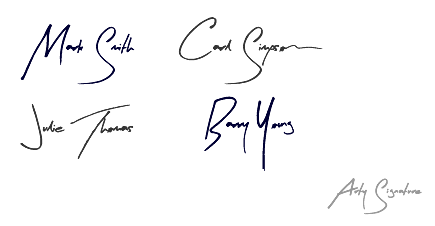
The risk with an arty signature is overdesign. Too many loops can make the signature hard to read and hard to repeat. A better approach is to decorate one or two parts only. For example, extend the first capital letter, add a clean underline from the final letter, or make one loop slightly larger than normal. The signature should still feel quick and confident.
If your name has letters such as A, C, G, J, L, M, R, S, Y, or Z, you have useful shapes for creative strokes. Try using the first letter as the main visual anchor and keeping the rest of the name lighter.
Signature with a Popular Font
A font-based name signature is useful when you want a clean digital version of your signature. You can type your name in a script, handwritten, serif, or minimalist font, then convert it into an image for use on documents. This is not the same as practicing a handwritten signature, but it can be useful for email sign-offs, proposals, certificates, mockups, or non-sensitive documents.

Choose fonts carefully. A font that looks elegant at a large size may become messy when reduced to fit a small signature field. Test the signature at the size you will actually use. If the letters blur together or the name becomes unreadable, choose a cleaner font.
A font-based signature usually looks best when you adjust spacing slightly and avoid overly ornate typefaces. Thin, flowing fonts can feel refined. Bold handwritten fonts can feel more confident. Simple serif fonts can work when you want the signature to look formal rather than decorative.
Signature with Capital Letters
A capital-letter signature uses uppercase letters for most or all of the name. It can look direct, bold, and structured, especially for short names or initials. It is also easier to read than many cursive signatures.

This style is often a good fit for technical, administrative, academic, or corporate settings. It can also work well if your handwriting is naturally print-based rather than cursive.
The main drawback is that all caps can look stiff if every letter has the same size and weight. To avoid that, make the first letters slightly larger, connect a few strokes, or add a light underline. For example, “MARTIN LEE” may look more signature-like if the “M” and “L” are larger and the final “E” flows into a short line.
Initial-Based Signature
An initial-based signature uses the first letters of your name as the main mark. This is one of the most practical options for long names. It is fast, compact, and easy to use on forms with limited space.
For example:
- “Amelia Rose Carter” could become “A.R. Carter” or a stylized “ARC.”
- “Muhammad Farhan Abdullah” could become “M.F. Abdullah” or “MFA.”
- “Sophia Nguyen” could become “S. Nguyen” or a connected “SN.”
This style works best when the initials are distinctive. If your initials are common or visually plain, add a surname stroke or a small underline to make the mark more personal.
Minimal Professional Signature
A minimal professional signature is simple, balanced, and easy to repeat. It may use your first initial and surname, your full name with light connections, or a simplified handwritten version of your usual name.
This is often the safest choice for business documents. It does not try too hard. It does not distract from the content of the document. It also remains readable when scanned, printed, or compressed into a smaller field.
If you frequently sign PDFs, HR forms, approval sheets, or client documents, a minimal name signature is usually easier to manage than a highly decorative one.
Full-Name Signature
A full-name signature includes your first and last name, and sometimes a middle initial. It is useful when clarity matters, especially if your name is common or if you sign documents for professional identification.
The challenge is space. A full-name signature can become too wide for small signature fields. You can solve this by reducing the height of lowercase letters, slightly compressing the middle of the name, or using an initial for the first name and writing the surname more clearly.
For example, “Christopher Alexander Morgan” may be too long as a full handwritten signature. “C. A. Morgan” or “Chris Morgan” will usually fit better.
How to Design a Name Signature That Looks Natural
The best signature ideas for a name usually come from handwriting, not from copying someone else’s style. You can borrow concepts, but your final signature should fit the way your hand naturally moves. A signature that looks impressive but feels awkward will be hard to maintain.
Start with Your Normal Handwriting
Write your name ten times at a comfortable speed. Do not try to make it beautiful yet. Look for letters that already have good movement. Maybe your first capital letter has a strong shape. Maybe your surname ends with a natural stroke. Maybe two letters connect nicely.
Those existing habits are useful. They make the final signature easier to repeat.
Next, try three levels of readability:
Clear
Write every major letter so another person can read the name. This is good for professional settings and forms.
Semi-Stylized
Keep the first letter and surname recognizable, but allow some letters to flow together. This is the most common signature style.
Abstract
Use the name as a base, but let the mark become more symbolic. This can look stylish, but it may not be suitable for every document.
Most people should choose the middle option. A semi-stylized signature looks personal without becoming unreadable.
Choose One Main Feature
A strong name signature usually has one main feature, not five. That feature might be a large first letter, a smooth underline, a distinctive final stroke, connected initials, or a tall vertical letter.
If you add too many effects, the signature can look forced. For example, a large first letter, a dramatic loop, heavy slant, double underline, and decorative dots may compete with each other. Pick one feature and let the rest of the signature support it.
Make It Repeatable
Consistency matters more than decoration. If you cannot write the same signature three times in a row, simplify it.
A quick repeatability test is simple: sign your name five times on paper, then compare the versions. They do not need to be identical, but the overall shape should be similar. If each version looks completely different, remove one flourish or shorten the signature.
This is especially important if you use your signature for work. Banks, institutions, and companies may compare signatures in certain situations. A wildly inconsistent signature can create unnecessary friction.
Avoid Common Signature Design Mistakes
Many weak signatures have the same problems: they are too complicated, too slow to write, or copied too closely from a font or celebrity signature. Another common issue is designing only for a large screen. A signature may look excellent at 1000 pixels wide, but once it is placed into a small PDF field, the details disappear.
If you plan to use the signature digitally, create a version with a transparent or white background, enough contrast, and clean edges. Avoid low-resolution screenshots. A blurry signature can make a document look less polished, even when the document itself is professional.
Different Types of Signatures for My Name and When to Use Them
Different situations call for different signature styles. You can use the same core name signature everywhere, but it is reasonable to keep a cleaner version for documents and a more expressive version for creative use.
For Personal Documents
For personal forms, letters, school documents, or casual agreements, a readable handwritten signature is usually enough. Use the version you can write naturally. If the document includes both printed name and signature fields, keep your printed name clear and use your normal signature in the signature line.
A personal signature should not be so abstract that someone cannot connect it to your name at all. Some style is fine, but clarity helps avoid confusion.
For Business and Workplace Documents
Business signatures should usually be clean, consistent, and not overly decorative. A first initial plus last name is often a good format because it saves space while still identifying you.
If you sign many documents each week, think about speed. A signature with multiple loops and carefully drawn lines may become annoying after the first few uses. A compact professional signature works better for contracts, internal approvals, invoices, purchase orders, and HR documents.
For Creative Portfolios and Branding
Creative signatures can be more expressive. If you are signing artwork, photography, design proofs, or personal branding materials, your signature can act almost like a logo. In that case, an arty signature, custom lettering, or initials-based mark may be appropriate.
Still, keep a practical version for forms and contracts. The signature you use on a painting does not have to be the exact same style you use on a tax form or client agreement.
For PDFs, Online Forms, and Contracts
Digital documents need a signature that looks clean at small sizes. If you are uploading a signature image, use a high-quality version. If you are drawing it inside a name signature app, use a mouse, stylus, or touch screen carefully and redo it if the lines look shaky.
For important contracts, check what type of signature the other party requires. Some documents accept a simple electronic signature, while others may require a certificate-based digital signature or a specific signing workflow. Adobe’s overview of electronic signatures and digital signatures is a useful starting point for understanding the difference, though requirements depend on the situation.
How to Add a Signature of My Name to a PDF with PDFelement
Designing a signature is only half of the task. At some point, you will need to place it on a real document without distorting the file, breaking the layout, or printing and scanning everything again. This is where a PDF editor becomes useful.
PDFelement is a practical option if your workflow involves signing PDFs, filling forms, adding comments, editing text, converting files, or organizing document pages. For this topic, its most relevant role is helping you add a name signature to a PDF after you have created or saved your signature style.
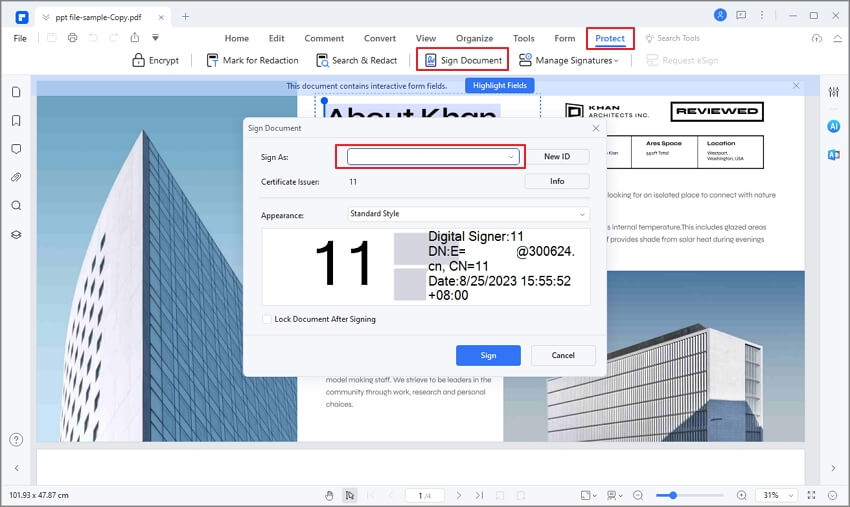
For example, you might design a signature of your name on paper, scan or photograph it, clean up the image, and then place it into a PDF. Or you might create a font-based name signature, save it as an image, and insert it into a proposal or form. PDFelement helps with the document step: opening the PDF, placing the signature in the right area, resizing it, and saving the signed file.
G2 Rating: 4.5/5 |100% Secure
Step 1: Open the PDF Document
Open the document in PDFelement. If you received a contract, application, approval form, or letter as a PDF, keep an unchanged copy before editing. That way, you can return to the original if you place the signature in the wrong location or need to send a clean version later.
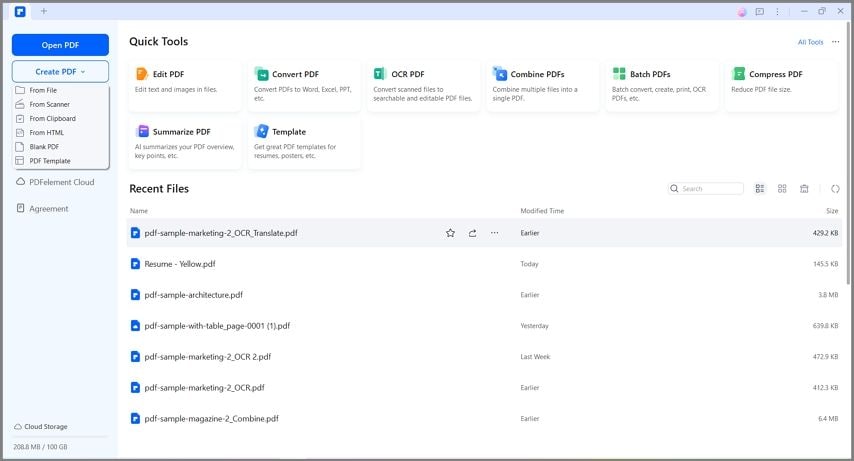
Once the file is open, zoom in on the signature area. This helps you match the signature size to the line or box provided in the document.
Step 2: Prepare Your Signature Image
If your signature is handwritten, write it with a dark pen on clean white paper. Take a clear photo or scan it. Crop the image closely so there is not too much empty space around the signature.
If you are using a designed name signature, export or save it as an image. PNG is often convenient, especially if the background is transparent. JPG can also work if the background is white and the document background is white.
Avoid using a tiny screenshot from a signature generator if the result looks pixelated. A signature should look sharp enough that it does not make the document appear informal.
Step 3: Create or Add the Signature in PDFelement
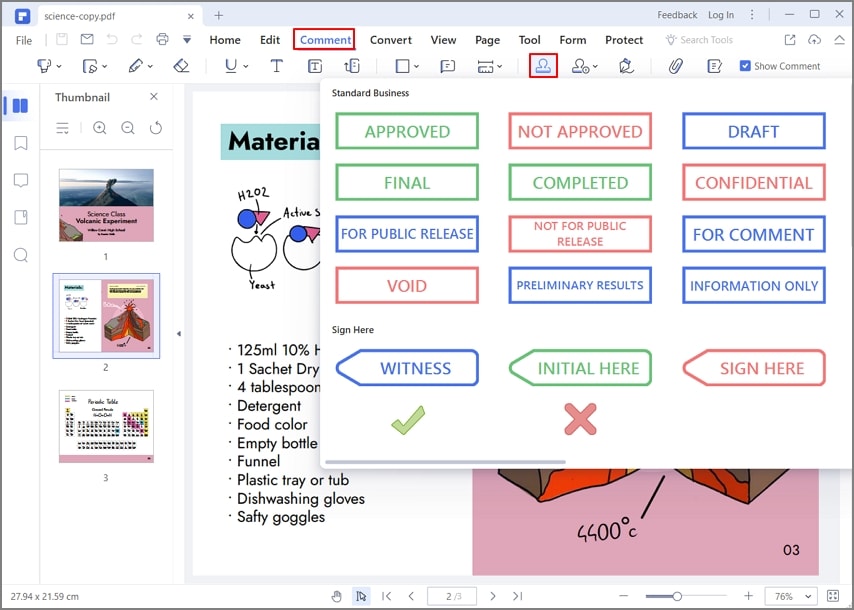
In PDFelement, you can add the saved signature image to the document as a stamp or signature element, depending on your version and workflow. The older workflow shown in the source material uses the comment tools and a custom stamp option.
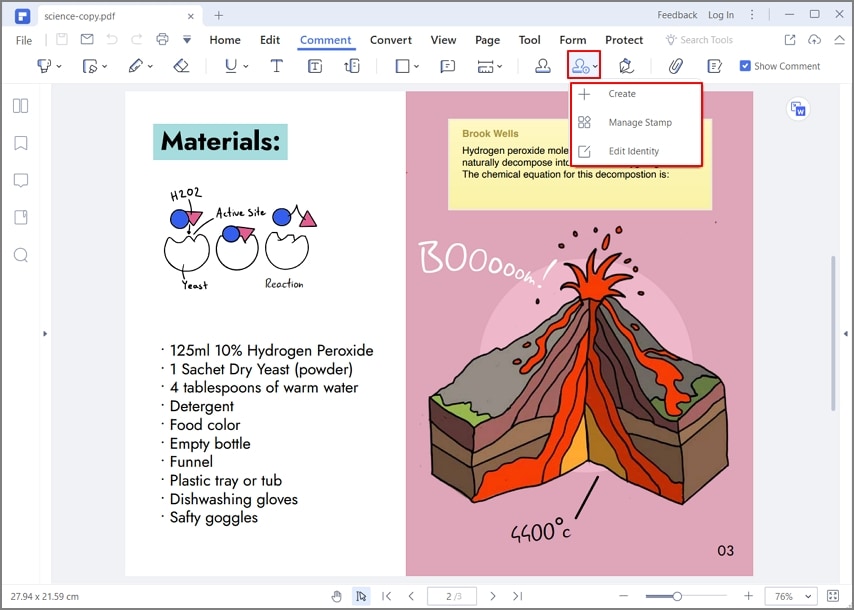
Place the signature in the correct field, then resize it carefully. The signature should sit naturally on the line. If it is too large, it can look careless. If it is too small, it may look like an image pasted into the document rather than a real signature.
Step 4: Save and Review the Signed File
After inserting the signature, save the signed PDF with a clear file name, such as contract-signed-jane-smith.pdf. Before sending it, open the saved file and check three things: the signature position, the page order, and whether any required fields are still blank.
If the document also needs typed information, dates, checkboxes, or initials on multiple pages, complete those before final delivery. A polished signature will not help if the form itself is incomplete.
Why This Workflow Is Better Than Printing and Scanning
Printing a document, signing it, scanning it, and emailing it back works, but it adds friction. It can also reduce file quality, increase file size, and make text harder to search. A PDF editor lets you keep the document cleaner and easier to manage.
PDFelement is especially useful if the signature is only one part of the job. You may also need to edit a name, correct a typo, fill form fields, add notes, combine supporting documents, compress the file before sending, or convert a Word file to PDF. In those cases, a dedicated PDF tool saves time compared with switching between several apps.
G2 Rating: 4.5/5 |100% Secure
Signature Sample of My Name: Quick Templates You Can Adapt
A signature sample of your name should be treated as a starting point, not something to copy exactly. The right format depends on your name length, initials, handwriting, and signing context. Use the formulas below to sketch several versions.
Formula 1: First Initial + Last Name
This is one of the most reliable professional formats.
Examples: “D. Parker”
“M. Rahman”
“S. Chen”
This format works well for long first names, formal documents, and business signatures. You can make the initial larger and let the surname flow more naturally.
Formula 2: Full First Name + Simplified Last Name
This style feels more personal while still being identifiable.
Examples: “Emily R.”
“Daniel Ross” with the surname slightly compressed
“Priya S.” with a smooth underline
It is a good choice if your first name is distinctive or if you prefer a friendly but professional signature.
Formula 3: Connected Initials
Connected initials are compact and stylish. They work especially well for people with two or three names.
Examples: “JL” connected with one shared stroke
“AKM” as a monogram-style mark
“RS” with the final stroke forming an underline
This style can become too abstract, so consider adding a small surname if you need clarity.
Formula 4: Full Name with One Flourish
This is the best option if you want a signature that feels complete and elegant.
Write your full name, then add only one decorative element. It might be a larger first capital, a final underline, or a gentle curve from the last letter. Do not decorate every letter.
Formula 5: Surname-Focused Signature
Some people prefer to emphasize their last name, especially in professional or academic contexts. The first name may become an initial, while the surname remains more readable.
Examples: “A. Williams”
“N. Alvarez”
“K. Thompson”
This is useful if your surname is the more formal identifier in your workplace or industry.
Choosing Between Signature Samples
If you are comparing different types of signatures for your name, test them in the real places where they will be used. A signature that looks stylish on a blank page may not fit inside a small PDF form field. A signature that looks clean in black ink may look weak in a pale gray digital image.
A practical test is to make three versions:
- A clear version for forms and official documents.
- A faster version for repeated everyday signing.
- A more expressive version for personal branding or creative use.
Most people eventually settle on a main signature and one simplified variation. That is perfectly normal.
People Also Ask
-
How can I create a signature of my name?
Start by writing your name several times in your normal handwriting. Choose the version with the best natural movement, then refine it by emphasizing one feature, such as the first capital letter, initials, or final stroke. Keep the design repeatable. If you need a digital version, scan it or create it with a name signature app, then save it as an image for use in PDFs and forms. -
What is the best style for a name signature?
The best style depends on how you will use it. For business documents, a clean first-initial-plus-last-name signature is often best. For creative work, an arty or initials-based signature may fit better. For everyday use, choose something you can write quickly and consistently. -
Can I use a typed font as my signature?
In many digital workflows, a typed or font-based electronic signature may be accepted, but acceptance depends on the document, organization, and legal context. For important contracts, confirm the required signature method. Some documents require a specific e-signature platform, identity verification, or certificate-based digital signature. -
What is the difference between a name signature and an electronic signature?
A name signature is the visual mark based on your name. An electronic signature is a method of signing a digital document. Your electronic signature may use your name signature as an image, but it may also be typed, drawn, or created through a signing system. -
Are there different types of signatures for my name?
Yes. Common types include full-name signatures, initial-based signatures, capital-letter signatures, font-based signatures, minimal professional signatures, and arty signatures. You can also keep different versions for different situations, such as one formal version for documents and one creative version for branding. -
What should I avoid when designing a signature?
Avoid making it too complicated, too slow to write, or too different each time. Do not copy another person’s signature. Also avoid using a low-resolution digital image, especially if you plan to add the signature to PDFs or professional documents. -
Can I add the signature of my name to a PDF?
Yes. You can create or save your signature as an image and add it to a PDF using a PDF editor such as PDFelement. Open the PDF, insert the signature in the correct field, resize it, review the document, and save a signed copy. -
Do I need a name signature app?
A name signature app can help if you want to draw a signature on a phone, use a stylus, or generate a quick digital version. However, you can also create a signature with pen and paper, scan it, and place it into documents with a PDF editor. The best tool depends on whether you need design inspiration, document signing, or both.




