

In this article
The traditional method of hoarding stacks of handwritten documents is quickly becoming a thing of the past. Whether you are a student trying to digitize lecture notes or a professional archiving meeting minutes, manually typing out handwritten text is tedious and time-consuming. Fortunately, the booming software market has introduced highly accurate Optical Character Recognition (OCR) technology, giving rise to the modern handwriting to text app.
These applications allow you to seamlessly digitize handwritten materials into standard, editable typefaces. But with so many options available, which app can convert handwriting to text with the highest accuracy?
In this comprehensive guide, we will help you select the best app to convert handwriting to text by comparing top tools, evaluating their pros and cons, and showing you exactly how to use them.


 G2 Rating: 4.5/5 |
 100% Secure
Why You Need a Handwriting to Text App
Using an app to turn handwriting into text offers remarkable benefits across professional, academic, and personal contexts:
- Searchability: Digital text can be easily searched using keywords, saving you hours of flipping through physical notebooks.
- Editability: Once your handwritten notes are converted, you can edit, format, and reorganize them in word processors.
- Cloud Storage & Sharing: A writing scanner app allows you to back up your notes to the cloud and share them with colleagues or classmates instantly.
- Preservation: Digitize old, fading recipes, journals, and letters to preserve them forever without physical degradation.
Quick Comparison of the Best Apps to Convert Handwriting to Text
If you are looking for an app to convert hand written notes to text in a hurry, here is a quick overview of the top handwriting to text converter apps available today.
| Applications | Supported OS | Pricing | Best For |
|---|---|---|---|
| PDFelement | Windows, macOS, iOS, Android | Free Trial / Subscription / Perpetual | High-precision PDF OCR and document management. |
| Microsoft Lens | iOS, Android | Free | Quick cloud storage and free format portability. |
| Microsoft OneNote | Windows, Mac, iOS, Android | Free (with Microsoft account) | Multimedia support and real-time collaboration. |
| Pen to Print | Windows, Mac, iOS, Android | Free basic / Premium subscriptions | Batch conversion and high-quality script reading. |
| Text Scanner (OCR) | iOS, Android | Free (In-app purchases) | High-speed mobile scanning and sleek interface. |
| Goodnotes 6 | iOS, iPadOS, Android, Windows | Free basic / $9.99/yr | Digital note-taking and iPad screen sharing. |
G2 Rating: 4.5/5 |100% Secure
Detailed Reviews: Best App to Convert Handwritten Notes to Text
The software market brings a diversity of choices for anyone seeking an app that can convert handwriting to text. Let us take a detailed look at the top contenders.
1. PDFelement (Best Multi-Platform PDF & OCR App)
Wondershare PDFelement is a powerhouse when it comes to document management. While it is widely known as a premier PDF editor, it is also arguably the best app to convert handwritten notes to text if you are dealing with scanned PDF documents. PDFelement features industry-leading OCR technology that can recognize handwritten text across multiple languages and convert it into fully editable digital text.
Available on Windows, macOS, iOS, and Android, PDFelement allows you to easily edit, convert, organize, annotate, and protect your digital documents in one cohesive ecosystem.
How to Use PDFelement to Convert Handwriting to Text:
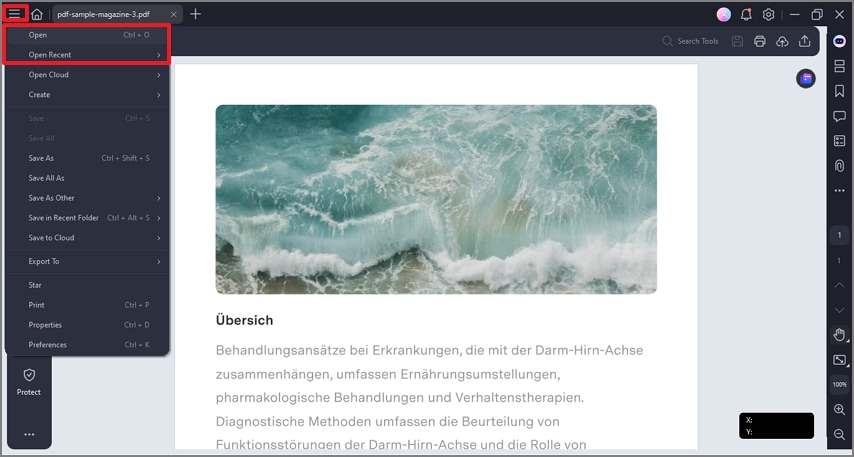
Step 1Upload a PDF
Open PDFelement on your device. Click the "+" icon or drag and drop your scanned handwritten PDF into the interface.
Step 2Enable and Perform OCR
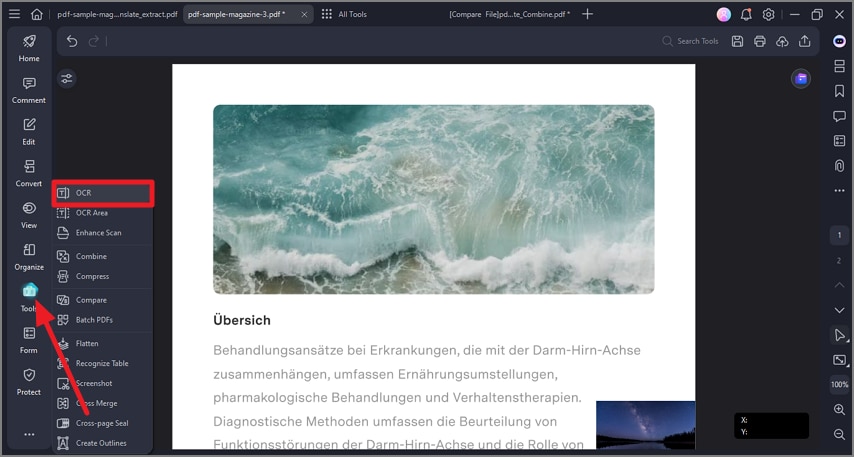
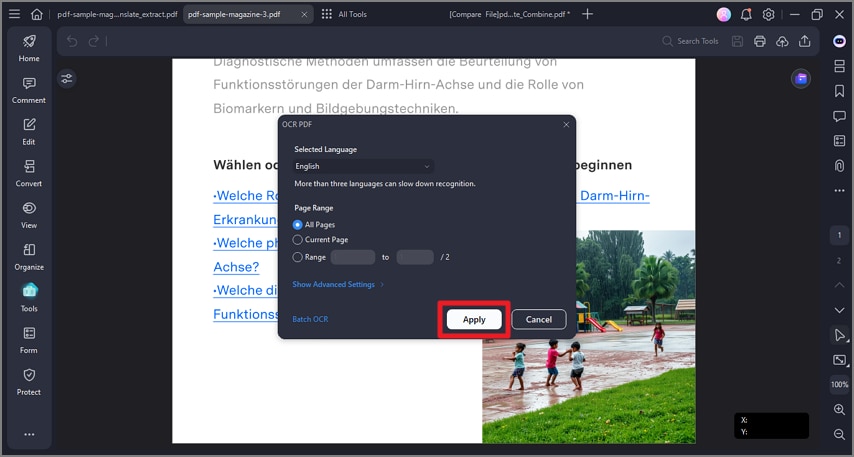
A prompt message will request you to perform OCR if it detects a scanned document. Alternatively, navigate to the "Tool" tab at the top and select OCR. Choose "Scan to editable text," select the correct language for the handwritten material, and click Apply.
Step 3Convert Handwriting into Text
Once the OCR process finishes, click the "Edit" tab to customize the document directly. If you want a plain text file, click the "Convert" tab and choose To Text.
G2 Rating: 4.5/5 |100% Secure
2. Microsoft Lens (Best Free Writing Scanner App)
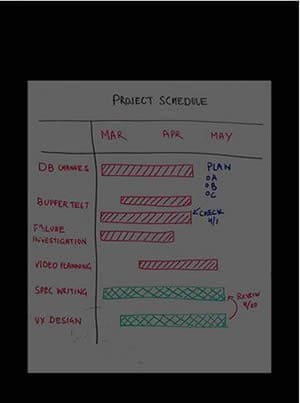
Microsoft Lens (formerly Office Lens) is a remarkable, free writing scanner app for capturing data from whiteboards, documents, handwritten memos, and business cards. It is an incredibly convenient way to get physical information into digital form without manual typing. Apart from being a stellar app to convert handwriting to text, it cleans up glare and shadows from images seamlessly.
How to Use:
Step 1Choose the capture material
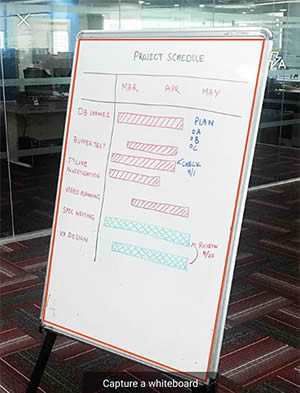
Open the app and swipe left or right to choose the capture mode (Photo, Business Card, Documents, or Whiteboard).
Step 2Capture and Edit
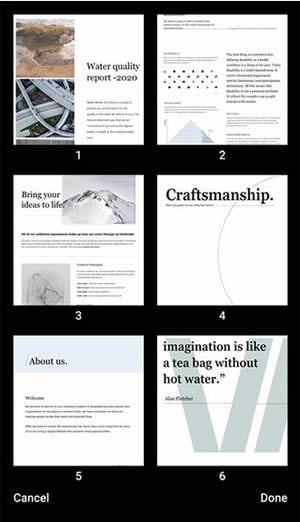
Take a photo or import an image. Adjust the borders to crop out the background. You can also capture and edit multiple images together.
Step 3Save and share
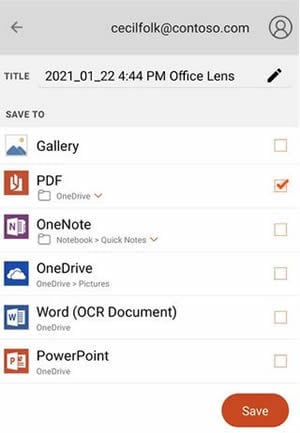
Save the edited images to your device gallery as a PDF file, or export the recognized text directly to Word, PowerPoint, or OneDrive.
3. Microsoft OneNote (Best for Note Organization)
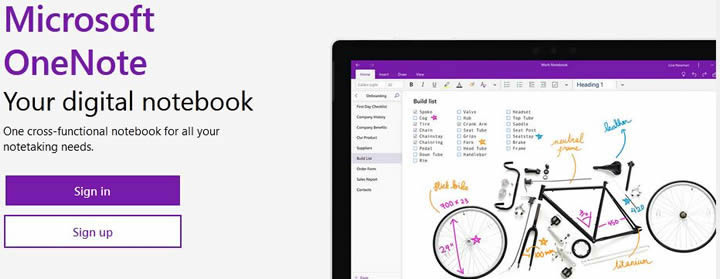
Microsoft OneNote is a comprehensive digital notebook and an excellent handwriting to text app. If you use a stylus on a tablet or a 2-in-1 laptop, you can write directly into OneNote and convert your ink to text instantly. Alternatively, you can insert images of handwritten notes and extract the text.
How to Use:
Step 1Navigate to Draw
Navigate to the Draw tab in the top ribbon of the app.
Step 2Write or Insert
Select a pen to start writing notes natively, or insert a picture of handwriting.
Step 3Select Handwriting
Click Lasso Select and drag a selection over the handwritten text.
Step 4Convert to Text
Head to the Draw tab again and select Ink to Text.
4. Pen to Print (Best Dedicated Handwriting Recognition)
Pen to Print is specifically designed as an app to turn handwriting into text. While other apps handle general OCR for typed text, Pen to Print's algorithm is trained heavily on cursive and block handwriting. This makes it ideal for scanning school notes, diaries, recipes, and old letters.
How to Use:
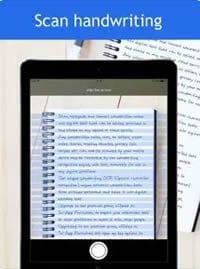
Step 1Scan a Document
Launch the app, take a new image, or upload one from the gallery. Tap Crop to select the text area.
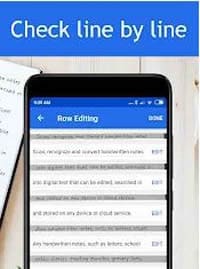
Step 2Check the Text
The app processes the text line by line. You can manually correct any misread words by tapping Edit below each line.
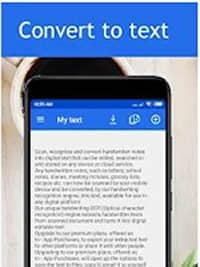
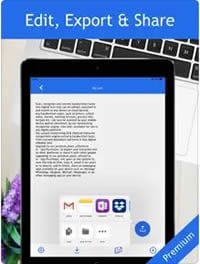
Step 3Convert and Share
Tap Convert to finalize.
5. Text Scanner (OCR) (Best for Quick Mobile Scans)
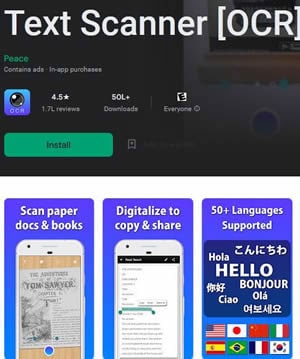
Text Scanner OCR is a highly rated iPad app that converts handwriting to text (also available on Android). It focuses on speed and simplicity. If you need to quickly extract phone numbers, URLs, or short handwritten memos from a piece of paper, this app does it in seconds.
6. Goodnotes 6 (Best for iPad Users)
Goodnotes (now updated to Goodnotes 6, succeeding GoodNotes 5) is beloved by iPad and Apple Pencil users. While primarily a digital note-taking application, it features powerful handwriting recognition. It allows you to search your handwritten notes as if they were typed text, and easily convert your handwritten lasso selections into typed text.

How to Choose the App to Turn Handwriting Into Text
G2 Rating: 4.5/5 |100% Secure
FAQs About Scanning Handwriting to Text
-
Is there an app that converts handwriting to text?
Yes! Many apps can convert handwriting into editable text using OCR (Optical Character Recognition) technology. PDFelement, for example, offers a robust built-in handwriting recognition feature that lets you scan or upload handwritten notes and turn them into clear, searchable text in just a few clicks. Other popular options include Microsoft Lens, Pen to Print, and OneNote. -
How do I convert written text to typed text?
Converting handwritten text to typed text is simple with an OCR-enabled tool: 1. Upload or scan your handwritten document into your chosen app (like PDFelement or Microsoft Lens). 2. Run the OCR (Optical Character Recognition) function to detect and process the handwriting. 3. Review and edit the recognized text to fix any minor errors. 4. Export the final result as a Word file, TXT file, or editable PDF. -
Can AI tools like ChatGPT convert handwritten notes to text?
Yes, modern multimodal AI tools can convert handwritten notes to text. If you upload a clear photo of your handwriting to an AI chatbot with image-recognition capabilities, it can analyze and transcribe the notes into typed text. However, for large multi-page documents, dedicated OCR software like PDFelement or Pen to Print is generally more efficient and offers better formatting control.


