

In this article
- Why You Need a Reliable JPG to Text Converter
- Method 1: How to Convert JPG to Text with PDFelement (Best for Accuracy & Offline Use)
- Method 2: Convert JPG to Text File Using Google Drive (Best Free Cloud Tool)
- Method 3: How to Convert Image File Into Text Document Online (Browser-Based Tools)
- Method 4: Extract JPG to Editable Text on Mobile Devices
- Best Practices for High-Quality Image-to-Text Conversion
- Comparing the Best Methods: Which Should You Choose?
- Conclusion
Have you ever taken a photo of a document, captured a screenshot of a presentation, or saved an infographic, only to realize you desperately need to edit or copy the text inside it? We’ve all been there. Manually retyping paragraphs of text from an image is not only frustrating but also incredibly time-consuming and prone to typos.
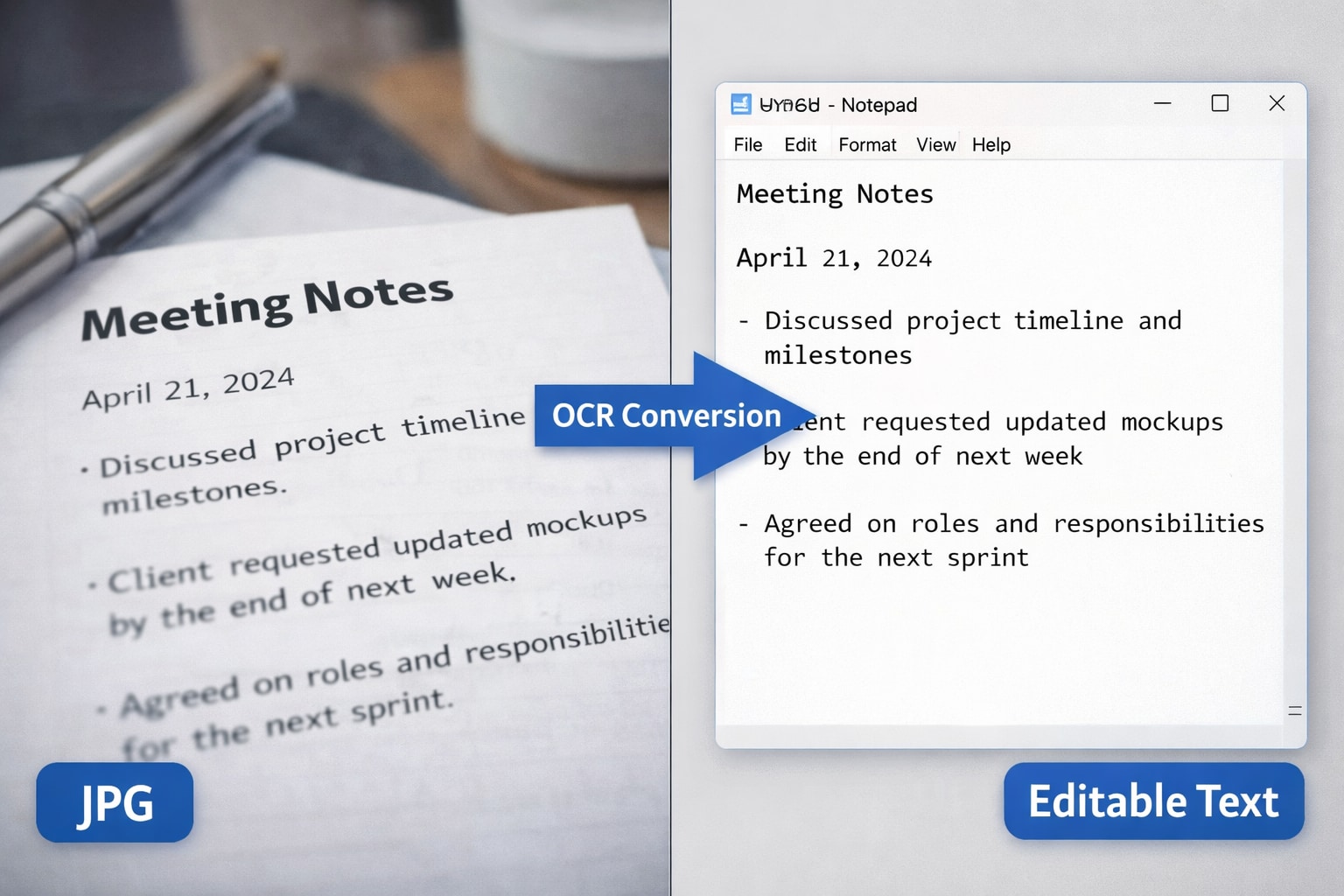
The solution to this modern-day hassle is learning how to convert JPG to text. By utilizing advanced Optical Character Recognition (OCR) technology, you can instantly turn flat image pixels into a fully searchable, editable jpg to text file.
Whether you are looking for a professional jpg to text converter to handle hundreds of scanned invoices offline, or you simply want to know how to convert image file into text document using free tools you already have, this guide covers it all. Below, we explore the most accurate, fast, and secure methods to transform your jpeg to text seamlessly.
Why You Need a Reliable JPG to Text Converter
Images are an incredible way to share information, but standard image files (like JPG, JPEG, and PNG) do not distinguish between a picture of a cat and a picture of a legal contract. To a computer, it is all just colored pixels.
Converting a jpg to editable text bridges this gap. A good converter software scans those pixels, recognizes the shapes as letters and numbers, and recreates the content in a convert jpg to text format like .txt, .docx, or .pdf. Here is why mastering this process is essential:
- Digitizing Physical Documents: Instantly turn photographs of receipts, book pages, or meeting whiteboard notes into digital text files that can be edited and searched.
- Extracting Text from Web Content: Copy quotes from internet memes, social media graphics, and protected websites where standard "copy-paste" is disabled.
- Enhancing Accessibility: Converting images to text allows screen readers to read the content aloud for visually impaired users.
- Saving Valuable Time: Eliminate manual data entry, speeding up administrative and creative workflows.


 G2 Rating: 4.5/5 |
 100% Secure
Method 1: How to Convert JPG to Text with PDFelement (Best for Accuracy & Offline Use)
If you are dealing with complex layouts, multiple languages, or sensitive information that you don’t want to upload to the internet, using a dedicated desktop program is highly recommended. PDFelement is widely recognized as one of the most powerful and intuitive document management tools available today.
Equipped with industry-leading OCR technology, PDFelement doesn't just recognize text; it actively preserves the original formatting, making it the perfect jpg to text converter. Here is the step-by-step process to convert jpg to text offline using this powerful tool.
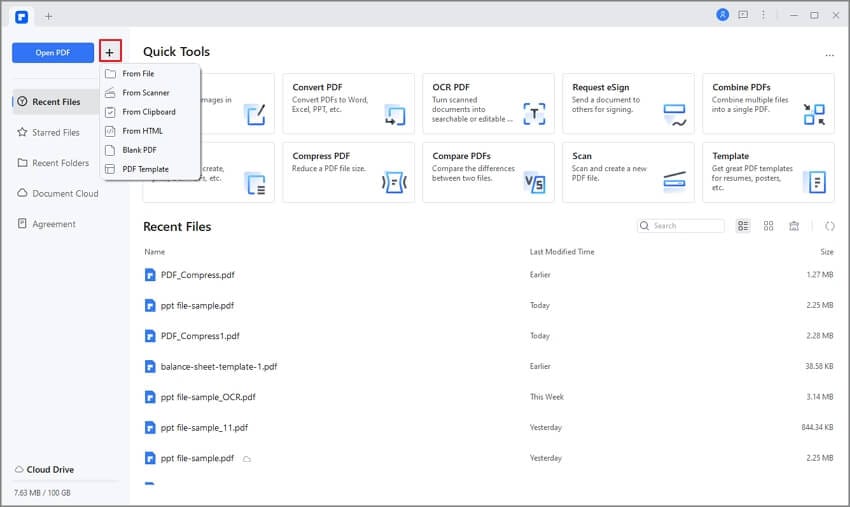
Step 1 Open a JPEG/JPG
First, launch the application on your computer. To open your image, simply drag and drop the JPEG or JPG file directly into the interface of the program. PDFelement will instantly read the image and open it as a digital file. While there are different ways to import files into the software, the drag-and-drop method is by far the simplest.
Step 2 Install and Perform OCR
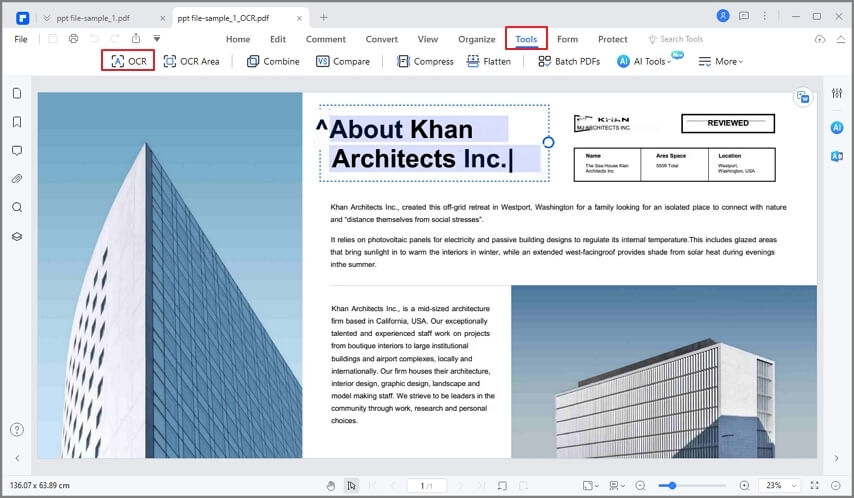
Because your file is currently an image, the software will automatically detect this and prompt you to perform OCR. If this is your first time using the feature, you will need to download the OCR plugin. Once the plugin is installed, head over to the "Edit" tab on the top menu and click on the "OCR" button. Choose "Scan to Editable Text" and select the correct language of your document. The software will then scan the image and transform the flat pixels into readable characters.
G2 Rating: 4.5/5 |100% Secure
Step 3 Convert JPG to Text
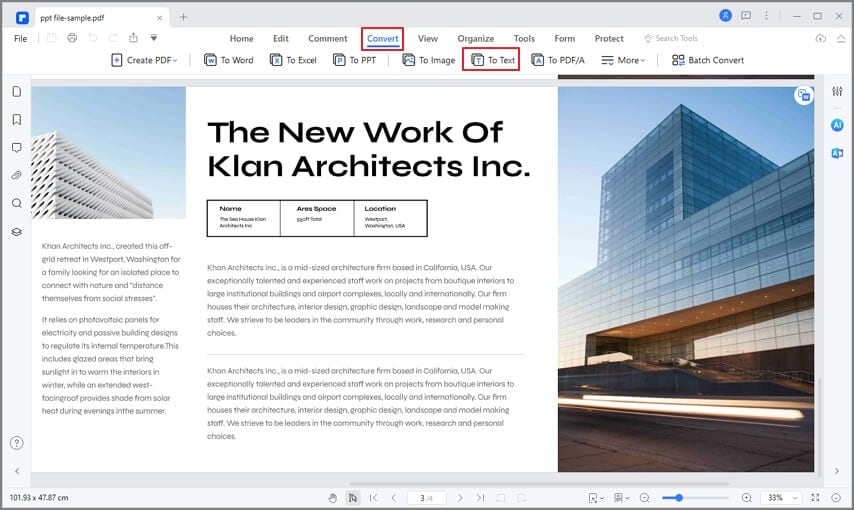
Once the OCR process is complete, the text on your screen is fully recognizable. To save this as a pure text file, head over to the "Home" tab (or "Convert" tab, depending on your version) and press "To Others" as mentioned in the screenshot below. Select "Convert to Text" from the drop-down menu. Choose your destination folder, and hit save. This will seamlessly jpg convert to text file, providing you with a clean .txt document ready for use.
Method 2: Convert JPG to Text File Using Google Drive (Best Free Cloud Tool)
Not everyone wants to install desktop software, especially if you only need to process an image occasionally. If you are wondering how to convert image file into text document for free, look no further than your Google account. Google Drive comes with built-in OCR capabilities integrated right into Google Docs. While it might struggle with highly complex layouts, it is a fantastic tool for standard text.
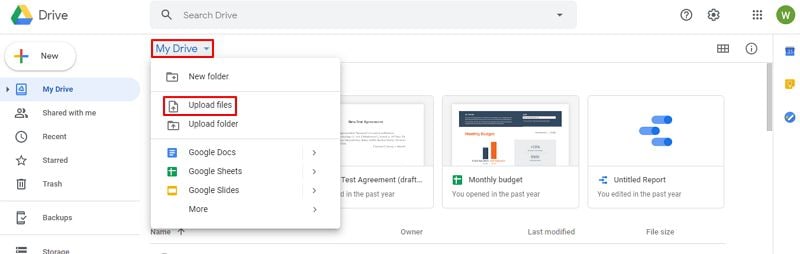
Step 1 Upload a JPG
Open your web browser and navigate to your Google Drive account. Drag and drop your target JPG file directly into your Drive to upload it.
Step 2 OCR Process
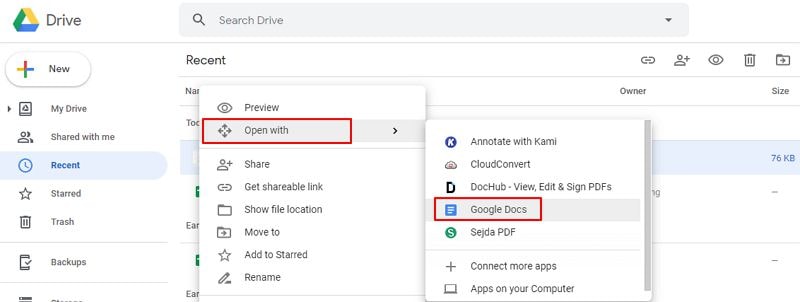
Once the image has successfully uploaded, locate it in your file list. Right-click the JPG file, hover over "Open with," and select "Google Docs." Google Drive will automatically initiate its background OCR process as it creates the new document.
Step 3 JPG to TXT
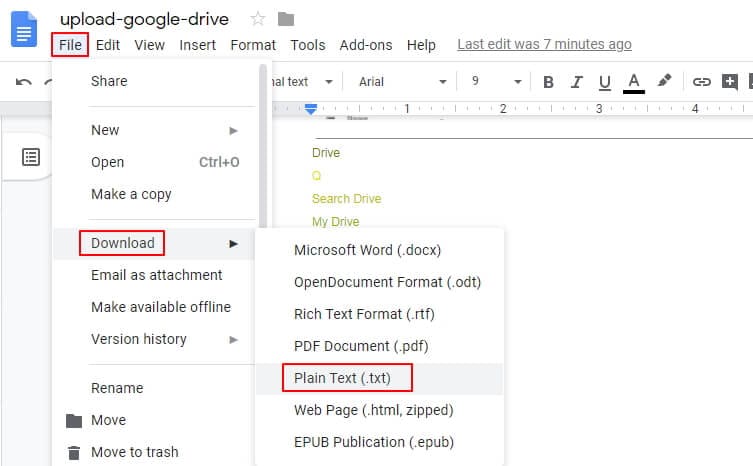
When the new Google Doc opens, you will see your original image at the top of the page, and the newly extracted, editable text directly beneath it. You can now edit, format, or delete the image. To save this data locally, click "File" > "Download" > "Plain Text (.txt)". Your newly converted jpg to text file will download instantly to your computer.
Method 3: How to Convert Image File Into Text Document Online (Browser-Based Tools)
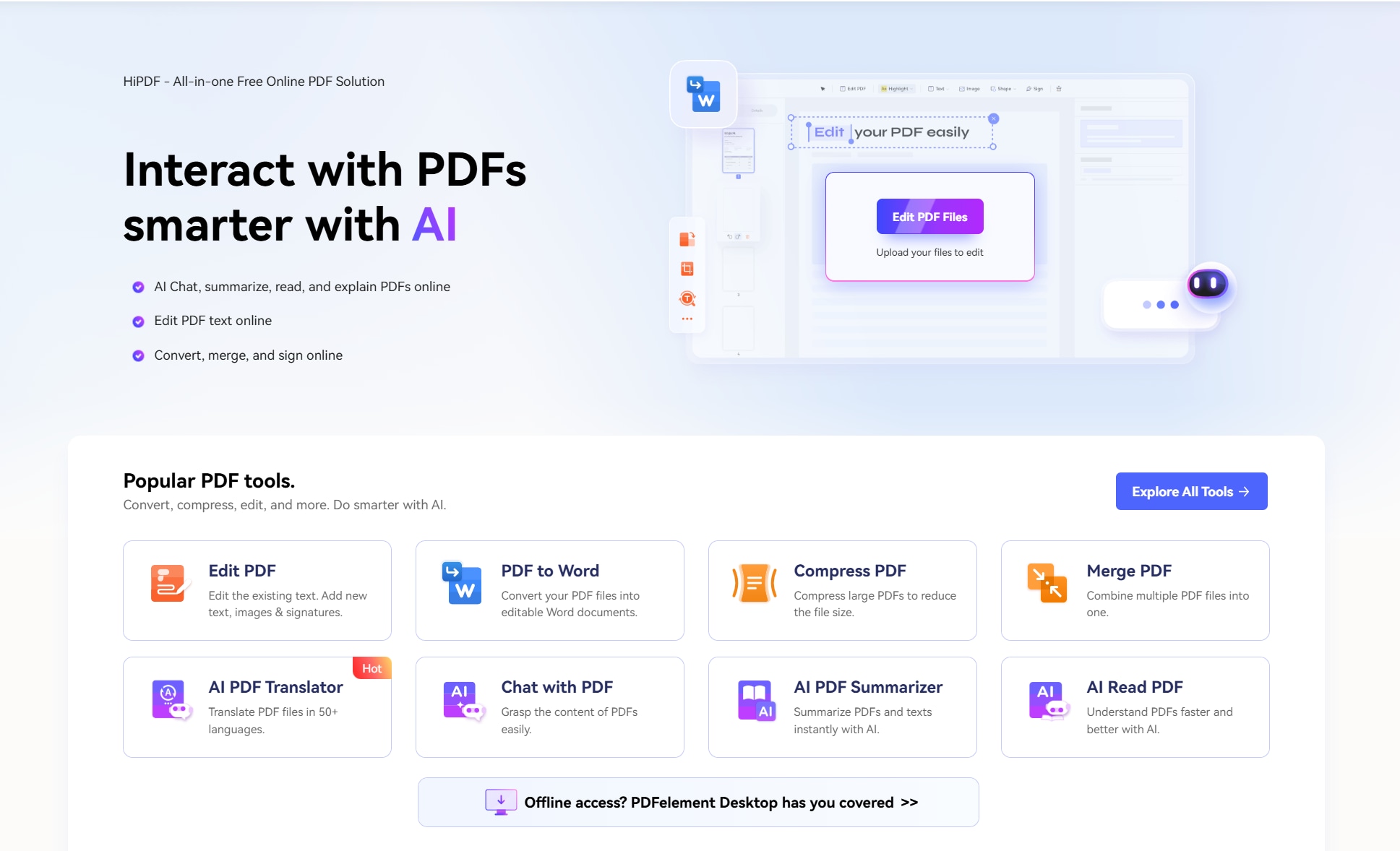
If you are working on a public computer, a Chromebook, or simply want a fast solution without logging into any accounts, online OCR web applications are incredibly useful. Platforms like HiPDF, OnlineOCR, or Prepostseo provide dedicated, browser-based jpg to text converters.
How to use online converters:
- Navigate to a reputable online OCR website (such as HiPDF's OCR tool).
- Click "Choose File" or drag and drop your JPG directly into the browser window.
- Select the language of the text in your image. This step is crucial for the engine to apply the correct character mapping.
- Choose your desired output format (select .txt or .docx for a convert jpg to text format).
- Click "Convert" or "Submit." Within seconds, the web app will process the image, and provide a download link for your new text document.
Note: While online tools are highly convenient, they do require an internet connection. Furthermore, if your document contains highly sensitive financial, legal, or personal data, offline desktop methods (like Method 1) are recommended for superior privacy.
Method 4: Extract JPG to Editable Text on Mobile Devices
Mobile technology has advanced rapidly, and modern smartphones now feature incredible built-in OCR capabilities. If you take a picture of a menu or a document with your phone, you don't even need to transfer the jpeg to text on a computer.
Using Apple's Live Text (iPhone & Mac)
If you are using iOS 15 or later (or macOS Monterey and newer), Apple’s Live Text feature allows you to interact with text inside images as if it were already typed out.
- Open the JPG image in your Photos app.
- Tap the "Live Text" icon (a small square with lines inside) that appears in the bottom right corner of the image.
- The phone will highlight all recognizable text.
- You can now long-press, highlight, and tap "Copy." Paste this directly into your Apple Notes or a text message to create your jpg to editable text.
Using Google Lens (Android & iOS)
Google Lens is an incredibly powerful AI tool capable of scanning the physical world and images in your gallery.
- Open the Google Photos app and select your JPG.
- Tap the "Lens" button at the bottom of the screen.
- Swipe to the "Text" filter.
- Google Lens will highlight all the text in the image. Tap "Select All" and then "Copy Text."
- Paste the extracted text into Google Keep, an email, or your preferred word processor.
Best Practices for High-Quality Image-to-Text Conversion
Even the most advanced jpg to text converter relies heavily on the quality of the source image. OCR is a machine learning process, and it needs clear visual data to make accurate predictions. If you want a flawless jpg to text file with minimal manual corrections, keep these tips in mind:
- Ensure Good Lighting: If you are snapping a photo of a document, avoid harsh shadows or glares that might obscure letters.
- High Contrast is Key: Black text on a white background yields the best results. If you are extracting text from an infographic with low-contrast colors (like light gray text on a white background), consider applying a black-and-white filter to the image before running OCR.
- Keep it Steady: Blurry images confuse OCR engines. Ensure your JPG is sharp and in focus.
- Cropping is your Friend: If there are unnecessary background elements in your photo (like a messy desk around a piece of paper), crop the JPG before converting it. This helps the software focus entirely on the text blocks.
- Standard Fonts Work Best: Standard fonts like Arial, Times New Roman, and Calibri are easily recognized. Highly stylized, cursive, or decorative fonts may result in errors during the conversion process.
G2 Rating: 4.5/5 |100% Secure
Comparing the Best Methods: Which Should You Choose?
With so many ways to process a jpeg to text, choosing the right one depends entirely on your specific needs. Here is a quick breakdown to help you decide:
| Feature/Method | PDFelement (Desktop) | Google Drive (Cloud) | Online Tools (HiPDF) | Mobile Apps (Live Text/Lens) |
|---|---|---|---|---|
| Best For | High accuracy, batch processing, formatting retention | Quick, free text extraction within Google's ecosystem | Fast conversions without installing software | On-the-go text extraction from photos |
| Internet Required | No (Offline capability) | Yes | Yes | No (For Live Text) / Yes (For Lens) |
| Privacy/Security | Very High (Files stay on your PC) | Moderate (Stored in your cloud) | Moderate (Files uploaded to servers) | High (Processed locally on phone) |
| Formatting Kept? | Yes | Minimal | Varies | No (Raw text copy) |
For professional environments, legal documents, or anything requiring high accuracy and formatting retention, dedicated desktop software is the clear winner. For casual, everyday use, Google Drive and mobile built-in features are incredibly convenient.
People Also Ask
-
How do I convert a JPEG to text without losing formatting?
To maintain complex formatting like columns, bullet points, and tables, you must use a professional OCR software like PDFelement or Adobe Acrobat. Free cloud tools (like Google Drive) and simple online converters generally extract pure text and discard original formatting, meaning you will have to rebuild the layout manually.
-
Is there a limit to how much text I can extract from a JPG?
It depends on the tool you use. Dedicated desktop software has virtually no limits, allowing you to process large, high-resolution images packed with dense text. However, many free online jpg to text converters have file size limits (often 5MB to 10MB) or restrict the number of images you can convert per hour.
-
Can I convert handwritten JPG notes into text formats?
Yes, but the accuracy depends heavily on legibility. Advanced AI tools like Google Lens and Evernote feature excellent handwriting recognition (ICR - Intelligent Character Recognition). If your handwriting is neat, clear, and written on lined paper without overlapping letters, these tools can generate an accurate jpg to editable text document. Messy or cursive handwriting will likely require significant manual correction.
-
What is the difference between OCR and standard format conversion?
Standard format conversion simply changes the file wrapper (like changing a .doc to a .pdf), but the computer already understands the text data inside. OCR (Optical Character Recognition) is required when text is trapped inside an image (pixels). The OCR engine uses AI and pattern recognition to literally "read" the image, translating those pixels into standard, searchable computer text characters.
Conclusion
Understanding how to convert image file into text document is an invaluable digital skill. Gone are the days of staring at a screen and manually retyping printed words. Whether you choose a robust offline solution to securely handle your files, leverage the seamless integration of Google Drive, use a rapid online jpg to text converter, or utilize the smart features built right into your smartphone, converting jpg to text has never been more accessible. Evaluate the privacy, formatting, and speed requirements of your project, and choose the method that best fits your workflow to save yourself hours of tedious data entry.

