

In this article
- What is a Photo to Text Converter and How Does OCR Work?
- Method 1: How to Convert Photo to Text with Professional Software (PDFelement)
- Method 2: Convert Photo to Text Using Free Cloud Tools (Google Drive)
- Method 3: Using Built-in OS Features (Mac, Windows, iOS, Android)
- Comparison of the Best Photo to Text Converters
- Understanding Output Formats: Plain Text vs. Rich Text
- Tips for Improving OCR Accuracy When Converting Photos
- Frequently Asked Questions (FAQs)
When you snap a picture of a whiteboard, scan a paper document, or take a screenshot of a digital recipe, the resulting file is saved as an image. While you can view the text within that image, you cannot select, copy, paste, or edit it using familiar word processors like Microsoft Word or Apple Pages. So, how do you get out of this frustrating situation when you desperately need to edit that content?
The solution is remarkably simple: you need a photo to text converter.
Depending on your device, your internet connection, and the volume of images you need to process, there are multiple ways to go from photo to text. You might need a quick native tool on your smartphone for a single receipt, or you might require a robust, professional desktop application to handle dozens of high-resolution scanned pages at once. In this comprehensive guide, we will walk you through the absolute best methods to convert photo into text, exploring professional software, cloud-based workarounds, and built-in mobile features.


 G2 Rating: 4.5/5 |
 100% Secure
What is a Photo to Text Converter and How Does OCR Work?
Before diving into the exact steps of how to convert photo to text, it is helpful to understand the underlying technology that makes it all possible. A photo to text converter is an application or tool that scans an image file (like a JPG, PNG, or BMP), identifies the shapes that look like letters or numbers, and translates those shapes into machine-readable, editable digital text.
Understanding Optical Character Recognition (OCR)
This magical transformation is powered by a technology called Optical Character Recognition, or OCR. Photo to text OCR technology has evolved significantly over the years. Early iterations could only recognize perfectly printed, standard fonts. Today, thanks to artificial intelligence and machine learning, modern OCR engines can recognize thousands of different fonts, understand complex document layouts (including tables and columns), and even decipher messy handwriting.
When you feed an image into an OCR program, the software analyzes the dark and light patterns (the text versus the background). It then compares these patterns against its massive database of known character shapes. Once a match is confirmed, the software renders the editable character on your screen.
Why You Need to Convert Photo to Text
People from all walks of life rely on this technology daily. Here are just a few scenarios where you might need a photo to text convert operation:
- Students: Snapping photos of lecture slides or library book pages and converting them into study notes.
- Professionals: Scanning business cards to automatically populate digital address books, or digitizing printed financial reports to analyze in Excel.
- Travelers: Taking a photo of a menu or a street sign in a foreign language and converting the text so it can be translated instantly.
- Archivists and Researchers: Digitizing historical documents, making decades-old paper files instantly searchable via keywords.
Method 1: How to Convert Photo to Text with Professional Software (PDFelement)
When it comes to high-quality, professional-grade photo to text converters, Wondershare PDFelement ranks incredibly high on the list. While there are many basic tools available, PDFelement provides robust features designed for high-accuracy document conversion.
G2 Rating: 4.5/5 |100% Secure
Why Choose Dedicated Desktop Software?
Free online tools are great for occasional, non-sensitive tasks. However, if you are dealing with confidential business documents, multi-page scans, files with complex formatting, or documents in foreign languages, you need dedicated desktop software. PDFelement’s highly efficient OCR engine reads scanned documents and photos flawlessly, ensuring that extracted content mirrors the original layout. This process is key to seamlessly editing files just like you would a regular document in a word processor.
Here are the 3 steps needed to convert photo to text using OCR in PDFelement.
Step 1Open Your Photo
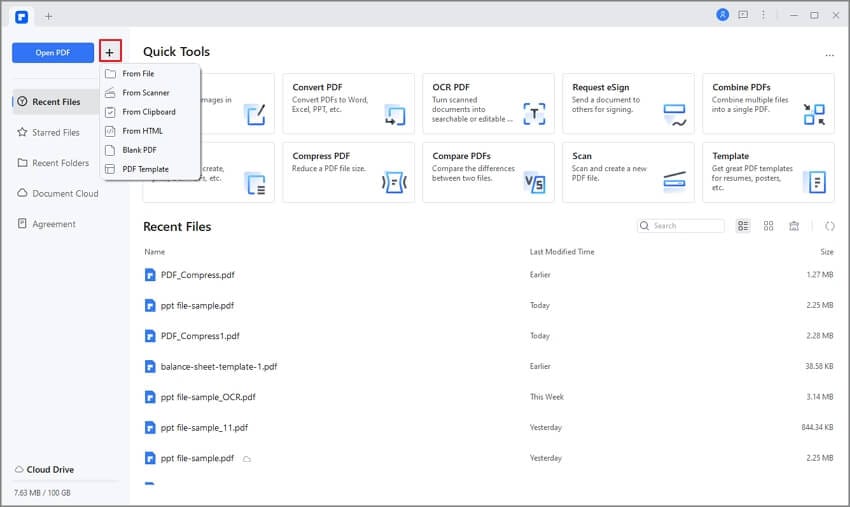
To get started, you will need to launch the software. Open PDFelement by double-clicking its icon on your desktop. Once the welcome screen appears, you don't even need to use a complex import menu. The easiest way to begin is to simply drag and drop your photo file (JPG, PNG, BMP, etc.) directly into the application window. PDFelement will instantly load the image and convert it into a temporary image-based PDF wrapper.
Step 2Perform Photo to Text OCR
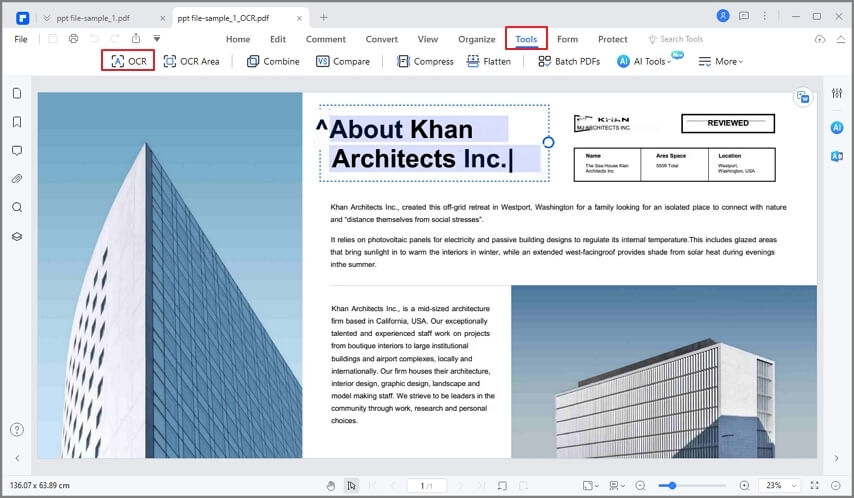
Having opened the photo in PDFelement, you will notice a notification bar prompting you to perform OCR, or you can manually trigger it. Navigate to the top menu and click the "Edit" > "OCR" button.
A dialog box will appear. Here, you must select the "Editable Text" option to enable the text extraction. Crucially, if your image contains text in a language other than English, you must select the correct language of your photo content using the "Change Language" button. PDFelement supports dozens of languages, ensuring accurate recognition. Once your settings are configured, start the process by hitting the "OK" button. The software will scan the image, which usually takes only a few seconds depending on the file's complexity.
Step 3Convert Photo into Text Format
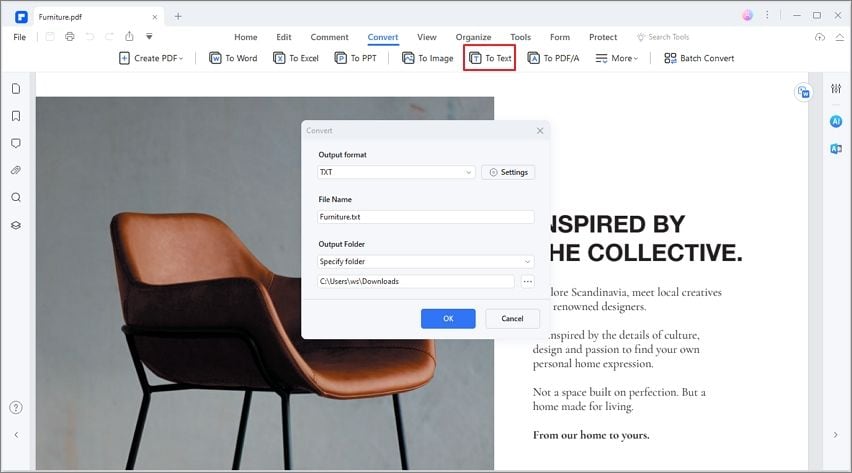
After the OCR process is complete, the text in your image is fully selectable and editable right within PDFelement. You can change font sizes, correct any typos, or add new sentences. However, if your goal is to extract the text to a standard .txt file, you can do that easily.
Navigate to the "Home" tab (or "Convert" tab depending on your specific version layout). Click the "To Others" > "Convert to Text" option. Choose your destination folder, click save, and you have successfully completed the conversion.
Advanced Features: Batch Processing and Multi-Language Support
One of the main reasons PDFelement stands out as the best photo to text converter is its batch processing capability. If you have 50 photos of a textbook, you don't have to convert them one by one. You can use the Batch Process feature to upload all 50 images, apply OCR, and output them as a single continuous text file or individual text files simultaneously. This saves immense amounts of time and boosts productivity significantly.
G2 Rating: 4.5/5 |100% Secure
Method 2: Convert Photo to Text Using Free Cloud Tools (Google Drive)
If you do not want to download desktop software and are looking for a free, cloud-based solution, Google Drive offers a surprisingly capable built-in OCR feature. Google Drive can help you convert photo to text files quickly, utilizing Google's powerful machine learning algorithms.
Here is how you can use Google's ecosystem to extract your text:
Step 1Upload a Photo to Google Drive
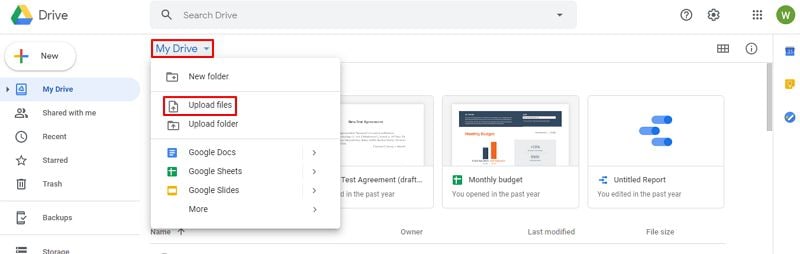
First, ensure you are logged into your Google account. Navigate to Google Drive in your web browser. Upload your photo into your account by clicking the "New" button (or "My Drive" drop-down) and selecting "File upload". Browse your computer for the image and upload it.
Step 2Open with Google Docs
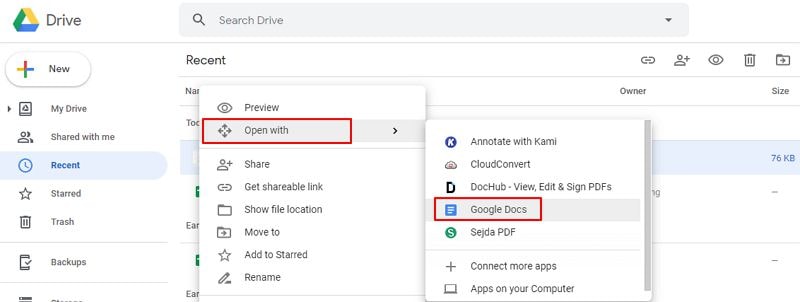
Once the image has successfully uploaded to your Drive, locate the file in your file list. Right-click the photo, hover your cursor over "Open with," and select "Google Docs" from the secondary menu.
Step 3Refine and Convert Photo into Text
When Google Docs opens, it will perform an automatic OCR process in the background. The resulting document will display your original image at the top of the page, and the extracted, editable text directly beneath it.
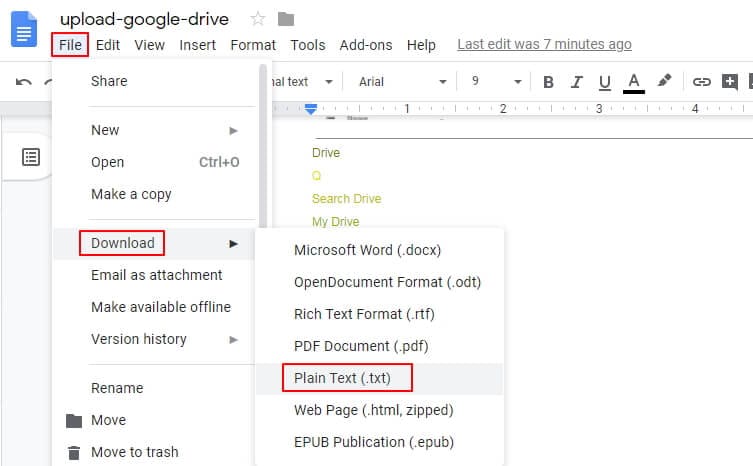
The content in the file is already editable. You can delete the image at the top if you no longer need it, correct any formatting errors, and then save the file. To get a raw text file, click "File" > "Download" > "Plain Text (.txt)".
Pros and Cons of the Google Drive Method
Method 3: Using Built-in OS Features (Mac, Windows, iOS, Android)
In recent years, major operating systems have integrated photo to text OCR directly into their core functionalities. If you just need to grab a quick phone number, an address, or a single paragraph, you might not need to use an external app or website at all.
Apple Live Text (Mac & iPhone)
Apple introduced "Live Text" across its ecosystem to make text in images completely interactive.
- On iOS (iPhone/iPad): Open the Photos app and find a picture containing text. You will notice a small "scanner" icon in the bottom right corner of the image. Tap it, and all the text in the image will highlight. You can then drag your finger over the text to copy it, translate it, or share it.
- On macOS: Open an image in Preview or the Photos app. Simply hover your cursor over any text within the image. The cursor will change from a pointer to a text selection tool. Click and drag to highlight the text, hit Command+C to copy, and paste it into any text editor.
Windows Snipping Tool Text Extraction
Windows 11 recently updated its classic Snipping Tool to include OCR capabilities.
- Take a screenshot or open an existing image using the Snipping Tool.
- Click the "Text Actions" button in the toolbar (it looks like a square with lines of text).
- The tool will analyze the image and highlight all readable text.
- You can click "Copy all text" to send the entire content to your clipboard, or manually highlight specific portions to copy. You can even use the "Quick Redact" feature to automatically hide emails and phone numbers before copying.
Google Lens (Android & iOS)
For mobile users, Google Lens is an incredibly powerful photo to text converter.
- Open the Google app or the dedicated Google Lens app.
- Point your camera at a physical document or select an existing photo from your gallery.
- Tap the "Text" filter at the bottom of the screen.
- Google Lens will highlight all the text it sees. You can select it, copy it to your phone's clipboard, or even choose "Copy to computer" to instantly send the text to a paired PC logged into the same Google account.
Comparison of the Best Photo to Text Converters
To help you decide how to convert photo to text based on your specific needs, here is a quick comparison of the methods discussed:
| Feature / Tool | PDFelement | Google Drive / Docs | Apple Live Text | Google Lens |
|---|---|---|---|---|
| Best For | Batch processing, complex formatting, offline security | Free, cloud-based casual usage | Quick copy-paste on Mac/iOS | Mobile on-the-go text extraction |
| Cost | Paid (Free trial available) | Free | Free (Built-in) | Free |
| Internet Required | No (Works entirely offline) | Yes | No | Yes (for best results) |
| Format Retention | Excellent (Preserves layout and tables) | Poor (Often loses original layout) | N/A (Just copies raw text) | N/A (Just copies raw text) |
| Batch Processing | Yes | No | No | No |
| Platform | Windows, Mac, iOS, Android | Web browser | iOS, macOS | Android, iOS |
G2 Rating: 4.5/5 |100% Secure
Understanding Output Formats: Plain Text vs. Rich Text
When you use a photo to text converter, you will eventually need to save your extracted data. Many people utilize files with a .txt extension for day-to-day tasks, ranging from taking school notes to recording business information. But most users do not fully understand the distinction between Plain Text format and Rich Text format (RTF). Understanding this will help you choose the right output when you convert photo to text.
What is Plain Text Format (.txt)?
A text file (.txt) is a standard document that contains strictly unformatted text. It is universally recognized by any text-editing application or word processor, such as Notepad on Windows or TextEdit on Mac.
Plain text, by definition, contains solely text characters. A plain text file cannot contain larger font sizes, bold text, italics, different fonts, embedded images, hyperlinks, or any other special formatting. It is the rawest form of data. These files are incredibly lightweight and are often utilized for recording raw notes, writing code, or creating documents that need no specific visual appearance. When you want maximum compatibility across all devices and platforms without worrying about formatting glitches, plain text is the way to go.
What is Rich Text Format (RTF)?
On the other hand, Rich Text Format (.rtf) was designed as a standardized way to encode different text formatting properties alongside the text itself. If you convert a photo into text and save it as RTF, the file can retain bold characters, typefaces, font sizes, custom margins, and paragraph alignments.
RTF acts as a bridge between simple plain text and complex proprietary formats like Microsoft Word (.docx). If you scan a heavily formatted magazine article and want to preserve the look and feel of the headings versus the body text, you should output your OCR results to RTF (or Word) rather than plain text.
Tips for Improving OCR Accuracy When Converting Photos
Frequently Asked Questions (FAQs)
-
Can I convert handwriting from a photo to text?
Yes, but the accuracy depends heavily on the legibility of the handwriting and the sophistication of the OCR tool. Advanced tools like Google Lens, Apple Live Text, and modern desktop software utilize AI that can decipher neat cursive and block print. However, messy or stylized handwriting ("doctor's handwriting") will still result in high error rates. -
How do I translate text from a photo?
The easiest way to do this is to use a mobile app like Google Lens or the Google Translate app. You can point your camera at the photo, and the app will first perform a photo to text convert operation, and then instantly overlay the translated text on top of the original image. For desktop users, you can extract the text using PDFelement or Google Drive, and then paste the resulting text into a translation service like DeepL or Google Translate. -
Is it safe to use online photo to text converters?
If you are converting publicly available information (like a recipe or a Wikipedia article screenshot), free online converters are generally safe. However, if you are converting sensitive data—such as tax documents, medical records, or confidential business contracts—you should never upload them to free, unverified online tools, as your data might be stored or harvested. For sensitive documents, always use offline desktop software like PDFelement or built-in, on-device OS features that process the image locally without sending data to the cloud.


