

PDFs are considered the standard mode of sharing documents and contracts in all professional settings. Meanwhile, reading lengthy PDFs is a time-consuming task that requires special attention from the reader. In this context, chat PDF technologies came into play, which saves time by answering all our file-related questions.
Even if you have multiple files to edit, innovative technologies embedded in software and tools have your back. Therefore, the following article features details on chatting with multiple PDFs, which you must thoroughly review to ease your PDF handling.
In this article
Part 1. A Brief Intro on Chatting With Multiple PDFs
Chatting with multiple PDFs allows you to interact with several documents using AI instead of manually searching through each file. You can ask questions, summarize information, compare content, and extract key details from multiple PDFs in a single conversation.
This can be especially useful when working with research papers, business reports, contracts, meeting documents, or other collections of related files.
Part 2. Why Do You Need to Chat With Multiple PDF Files
Suppose you are preparing for an upcoming presentation, which has a tight deadline, and a lengthy PDF is remaining to study for follow-up questions. In that situation, you can chat with any PDF and prepare yourself for the questions your boss might ask. To explore other benefits of using chat to PDF technologies, you are suggested to delve into the following section:
- Enhanced Research Capabilities: Reading lengthy documents might take a lot of time, but chatting with PDFs and extracting key research findings is simple. Through this capability, researchers can ask for PDF summarization to speed up their research tasks and expand their knowledge.
- Data Consistency: Chatting with multiple PDFs ensures consistency throughout a document and maintains uniformity in the facts and figures obtained in the outcome. After analyzing multiple files, this facility creates monotony in the overall summary.
- Efficiency and Speed: Extracting key information from multiple files has become much easier by chatting with multiple PDFs. In a little time, you can now generate the crux of large PDF files.
- Enhanced Productivity: By trusting your AI assistant to skim through the PDF, you can spare time for something more productive. Thanks to chatting with multiple PDFs, the reading process is much simpler, and you can focus on other manual tasks.
Part 3. The Right Method to Chat with PDF Using Wondershare PDFelement
PDFelement lets you interact with one or multiple PDFs using its AI Chat feature. You can ask questions about your documents, generate summaries, extract specific information, and analyze content without manually searching through every page.
PDFelement also supports multiple AI models and lets you customize AI responses based on factors such as language, tone, and industry, helping you get more relevant answers for different types of documents.


 G2 Rating: 4.5/5 |
 100% Secure
As we dive into the versatility of PDFelement, we explore its excellent PDF management features, such as PDF organizer. Alongside organizing PDFs, it lets you save cloud storage to access files across all devices, eliminating manual file sharing and fostering seamless file syncing abilities. Moreover, the stored files in PDFelement can be shared as URLs, QR codes, or via email to other devices.
Method 1: Chat with a Single PDF
If you only need to ask questions or extract information from one document, you can open the PDF in PDFelement and use AI Chat to interact with its content.
Step 1 Open Your PDF
To enhance productivity, open PDFelement on your device, use the homepage, and click the "Open PDF" button to import a file in the next window.

Step 2 Launch AI Chat
After you access the uploaded file in the next window, use the toolbar to expand the “AI Assistant” menu. From the drop-down menu, hover your mouse over the “AI Chat” option and select the “Chat with AI” option.

Step 3 Enter a Prompt to Summarize or Ask Questions
Enter your question or prompt in the AI Chat panel. You can ask the AI to summarize the document, explain specific content, extract information, or answer questions based on the PDF.

Review the generated response and continue the conversation with follow-up questions to explore the document in more detail.
G2 Rating: 4.5/5 |100% Secure
Method 2: Chat with Multiple PDFs
Multiple PDF files are hard to handle, but for PDFelement, it is not a big deal. Let's check out the method for chatting with multiple PDF files using this tool:
Step 1 Use PDFelement to Upload Multiple PDF Files
If you are looking for time-saving options, open PDFelement on your PC and use the "Open PDF" button to import your desired file in the next window.

G2 Rating: 4.5/5 |100% Secure
Step 2 Generate Summaries of Multiple PDF Files
As you access the PDF in the next window, go to the lower toolbar and click the “AI Assistant” option. From the extended menu, hold your cursor over the “AI Summarize” option and select the “Summarize Multiple PDFs” option to generate the summary of multiple files.

Step 3 Ask Questions Across Your PDFs
This step will prompt you to import multiple PDF files from your device. In the right-side chatting panel, you will see the summary of all uploaded files.Enter a prompt based on what you want to find. For example, you can ask the AI to summarize all the documents, compare information between files, or identify specific details.

Method 3: Chat with Multiple Documents Using AI Space
For a more organized way to work with multiple PDFs, PDFelement's AI Space lets you bring your PDFs together in one centralized space and interact with them using AI.You can upload PDFs from your local device or cloud storage, and PDFelement automatically generates an overview of the uploaded content. You can then ask questions, summarize information, or explore the documents through AI-powered conversations.
Beyond chatting with your PDFs, it can generate knowledge cards, mind maps,podcasts, quizzes, and reports based on your uploaded materials. This makes it useful for organizing research materials, learning resources, business documents, and other collections of related files in one place.
Step 1 Create a New Space
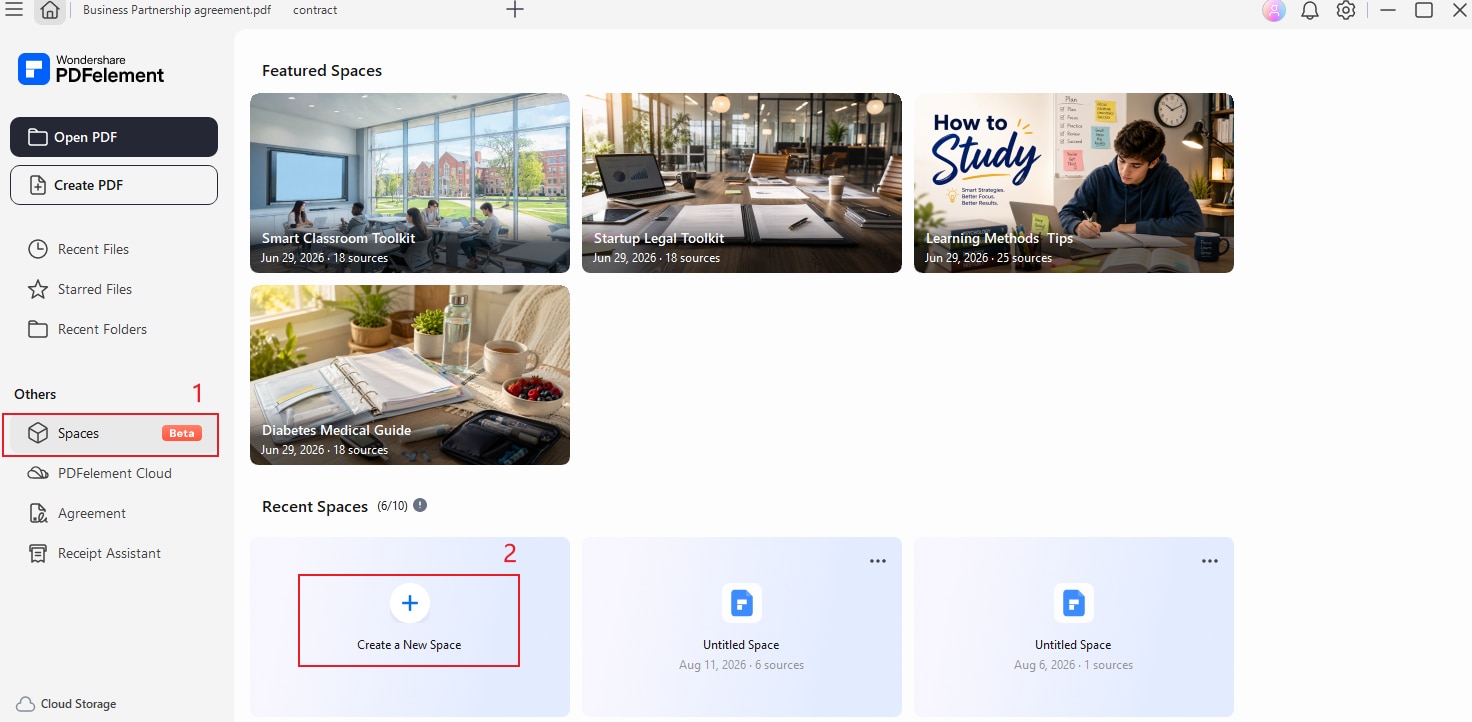
Open PDFelement and click "Spaces" in the sidebar on the Home screen. Then click "Create a New Space" to create a new knowledge space for your documents.
Step 2 Upload Your PDF
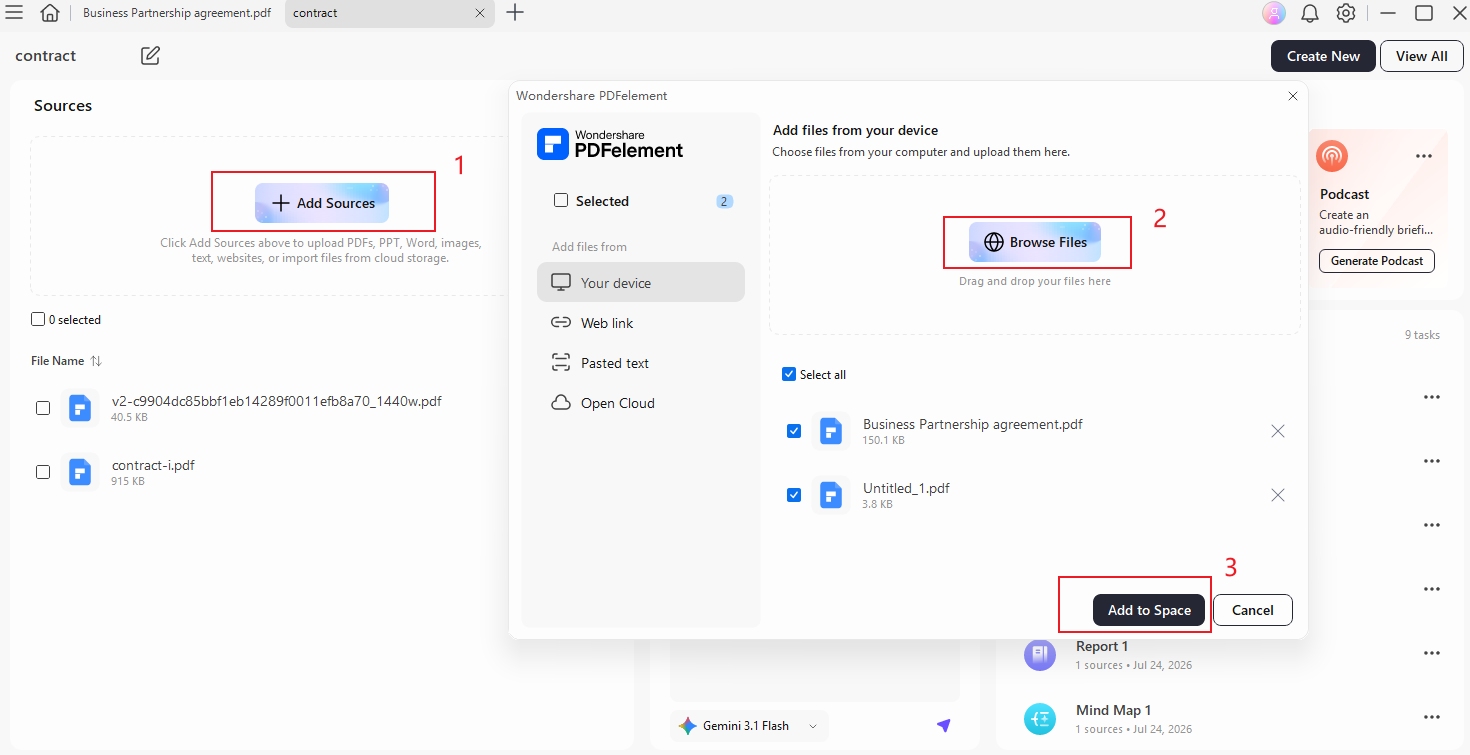
Upload the PDFs you want to chat. After selecting the PDFs, click "Add to Space" to add them to the space.
Step 3 Interact with Your Documents
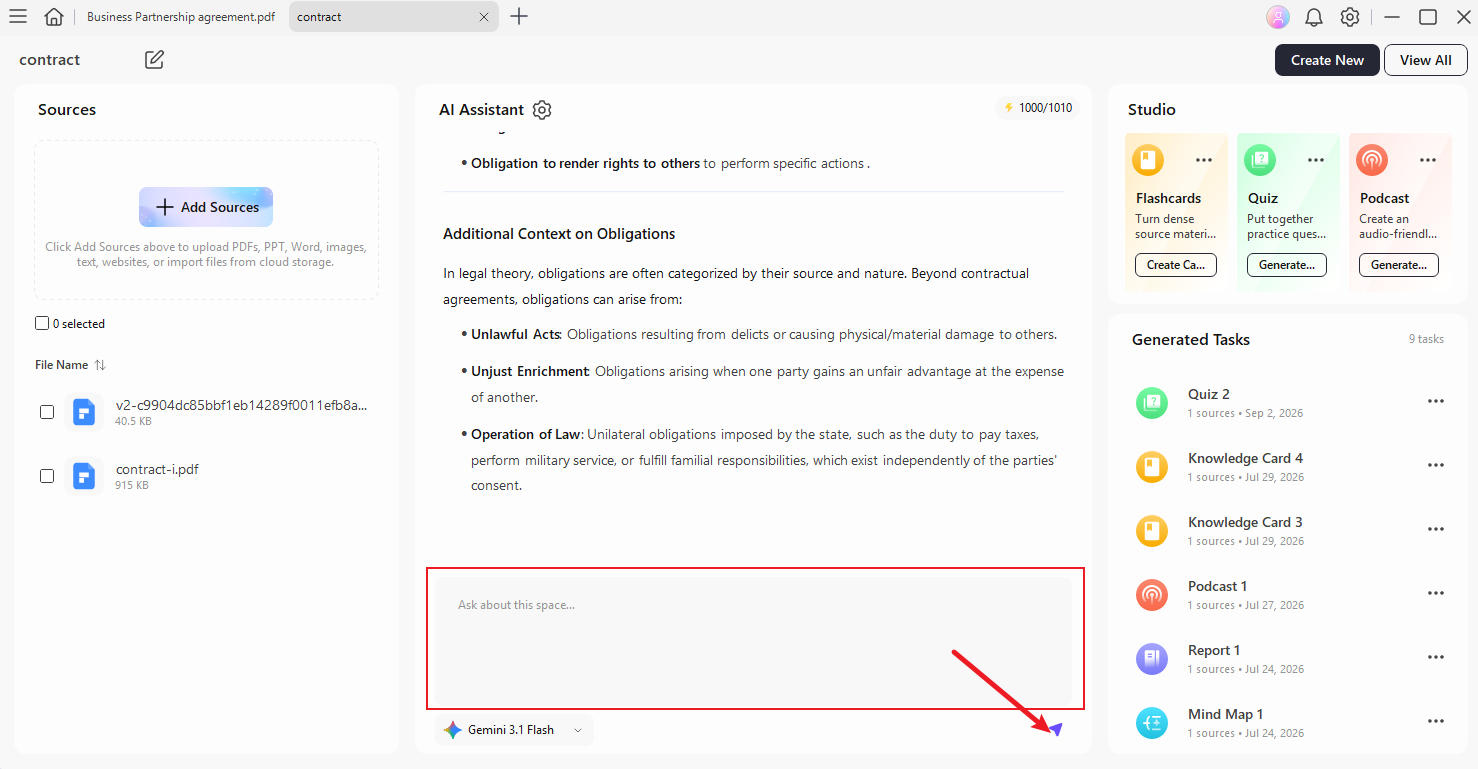
Once the PDF is added,you can enter your prompt in the conversation box at the bottom of the page to ask questions or explore the content with AI.
Part 4. Tips that Might Help to Chat With PDFs
Since chatting with a PDF tool is an AI-powered feature, users must consider specific points. Along with having many benefits, AI-generated results are often dependent on human touch-ups. Hence, there are multiple things a user needs to consider while chatting with PDFs. The following part of the article spills helpful tips while chatting with PDFs:
- Ask Specific Questions : Instead of asking broad questions, describe exactly what information you want to find. For example, ask "What are the main findings of these research papers?" rather than simply saying "Summarize."
- Provide Context in Your Prompt:Include relevant details such as the topic, audience, or information you want the AI to focus on. This can help produce more useful responses.
- Use Follow-Up Questions : You do not have to ask everything in one prompt. Start with a general question and use follow-up questions to explore specific sections or details.
- Verify Important Information : AI-generated responses can contain errors or misunderstand information from a document. Always check important facts, figures, quotations, and conclusions against the original PDFs.
Conclusion
In short, chatting with PDF is a great method to extract the key points from a lengthy file. To save time, chatting with multiple PDF files helps users generate a quick summary. In this context, the most considerable tool to offer a chat with multiple PDFs is PDFelement since it enables precise summarization with quick results.


