

Best Invoice Software: Free, Paid, Online, And Desktop Options Compared
Managing invoices efficiently can be frustrating for many business owners and freelancers. Losing track of payments and dealing with the late invoices can quickly slow down productivity. With so many options available, it is overwhelming to find a reliable, well-tailored tool. That's where the right PDF invoicing software makes a difference by helping you organize files and automate repetitive tasks.
This guide will include the best invoice software for small businesses, both online and desktop. By comparing these tools side-by-side, you will gain an understanding of which tool best fits your needs and budget.
In this article
- What Is Invoice Software and Why Businesses Need It
- Types Of Invoice Software Available Today
- Best Invoice Software: Quick Comparison Overview
- Best Free Invoice Software and Freeware Options
- Invoice Software for Mac vs. PC
- Online Invoice Software vs. Desktop Invoice Software
- Popular Invoice Software Options to Consider
- E-Invoice and GST Invoice Software Considerations
- Invoice Creation Is Only Half the Workflow
- Managing Received Invoices and Receipts with PDFelement
- Building a Complete Invoice Workflow
- Common Mistakes When Choosing Invoice Software
Part 1. What Is Invoice Software and Why Businesses Need It
Invoice software is a dedicated digital tool that helps businesses create, send, and manage invoices. Instead of writing bills, it automates billing, making it much easier. Beyond just making invoices, modern invoice software often integrates with accounting and payment systems to track income.
Difference Between Manual Invoicing and Digital Invoicing
Invoice invoicing typically falls into two major types: "Manual and Digital Invoicing. Manual invoicing relies mainly on paper, whereas digital invoicing uses specialized software to automate invoice creation. To understand how these approaches differ from each other, explore the following quick comparison table below:
| Aspects | Manual Invoicing | Digital Invoicing |
| Creation Speed | Slowly, each invoice is created by hand | Fast, templates, and saved items generate invoices in seconds |
| Error Rate | Bigger, manual data increases mistakes | Lower, automatic calculations and validation reduce errors |
| Cost | Ongoing costs for paper, printing, and storage | Software subscription or setup cost, but lower per-invoice cost |
| Delivery | Physical handover or postal mail | Instant digital delivery via email or client portals |
| Tracking and Reminders | Requires manual tracking of due dates and follow-ups | Built-in status tracking with automatic payment reminders |
| Record Keeping | Paper files or scattered spreadsheets | Centralized database with search, filters, and easy backup |
| Integration | No direct integration | Can integrate with accounting, CRM |
| Compliance and Audit | Harder to maintain consistent formats | Standardized formats, audit trails |
Benefits Of Using Dedicated Invoice Software
As businesses are shifting from manual to Digital invoice software, so let's dive into its key benefits for better understanding:
- Saves Time: Dedicated invoice software automates repetitive tasks like creating invoices and sending recurring bills. It means you spent less time on manual data entry and formatting, giving time for other high-value work.
- Reduces Errors: As the system performs calculations automatically and pulls user records to add customers' data. It significantly lowers the risk of typos, miscalculations, and duplicate invoices.
- Improves Cash Flow: This software helps you get paid faster by sending invoices immediately and adding options like online payments. This smoother workflow supports healthier cash flow and makes it easier to plan expenses and investments.
- Centralizes Records: All invoices, client information, payment histories, and credit notes are stored in one organized system. This centralization makes it easier to search, filter, and export financial data whenever you need it.
- Strengthens Security: Dedicated invoice tools often include access controls, data encryption, and regular backups. Unlike manual invoices, it reduces the risk of data breaches and accidental data loss.
Part 2. Types Of Invoice Software Available Today
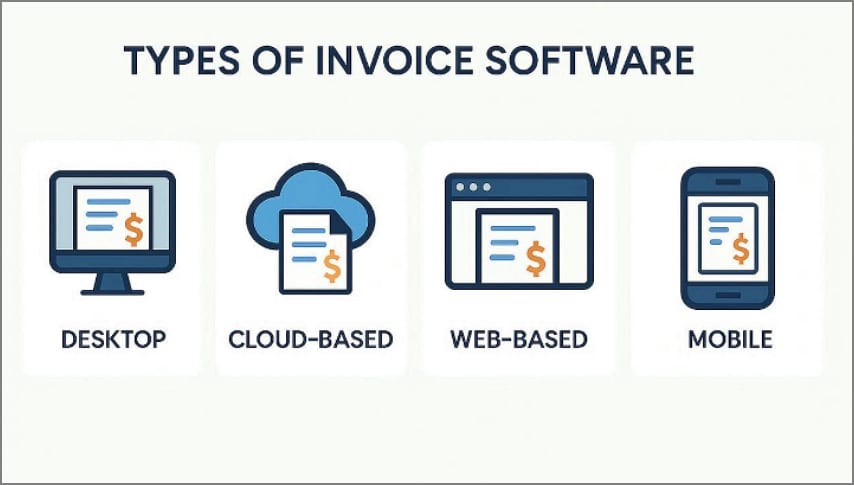
With multiple business models, let's break down the main types of invoicing software for small businesses available today:
Online Invoice Software
Online invoice software is cloud-based and runs in your browser or mobile app to create, send, and track invoices. These tools typically include automatic updates, online payment options, and real-time collaboration. As online tools require only a stable internet connection, they are an ideal option for remote teams, freelancers, and businesses that need flexibility.
Desktop Invoice Software
This software is installed directly on your computer and stores data locally or on a private server. It gives you more control over where your information lives and requires no internet connection. This business invoice software can be a good fit for businesses that prefer offline access and have strict internal data protection policies.
Free vs. Paid Invoice Software
Free invoice software is designed primarily to meet the basic needs of freelancers and very small businesses. These tools can be used for simple invoices, managing a small client list, and tracking a limited number of transactions. In contrast, paid solutions offer advanced features, including automation, integrations, support for multiple users, and detailed reporting. These features make them better suited for growing or more complex operations.
Industry- Or Region-Specific Invoice Tools
Some tools are specifically designed for specific industries such as construction, legal, healthcare, or creative agencies. They offer dedicated features, including project-based billing, time tracking, and compliance-ready formats. Other features are tailored to regional requirements, such as supporting local tax rules, e-invoicing mandates, and languages. It will help businesses stay compliant and avoid costly errors when operating in a particular country.
Part 3. Best Invoice Software: Quick Comparison Overview
To help you compare options at a glance, here is a quick overview of the best invoice software for small businesses:
| Software | Best For | Key Features | Typical Pricing | Platform |
| FreshBooks | Small businesses, service-based | Time tracking, recurring invoices, and expense tracking | Lite:$23/month Plus:$43/monthPremium:$70/month | Online, mobile |
| QuickBooks Online | SMEs needing accounting + invoicing | Invoicing, full accounting, tax tools, reports, integrations | Simple: $19/monthEssential:$37.5/monthPlus: $57.5/monthAdvanced: $137.5/month | Online, mobile |
| Xero | Growing businesses, multi-currency | Invoicing, bank feeds, inventory, and multi-currency support | Starter: $2/monthStandard: $5/monthPremium: $7/month | Online, mobile |
| Zoho Invoice | Freelancers, very small businesses | Custom invoices, automation, time tracking | Standard:$15/monthProfessional: $40/monthPremium: $60/month | Online, desktop, mobile |
| Wave Invoicing | Startups on a tight budget | Basic invoicing, templates, and recurring billing | Pro plan: $190/month | Online, mobile |
Criteria Used for Evaluation
If you are exploring the best invoice software, here are some key factors that you should keep in mind:
- Ease of Use: While choosing the right tool, opt for a tool that has an intuitive interface and doesn't require extensive training. A tool that offers helpful prompts or tutorials scores higher on ease of use.
- Platform Support: Look for a tool that is easily accessible from a web browser, Windows, macOS, Android, and iOS. The best invoice software provides consistent functionality across devices so you can manage billing.
- Customization: Ensure that the tool offers customization, such as adding a logo, color branding, and custom fields. These customizations let businesses create invoices that match their professional identity.
- Compliance Features: When selecting an invoice software, make sure it meets all legal requirements of your country or region. Good compliance support includes correct tax calculations, local invoice formats, and audit trails.
Part 4. Best Free Invoice Software and Freeware Options
To determine whether a no-cost solution meets your needs, let's explore info about free Invoice Software download:
What Free Invoice Software Typically Offers
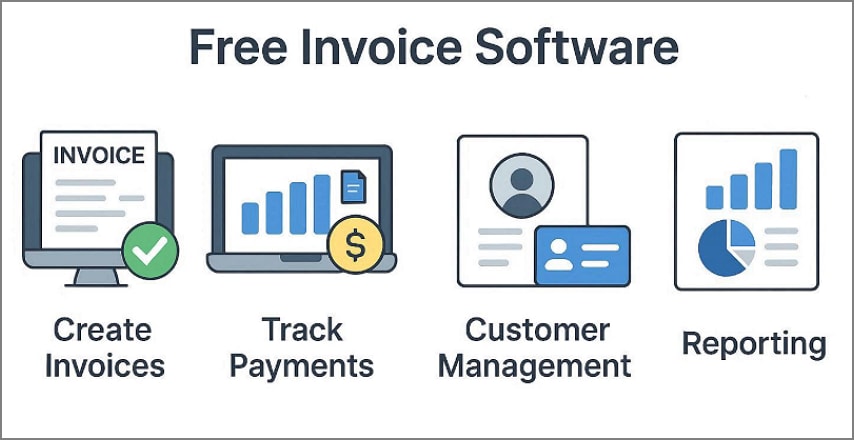
- Simple Templates: Free invoice software usually includes a set of ready-made templates, allowing you to add logos and business details. These templates are often clean and minimal, with limited layout or branding customization.
- Email Invoice Delivery: Most free tools allow you to send invoices directly via email from within the system. You can include a short message, and the client receives a professional-looking invoice.
- Basic Payment Options: Free tools often support basic online payment methods, such as card payments, bank transfers, or services. You may get an advanced option, but it is enough to let clients pay you quickly.
- Accessibility: Free invoice tools are commonly cloud-based, so you can log in from any device with a browser. However, offline access and multiple advanced features are reserved for higher-tier paid versions.
Limitations Of Freeware Invoice Software
While free tools can be useful, it's important to understand the limitations of freeware Invoice Software:
- Limited Customization: Most freeware invoice tools only offer a handful of basic templates and branding options. This can make your invoices look generic and sometimes add watermarks, making them look less professional.
- Missing Automation Tools: Free plans typically include only minimal automation, such as very basic reminders. Without automation features, you require more manual work and spend extra time chasing payments.
- Reduced Reporting and Analytics: Freeware tools are often limited to simple lists or high-level totals. Users miss out on deeper insights, such as customer trends and aging reports, making financial and decision-making harder.
- Weaker Advanced Features: Free invoice software rarely includes advanced capabilities like multi-currency support and multi-language templates. This is a significant limitation if your business operates internationally or requires more sophisticated billing setups.
When Free Invoice Software Is Sufficient
Free invoice software is usually sufficient for generating simple invoices. It works well if you need to send multiple invoices but don't require advanced options. This software is ideal for users such as freelancers, consultants, and very small businesses that mainly need to create professional-looking invoices.
Part 5. Invoice Software for Mac vs. PC
Since operating systems affect software performance, have a look at the quick comparison table between invoice software for Mac and Windows:
| Aspects | Mac Invoice Software | Windows Invoice Software |
| Native Apps | Fewer, design-focused apps | Some Windows tools are missing |
| Ecosystem Integration | Deep macOS integration | Strong Windows ecosystem links |
| Installation Style | App Store + browser | .exe install + browser |
| Choice Of Cloud Tools | Same major cloud options | Same major cloud options |
| Offline Desktop Options | Limited offline choices | More offline-capable suites |
| Performance And Ui Feel | Clean, minimal interface | Mixed modern and legacy UIs |
| Compatibility Considerations | Some Windows tools are missing | Most tools are Windows-only capable |
Native vs. Browser-Based Tools
- Native Apps: These are installed directly on both your PC and Mac and easily integrated with the local printing tools. The foremost part is that the native tool can be accessed without any requirement for an internet connection.
- Browser-Based Tools: Browser-based tools can run in any modern browser can easily run in any modern browser. Users can easily access from both Windows and Mac with the same single account.
Offline Access Considerations
If you are working in any remote location where you don't have access to an internet connection, then native tools are an ideal option. Native or self-hosted tools store data locally, making them suitable for confidential data.
Part 6. Online Invoice Software vs. Desktop Invoice Software
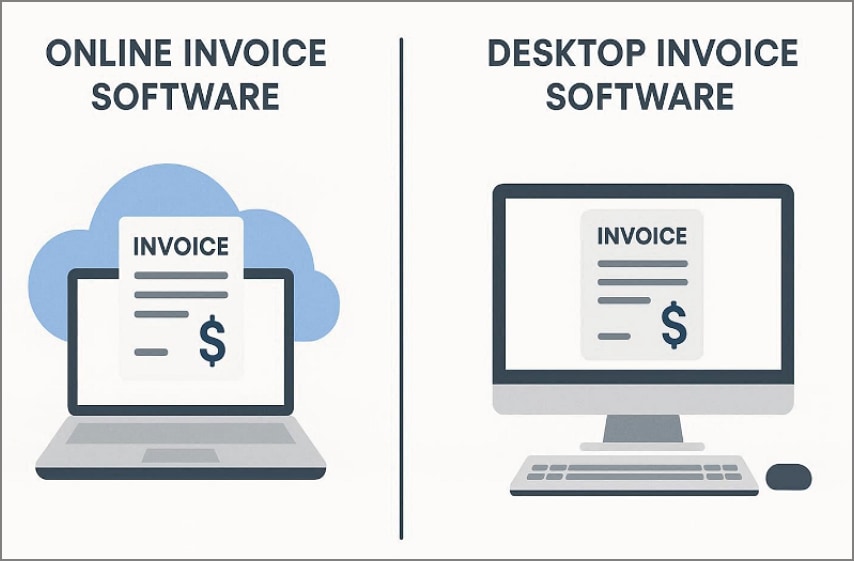
With cloud technology becoming common, let's break down the differences between online and desktop invoicing software for small businesses:
Cloud Access and Collaboration
Online invoice software works in your browser on any device, and multiple members can log in at once. On the other hand, desktop invoice software is installed specifically and limits access to only one system. In this case, user collaboration is more dependent on your IT setup.
Data Security and Backups
In professional environments, online tools usually handle data with encryption and automated backups. In comparison, desktop software gives you more control by allowing you to choose the desired data storage location and backup options.
Subscription vs. One-Time Purchase Models
Online invoice software typically offers monthly subscriptions, as well as yearly subscriptions. This spreads costs over time but means you pay as long as you use the service. Whereas desktop software is more often sold as a one-time license, which can be cheaper in the long term.
Part 7. Popular Invoice Software Options to Consider
To help narrow your choices, the following section highlights widely used invoice software options:
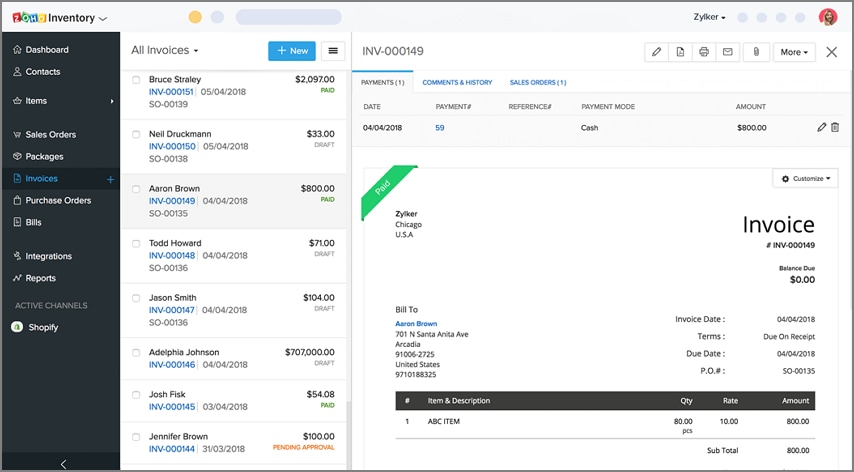
To create instant invoices, this program offers customizable templates, branding, and support for multiple languages. It automates the workflow by including scheduled payment reminders and configurable payment terms. Furthermore, Zoho invoice software offers multiple online payment options and lets you track project billing.
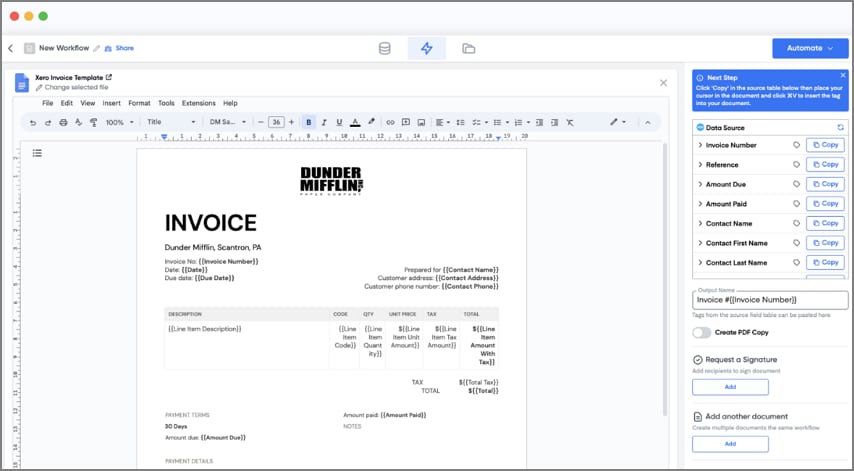
Xero Invoice software can be easily accessed via the mobile app to create, send, and manage invoices on the go. Users can access management details such as customer information, sales history, and invoice/payment records. Additionally, it offers built-in sales tax handling and reporting, including automated tax calculation.
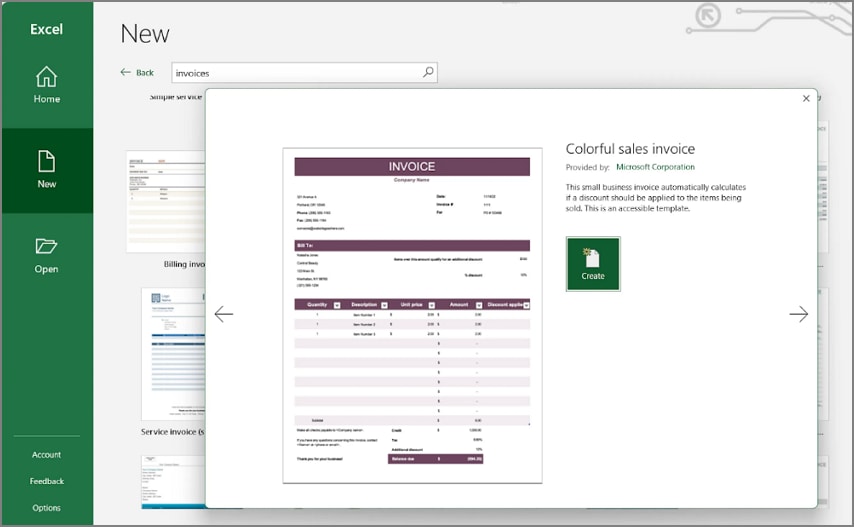
In the Excel sheet templates, users can use the spreadsheet-style "what you see is what you get" editor to create invoices. Excel invoice software generates professional invoices, quotations, and purchase orders, and lets you email directly or export them. This program includes basic features such as customer management, payment tracking, and the conversion of quotations into invoices.
Besides these platforms, you can also opt for other widely used options depending on your requirements. Many tools are designed to cater to specific needs, so you can choose a solution that fits your budget and technical comfort level.
Part 8. E-Invoice and GST Invoice Software Considerations
Before choosing the e-invoice software, it's necessary to understand its key requirements:
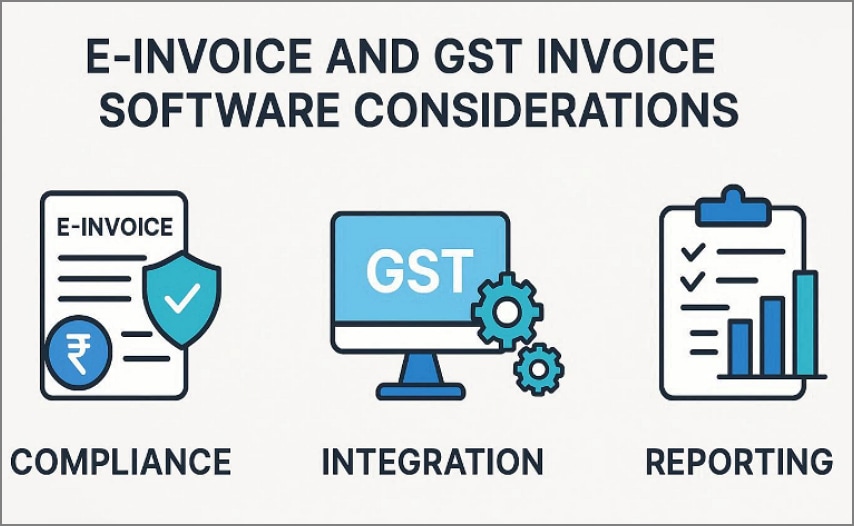
What Does E-Invoicing Means
E-invoicing is a system where B2B invoices are created in a structured digital format and then reported to a government- dedicated portal. The IRP validates the data and returns a unique QR code and invoice number, which should appear on the final invoice. Businesses that have a turnover above 5 crores must generate e‑invoices for eligible transactions.
GST Invoice Requirements
A GST invoice is a tax document that includes details of the supply and the GST charged. As a result of this file, the buyer can claim Input Tax Credit. It must contain mandatory fields such as a unique serial invoice number, invoice date, supplier, and recipient name. This invoice should also include timing rules and special document types like revised invoices and debit notes.
Compliance and Record-Keeping Needs
E-invoice and GST invoice software must help to follow the rules by making specific fields mandatory and integrated with IRP. It should also maintain secure and tamper-proof records for the statutory retention period.
Part 9. Invoice Creation Is Only Half the Workflow
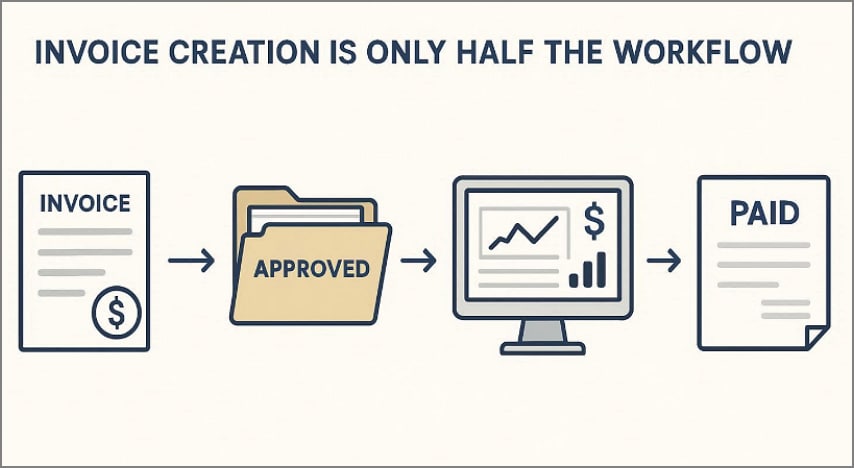
Invoice creation is only half the workflow, as what happens after the invoice determines the cash flow. Many tools only focus on generating invoices and do not offer features like sending, tracking, matching, and archiving documents.
Sending Invoices vs. Receiving Invoices
Most businesses are good at sending the invoices, but they are weaker at managing the invoices they receive. Sending invoices is about branding, accuracy, and speed, while receiving invoices is about capturing incoming bills and approving them. The best invoicing software for small businesses must both send and receive invoices perfectly.
Managing Supplier Invoices and Receipts
Beyond customer billing, you also need a clear system to handle receipts for day-to-day spending. It means to capture documents, extract key details, and categorize them against suppliers. When this procedure is done well, you are clear of the proper workflow of cash payments.
Expense Tracking and Document Storage
Invoice software becomes far more valuable when it ties directly into expense tracking and document storage. Instead of keeping receipts in email threads or random cloud drives, a central system keeps all the files in one place. It makes it easier to monitor the overall spending of the business.
Many businesses struggle with not issuing invoices but aim to address issues like late payments. Without having integrated tools, teams fall back on manual reminder emails, spreadsheets, and scattered file storage. To cater to these users, they should opt for business invoice software solutions like PDFelement, which can streamline document handling.
Part 10. Managing Received Invoices and Receipts with PDFelement
A client emails a PDF invoice, and on the other hand, you send a crumpled paper receipt. You save a few files to your desktop and snap photos on your phone, only to spend hours hunting for everything. Instead of juggling with scattered documents, opt for tools like PDFelement, which offers a "Receipt Assistant" feature.
This platform lets you automate the workflow by extracting key invoice fields and keeping the verifications simple. Users simply import the desired file, and it will extract the details easily. Furthermore, invoices are saved in the cloud storage, making them easily accessible from any device.


 G2 Rating: 4.5/5 |
 100% Secure
Detailed Workflow to Use the PDFelement Automated Invoice Processing Feature
After knowing about the best invoicing software for small businesses, have a look at its detailed step-by-step guide below:
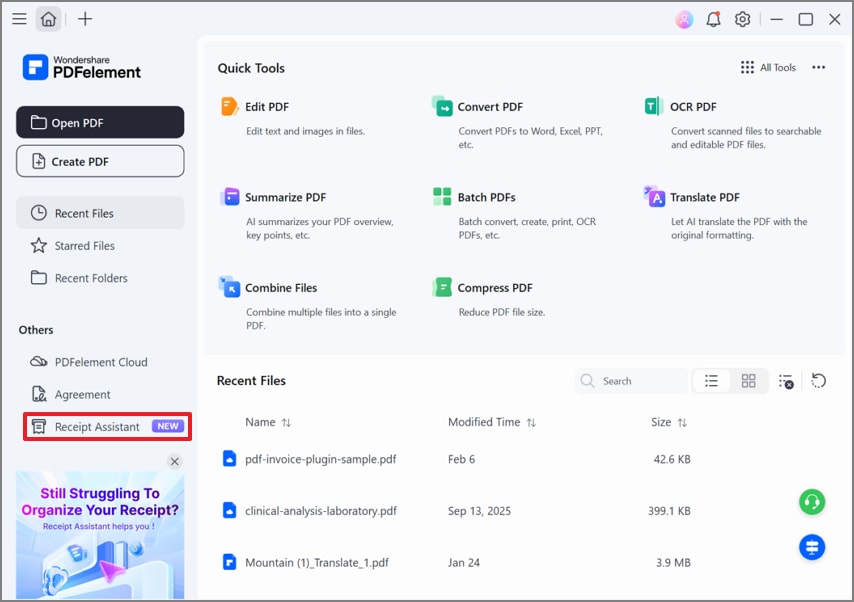
Step 1Access the Receipt Assistant Feature in PDFelement
As you enter the tool, click on the "Receipt Assistant" option from the left sidebar of the main interface.
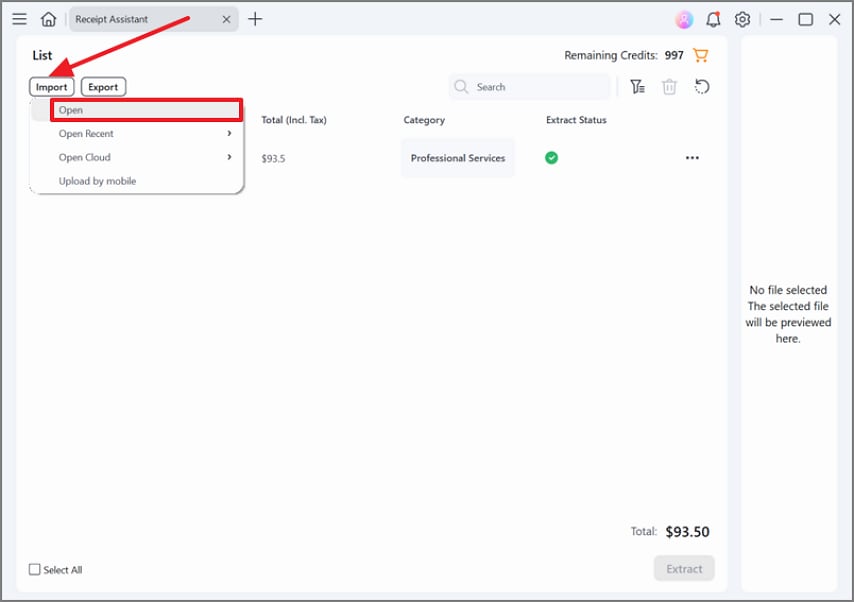
Step 2Insert the Desired Invoice Receipt into PDFelement
Afterwards, click on the "Import" button and hit the "Open" option to insert the desired invoice from the device. At this point, you can also insert the file from the Cloud drive and even upload directly from the mobile.
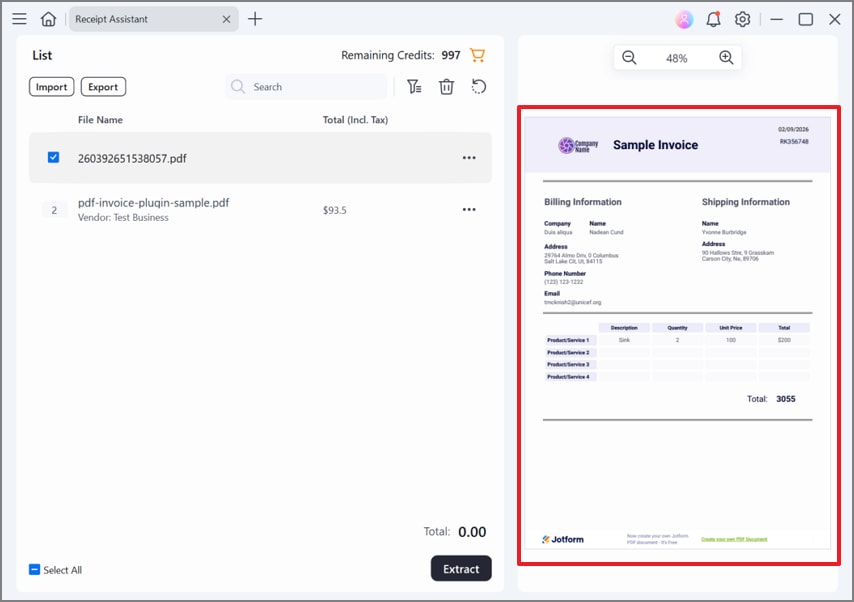
Step 3Examine the Inserted Invoice in this interface.
Once the file is imported, preview the invoice that appears in the "Preview" panel.
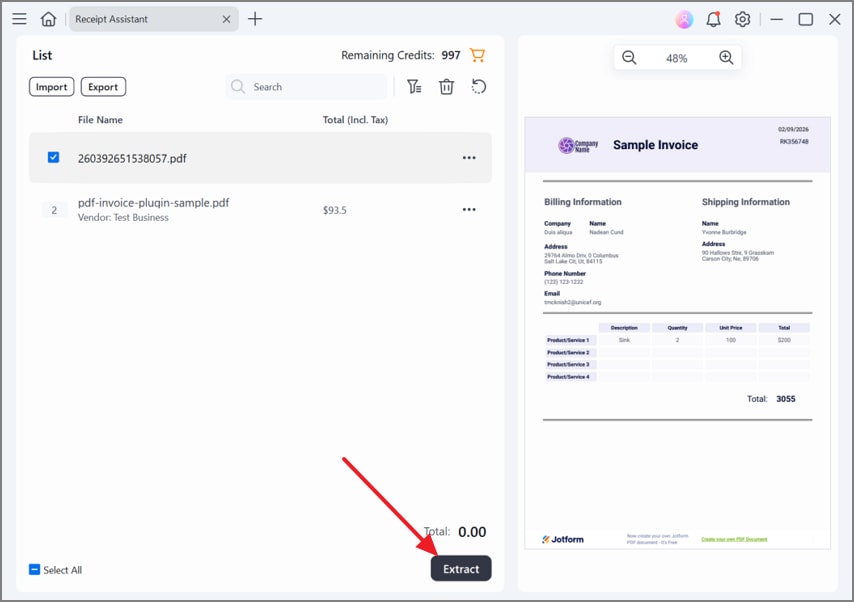
Step 4Initiate the Key Details Extraction Procedure
Following this, click on the "Extract" button, and PDFelement will automatically extract the key invoice details.
Step 5Review the Extracted Details with PDFelement
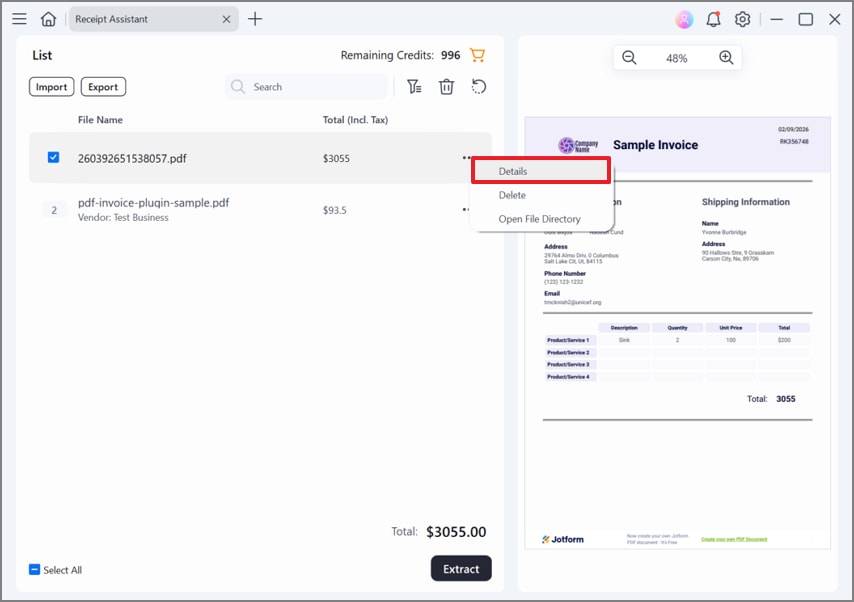
After completion of the extraction procedure, choose the "Three Dots" and select the "Details" option.
Step 6Save Verified Invoice Data to Receipt Management
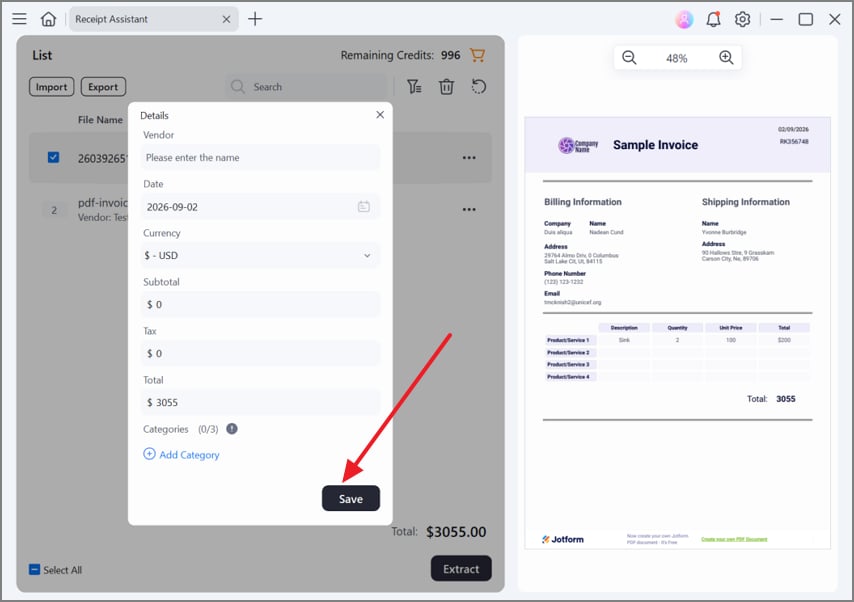
Here, verify the key details like Vendor name, date, pricing, and hit the "Save" button to save the key details.
Step 7Manage all Invoices in the Receipt Management Section
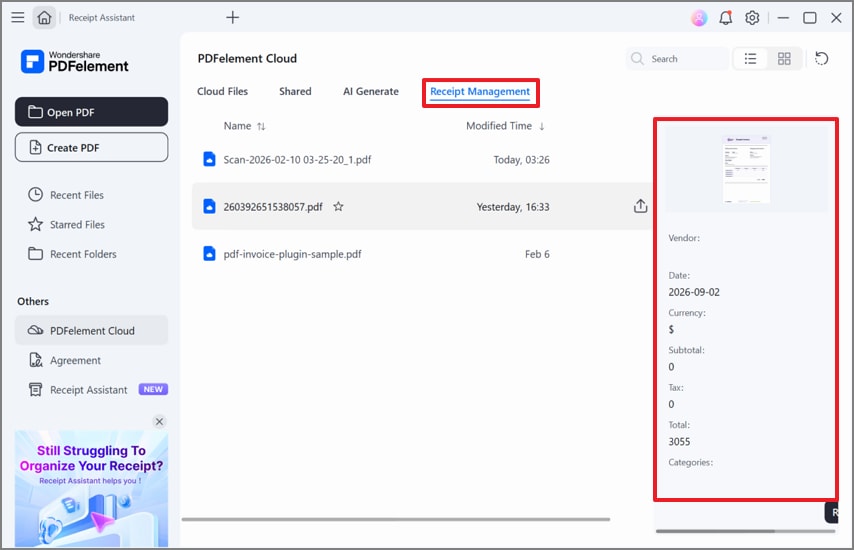
Now, verified invoices are automatically saved in the "Receipt Management" section. Additionally, users can search it by specifying the name in the search bar, and it is easily accessible via multiple devices.
Step 8Export The Invoice to The Device Folder
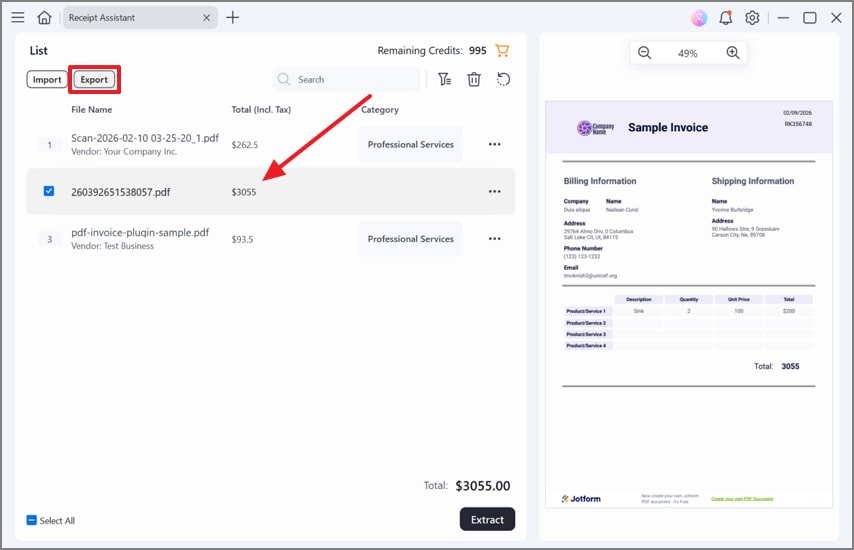
Lastly, choose the processed invoice and select the "Export" button to save the file to the device folder.
G2 Rating: 4.5/5 |100% Secure
Part 11. Building a Complete Invoice Workflow
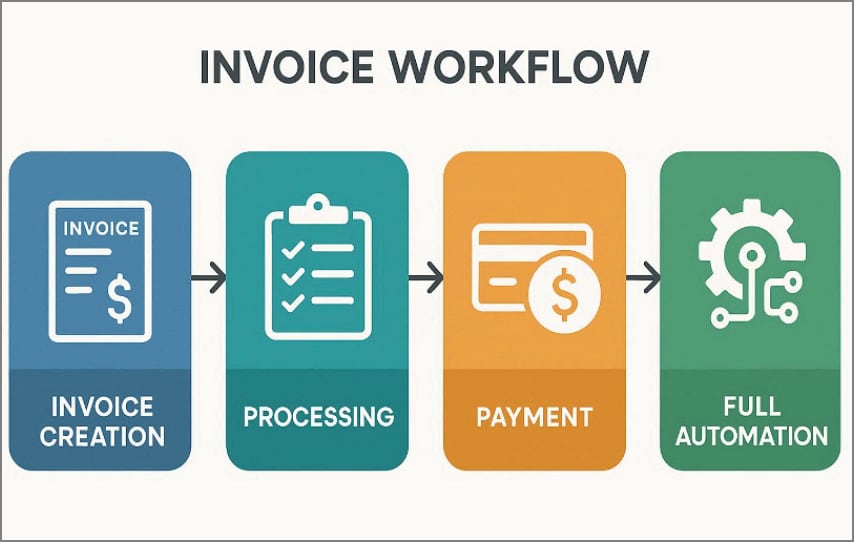
To streamline your financial processes, it's essential to follow the given invoice workflow that covers everything:
Step 1
Start by using business invoice software to generate professional, accurate invoices with clear line items. Automate the process by using payment links, so you spend less time chasing each bill.
Step 2
At the same time, put a system in place for every invoice and receipt you receive from vendors. Centralize them by scanning or importing them into a single folder where they are tagged by date, supplier, and amount.
Step 3
Once both sales invoices and supplier bills are organized, sync or export that data into your accounting system. Make sure each document is coded to the right account and tax category, so that financial statements are accurate.
Step 4
Look for gaps where you still type the same data twice, copy numbers from PDFs, or manually match bank transactions to invoices. Replacing the steps with automation turns invoicing from a manual chore into a streamlined lifecycle.
Part 12. Common Mistakes When Choosing Invoice Software
Let's look at common mistakes users make when selecting invoicing and inventory software for small businesses:
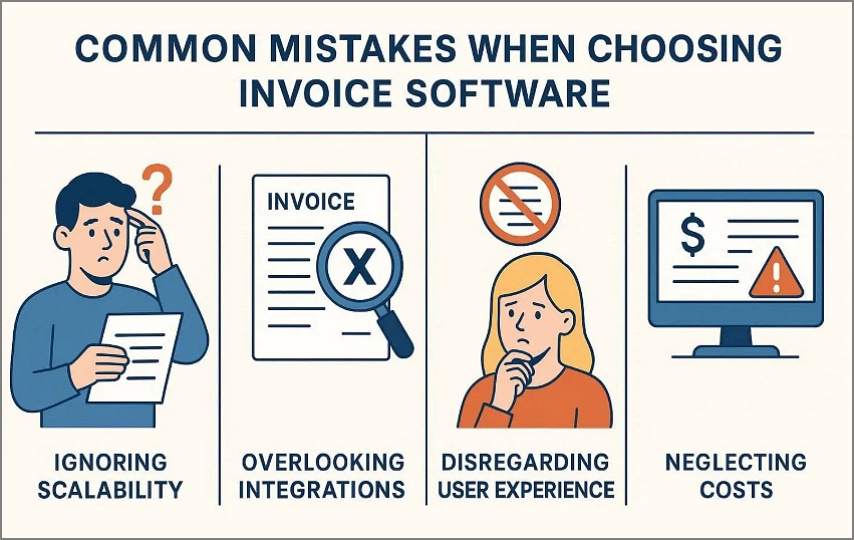
- Choosing Tools by Price: Users focus only on the free option, forgetting to examine the available key features. A slightly higher monthly fee can be worth it if it saves hours of manual work.
- Ignoring Platform Compatibility: Many people forget to check whether the software works smoothly on all their devices and OS. If you pick a tool that's Windows-only but your team mainly uses Macs, then it will be an issue.
- Overlooking Income Invoice Management: Businesses often focus on sending invoices to customers and ignore how they'll handle supplier invoices and receipts. If your chosen tool only supports generating invoices, then it will make the cash flow harder.
- Mixing Invoicing and Accounting Needs: Users choose a full accounting suite when they only need simple invoicing, resulting in unnecessary complexity. It is necessary to clarify the main purpose and choose the tool accordingly.
People Also Ask
-
What is the best invoice software?
There are numerous business invoice software programs available to cater to various invoice needs. However, we recommend using PDFelement, which lets you automate invoices, making it easier to manage cash flow. -
Is free invoice software reliable?
Absolutely, users can access various free invoice software programs that require no technical knowledge. However, this free software may lack the most advanced features, which are not suitable for larger businesses. -
Do I need different invoice software for Mac and Pc?
Most modern invoicing platforms are cloud-based and run in a browser, so the same account works on both Mac and Windows. Users only require different tools if they are using a native tool or a strictly Windows-only or Mac-only platform. -
What is e-invoice software?
E-invoice software creates and sends invoices in a structured digital format, such as XML or JSON. These tools often connect directly to government or B2B networks, validate invoice data, and automate posting into accounts. -
How should businesses manage received invoices?
Businesses should capture all incoming supplier invoices and receipts (paper, PDF, email) into a central system. You can use PDFelement, which offers OCR and automation to let you validate amounts, schedule payments, and keep a searchable archive.
Wrap Up
Summing up, the best invoice software for small businesses is the one that caters to all your needs, not only the ones that are cheaper. Also, remember that outgoing invoicing and incoming invoicing are two different needs. Using invoicing tools alongside robust document management dramatically improves efficiency. So, we recommend using PDFelement to digitize, extract data from, and manage the invoices and receipts you receive.
G2 Rating: 4.5/5 |100% Secure




