
In this article
- Why Do You Need a PDF Compressor Below 400KB?
- Part 1: How to Compress PDF to 400KB Online Free
- Part 2: How to Compress PDF to 400KB Offline (Secure & Professional)
- Part 3: Comparison Table: Online vs. Offline PDF Compressors
- Part 4: Pro Tips for Maintaining Quality When You Compress a 400KB PDF
- Conclusion
Dealing with strict file size limits can be incredibly frustrating, especially when you are trying to submit an important application or send a crucial email. Many government portals, academic institutions, and corporate HR systems require document uploads to be under a specific size, frequently capping out at 400KB. If your scanned document or image-heavy file is several megabytes, you need a reliable way to compress pdf to 400kb.
However, simply squashing a file down to a smaller size is not enough; you must ensure that the text remains legible and the images stay clear. The right solution depends heavily on your specific situation. Are you looking for a quick, one-off solution using a free online tool? Or are you handling highly sensitive legal or medical documents that require a secure, offline desktop application?
In this comprehensive guide, we will explore the best methods to reduce your file size safely and efficiently. Whether you need an online pdf compressor 400kb or robust offline software, we have you covered.


 G2 Rating: 4.5/5 |
 100% Secure
Why Do You Need a PDF Compressor Below 400KB?
The shift from physical hardcopy documents to digital workflows means that PDFs have become the universal standard for sharing information. From academic circles to professional environments, contracts, resumes, and portfolios are universally exchanged as PDFs.
However, high-resolution scans and embedded graphics inflate file sizes significantly. You will often find yourself needing to compress 400kb pdf files for:
- Job Applications: Applicant Tracking Systems (ATS) often reject files over a certain size to save server space.
- Academic Portals: University admissions require transcripts and essays to be highly compressed.
- Government Visas & Taxes: Official state portals are notoriously strict about bandwidth and frequently mandate that supporting documents be a pdf convert 400 kb or less.
To achieve this without destroying document readability, you need tools that selectively downsample images, subset fonts, and remove unnecessary background data.
Part 1: How to Compress PDF to 400KB Online Free
If you are looking for convenience and speed, online web-based tools are your best bet. They require no installation and can be accessed from any device with an internet connection. Here are the top ways to compress pdf to 400kb online free.
#1 Wondershare HiPDF
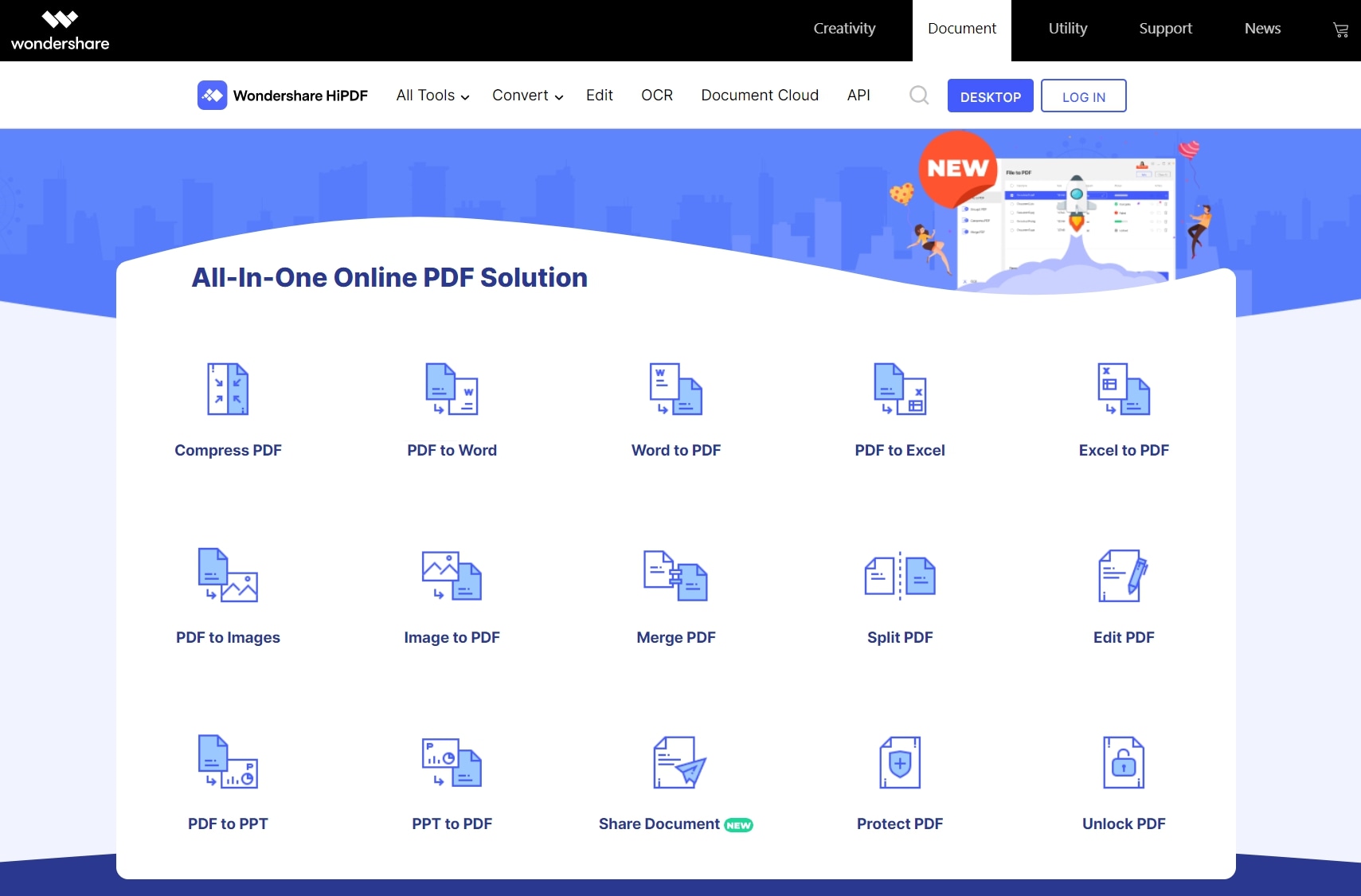
HiPDF is a powerful, web-based online solution developed by Wondershare. Designed to make working with PDFs as efficient as possible, it serves as an excellent pdf compressor to 400kb. HiPDF is an all-in-one suite; beyond compression, it allows you to convert, edit, merge, and split PDFs directly from your browser.
Step-by-step guide for compressing PDF files with HiPDF:
Step 1
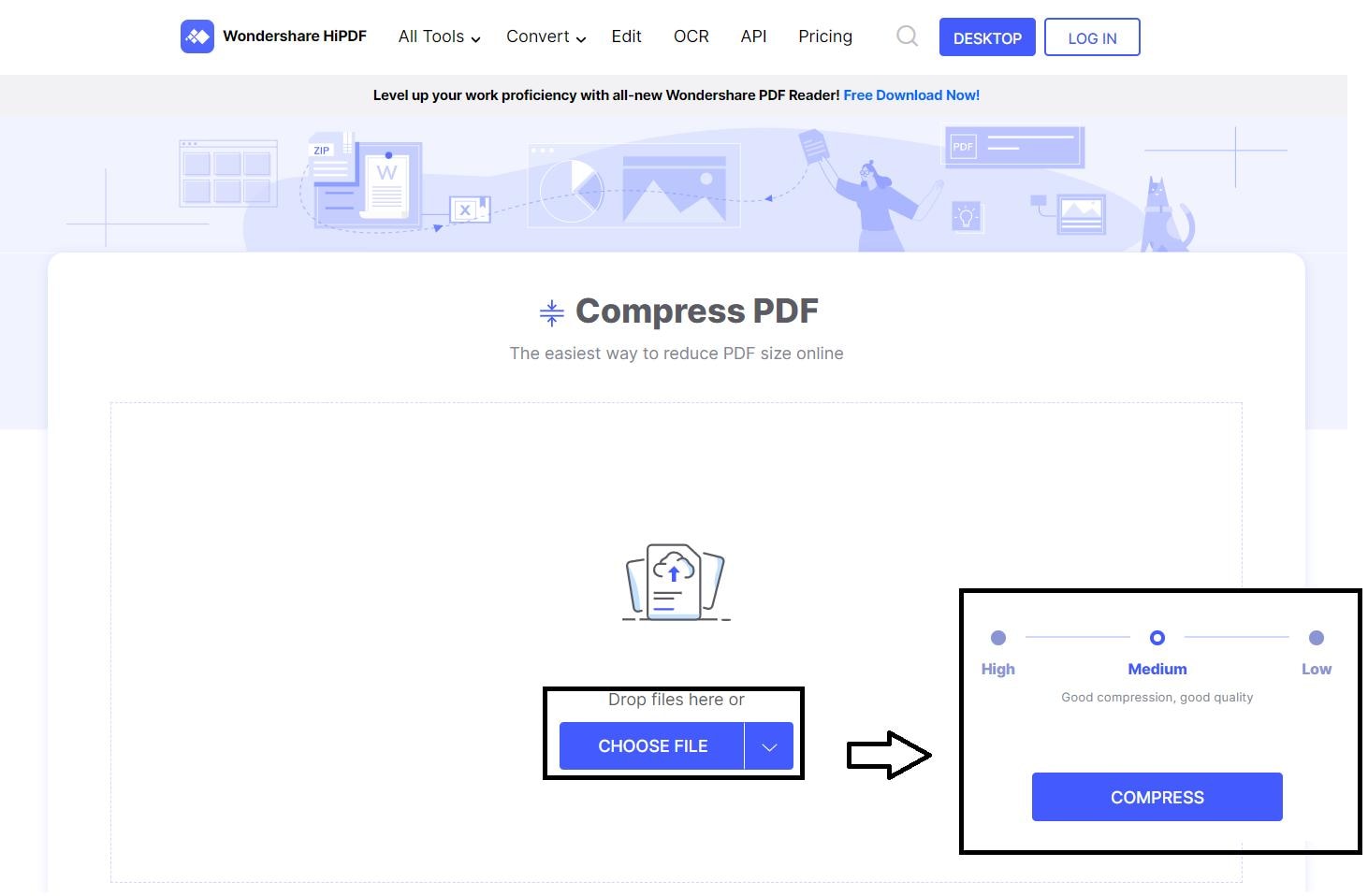
Land on the HiPDF website and navigate to the Compress PDF tool.
Step 2
On the compression page, click on the Choose File option or simply drag and drop your heavy PDF file into the designated area.
Step 3
After uploading, you will be prompted to set the compression quality. Choose between High, Medium, and Low based on how drastically you need to shrink the file to hit the 400KB mark.
Step 4
Click the Compress button.
Step 5
Once processing is complete, check the final file size and click Download to save it to your device.
#2 Adobe Acrobat Online
Adobe is the original creator of the PDF format, and their online tools reflect decades of document management expertise. With the Adobe Acrobat online PDF compressor, you can compress pdf to 400kb online quickly and intuitively.
Step 1
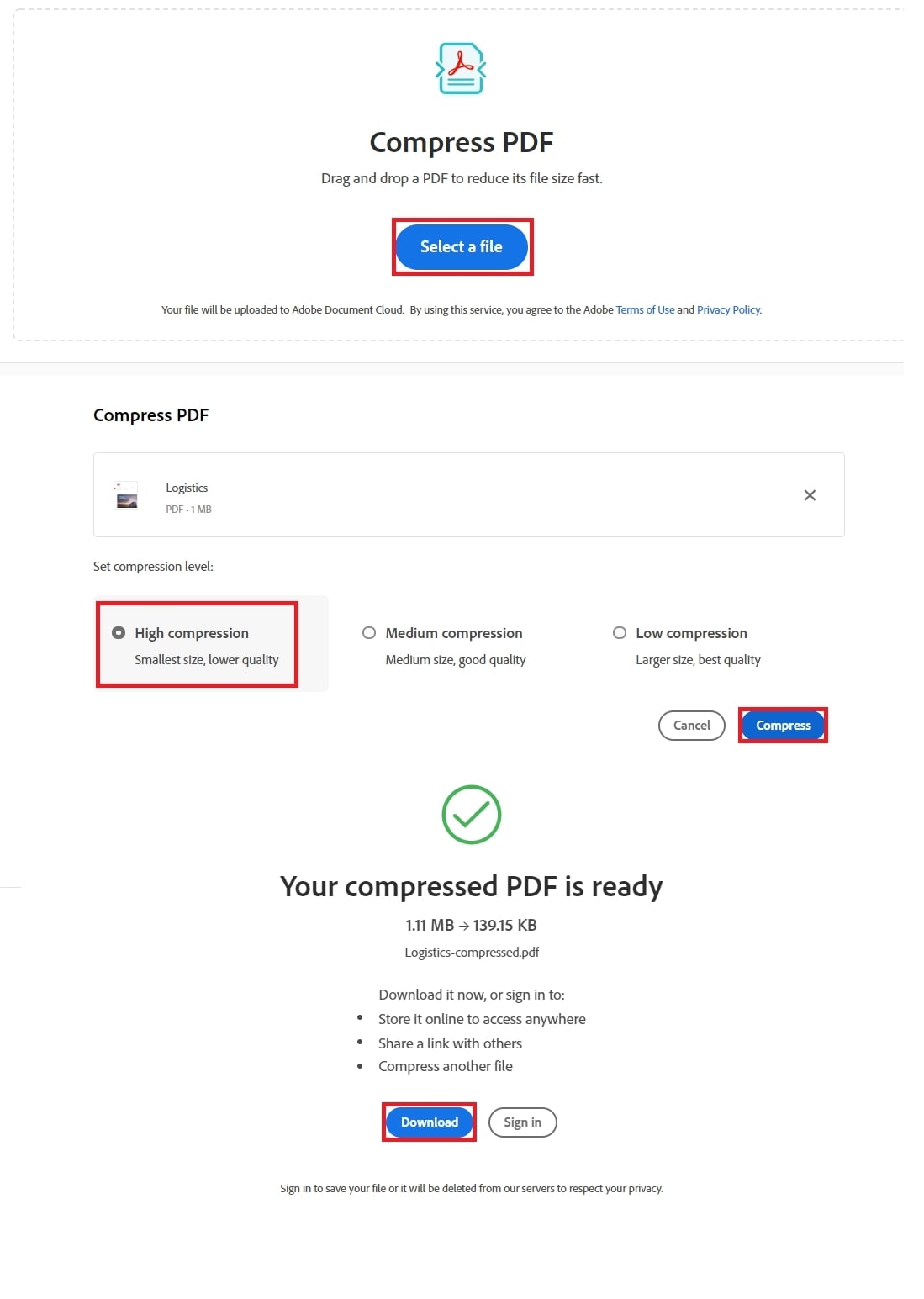
Visit the Adobe Acrobat Online Compress PDF page.
Step 2
Click the Select a file button to browse your computer, or drag and drop your document into the box.
Step 3
Choose your desired compression level (High, Medium, or Low).
Step 4
Click Compress, wait for the progress bar to finish, and then download your optimized file.
#3 Smallpdf
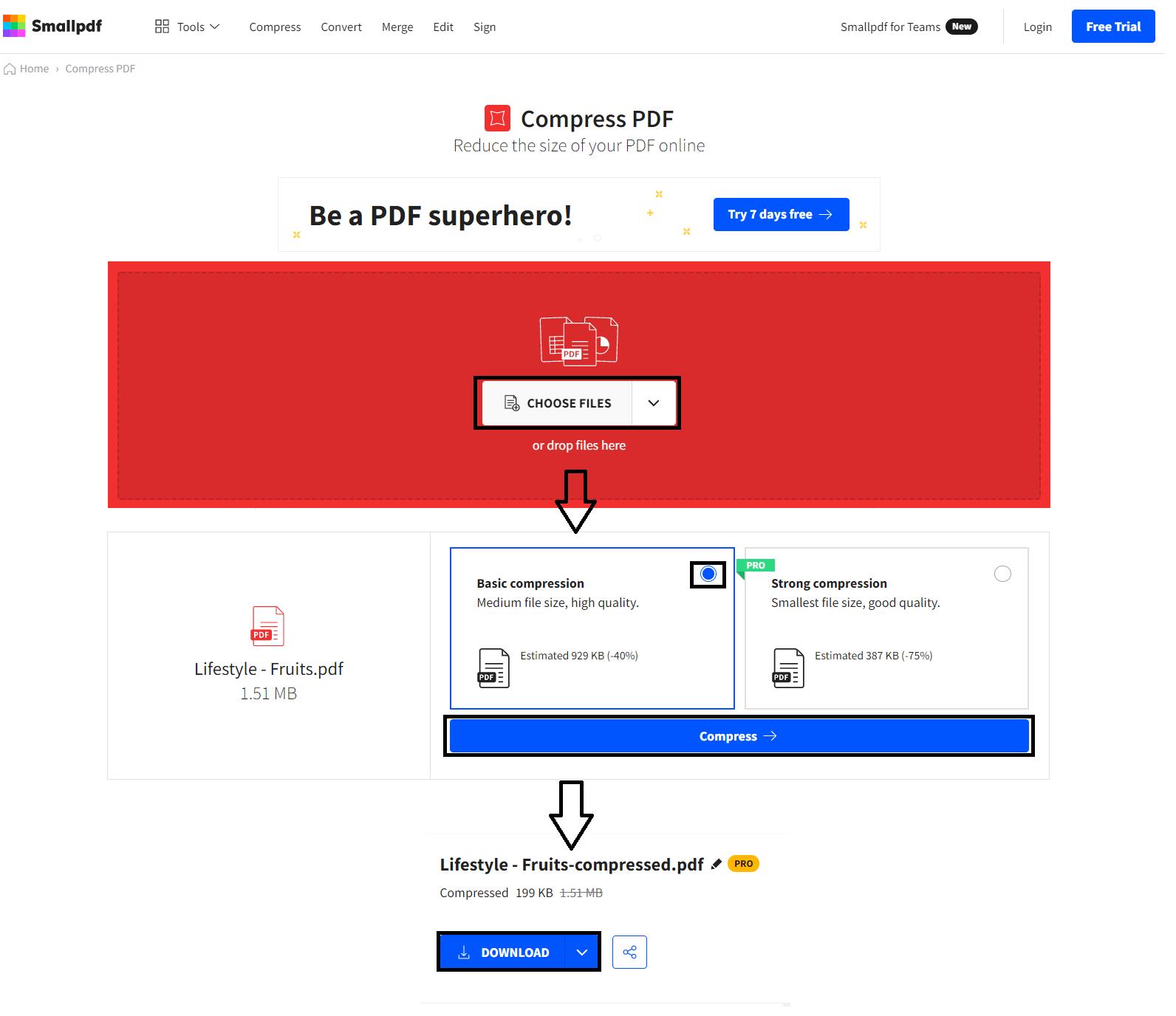
Smallpdf is a fan-favorite among students and professionals alike. Its colorful interface makes it incredibly easy to use as a pdf compress 400kb tool.
Step 1
Go to the Smallpdf website and select the Compress PDF tool.
Step 2
Upload your file from your local drive, Google Drive, or Dropbox.
Step 3
Choose between Basic Compression or Strong Compression (requires a Pro account).
Step 4
Click Compress and download your finalized document.
Part 2: How to Compress PDF to 400KB Offline (Secure & Professional)
While online tools are convenient, they are not always appropriate. If you are handling confidential client data, you need a desktop-based application to compress pdf to 400kb safely on your local machine.
G2 Rating: 4.5/5 |100% Secure
#1 Wondershare PDFelement
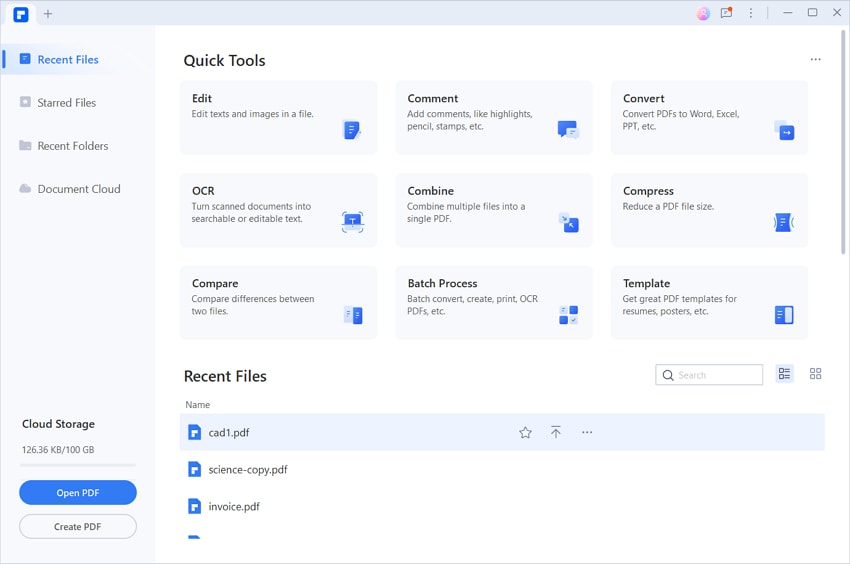
Wondershare PDFelement is a premier PDF editor and one of the best alternatives to expensive software. Because it is installed locally, it guarantees 100% data privacy, making it the perfect pdf compressor below 400kb.
Option A: The Quick Start Method
Step 1
Launch PDFelement on your desktop.
Step 2
On the main welcome screen, look for the quick-access tile labeled Compress PDF.

Step 3
Select your file from your hard drive.
Step 4
Choose your desired compression quality, and let the software shrink the file instantly.
Option B: The Tools Menu Method
Step 1
Open your large PDF document inside PDFelement.
Step 2
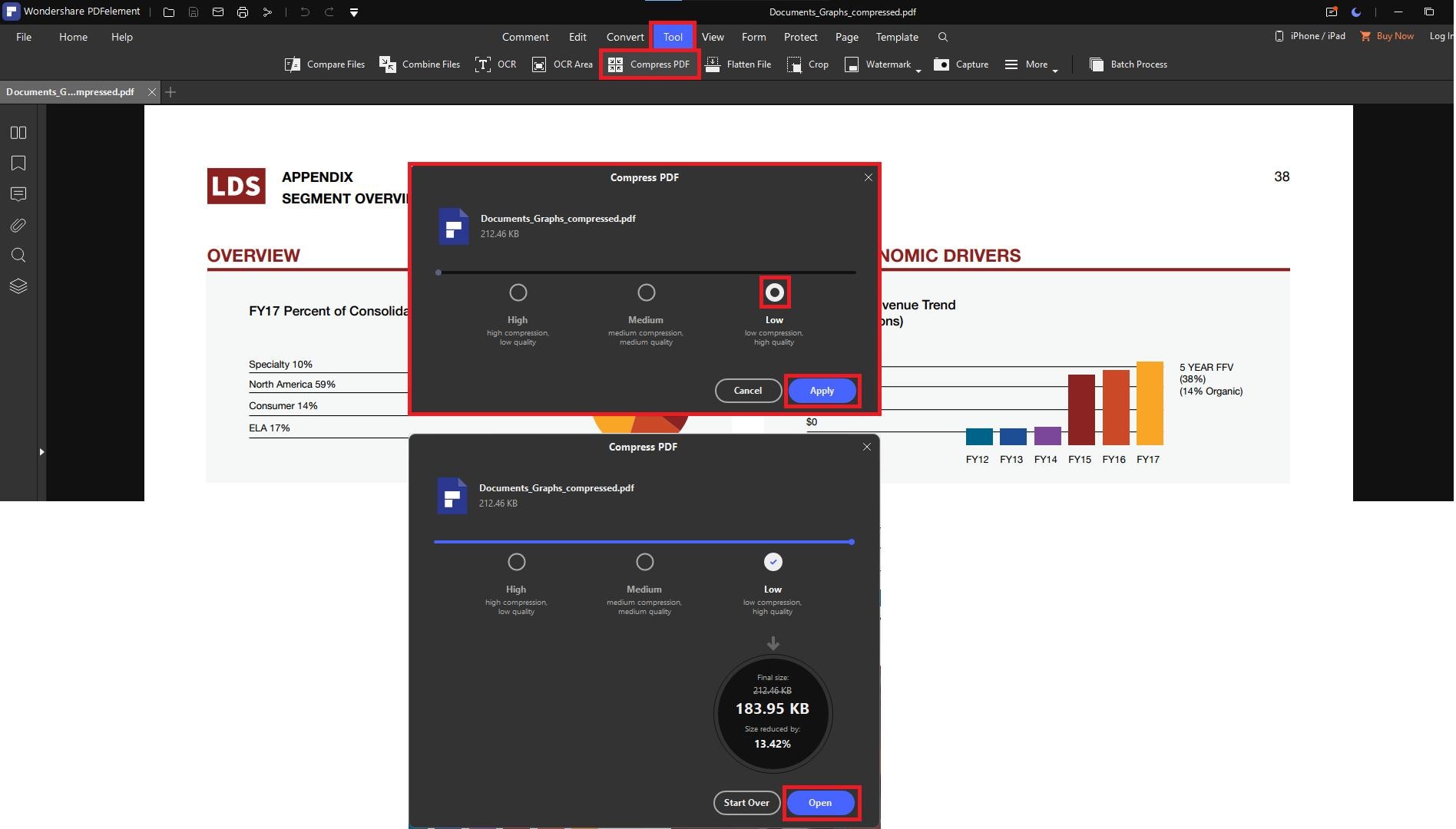
Navigate to the Tool tab at the top of the screen.
Step 3
Click on the Compress icon.
Step 4
A dialog box will appear showing different compression ratios. PDFelement dynamically calculates and displays the estimated final file size.
G2 Rating: 4.5/5 |100% Secure
#2 Foxit Reader / PDF Editor
Foxit is another heavyweight in the desktop PDF arena, known for being lightweight and fast.
Step 1
Open your large file in the Foxit application.
Step 2
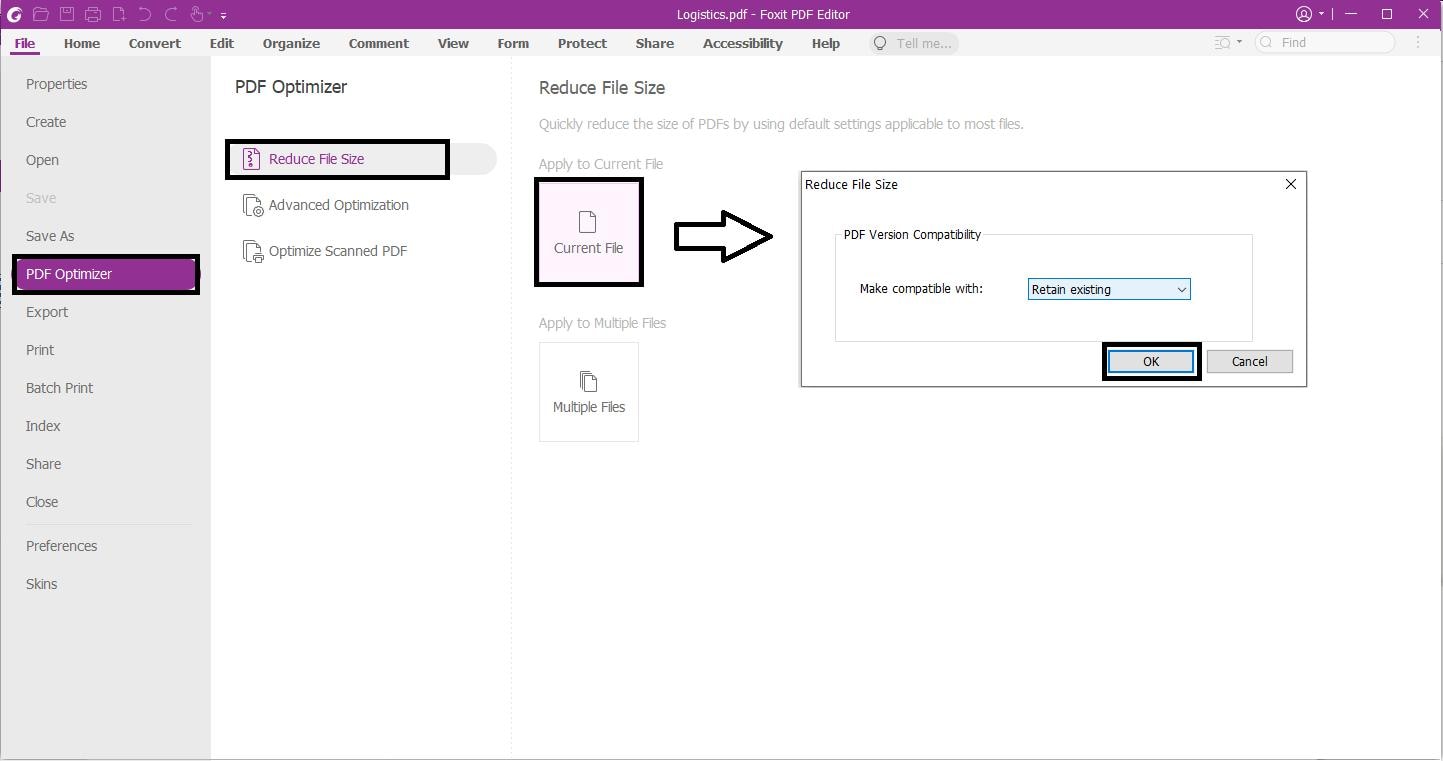
Navigate to the File tab and select PDF Optimizer.
Step 3
You will be presented with choices: Reduce File Size, Advanced Optimization, and Optimize Scanned PDF.
Step 4
To quickly hit your target, click on Reduce File Size and select Current File.
Step 5
In the pop-up window, choose the "Retain Existing" option, then hit OK.
Part 3: Comparison Table: Online vs. Offline PDF Compressors
| Feature/Tool | Wondershare HiPDF | Adobe Acrobat Online | Smallpdf | Wondershare PDFelement | Foxit Editor |
|---|---|---|---|---|---|
| Platform | Online (Web) | Online (Web) | Online (Web) | Offline (Win/Mac/Mobile) | Offline (Win/Mac) |
| Best For | Quick, free reduction | High-quality processing | Fast compression | Ultimate control & security | Manual optimization |
| Data Privacy | High (Deletes files) | High (Deletes files) | High (Deletes files) | Ultimate (Local) | Ultimate (Local) |
| Size Estimation | No | No | Yes (Pro) | Yes (Exact KB output) | Yes |
G2 Rating: 4.5/5 |100% Secure
Part 4: Pro Tips for Maintaining Quality When You Compress a 400KB PDF
People Also Ask
-
How do I compress a PDF to exactly 400KB?
To hit an exact target size, offline tools like Wondershare PDFelement are recommended as they calculate the estimated final size based on the compression ratio you select. -
Is it safe to use a free online PDF compressor to 400KB?
Yes, reputable tools like HiPDF and Smallpdf use secure SSL connections. However, for highly sensitive information, it is best practice to use offline software to ensure data never leaves your computer. -
Will compressing my PDF make it blurry?
Text-based PDFs usually suffer zero quality loss. For photographs, extreme compression lowers resolution, which may result in slight blurriness. Always use a "Preview" feature first.
Conclusion
Whether you are applying for your dream job, submitting a university assignment, or handling daily corporate workflows, dealing with file upload limits doesn't have to be a headache. If you are looking for a fast, internet-based solution to compress pdf to 400kb online free, Wondershare HiPDF offers a fantastic blend of speed and quality. On the other hand, if you regularly work with sensitive documents, downloading a secure offline application like Wondershare PDFelement is an invaluable investment for your productivity.