

In this article
Dealing with a strict file size limit can be incredibly frustrating. If you are applying for a job, submitting documents to a government portal, or trying to bypass restrictive email attachment limits, you have likely encountered the dreaded "File size must be under 200KB" error. When you need to compress PDF to 200KB, the biggest challenge isn't just making the file smaller—it is ensuring that the text remains legible and the images aren't pixelated beyond recognition.
Fortunately, whether you are looking for a quick web-based fix or a secure offline application, there are multiple reliable ways to get the job done. In this comprehensive guide, we will explore the best methods to compress pdf to 200kb without losing quality, providing you with step-by-step instructions for the top pdf size reducer 200kb tools available today.


 G2 Rating: 4.5/5 |
 100% Secure
Why You Often Need to Reduce PDF Size Under 200KB
Before diving into the tools, it helps to understand why this specific 200KB limit is so common and why compressing files to this size can sometimes be tricky.
1. Legacy Web Portals and Database Storage
Many institutional websites—such as university admissions portals, state tax sites, and corporate applicant tracking systems (ATS)—were built years ago. To save on server storage and bandwidth costs, administrators set strict file size limits. A 200KB limit ensures that millions of users can upload documents without crashing the servers.
2. The Challenge of Quality vs. Size
PDFs are designed to hold rich media: high-resolution images, embedded fonts, vector graphics, and interactive forms. A standard scanned document can easily reach 2MB to 5MB. Trying to reduce pdf size under 200kb requires the compression engine to strip away unnecessary background data, downsample images to a lower DPI (dots per inch), and subset fonts. The goal is to find a pdf compressor to 200kb that intelligently reduces this data without making the document blurry.
Top Tools to Compress PDF to 200KB (Comparison)
If you are in a rush, here is a quick overview of the best tools you can use to resize pdf to 200kb.
| Tool | Platform | Best For | Compression Quality | Price |
|---|---|---|---|---|
| Wondershare HiPDF | Online | Quick, high-quality online compression | Excellent | Free (with limits) |
| PDFelement | Desktop/Mobile | Secure, offline, bulk compression | Outstanding | Free Trial / Premium |
| Sejda PDF | Online/Desktop | Customizing image DPI settings | Good | Free (with limits) |
| Smallpdf | Online | Smooth interface, simple use | Great | Free basic / Paid Pro |
| Foxit PDF | Desktop | Advanced enterprise users | Good | Premium |
G2 Rating: 4.5/5 |100% Secure
Part 1: How to Compress PDF to 200KB Without Losing Quality Online
For most users, an online tool is the fastest way to get the job done. You don't need to install anything, and the process takes seconds. Here are the best ways to compress pdf to 200kb without losing quality online.
Method 1: Wondershare HiPDF Online PDF Reducer
The compression engine used for the HiPDF online PDF size reduction service is second to none. Not only can it effectively compress your PDF to a fraction of the original size, but the quality remains good enough for web use even with the High compression setting. It acts as an excellent pdf compressor 200kb. The process works as follows:
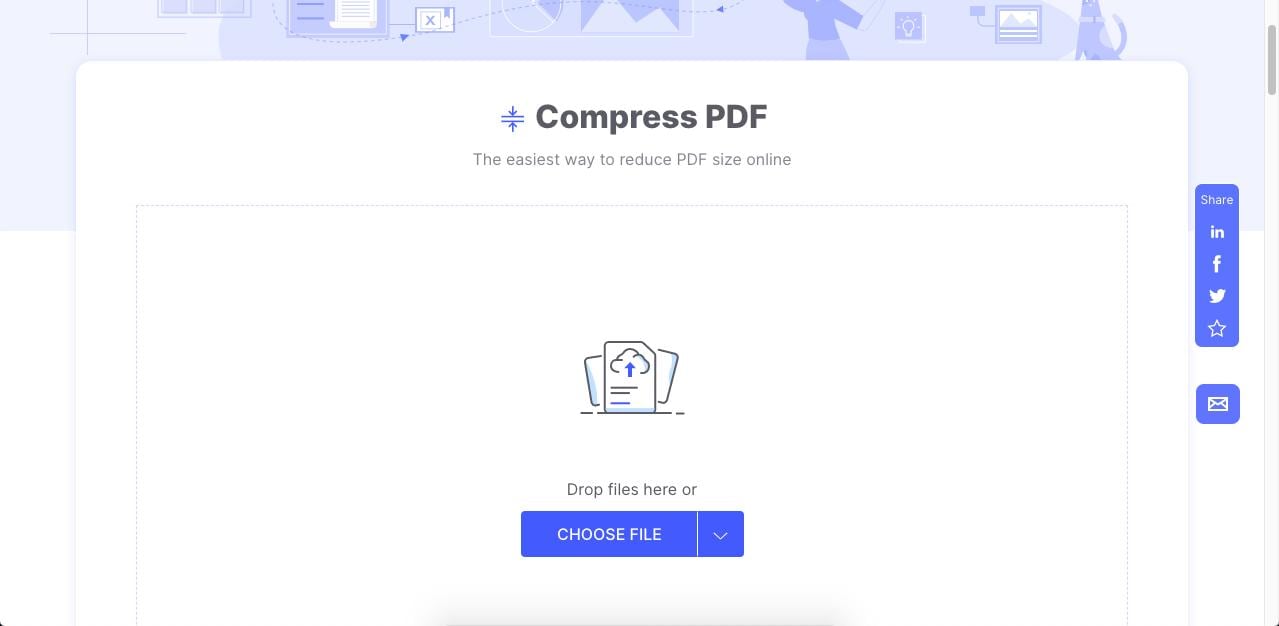
Step 1Drag your PDF into the HiPDF PDF compression window to upload it.
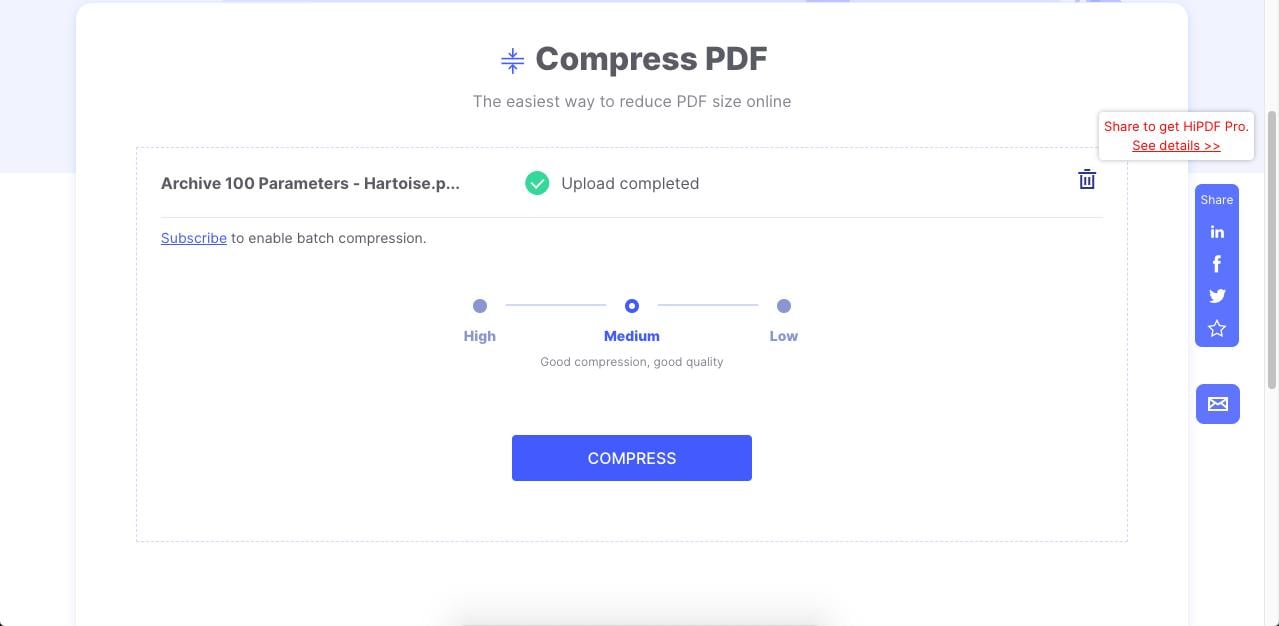
Step 2Choose a compression level that will help reduce PDF size to 200KB.
Once it's uploaded successfully, choose a compression level. If your original file is quite large (e.g., 2MB), you will want to select the "High" compression rate.
Step 3Click on the Compress button and Download.
Finally, click on the Compress button to finish the job, then click Download to save it to your desktop.
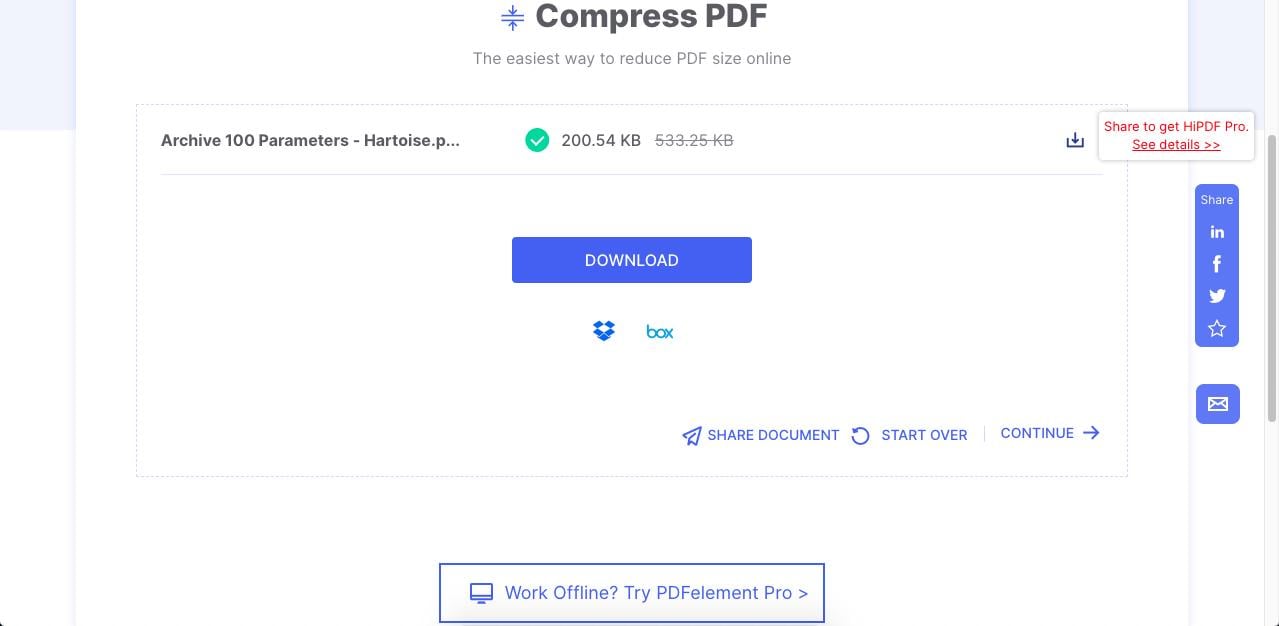
You'll notice that the compression quality is maintained but the file size has now been greatly reduced. If you need to process more than one file at a time, you can subscribe to HiPDF. Single-file compressions are free up to a certain daily limit, making it a highly accessible pdf size reducer below 200kb.
Method 2: Sejda PDF
Sejda is another powerful PDF optimizer tool you can try online for free. The interface offers additional settings hidden in a collapsible menu, giving you granular control over aspects such as image quality, resolution, and multimedia content removal.
Step 1Drop your PDF into the Sejda Compress PDF interface.
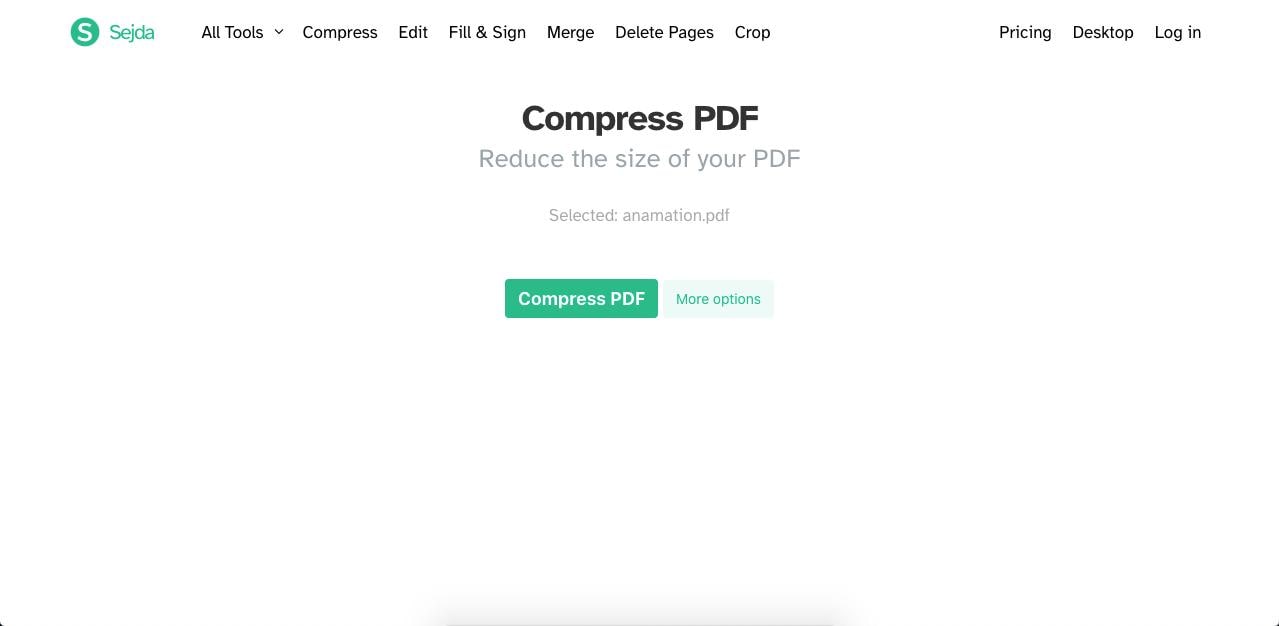
Step 2Configure advanced options.
Click on "More Options" to expand the advanced menu. Here, you can manually set image quality to ensure you compress pdf 200kb exactly.
Step 3Click Compress PDF.
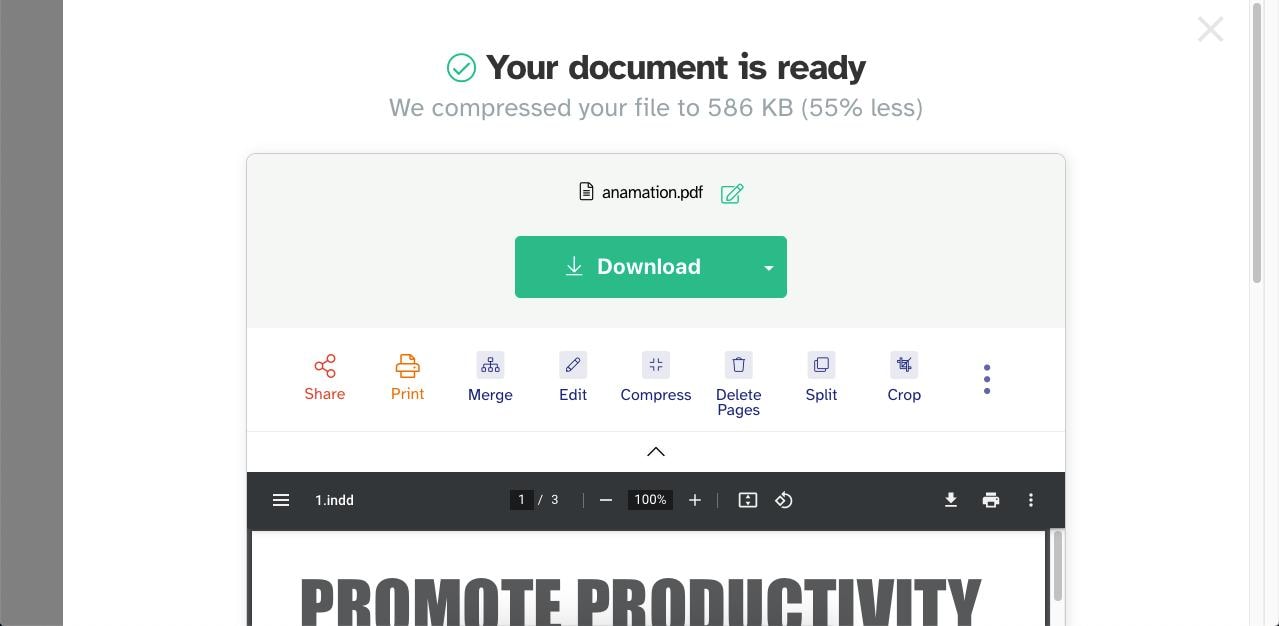
Step 4Download or share the processed file.
Method 3: Smallpdf
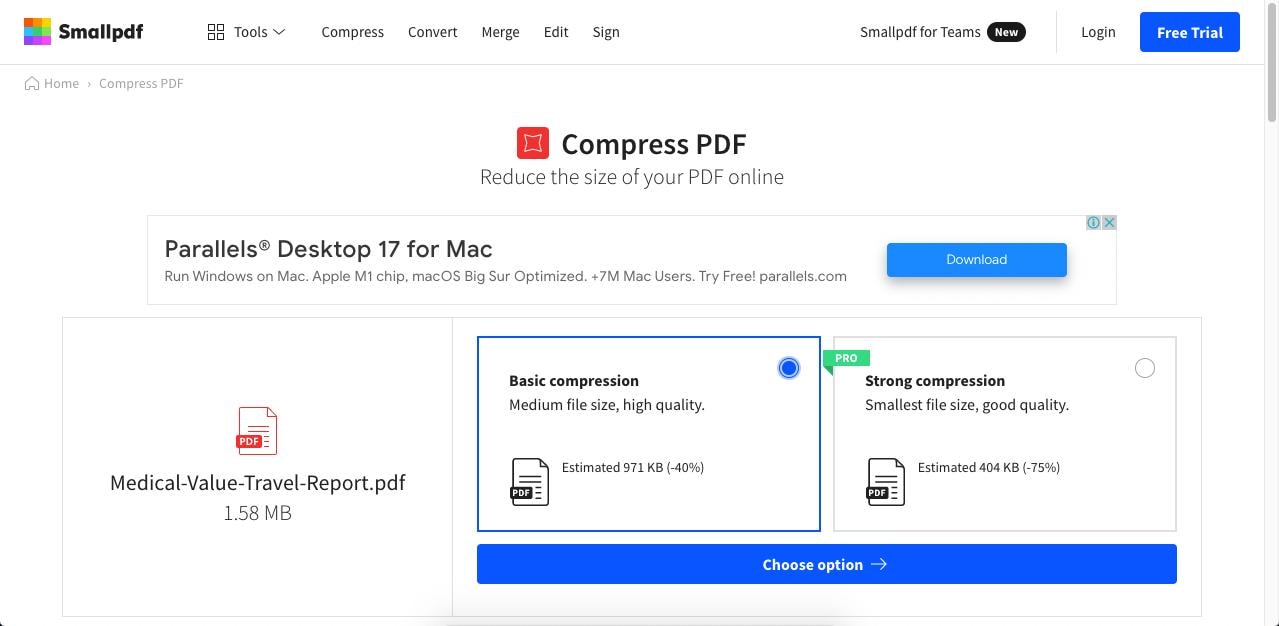
Smallpdf is a well-known utility among PDF users. While the free version limits you to "Basic Compression," it is often enough for moderately sized files.
Step 1Drop your PDF into the Smallpdf Compress PDF browser tab.
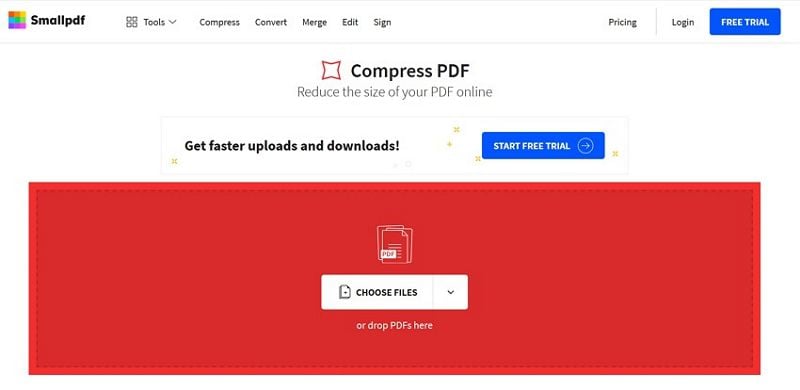
Step 2Click on Basic Compression and choose option.
Step 3Download the smaller file.
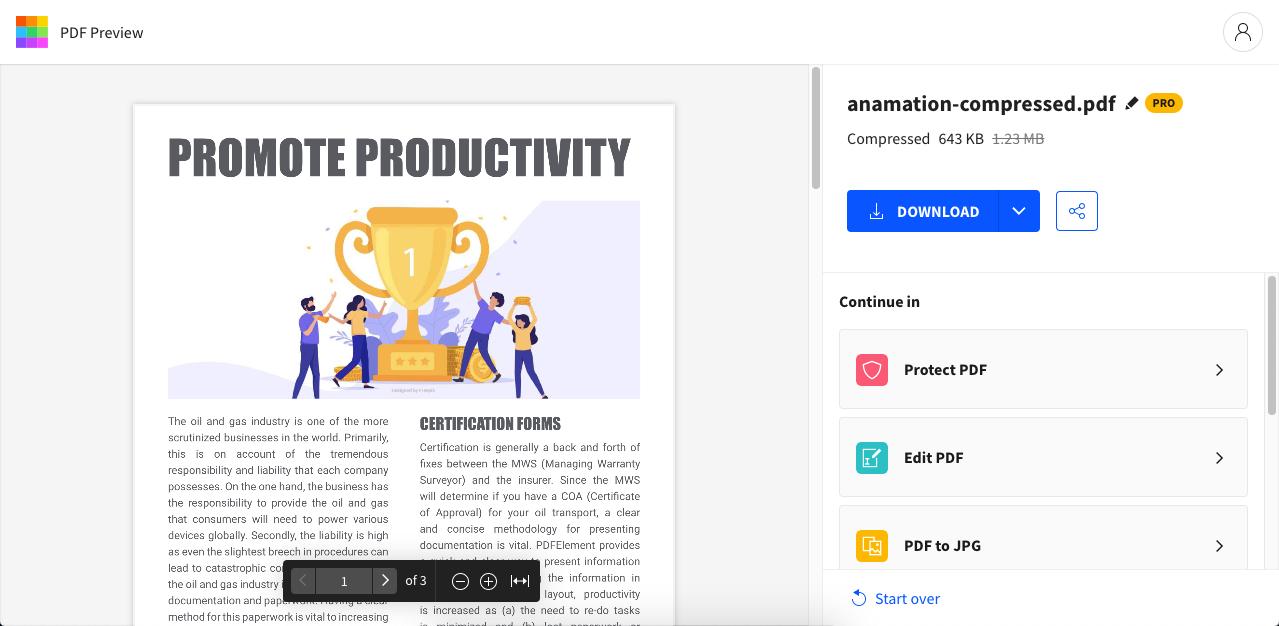
Part 2: How To Resize PDF To 200KB Offline
Online tools are incredibly handy, but they aren't for everyone. If you are handling sensitive documents containing personal ID numbers, financial data, or legal information, uploading them to a remote server might violate privacy policies. Desktop PDF compression tools are the preferred choice for business and professional users.
Method 4: Wondershare PDFelement for Windows, Mac, and iOS
Wondershare PDFelement is a multi-platform application that serves as the ultimate offline pdf size reducer 200kb. Its powerful compression engine allows you to easily squeeze a document down to the required size while maintaining crisp, readable text and clear images.
G2 Rating: 4.5/5 |100% Secure
Step 1Open PDFelement and import your file.
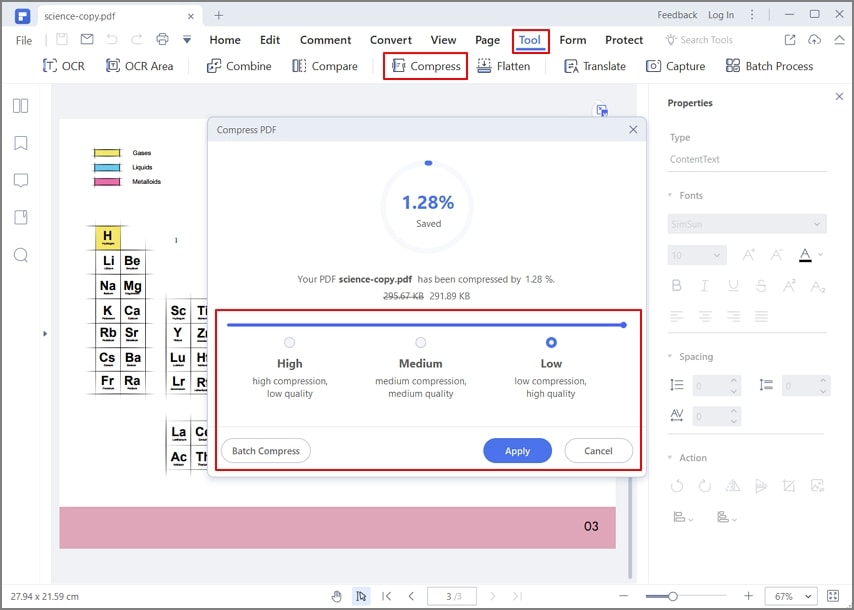
Step 2Use compression sliders to choose reduction level.
PDFelement will calculate and show you the estimated final file size before you compress, ensuring you confidently reduce pdf size under 200kb.
Step 3Hit Apply and save.
Because PDFelement is a full-fledged editor, if standard compression isn't enough, you can manually delete hidden objects, remove heavy background images, or extract pages to reduce the file size further.
Method 5: Foxit PDF Editor
Foxit is a robust desktop editor with advanced optimization tools.
Step 1Open the file in Foxit.
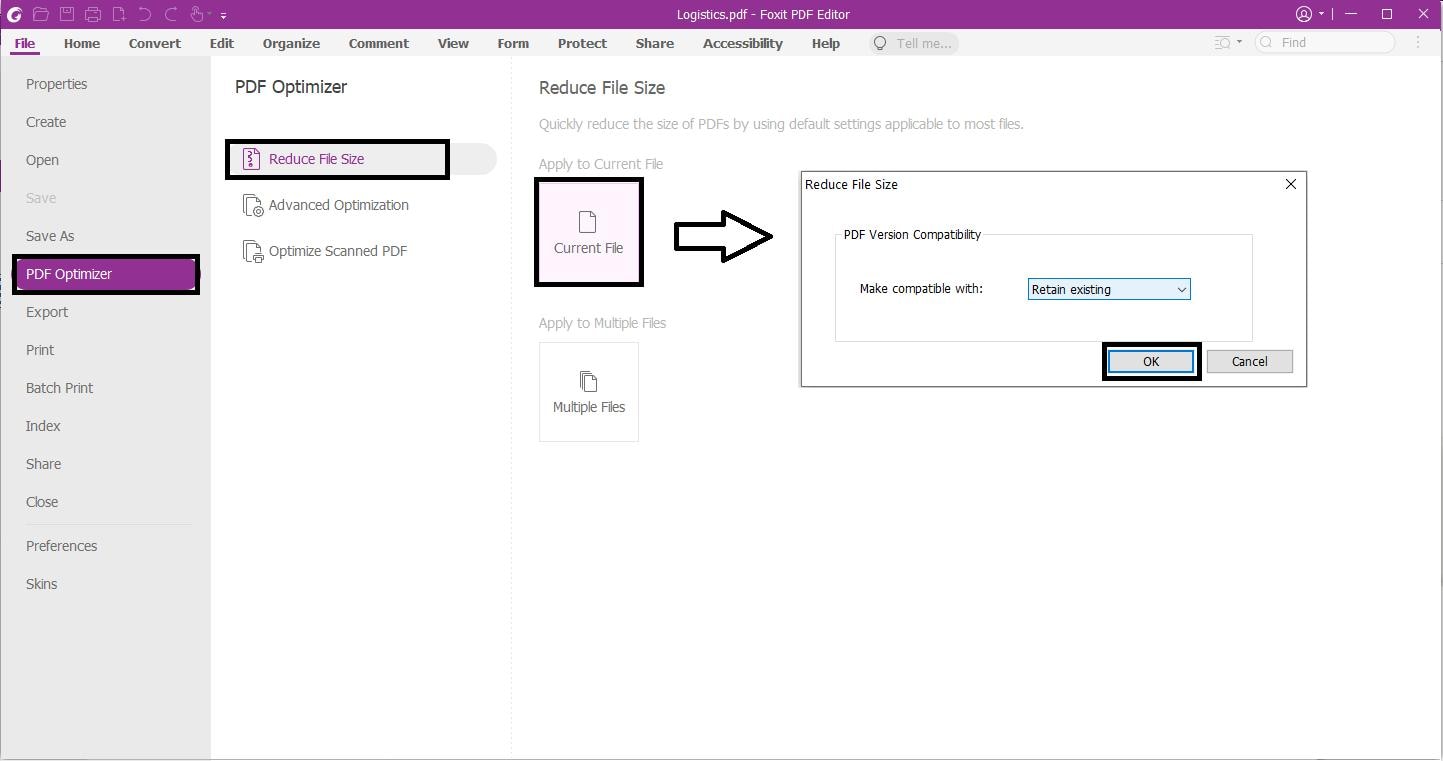
Step 2Select PDF Optimizer.
Step 3Choose Reduce File Size or Advanced Optimization.
Step 4Apply compression and save.
Part 3: Advanced Tips to Guarantee Your PDF is Below 200KB
G2 Rating: 4.5/5 |100% Secure
Frequently Asked Questions (FAQ)
-
How do I compress PDF to exactly 200KB?
To hit an exact target size, you need an advanced desktop tool like Wondershare PDFelement or Adobe Acrobat. These tools offer an "Advanced Optimizer" where you can manually adjust image DPI (e.g., changing 300 DPI to 72 DPI) and monitor the estimated output size until it sits right at or just below 200KB. -
Will a 200KB PDF still be readable?
Yes, mostly. If your document is primarily text-based (like a resume or a standard contract), 200KB is plenty of space for crystal-clear readability. However, if your document contains full-page, high-resolution photographs, compressing it to 200KB will inevitably introduce some blurriness or pixelation to the images. -
Are online PDF compressors safe to use?
Reputable online tools like HiPDF, Smallpdf, and Sejda are generally safe. They use secure TLS connections for uploads and automatically delete your files from their servers after a short period (usually 1 to 2 hours). However, for highly sensitive documents (like bank statements or passports), it is always safer to use an offline pdf compressor 200kb like PDFelement.
Whether you choose a fast web-based solution like HiPDF or a comprehensive desktop application like PDFelement, reducing your documents to meet strict upload limits has never been easier. By using the right tools, you can seamlessly compress PDF to 200KB and keep your workflow moving without interruption.




