
Best Way to Print Multiple PDF Files with Batch Printing
Can you print multiple PDF files at once? You may need a professional tool to help you print multiple PDF files with batch processing, and this article gives three solutions to print multiple PDFs.
 100% Secure |
 Powered by AI
 Home
>
How to Print a PDF
> Best Way to Print Multiple PDF Files with Batch Printing
Home
>
How to Print a PDF
> Best Way to Print Multiple PDF Files with Batch Printing
Do you want to batch print PDF easily? Batch printing can save you time and effort, especially when dealing with numerous documents. In this article, we'll provide you with three solutions to your printing work using Wondershare PDFelement - PDF Editor Wondershare PDFelement Wondershare PDFelement. Using PDFelement, you'll not only be able to enjoy a host creation and editing features, but also print your PDF files effortlessly.
Method 1. How to Batch Print PDF Files
PDFelement allows you to print multiple PDF files in a batch. This new feature makes you save time for printing PDF files and improve your efficiency. You can follow the steps below to know how to batch print PDF files.
Quick list: How to print a lot of PDF files at once
- Access the Batch Tool in PDFelement.
- Select "Batch Process" > "Print", and import all the PDF files you want to print.
- Configure the Print Settings and start printing.
In detail: Steps on batch printing PDF files
-
Step 1: Access the Batch Tool
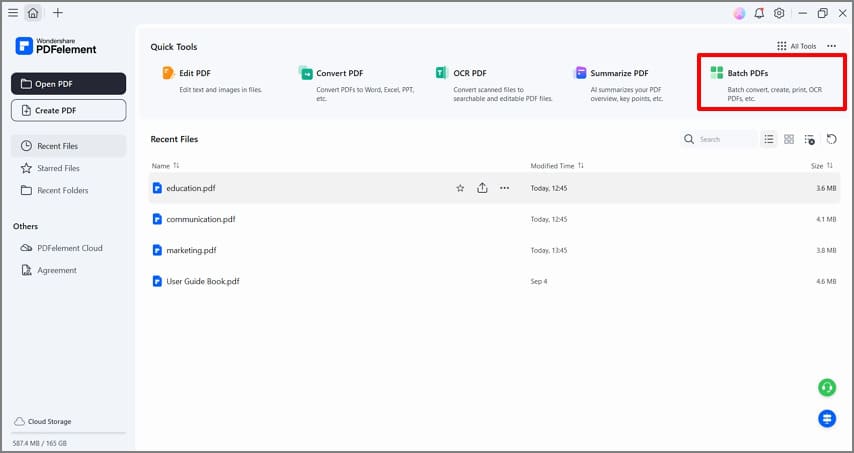
To begin with, you need to launch and open PDFelement. In the Home window, you can click the "Batch Process" Button to open the "Batch Process" window.
-
Step 2: Print PDF in Batch
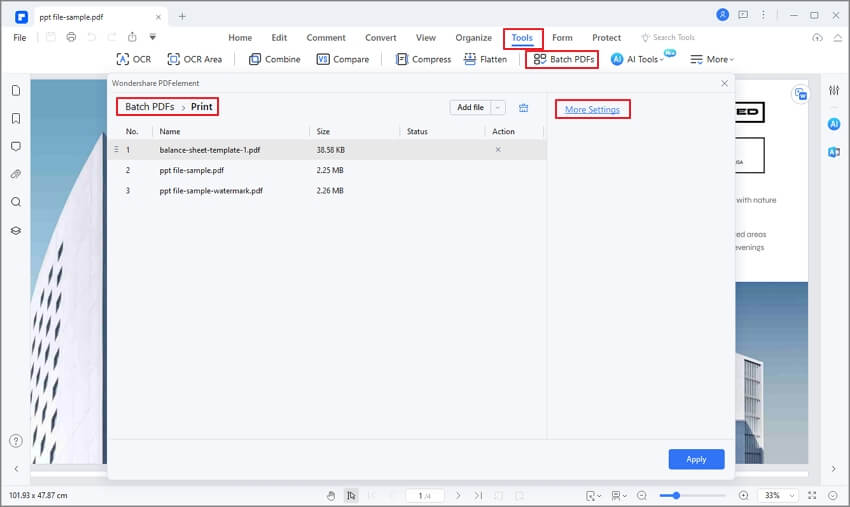
Now, the "Batch Process" window pops up, and you need to select the "Print" option on the bottom of the window. Then, you can upload the PDF files you want to print. After adding files, according to your need, you can choose some printing settings by clicking the "More Settings" option on the bottom.


 G2 Rating: 4.5/5 |
 100% Secure
-
Step 3: Configure Print Settings
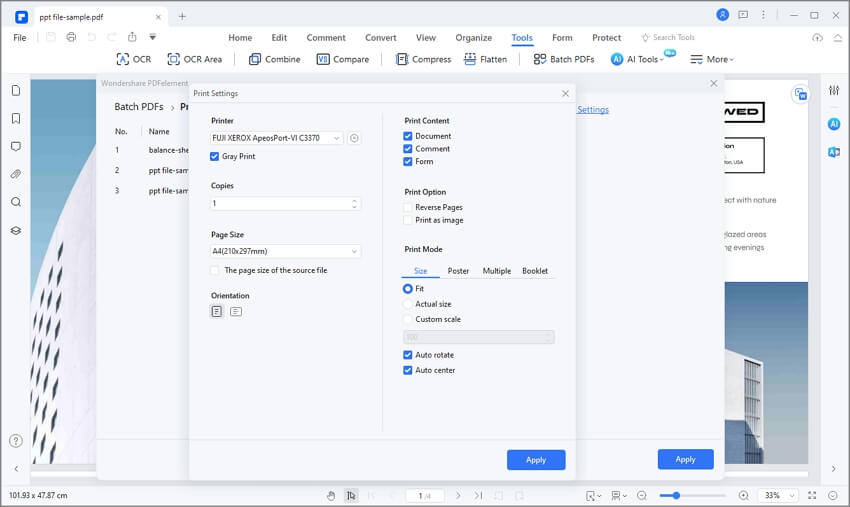
After clicking "More Settings", the "Print Settings" window pop up, making you select Printer, Copies, Page Size, Orientation, Page Mode, and so on. Once selected, click the "Apply" button. Next, back to the "Batch Process" window, and you can click the "Apply" button in this window to start printing.
Method 2. How to Print Multiple PDF Files at Once
There is another way to print multiple PDF files using PDFelement. Before we begin, download and install PDFelement to your computer. The installation wizard is simple and easy to follow. Once the program is installed, follow these steps to print multiple PDF files.
Quick list: Print multiple PDF files by combining and printing
- Open PDFelement and access the "Combine PDF" feature.
- Add your PDF files to begin the combining process.
- After combining the PDFs, print the file with a single click.
In detail: Steps for batch printing PDF files through combining and printing.
-
Step 1: Combine Multiple PDF Files to Print
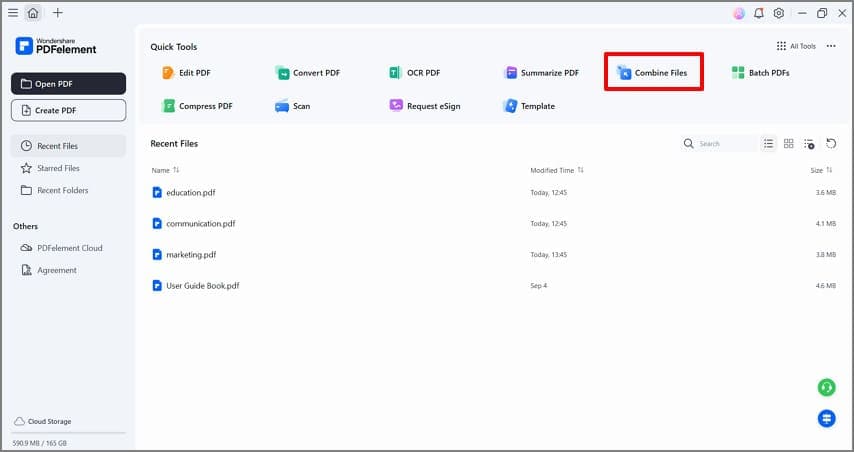
To print multiple PDF files, you can choose to combine the PDFs (or another file format) that you want to print at once. PDFelement makes this process extremely easy. Just click the "Combine PDF" button on the Home window.
-
Step 2: Upload PDF Files
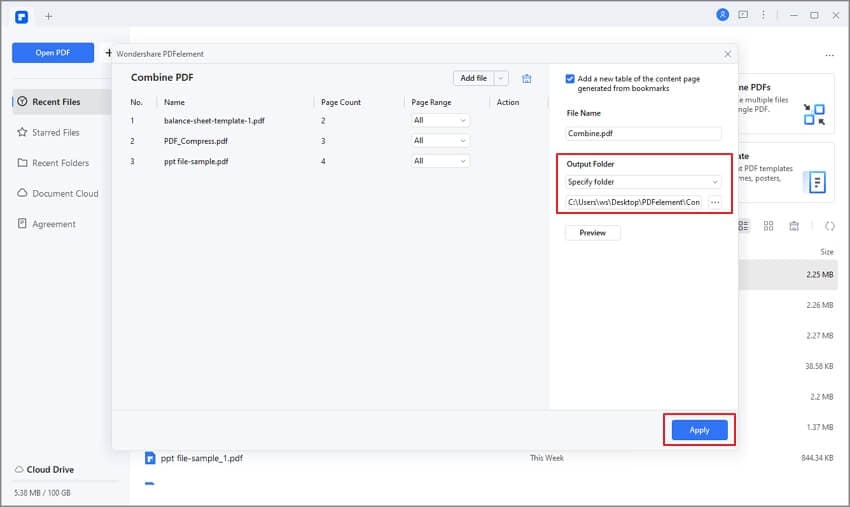
Next, you need to upload the PDF files you want to combine. Click on "Add file" or drag and drop the files to import the PDFs you would like to combine into one PDF. Then, you can also choose an Output folder to save the combined PDF file on your device. Once done, click the "Apply" button. There are also several other ways to combine PDF files, which you can learn more about by clicking the link.
-
Step 3: Print Multiple PDF Files
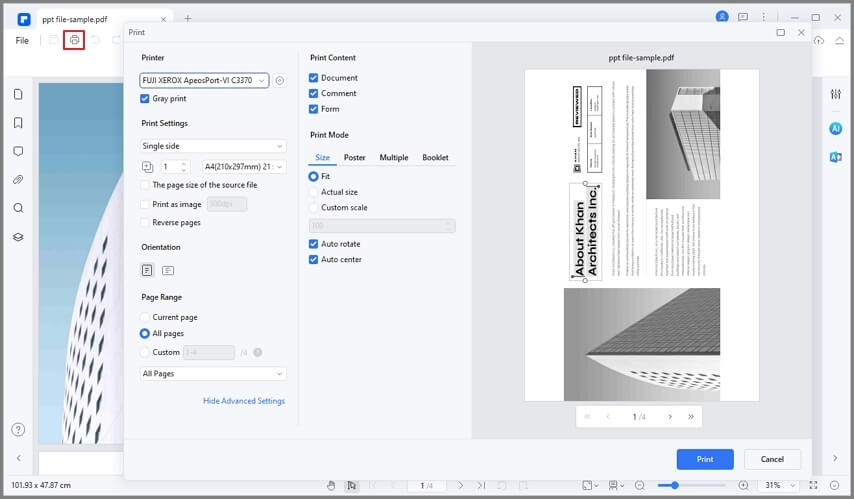
Once the merged PDF document is opened, click the "Print" button. In the "Print Window" that appears, specify the printing options you desire. If you need to set more print options, click the "<>" icon to choose more settings, and then click on the "Print" button. Just like that, you will be able to print multiple PDF files quickly and easily.
You can select "Multiple" in the "Print Mode" to select the page quantity per sheet. And there you have it - this is how to print multiple pages at once.
G2 Rating: 4.5/5 |100% Secure
Method 3. Print Multiple PDF Files on Windows
If you're using Windows, you can batch print PDFs directly from your file explorer. Here's how:
-
1. Locate the PDF documents on your computer that you would like to print, and move them into one folder.
-
2. Hold the "Ctrl" key and select all the PDF files that you want to print, selecting multiple PDF files at the same time.
-
3. Right-click the selected PDF files to choose Print. If you have already connected your computer with the physical printer successfully, then it will help you print the selected multiple PDF files all at once.
-
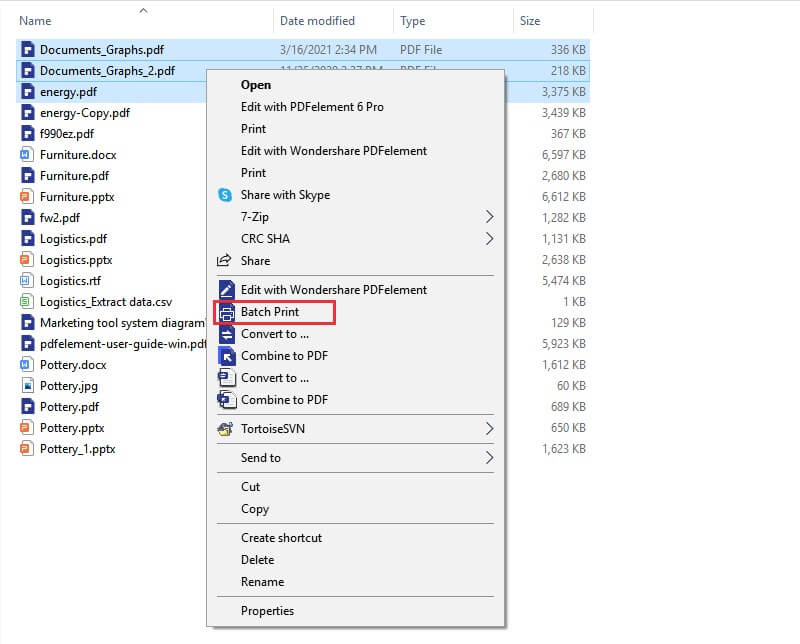
What's more, PDFelement allows you to print PDFs by righting-click to batch print. For that, you can also select all the PDF Files from your folder or desktop, and right click to select the "Batch Print" option. Then, the next procrss is the same as the Method 1.
G2 Rating: 4.5/5 |100% Secure
Why Choose PDFelement to Batch Print PDF
PDFelement stands out as the best tool for printing multiple PDF files because it combines ease of use with powerful features. Unlike other PDF printers, PDFelement allows you to:
- Combine PDFs from various formats (Excel, Word, PowerPoint) into a single PDF file that can be easily printed.
- Edit text, add and remove images, and add annotations such as comments, highlights and markups easily before printing.
- Convert PDF files to other formats as needed.
With PDFelement, you can effortlessly manage your PDF files and ensure a smooth printing experience.
Tips on How to Print Multiple Pages on One Page PDF
There are several disadvantages when printing multiple PDF files at once, especially when you aren't using the wrong program. One of the biggest issues is that you may lose some of the content from your PDF files while they are being combined. Another is that when you try to print PDF files without using a program such as PDFelement that will help you merge your files easily, the entire process can take up a lot of time - time that would be better spent on other tasks.
But batch printing PDF can be very advantageous. With the right program you can easily combine files from different formats such as Excel, Word and PowerPoint into one PDF and print them as a single PDF document. This comes in handy when you are working on a report that requires use all of these different formats.
The following are just a few tips to make the entire process a little bit easier and for optimal results:
- Check Document Integrity: Ensure the final document is correctly combined and that no content is missing.
- Use Reliable Software: Choose a program like PDFelement that is proven for batch PDF printing to avoid issues.
- Adjust Print Settings: Utilize the "Multiple" option in print settings to print several pages on one sheet, saving paper and space.
- If you want to print 2 pages on one sheet, please check the following video for detailed steps with Wondershare PDFelement - PDF Editor Wondershare PDFelement Wondershare PDFelement
G2 Rating: 4.5/5 |100% Secure
By following these guidelines, you can enhance your batch printing experience and efficiently manage your PDF documents.
FAQs about Printing Multiple PDF at Once
How to print all pdf files in a folder?
You can print all PDF files in a folder at once, but the steps are different on Windows and Mac.
On Windows:
- Step 1. Open the folder that contains your PDF files in File Explorer.
- Step 2. Press Ctrl + A to select all the PDFs you want to print.
- Step 3. Right-click one of the selected files.
- Step 4. Choose Print from the menu. Windows will send the selected PDFs to your default PDF viewer and printer.
On Mac:
- Step 1. Open Finder and go to the folder with your PDF files.
- Step 2. Select the PDFs you want to print.
- Step 3. Right-click and choose Open With, then open them in Preview.
- Step 4. In Preview, make sure the files are loaded, then choose File > Print to print them together.
If you have many files, a PDF tool like PDFelement can make batch printing easier and more reliable.
How to print 20 PDF files at once
If you need to print 20 PDF files at once, the easiest methods are using PDFelement’s Batch Print feature or combining the PDFs in Adobe Acrobat and printing the merged file.
Option 1: Use Batch Print in PDFelement
- Step 1. Open PDFelement on your computer.
- Step 2. Go to the Batch PDF section on the main screen.
- Step 3. Choose Print.
- Step 4. Add the 20 PDF files you want to print.
- Step 5. Select your printer and adjust print settings if needed.
- Step 6. Click Apply or Print to start printing all files in one batch.
Option 2: Use Adobe Acrobat by combining PDFs first
- Step 1. Open Adobe Acrobat.
- Step 2. Go to Tools and choose Combine Files.
- Step 3. Add the 20 PDF files you want to print.
- Step 4. Click Combine to merge them into one PDF.
- Step 5. Open the combined PDF and go to File > Print.
- Step 6. Choose your printer and print the merged file.
How to print 10 PDF files together
To print 10 PDF files together, you can either use the quick Ctrl + A method in a folder or use the Batch Print feature in PDFelement.
Option 1: Use Ctrl + A in Windows
- Step 1. Open the folder that contains the 10 PDF files.
- Step 2. Press Ctrl + A to select all files.
- Step 3. Right-click any selected PDF.
- Step 4. Choose Print to send all selected PDFs to the printer.
Option 2: Use Batch Print in PDFelement
- Step 1. Launch PDFelement.
- Step 2. From the home screen, open the Batch PDF tools.
- Step 3. Select Print.
- Step 4. Import the 10 PDF files you want to print.
- Step 5. Choose your printer and set options such as page range, copies, or paper size.
- Step 6. Click Print to process all selected PDFs at once.
Related reading:
How DeepSeek PDF Reader Reads and Analyzes PDFs Using AI >>
Understanding Differences Between DeepSeek vs. ChatGPT >>
How to Use DeepSeek for Your Excel Tasks: Simplify Data Management >>
Free Download or Buy PDFelement right now!
Free Download or Buy PDFelement right now!
Try for Free right now!
Try for Free right now!


Margarete Cotty
chief Editor