

In this article
- Why is Hebrew OCR So Challenging?
- Comparison Table: Top Hebrew OCR Tools at a Glance
- Detailed Reviews of the Best Hebrew OCR Software
- How to Choose the Right OCR for Hebrew
- A Superior Desktop Alternative for Multilingual PDF OCR: PDFelement
- Pro Tips: How to Maximize Hebrew OCR Accuracy
- FAQs about Hebrew OCR
- Conclusion
Optical Character Recognition (OCR) is a transformative technology that turns scanned documents, photographs, and flat PDFs into selectable, editable, and searchable text. However, when it comes to Hebrew OCR, the process becomes infinitely more complicated. Turning scanned Hebrew PDFs or images into accurate text—so you can copy, edit, and reuse content without retyping—requires specialized software capable of handling Right-to-Left (RTL) layouts and complex character sets.
Because high-quality OCR software Hebrew options are still somewhat limited compared to Latin-alphabet tools, finding the right application is crucial. This comprehensive guide compares the best Hebrew OCR options on the market today, ranging from robust desktop software to convenient free online tools. We evaluate them based on features, pricing, platform compatibility, and their ability to accurately output RTL text. You will also discover practical tips to extract Hebrew text from images and PDFs with the highest possible accuracy.


 G2 Rating: 4.5/5 |
 100% Secure
Why is Hebrew OCR So Challenging?
If you have ever tried to run a standard English OCR tool on a Hebrew document, you likely ended up with a frustrating string of gibberish, reversed sentences, or broken formatting. Understanding why OCR for Hebrew is so difficult helps in choosing the right tool and preparing your documents properly.
1. Right-to-Left (RTL) Formatting
Unlike English or French, Hebrew is read and written from right to left. Many basic OCR engines process pixels strictly from left to right. When they encounter Hebrew, they might recognize the letters correctly but output the words or sentences backwards. High-quality Hebrew OCR must have built-in algorithms that not only identify the characters but also assemble them in the correct RTL sequence when exporting to Word, TXT, or editable PDFs.
2. Similar Character Structures
The Hebrew alphabet (Aleph-Bet) contains several letters that look remarkably similar, especially in low-resolution scans or older fonts. For example:
- Dalet (ד) and Resh (ר)
- Bet (ב) and Kaf (כ)
- Vav (ו) and Zayin (ז)
A minor smudge or a low-DPI scan can easily cause standard OCR engines to confuse these letters, fundamentally changing the meaning of a word.
3. Niqqud (Vowel Pointers) and Cantillation Marks
While modern Hebrew literature and daily writing often omit vowels (Niqqud), religious texts, poetry, and children's books rely heavily on them. These tiny dots and dashes placed above, below, or inside letters are incredibly difficult for OCR software to accurately detect. If your text contains Niqqud, your choice of OCR software becomes even more critical, as many free tools will either ignore the marks or misinterpret them as dirt on the page.
4. Mixed-Language Documents
Many business contracts, academic papers, and technical manuals in Israel feature a mix of Hebrew and English (or numbers). An effective OCR engine must seamlessly switch between RTL and LTR (Left-to-Right) processing on the same line without breaking the formatting.
Comparison Table: Top Hebrew OCR Tools at a Glance
To help you make a quick decision, here is a comparative overview of the leading tools for extracting Hebrew text.
| OCR Software | Pricing / Availability | Supported Platforms | Best Feature | Primary Limitation |
|---|---|---|---|---|
| ABBYY FineReader Sprint | ~$69–$165 (Depends on plan) / Free trials available | Windows, Mac | Exceptionally high accuracy | Exported Word files may use awkward text boxes. |
| i2OCR | 100% Free | Web Browser | No installation required | Manual copy-pasting; loses paragraph breaks. |
| Google Drive OCR | Free (with Google account) | Web Browser | Excellent mixed-language handling | Formatting of complex layouts is often lost. |
| i2pdf | Free | Web Browser | Easy PDF processing suite | Only accepts PDF input (no direct image uploads). |
| Prizmo | $49.99/yr (Standard) to $74.99/yr (Pro) | Mac, iOS | Great camera/perspective correction | Mac ecosystem only; recurring subscription. |
| OCR Space (Copyfish) | Free basic; Pro is $19.95/mo (needed for Hebrew) | Chrome, Firefox, Edge | Instant text extraction from videos/webpages | Hebrew recognition requires a paid Pro plan. |
Detailed Reviews of the Best Hebrew OCR Software
Whether you need a heavy-duty desktop application for processing hundreds of legal documents or a simple hebrew ocr online tool for a single scanned receipt, here is an in-depth look at the top contenders.
1. ABBYY FineReader Sprint (Desktop)
Overview: ABBYY FineReader is widely considered the gold standard in the OCR industry. The Sprint version provides robust offline capabilities for Windows and Mac users, turning hard-copy pages into editable, searchable documents. It utilizes ABBYY’s proprietary OCR engine, which is highly trained in recognizing Hebrew characters and preserving the RTL text flow accurately.
How to use ABBYY FineReader Sprint for Hebrew OCR:
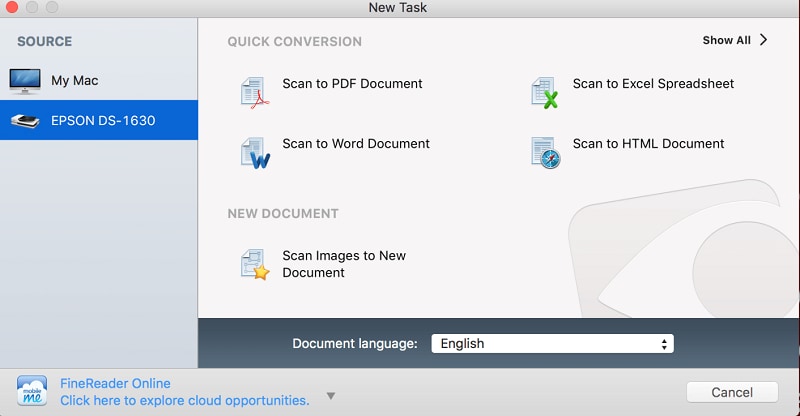
Step 1Start a new task
Place your physical document on a scanner and open the application, or simply import an existing image or PDF file from your hard drive.
Step 2Select a format and language
In the Quick Conversion menu, choose your desired output format (PDF, Word, Excel, HTML). Crucially, ensure the document language is specifically set to Hebrew.
Step 3Set the import/scanning preferences
When you preview the file, you can adjust the Scan Mode, Color Depth, Resolution (aim for 300 DPI minimum), and Scan Area. After confirming these settings, click the Scan or Read button.
Step 4Finish & export
Once processing is complete, click Finish Import and save the file to your preferred destination.
2. i2OCR (Free Online)
Overview: If you are looking for a quick hebrew ocr online solution without the hassle of downloading software, i2OCR is a solid choice. It is a completely free, browser-based tool designed to extract editable text from images and PDFs on the fly.
3. Google Drive / Google Docs OCR (Cloud)
Overview: A highly overlooked but incredibly powerful ocr for hebrew is already in most people's toolkits: Google Drive. Google's cloud-based OCR utilizes its massive machine-learning databases, making its character recognition—especially for RTL languages—surprisingly accurate.
How to use Google Drive OCR:
- Upload your Hebrew PDF or image (JPEG/PNG) to your Google Drive.
- Right-click the uploaded file.
- Select Open with > Google Docs.
- Google will automatically process the image and open a new document containing the original image at the top, and the extracted, editable Hebrew text directly below it.
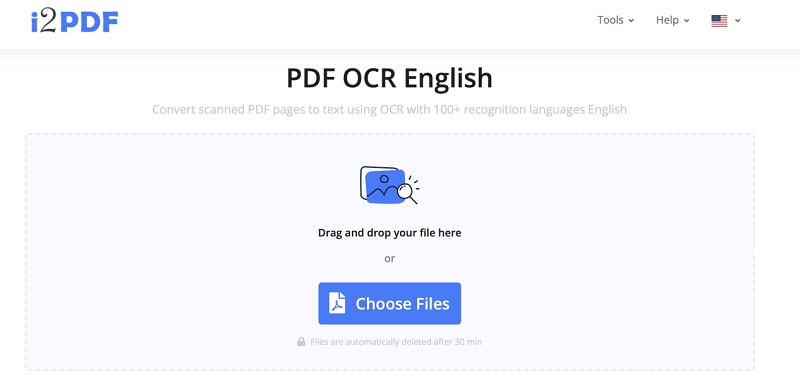
4. i2pdf (Online Suite)
Overview: i2pdf is a comprehensive online PDF management suite that offers a variety of tools, including Sign, Watermark, PDF to CAD, and most importantly, PDF OCR. It is an excellent choice when you have a non-searchable PDF and need to convert it directly to a Word document or a plain text file.
5. Prizmo (Mac OS)
Overview: For users entrenched in the Apple ecosystem, Prizmo for Mac is a top-tier document scanning and OCR application. It specializes in processing documents captured from digital cameras, iPhones, or flatbed scanners. Prizmo runs a highly capable ocr hebrew engine to produce searchable PDFs or extracted text, and it includes fantastic pre-processing tools for photos that suffer from poor lighting or warped perspective.
How to use Prizmo for Hebrew OCR:
Step 1Drop a picture or PDF
Drag and drop an image or PDF into the Prizmo workspace, or initiate a scan directly from your connected device.
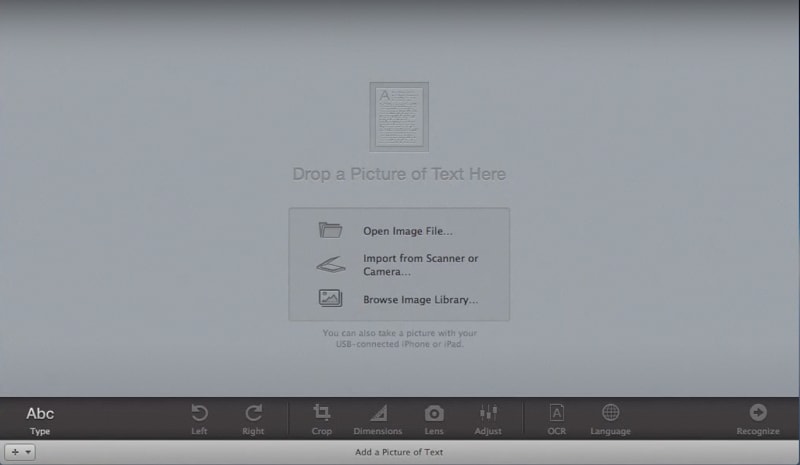
Step 2Modify the image
Use the intuitive grid tools to crop or select the specific text area. Adjust the Dimensions, Lens, and lighting parameters to ensure the text is as clear as possible.
Step 3Set the language
Navigate to the language settings and choose Hebrew as your primary recognition language to ensure RTL rules are applied.
Step 4Start OCR
Click the OCR button and wait a few moments for the software to process the image.
Step 5Edit the text
Once completed, you can copy, verify, or edit the recognized text directly from the right-hand inspection panel before exporting.
6. OCR Space Browser Extension (Copyfish)
Overview: Sometimes you don't need to process a whole document; you just need to extract a few sentences from a protected webpage, an infographic, or a paused YouTube video. OCR Space Copyfish is a browser extension that allows you to draw a box over any on-screen text and extract it instantly.
Quick guide for Chrome:
Step 1Download the plug-in
Search for and install OCR Space – Copyfish from the Chrome Web Store.
Step 2Select the OCR tool
Click the Copyfish extension icon in your browser toolbar to activate the selection tool.

Step 3Select the text
Click and drag to draw a box around the target Hebrew text (the area will be highlighted with a red frame).
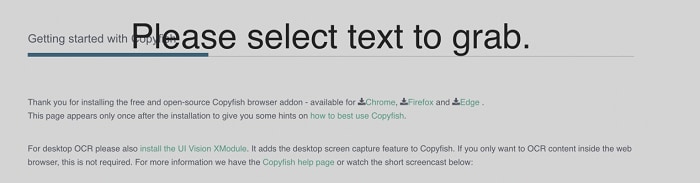
Step 4Set language
Open the extension's Settings menu and ensure the Input Language is set to Hebrew.
Step 5Copy the result
The extension will process the image snippet and display the OCR text in a small window at the bottom-left of your screen. Click Copy to clipboard to use your text.
How to Choose the Right OCR for Hebrew
A Superior Desktop Alternative for Multilingual PDF OCR: PDFelement
If you find that the previously mentioned software options are either too limited in their free tiers, too expensive in their subscriptions, or too complex, Wondershare PDFelement is a powerful, highly versatile alternative to consider. Available for both Windows and Mac, PDFelement is not just an OCR tool; it is a complete PDF editing suite.
While specialized tools focus solely on text extraction, PDFelement allows you to turn scanned documents into editable text and then actually edit them within the original layout.
G2 Rating: 4.5/5 |100% Secure
Why PDFelement Excels in Document Workflows
- Layout-Safe Editing: When you run OCR on a document, PDFelement works diligently to preserve headings, footers, images, tables, and original font styles. You can fix OCR errors and adjust spacing without ruining the look of the page.
- Fast Cleanup Tools: Easily edit text and images, run find/replace across a massive document, add annotations for team review, and standardize font sizes seamlessly.
- Broad Export Options: Export your processed documents to Word, Excel, PowerPoint, standard image formats, or long-term archive formats like PDF/A.
- Comprehensive Document Control: Beyond OCR, you can combine or split pages, compress massive files for email sharing, redact sensitive data permanently, and secure your files with heavy encryption and passwords.
- Batch Efficiency: Apply repetitive actions—like OCR, watermark removal, or format conversion—to dozens of files simultaneously to speed up your delivery times.
- Cloud Convenience: Paid plans include access to a 1 GB document cloud, ensuring your final files are safe, backed up, and accessible from anywhere.
Download the free trial to test out core editing features and OCR for over 20 languages. Upgrading unlocks advanced batch operations and cloud storage, providing an incredibly affordable way to finalize complex document workflows at scale.
Easy Steps to OCR PDF with PDFelement
Using PDFelement's OCR feature is remarkably straightforward. Here is how to do it in four simple steps:
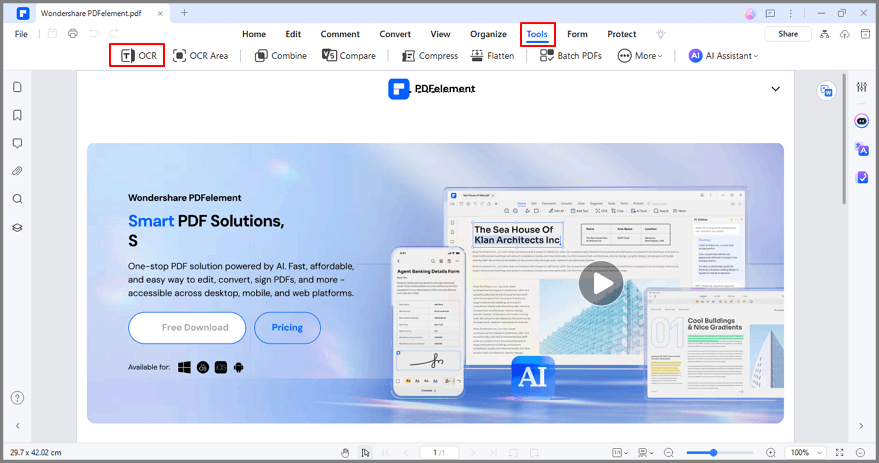
Step 1Select OCR PDF
Open PDFelement and navigate to the Home screen on the left side of the interface. Click OCR PDF to initiate a new task.

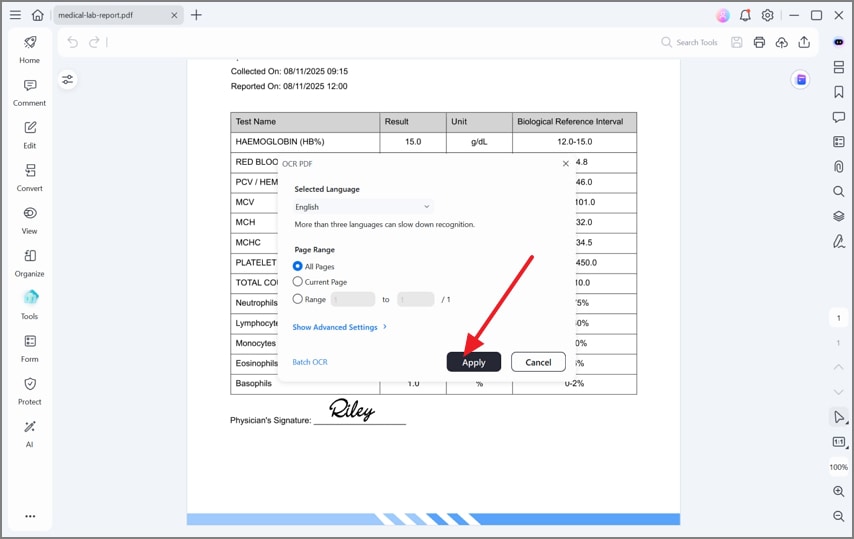
Step 2Confirm the recognition settings
Select the scanned file or image from your computer. A settings dialog box will appear. Here, you must choose the document language, set the desired page range, select the DPI (higher is better for accuracy), and choose whether you want "Searchable Text Image" or "Editable Text". Confirm your settings and click Perform OCR.
Step 3Edit the document
After the recognition engine finishes processing, the newly editable file will open automatically. You can now click on any text block and modify the file using the robust editing toolbar at the top of the interface.
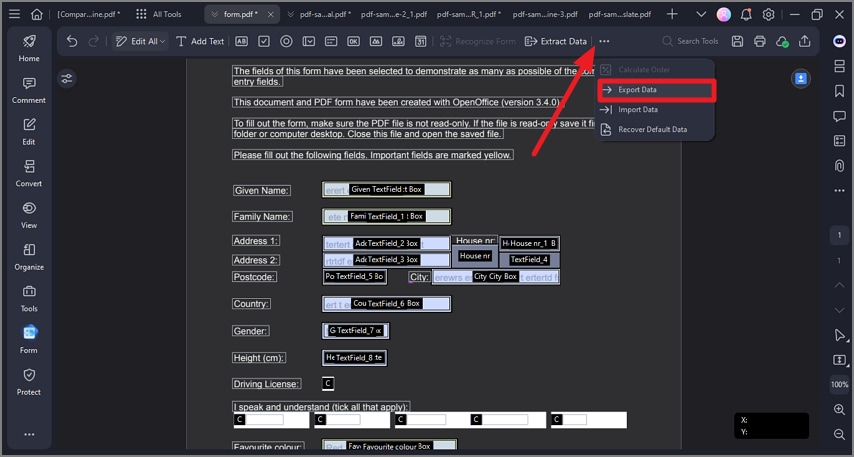
Step 4Export the document
Once your edits are finished and verified, you can save the PDF or export it. To extract data directly, navigate to the Form tab, click Export Data, and select where on your local drive you want to save the final file.
G2 Rating: 4.5/5 |100% Secure
Pro Tips: How to Maximize Hebrew OCR Accuracy
Even the best ocr software hebrew engine will struggle if the source material is garbage. To minimize the amount of manual proofreading you have to do after running OCR, follow these best practices before you hit the "Convert" button:
- Scan at High Resolution (DPI): Text recognition requires clarity. Always scan your documents at a minimum of 300 DPI (Dots Per Inch). If the text is very small or includes complex Niqqud (vowels), push the scanner to 400 or 600 DPI.
- Ensure High Contrast: OCR algorithms look for the difference between the dark text and the light background. If your page is yellowed or the ink is faded, use image editing software (or the pre-processing tools in ABBYY/Prizmo) to increase the contrast and brightness. Make the background as white as possible and the text as black as possible.
- Fix Skewed Pages: If your document was scanned at an angle, the baselines of the Hebrew text will be tilted. This drastically reduces accuracy. Use deskew functions to straighten the page so the lines of text run perfectly horizontal.
- Crop Out Artifacts: Black borders from the scanner lid, spiral binding holes, or handwritten marginalia can confuse the OCR engine. Crop the image so that only the primary text block remains.
- Separate Complex Layouts: If a page has multiple columns, images, and text boxes, consider cropping and processing the text sections one by one, especially if you are using a free online tool that struggles with layout retention.
FAQs about Hebrew OCR
-
Is there a free online Hebrew OCR?
Yes. Tools like i2OCR, i2pdf, and Google Drive (Google Docs) allow you to extract Hebrew text from images and PDFs entirely for free. These are excellent for simple tasks, though they may lack advanced formatting retention compared to paid desktop apps. -
How to convert a Hebrew image to text?
The fastest method is to use a free web tool. Upload your JPEG or PNG image to an online converter, ensure you select "Hebrew" from the language dropdown menu (crucial for RTL processing), run the OCR, and then copy or export the resulting text into your preferred word processor. -
Does OCR handle right-to-left and niqqud?
RTL handling has improved significantly in modern OCR tools, provided you explicitly set the language to Hebrew before processing. However, Niqqud (vowel pointers) remain a massive challenge. Basic OCR tools will often misread them. For texts heavy in Niqqud, high-resolution scans combined with premium desktop software yield the best results, though post-editing is almost always required. -
What's the best OCR for Hebrew PDFs?
It depends entirely on your needs. For a single, simple PDF file, i2OCR or Google Drive is quick and free. For large batches of multi-page PDFs, complex layouts, or documents requiring strict privacy and post-OCR editing, desktop applications like ABBYY FineReader or PDFelement are vastly superior.
Conclusion
Digitizing RTL languages is undeniably tricky, but having the right tool makes all the difference. If you are simply looking for a quick, browser-based hebrew ocr online solution, free platforms like i2OCR, Google Drive, and i2pdf offer great accessibility and speed. For Mac users needing perspective correction on photos, Prizmo is a fantastic localized choice.
However, if you rely on document digitization for business, academia, or heavy daily workflows, investing in robust ocr software hebrew is essential. While ABBYY FineReader is a traditional powerhouse, those looking for a comprehensive, cost-effective alternative should strongly consider Wondershare PDFelement.
PDFelement provides advanced multilingual OCR capabilities alongside a massive suite of layout-safe editing, converting, and document security features. By choosing the right software and following the scanning best practices outlined in this guide, you can eliminate hours of manual retyping and seamlessly integrate Hebrew text into your digital workflow.

