

Table of Contents
Quick Answer:
Adobe Acrobat can reduce PDF file size on desktop or in a browser. In the current desktop workflow, choose All tools > Compress a PDF; Adobe's web tool lets you choose High, Medium, or Low compression. The free Acrobat Reader is mainly for viewing, sharing, signing, and commenting, so it does not provide the same desktop compression workflow as Acrobat. These options were current as of August 2026.
- Desktop: Acrobat can compress a single PDF or multiple PDFs.
- Advanced control: Advanced Optimization is available in Acrobat Pro, Premium, or Studio on desktop.
- Free option: Adobe also provides a browser-based PDF compressor for occasional use.
If you searched for Adobe compress PDF or how to compress a PDF in Adobe Acrobat, the best method depends on your goal. Use quick compression for everyday sharing, Advanced Optimization when you need more control over images and document data, and the online tool when you only need to shrink a file without installing desktop software.
This guide explains what PDF compression changes, the current Acrobat desktop and online steps, the limits of Acrobat Reader, how to protect quality, and when a PDF editor such as PDFelement is a practical alternative.


 G2 Rating: 4.5/5 |
 100% Secure
Use Acrobat's regular Compress a PDF workflow when you simply need a smaller file for email or upload. Use Advanced Optimization in Acrobat Pro, Premium, or Studio when you need control over images, fonts, transparency, compatibility, or other document data. Adobe's web compressor also lets you choose a compression level, which is useful for one-off browser workflows.
What Happens When Adobe Compresses a PDF?
PDF compression reduces file size by optimizing data inside the document, especially images and redundant content, while trying to preserve the visible document. The amount you can save depends on what makes the PDF large in the first place.
Image-heavy PDFs usually have the most room to shrink because compression can lower image resolution or use stronger image encoding. Scanned documents often contain a full-page image for every page, so they can be much larger than text-based PDFs. Files with embedded fonts, thumbnails, metadata, transparency, attachments, or other document data can also benefit from optimization.
| What makes the PDF large? | What compression may change | What to check afterward |
|---|---|---|
| High-resolution photos or scans | Image resolution and compression | Small text, charts, signatures, screenshots |
| Embedded fonts and repeated objects | Unused or redundant document data | Font rendering and layout consistency |
| Complex PDF structure | Internal objects, transparency, or other optimization settings | Links, forms, bookmarks, layers, and interactive elements |
Adobe's current online compressor offers three compression levels: High, Medium, and Low. High prioritizes a smaller file, while Medium or Low keeps more visual quality. Adobe's desktop Advanced Optimization goes further by letting supported Acrobat plans adjust categories such as images, fonts, and transparency. See Adobe's current compression and optimization documentation for the latest workflow.
Always keep the original PDF until you have checked the compressed copy. This is especially important for signed documents, forms, print-ready files, scanned records, or PDFs that contain small text and detailed graphics.
How Do You Compress a PDF in Adobe Acrobat?
To compress a PDF in current Adobe Acrobat desktop, open the file, choose All tools > Compress a PDF, select the file or files to process, and save the smaller copy. Use the standard compression workflow for speed or Advanced Optimization when you need more control.
Method 1: Use Compress a PDF for a Quick Size Reduction
Quick compression is the best starting point for common files such as reports, invoices, resumes, handouts, and PDFs that are too large for an email or upload portal.
- Open Adobe Acrobat and select All tools.
- Choose Compress a PDF.
- Select Single file or Multiple files, depending on your workflow.
- Choose the PDF or PDFs you want to reduce.
- Select Save and keep the compressed result as a separate copy.
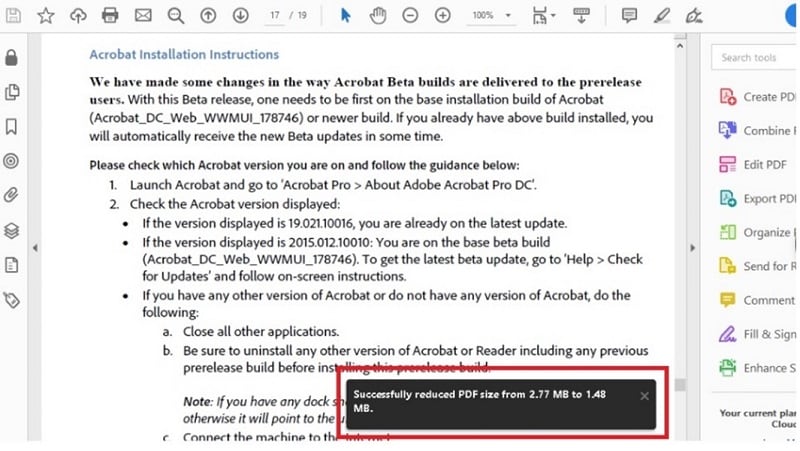
After saving, compare the new file size with the original and inspect pages that contain small text, images, charts, signatures, or scans. A smaller PDF is only useful if the information your recipient needs is still clear.
Method 2: Use Advanced Optimization for More Control
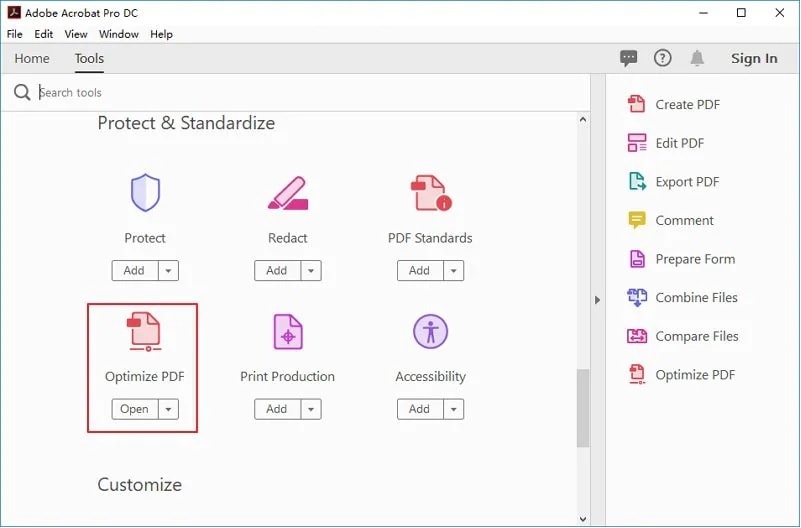
Use Advanced Optimization when you need to control what Acrobat changes instead of relying on an automatic compression result. Adobe's current documentation lists Advanced Optimization for Acrobat Pro, Premium, or Studio on desktop.
Open All tools > Compress a PDF, then choose Advanced Optimization. Depending on the document, you can review settings related to images, fonts, transparency, and other internal PDF data. This is useful when a quick compression result is too blurry or when you need to understand which parts of the file are taking the most space.
A scanned contract and a photo-heavy brochure should not be optimized the same way. For scans, image resolution and OCR readability matter. For a designed brochure, you may want to preserve image detail while reducing unnecessary internal data.
Can Acrobat Reader Compress a PDF for Free?
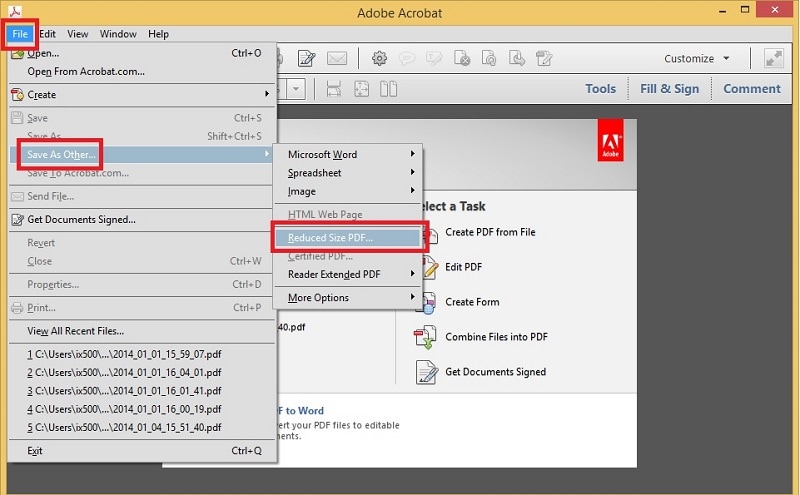
The free Acrobat Reader does not provide the same desktop PDF compression tools as Acrobat. Adobe currently positions Reader for viewing, sharing, signing, commenting, and collaboration, while compression is listed among Acrobat's additional PDF tools.
If you only have Reader and need to reduce a PDF, use Adobe's online Compress PDF tool or another PDF compressor instead of relying on older Reader tutorials. Adobe's current Reader page is the best place to verify feature availability because product capabilities can change.
What About Signed or Fillable PDFs?
Preserve the original before compressing any signed or interactive PDF. Changes made after signing can affect signature validity in some workflows, and aggressive optimization can alter interactive content if those objects are changed or removed. After compression, verify the signature status, form fields, links, and other features that matter before sharing the file.
How Do You Compress a PDF with Adobe Online?
Adobe's online PDF compressor lets you upload a PDF in a browser, choose a compression level, and download a smaller copy without installing desktop Acrobat. It is a practical option for occasional, non-sensitive files.
Open the Adobe Acrobat online Compress PDF tool, select or drag in your PDF, and choose a compression level. Adobe currently offers High, Medium, and Low compression so you can balance file size against visual quality.
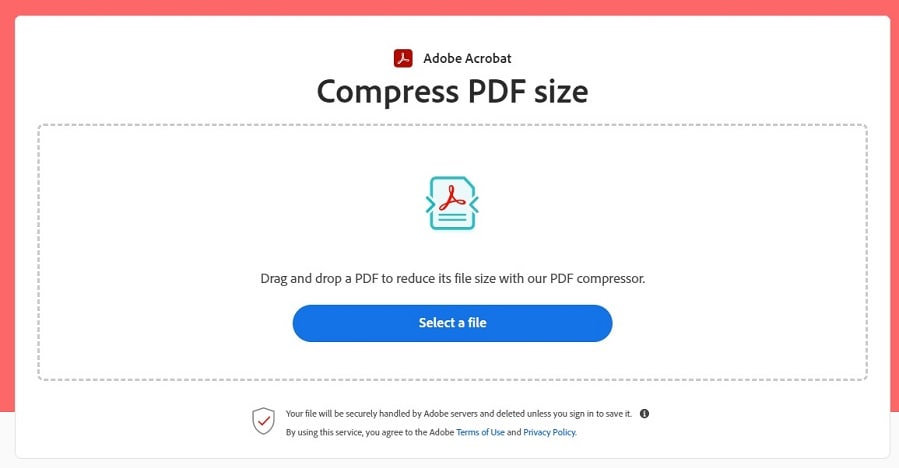
- Upload the PDF you want to reduce.
- Choose High for the smallest file, or Medium/Low when preserving more quality matters.
- Run the compression.
- Download the result or sign in if Adobe requires an account for the next action in your region or workflow.
- Check the final size and inspect the document before sending it.
Adobe's current online tool states that files are handled on Adobe servers and are deleted unless you sign in to save them. Even so, company, legal, healthcare, education, or government policies may prohibit uploading confidential documents to an external service. Follow your organization's data-handling rules before using any online compressor.
If you prefer a Wondershare browser workflow, you can also compare the online PDF compressor before deciding whether a desktop or web tool fits your file.
How Can You Compress a PDF Without Adobe?
PDFelement is a practical Adobe alternative when PDF compression is one step in a larger workflow that also includes editing, OCR, conversion, page organization, signing, or batch processing. Its current desktop compression workflow uses High, Medium, and Low compression levels.
 G2 Rating: 4.5/5 |100% Secure
How To Compress a PDF in PDFelement
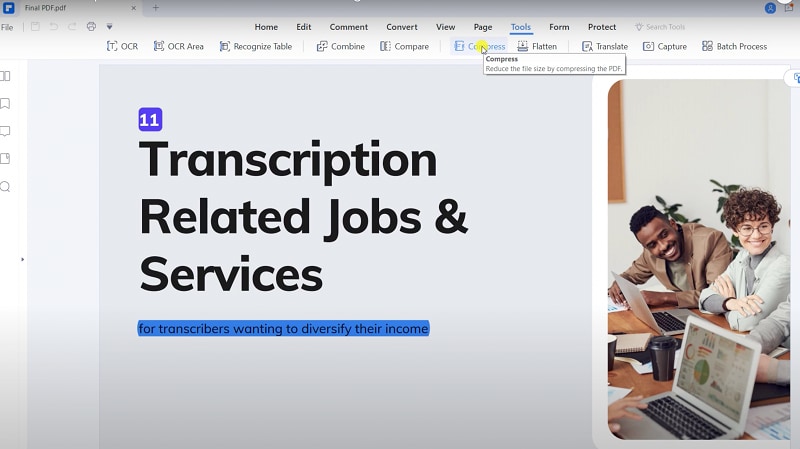
To compress a PDF in PDFelement, open the file, choose Tools > Compress, select a compression level, and apply the setting. Start with a moderate level when readability matters, then use stronger compression only if the file is still above your target size.
- Open the PDF in PDFelement.
- Go to Tools > Compress.
- Choose High, Medium, or Low compression.
- Select Apply.
- Save the compressed PDF as a separate copy and review the result.
PDFelement can also continue into related tasks such as OCR for scanned PDFs, file conversion, page organization, redaction, annotation, or signing. If you handle many files, check the current batch-compression options for your platform and plan.
Adobe Acrobat vs. PDFelement for PDF Compression
| Factor | Adobe Acrobat | PDFelement |
|---|---|---|
| Standard compression | Compress a PDF workflow for single or multiple files | High, Medium, and Low compression levels |
| Advanced control | Advanced Optimization in Acrobat Pro, Premium, or Studio | Designed for straightforward compression within a broader PDF workflow |
| Online option | Adobe browser-based compressor with High, Medium, and Low levels | Wondershare also provides an online PDF compressor |
| Related tasks | Editing, OCR, conversion, forms, signing, and other Acrobat tools | Editing, OCR, conversion, page organization, redaction, signing, and other PDF tools |
| Best fit | Users already in the Adobe ecosystem or needing Advanced Optimization | Users who want compression integrated with everyday PDF editing and document workflows |
Choose based on the workflow rather than assuming one compressor is always better. If precise optimization controls are essential, Acrobat's Advanced Optimization is the stronger fit. If you want to compress and then immediately edit, OCR, convert, organize, or protect the same PDF, PDFelement is worth testing with your own documents.
G2 Rating: 4.5/5 |100% SecureHow Do You Make a PDF Smaller Without Losing Quality?
There is always a trade-off between file size and retained detail. Text-heavy PDFs often compress well with little visible change, while image-heavy scans can lose sharpness quickly. Keep the original file, compress a copy, then check small text, diagrams, signatures, form fields, and any pages that contain detailed images before sharing.
The safest way to make a PDF smaller without noticeable quality loss is to start with moderate compression, inspect the result, and only increase compression if the file is still too large. The best setting depends on whether the PDF is mostly text, scanned pages, photos, charts, or interactive content.
- Start with Medium compression: It is a sensible first test for general screen viewing because it balances size and readability better than immediately choosing the strongest setting.
- Check image-heavy pages: Photos, screenshots, charts, signatures, and scanned text are usually the first elements to show visible quality loss.
- Remove unnecessary pages first: Blank pages, duplicate scans, obsolete appendices, or embedded attachments can add file size without adding value.
- Use the right scan resolution: Oversized color scans can create unnecessarily large PDFs. If you control the source scan, choose a resolution and color mode appropriate for how the document will be read.
- Protect interactive content: Confirm that forms, links, bookmarks, and signatures still behave as expected after optimization.
- Keep the original: Never overwrite the only copy of an important document until the compressed version has been checked.
How Do You Compress a PDF to a Specific Size?
To reach a target such as 5 MB or 2 MB, compress once, check the result, then adjust the compression level or remove unnecessary content if the file is still too large. The exact output size is not guaranteed because two PDFs with the same starting size can contain very different images, fonts, scans, and embedded data.
For a strict portal limit, use this order: remove unnecessary pages or attachments, try Medium compression, check the result, then move to High compression if needed. If the document becomes unreadable before it reaches the limit, use a cloud link or another approved sharing method instead of sacrificing essential content quality.
Final Quality Check Before You Share the PDF
- Compare the compressed file size with the original and with the upload or email limit.
- Zoom into small text, screenshots, signatures, charts, and scanned pages.
- Search or select text if the document depends on OCR.
- Test forms, links, bookmarks, and signatures if the recipient needs them.
- Keep the original until the compressed PDF has been accepted.
People Also Ask
-
Can Adobe compress PDF files for free?
Yes. Adobe offers an online PDF compressor that can reduce PDF size in a browser. The free Acrobat Reader itself does not provide the same desktop compression workflow as Acrobat. -
How do I compress a PDF in Adobe Acrobat?
Open the PDF in Acrobat, choose All tools > Compress a PDF, select the file or files, and save the compressed copy. For more control, supported Acrobat plans also provide Advanced Optimization. -
What is the difference between Compress PDF and Optimize PDF in Acrobat?
Compress PDF is the faster workflow for reducing file size automatically. Advanced Optimization gives you more control over settings such as images, fonts, transparency, and other PDF data and is available in supported Acrobat desktop plans. -
Will compressing a PDF reduce its quality?
It can, especially when compression lowers the resolution of images or scanned pages. Start with Medium or Low compression when quality matters, then inspect the result before using a stronger setting. -
How can I compress a PDF to a specific size such as 5 MB?
Compress the PDF, check the output size, and increase the compression level if necessary. If the file is still too large, remove unnecessary pages or attachments, but verify readability because an exact target size cannot always be reached without quality trade-offs.




