

A 100-page PDF opens, scrolls past in a few minutes, and closes again, having left almost nothing behind. The individual pages made sense, yet they never came together to form a clear picture of how they fit together.
Moreover, summaries do not solve this because they compress documents while leaving key relationships buried in prose. A PDF-to-mindmap conversion works differently, turning the content into a structure you can take in at a glance. This guide covers what that conversion does, which documents suit it, and how to run one in PDFelement.


 G2 Rating: 4.5/5 |
 100% Secure
In this article
Part 1. PDF to Mind Map AI Explained
Converting a document into a map sounds like it should mean pulling the headings out and arranging them in a circle. That version exists, and it is close to useless. PDF to mind map AI does something harder: reading the argument instead of just the contents page.
Mind Maps vs. Traditional Summaries
People often compare mind maps with summaries because both condense long documents. The difference lies in how they preserve relationships between ideas. Recent research comparing concept maps and summaries found that concept maps better reveal connections between ideas, making them easier to understand than text-only summaries.
A summary of a research paper tells you which intervention won. A map shows which hypothesis each came from and where the limitations attach. The table below sets out where else the 2 formats diverge:
| Point of Difference | Traditional Summary | Mind Map From PDF |
| Form of Output | Continuous prose, read top to bottom | A branching structure seen at a glance |
| Hierarchy | Implied by word order | Shown directly by branch depth |
| Links Between Ideas | Stated only where the writer spells them out | Visible as connections between branches |
| Level of Detail | Fixed once written | Expanded or collapsed on demand |
| What It Reveals | What the document said | Where the argument runs thin |
The real difference appears in practice: a summary tells you what the document says, while a mind map shows how its ideas connect.
Part 2. The PDF Types That Convert Best
Not every document repays the effort. A mind map from a PDF works when the source has an underlying logic worth exposing, and disappoints when the content is a flat list. The following 3 categories convert well consistently.
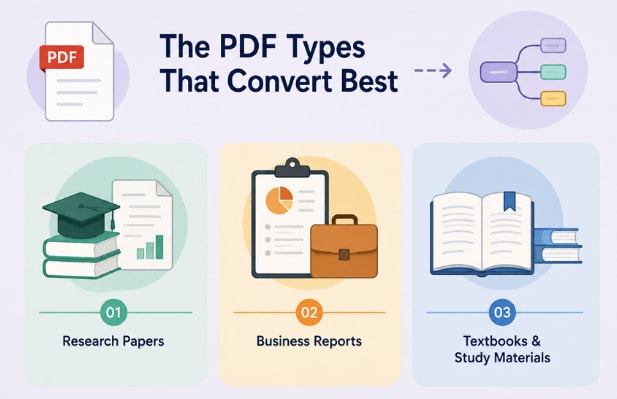
Research Papers and Academic PDFs
Research papers already follow a structured format, with sections for methods, results, discussion, and limitations. A mind map makes it easier to see how evidence supports each claim instead of tracing connections across pages. That structure reflects the standard IMRAD format used in scientific publishing.
Business Reports and Strategy Documents
Strategy documents hide their logic inside sections written by different people. A map exposes whether the recommendations actually follow from the analysis, or whether a conclusion arrived with no evidence attached. That gap is easier to spot visually than in forty pages of prose.
Textbooks and Study Materials
Chapters build on each other, and a map makes that dependency visible. A concept introduced early and assumed later appears as a branch that others keep connecting back to. That helps in working out what to revise first.
Part 3. PDFelement: An AI Mind Map Generator From PDF
Structure only helps if producing it costs less than drawing one by hand. That is where the choice of tool decides whether the habit survives. PDFelement builds maps through the same AI Sidebar that produces its summaries and notes, so mapping is not a separate tool to learn.
The map comes from an interpretation of the argument rather than the heading structure, so its branches follow the reasoning instead of the layout. What makes PDF to mind map practical is keeping the document, mind map, and chat panel together in one workspace. A branch that looks wrong can be checked against its source page without leaving it.
How to Convert PDF to Mind Map with PDFelement
Converting a PDF to a mind map in PDFelement takes only three simple steps. Most of the variation comes from the document itself rather than the settings you choose.
Step 1. Create a New Knowledge Space
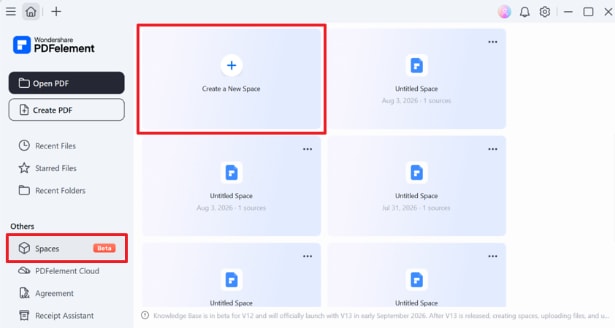
Open PDFelement and select “Spaces” from the left sidebar. Click “Create a New Space” to start a workspace where your PDF, AI tools, and generated mind maps stay together.
Step 2. Upload Your PDF
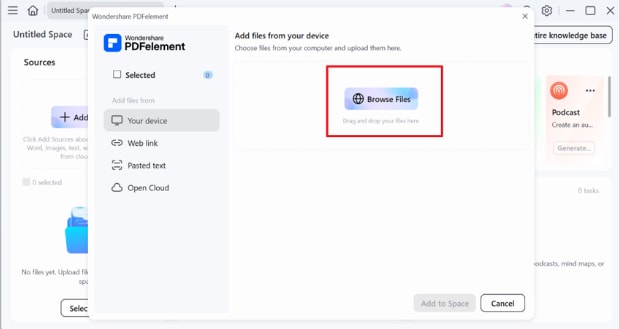
In the new space, click “+ Add Sources,” choose “Your Device,” then select “Browse Files” to upload the PDF you want to convert into a mind map.
Step 3. Add the File to Your Space
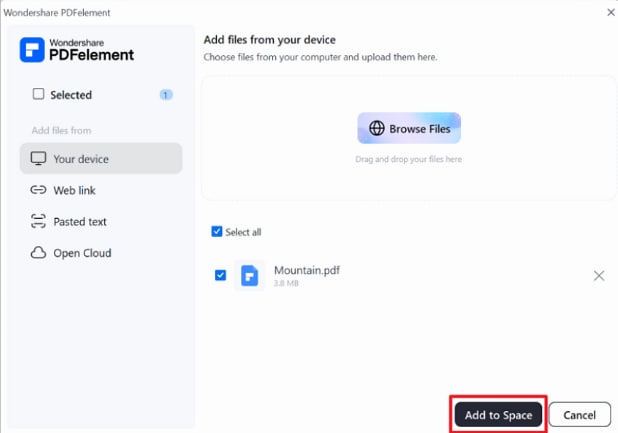
After selecting the PDF, confirm it by clicking “Add to Space.” The document is imported and becomes available for AI-powered analysis.
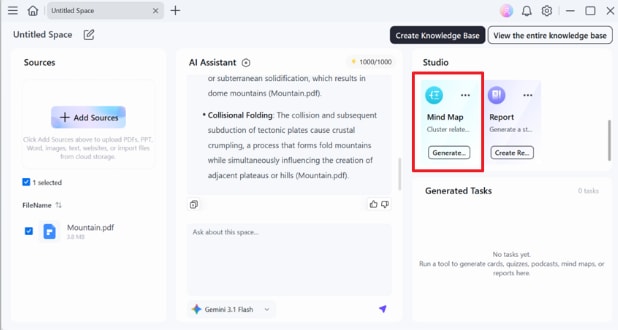
Step 4. Generate the Mind Map
In the “Studio” panel, select “Mind Map” and press “Generate.” PDFelement analyzes the PDF and automatically organizes its main topics into a visual mind map.
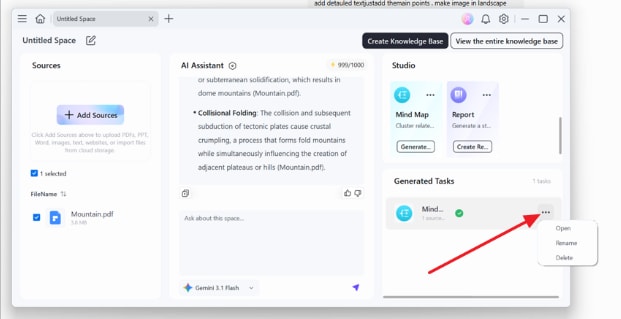
Step 5. Open the Generated Mind Map
When the task finishes, locate it under “Generated Tasks.” Click the “Three-Dot” menu and choose “Open” to view the completed mind map.
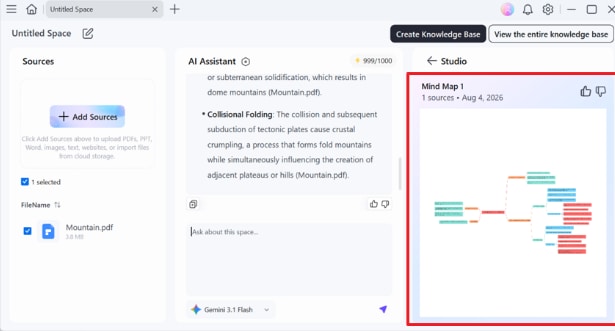
Step 6. Review and Explore the Mind Map
PDFelement opens the generated mind map alongside your original PDF, making it easy to compare the visual structure with the source content. You can also use the built-in AI assistant to ask follow-up questions or explore specific topics in more detail.
What Makes PDFelement Stand Out
Map generation is one feature among several, and that matters. What separates an AI mind map generator from PDF in practice is what remains possible once the map exists:
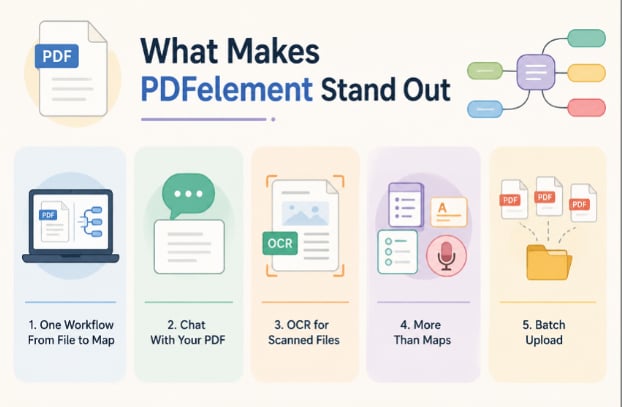
- One Workflow From File to Map: Upload a PDF once, and the AI generates both a summary and a mind map together without exporting or switching tools.
- Chat With Your PDF: Ask follow-up questions to clarify details, expand ideas, or explore sections the mind map summarizes briefly.
- OCR for Scanned Files: Scanned or image-based PDFs are converted into searchable text before the AI builds an accurate mind map.
- More Than Maps: The same PDF can also generate notes, flashcards, quizzes, and even podcast-style summaries for different learning needs.
- Batch Upload: Process multiple related PDFs in one session, allowing the AI to organize information across all uploaded documents.
G2 Rating: 4.5/5 |100% Secure
Part 4. Tips for Getting Better Mind Maps From PDF
Output quality depends far more on the input than on any setting. These 4 habits separate a map worth keeping from a diagram nobody opens twice:
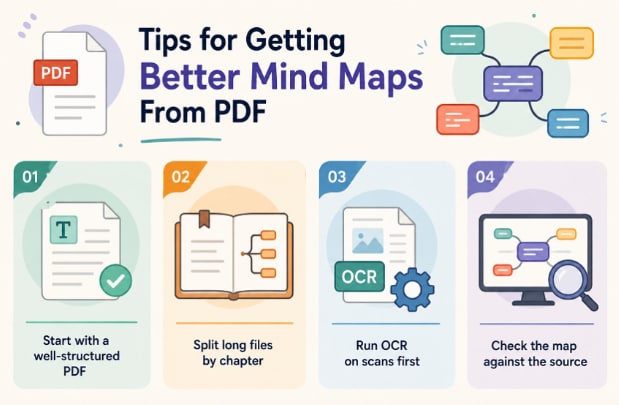
- Start With a Well-Structured PDF: Real headings and consistent formatting produce cleaner branches than loose documents.
- Split Long Files by Chapter: Mapping an entire book yields a diagram too dense to read. Chapter-sized inputs keep branches legible.
- Run OCR on Scans First: A scanned page stays an image until OCR converts it, and images generate nothing.
- Check the Map Against the Source: The AI groups by inference, so confirm its connections match what the document argues.
Frequently Asked Questions
Can PDFelement convert PDF to mind map with AI?
Yes. Generation runs from the AI panel and takes a few minutes on a typical document. Longer files produce denser maps, so chapter-sized inputs work better.
Can I create a mind map from a scanned PDF?
Yes, once OCR has converted the page images into readable text. Scan quality affects the result, so faint or skewed pages are worth reviewing first.
What types of PDFs are best for PDFelement mind maps?
Documents with an argument to expose, such as research papers, strategy reports, and textbook chapters. Flat reference material like price lists gains little from being mapped.
Final Takeaway
To conclude, a PDF to mind map turns dense documents into a visual structure that's easier to understand and remember. Instead of adding information, it reveals how ideas connect. If you want a simple way to create, explore, and organize mind maps from PDFs, PDFelement is a practical choice worth trying.
G2 Rating: 4.5/5 |100% Secure


