The State Bank of India is India's largest state-owned banking and financial services company. SBI provides customers with digital bank statements, and to protect sensitive personal and financial information, each bank statement is saved in PDF and secured with a password.
You can get an SBI statement from SBI net banking, mobile banking, or YONO. To open a SBI bank statement in PDF, you can:
- Open the PDF in a PDF reader or a browser;
- Enter the correct password format linked to your account details, date of birth, mobile number, or card number;
- View or save the bank statement.
Read more about how to download and open SBI Bank Statement PDF documents with password.


 G2 Rating: 4.5/5 |
 100% Secure
In this article
Part 1. What Is PDF Password for SBI Bank Statement
Bank statements are official documents issued by the State Bank of India (SBI). Traditionally, SBI mailed account statements to the addresses of account holders or delivered them to bank offices after verifying the account holder's identity. Today, SBI issues these statements in PDF format, secured with password encryption to ensure that only the account holder can access them.
Part 2. Common SBI Statement Password Formats
- SBI account statement downloaded from net banking or mobile banking: Your 11-digit account number.
- SBI account statement received by email: Last 5 digits of your registered mobile number + date of birth in DDMMYY format.
- SBI YONO statement received by email: Date of birth in DDMM format + @ + last 4 digits of your registered mobile number. Example: 1210@5467
- SBI credit card statement: Date of birth in DDMMYYYY format + last 4 digits of your credit card number.
Part 3. Why Is Password Protection Necessary?
Password protection is essential for bank statements because they contain sensitive information related to all account transactions over a specified period. This includes critical data such as account numbers, card numbers, outstanding balances, payment dates, interest rates, and other confidential information.
Part 4. How to Access Your SBI Bank Statement PDF?
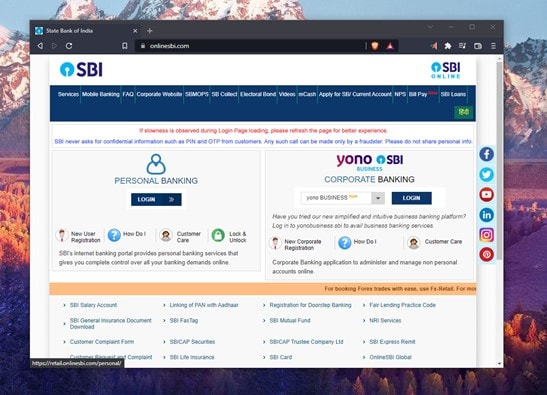
Step 1: Go to the SBI website
Begin by opening the official SBI website or using the SBI mobile banking app. Click on the "Login" button to proceed.
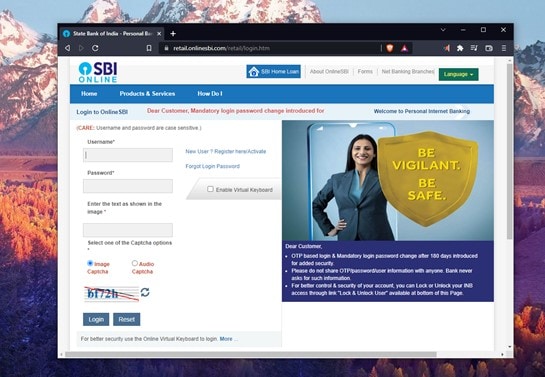
Step 2: Log in to your account
You will see a login form where you need to enter your access credentials. After entering your details, you'll receive a two-factor authentication code via SMS or email. Enter this code to continue.
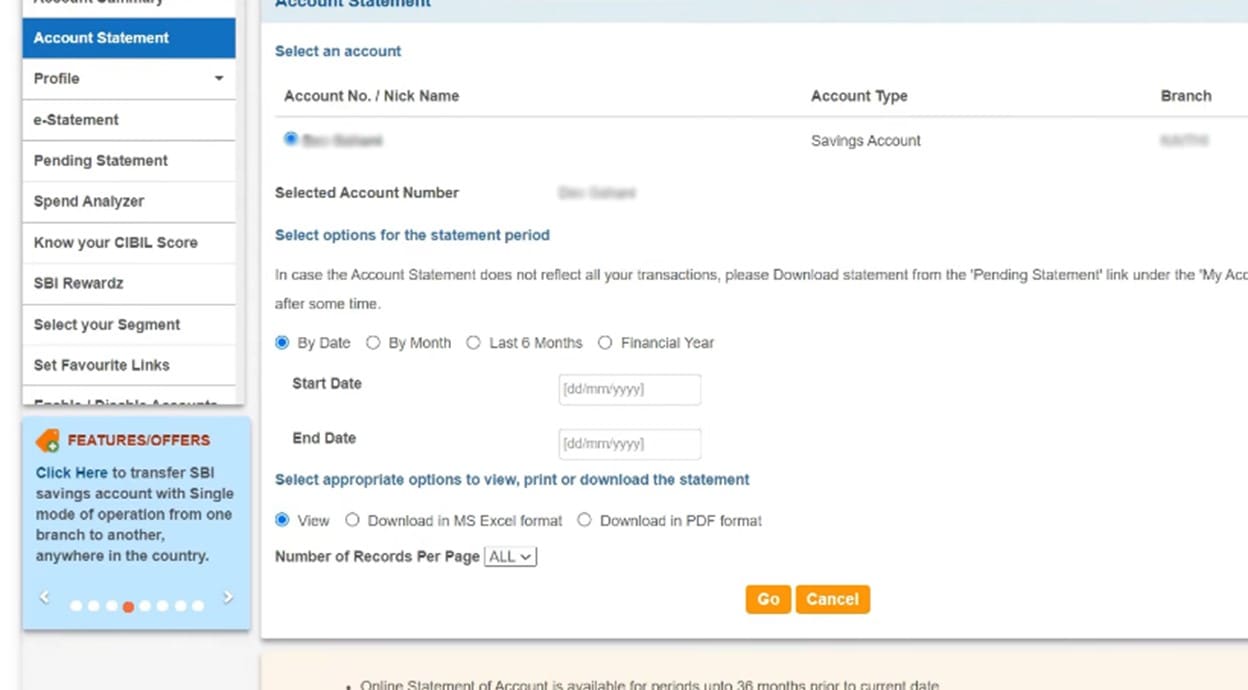
Step 3: Download your Account Statement
Once logged in, navigate to the "Account Statement" section. Here, you can specify the account and the period for which you want to view the statement. Check the "Download in PDF format" option and click "Go" to download your statement.
Part 5. Steps to Open SBI Bank Statement PDF Password
Once you have downloaded your account statement, you'll need a specialized tool to view the password-protected PDF. While some web browsers can open these documents, it's recommended to use a dedicated PDF editor like PDFelement for better security and functionality.
G2 Rating: 4.5/5 |100% Secure
To open your PDF with a web browser, simply drag and drop the document into the browser window. If your browser supports protected PDFs, a pop-up will prompt you to enter the password. Remember, the password consists of your 11-digit account number without the leading zero.
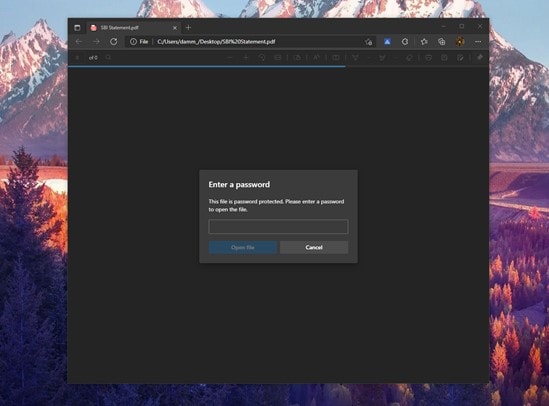
For a more reliable and feature-rich experience, consider using PDFelement. This software allows you to easily manage and edit password-protected PDFs. Here’s how to open your SBI bank statement using PDFelement:
For Windows:
Step 1: Open PDFelement
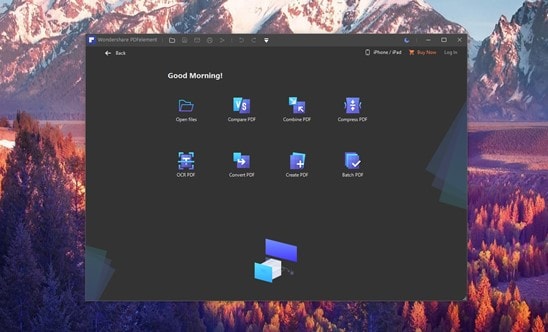
- Launch PDFelement and click "Open File" to select your document.
- Alternatively, right-click the PDF file, choose "Open with," and select "PDFelement."
Step 2:Enter the PDF Password:
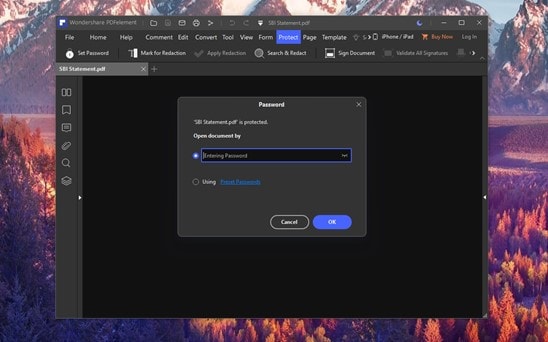
- Input the password (the last five digits of your registered mobile phone number followed by your date of birth in DDMMYY format).
For Mac:
Step 1: Open PDFelement
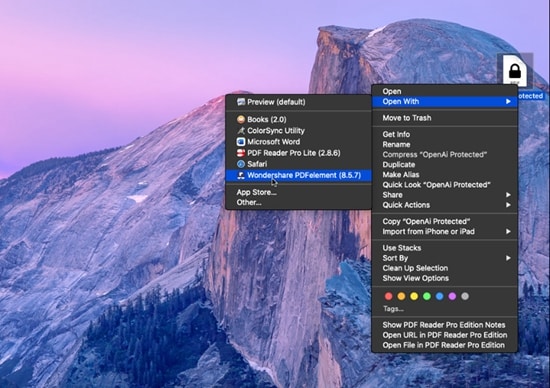
- Start PDFelement and click "Open File" to locate your document.
- Or, right-click the PDF, select "Open with," and choose "PDFelement."
Step 2:Enter the PDF Password:
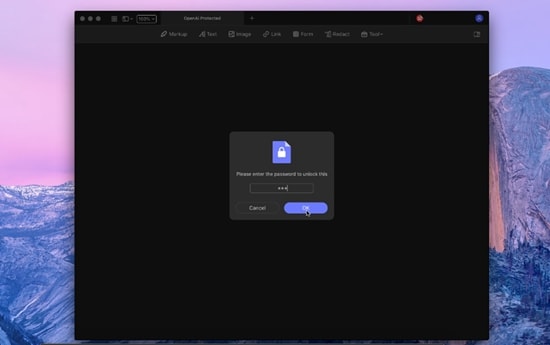
- Enter the password (the last five digits of your registered mobile phone number followed by your date of birth in DDMMYY format).
G2 Rating: 4.5/5 |100% Secure
Using PDFelement not only provides a secure way to access your bank statements but also equips you with powerful tools for editing and annotating your PDFs.
Part 6. Open SBI Bank e-Statement PDF Password in Email
SBI's electronic banking allows you to receive your bank statements automatically via email in PDF format, which are also password protected.
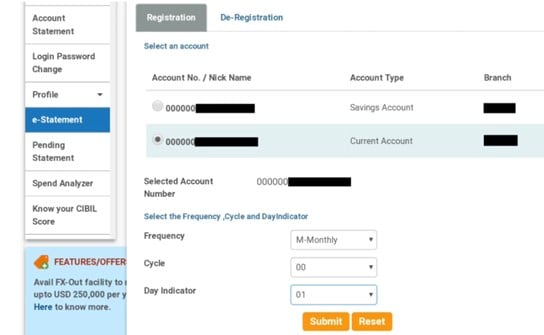
The password for these documents typically consists of the last five digits of your registered mobile phone number combined with your date of birth in DDMMYY format.
Conclusion
The automated services provided by the SBI offer enormous advantages to its users and, thanks to the security advantages offered by data encryption systems, you can be sure that no one else will be able to read your data. Also, using tools like PDFelement, you can comment, edit or share your documents safely in just a couple of clicks.