

You have just scanned a stack of important reports, but now they're all merged into a single PDF, making it hard to access individual files. Learning how to separate scanned documents can save time, improve organization, and streamline workflows.
Whether you use dedicated software, online tools, or built-in computer features, there are practical ways to split your scans efficiently. In this guide, we'll walk you through step-by-step solutions to ensure each PDF is separated accurately without losing quality.
In this article
- What Problem are You Solving?
- Choosing the Right Method: A Quick Decision Guide
- Preflight Cleanup Steps for Scanned PDFs
- Step A — Make Your Scans Searchable with OCR
- Step B — Separate Scanned Documents by Page Ranges
- Step C — Separate Scanned Pages When Each Scan Contains Two Pages (2-Up Fix)
- Step D — Only Need Specific Documents? Extract Pages Instantly
- Step E — Organize Your Output Files for Easy Access
- Optional Online Route (For Non-Sensitive Files Only)
- Run a Fast 30-Second Quality Check
Part 1. What Problem are You Solving?
You have scanned a batch of papers into a single large PDF, and now you need to split it into individual files or extract each scanned page neatly. Handling them as separate documents makes it easier to organize, share, and access specific files quickly without sifting through a massive PDF.
Common Issues When Handling Scanned Documents
- Sideways Pages: Scanned pages may appear rotated, making reading or printing inconvenient. Correcting orientation is necessary for professional presentation and easy access.
- Two Pages on One Sheet: Sometimes, two pages get scanned together as a single image, which can cause confusion when splitting or extracting individual pages.
- Unclear Document Breaks: Without a clear separation, it's difficult to identify where one document ends and another begins, slowing down workflow and causing interruptions in learning how to separate scanned pages in PDF.
- Huge File Size: Scanning multiple pages into one PDF can create large files that are hard to store, share, or upload.
Part 2. Choosing the Right Method: A Quick Decision Guide
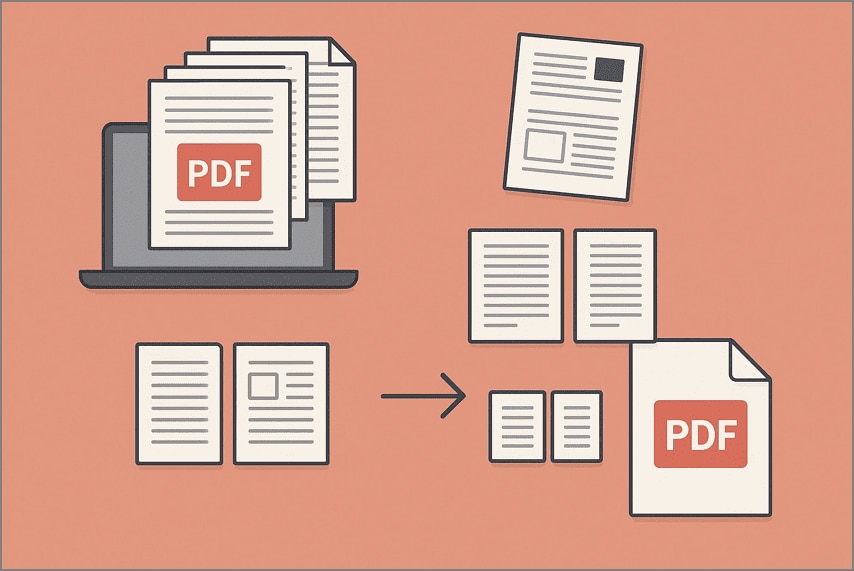
Depending on your split-scanned PDF and what you need from it, there are different approaches to separating your documents efficiently. Here's a fast decision tree to help you pick the right strategy:
- Split by Fixed Ranges: If your PDF contains many small documents of known page counts, you can divide the file into equal sections based on these ranges.
- Split by Custom Ranges: When the documents have varying lengths, but you know the start and end pages of each, use custom ranges to extract each document.
- Handle Two Pages Per Scan (2-up): For sheets scanned with two pages per image, first split each scanned page into individual pages, then separate them into distinct documents.
- Extract Selected Pages: If you only need a few sections of the PDF, simply extract the required pages without splitting the entire file.
- Performing OCR for Text Search or Copying: When you need to search or copy text from scanned documents, run Optical Character Recognition (OCR) before separating the pages.
Part 3. Preflight Cleanup Steps for Scanned PDFs
Before you start separating your scanned documents, a quick cleanup can dramatically improve accuracy and reduce file issues later. These steps make your PDF easier to process, search, and organize, ensuring the final outputs are clean and usable.
- Rotate & Straighten Pages: Correct any tilted or sideways pages so each scan aligns properly and looks clean when split.
- Run OCR (Optical Character Recognition): While learning how to split scanned documents, convert your scanned pages into searchable text, which is especially useful for reviewing, editing, and quality checks.
- Optimize or Compress Images: Reduce file size by optimizing images either before or after splitting, making your documents easier to open.
Part 4. Step A — Make Your Scans Searchable with OCR
To get the cleanest, most accurate split results, start by running OCR on your scanned PDF. PDFelement makes this incredibly smooth with its intuitive OCR engine that supports multiple languages and delivers sharp, searchable text layers. This not only helps you verify document boundaries but also ensures every separated file is easy to search, review, and reuse later.
Steps for Scanning a Document With OCR Using PDFelement
As discussed, PDFelement lets users make un-editable files editable with its OCR technology. Provided below is the step-by-step guide on how to perform an OCR for a scanned document before splitting it:
Step 1Start by Accessing the Feature
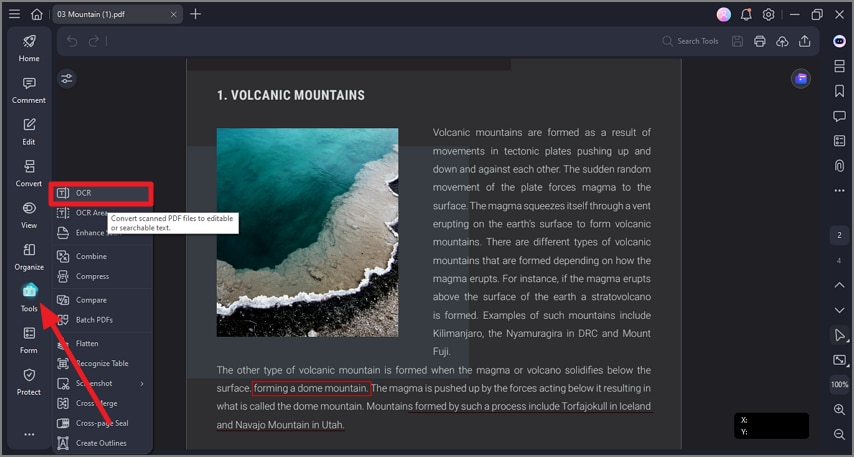
To begin, launch PDFelement on your device and import the document. Next, head to the toolbar on the right and choose "Tools." Now, select the "OCR" option from the expanded list by clicking on it.
Step 2Choose Language and Perform OCR
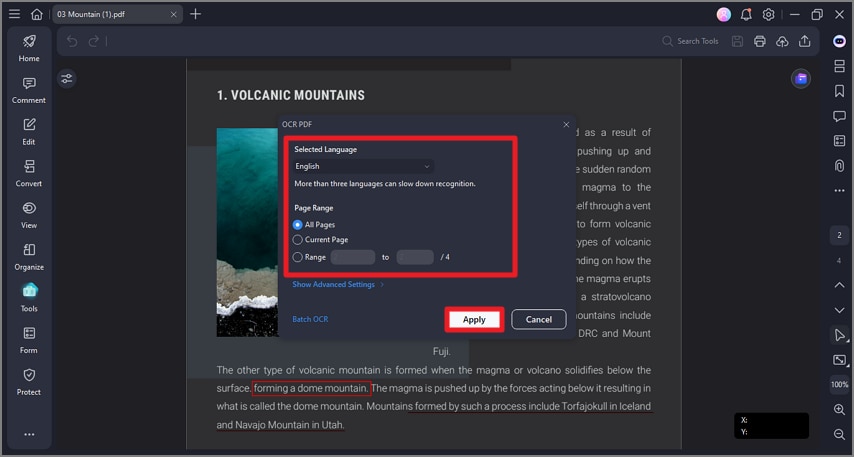
In the following interface, select the language for the document and the pages you want to perform OCR on. Once done, hit the "OK" button to execute the process.
Part 5. Step B — Separate Scanned Documents by Page Ranges
When you already know the structure of your scanned PDF, splitting by ranges gives you clean, perfectly organized output. PDFelement handles this beautifully with its flexible split options, letting you divide files by page count or bookmarks for fast, accurate separation. This method is ideal when learning how to separate scanned PDF documents or manage batches.
Steps for Separating Scanned Documents by Page Ranges Using PDFelement
After learning about this PDF management tool in detail, let us learn how to use it for separating scanned documents in the section below:
Step 1Load PDF and Access Organize
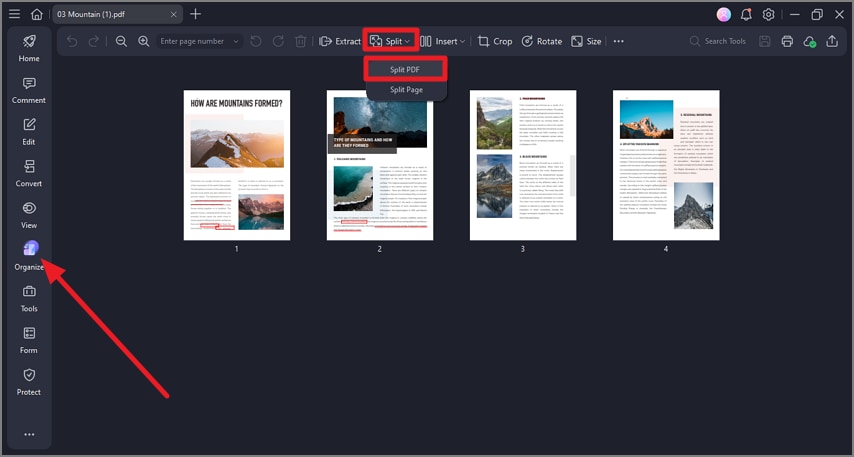
Launch PDFelement on your computer and open the large PDF you want to divide. On the left-hand toolbar, select the "Organize" option. Next, go to the top menu, click "Split," and choose "Split PDF" from the dropdown list.
Step 2Select Split Option and Confirm
A dialog box will pop up where you can choose your desired split method by selecting the appropriate radio button. Choose "Split by Number of Pages" when each document has a fixed length, or "Split by Top-Level Bookmarks" if you've added bookmarks at the start of each document. Set the output file name and pick the destination folder before hitting "OK" to start splitting the PDF.
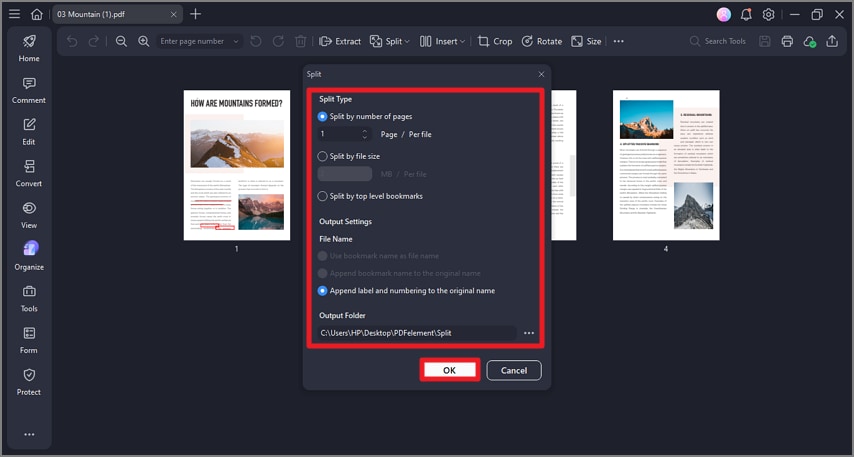
Tip: If each sub-document varies in length, repeat this step with custom ranges. Alternatively, use Step D to extract specific chunks effortlessly.
Part 6. Step C — Separate Scanned Pages When Each Scan Contains Two Pages (2-Up Fix)
When every scanned page actually contains two physical pages, you need to split each scan in half before creating separate documents. PDFelement makes this incredibly precise with its "Split Page" tool, letting you drop a dividing line exactly where the gutter sits. This method is perfect when learning how to separate scanned pages in PDF or fixing 2-up scans common in books, receipts, or notebook pages.
Steps for Separating Scanned 2-Up Pages
If you want to separate the document by dividing the pages into sections, this is the best method to follow as featured below:
Step 1Import File and Open Split Page
After loading your PDF into PDFelement, go to the left-hand toolbar and select "Organize." Then, on the top menu, click "Split" and choose "Split Page" from the options provided.
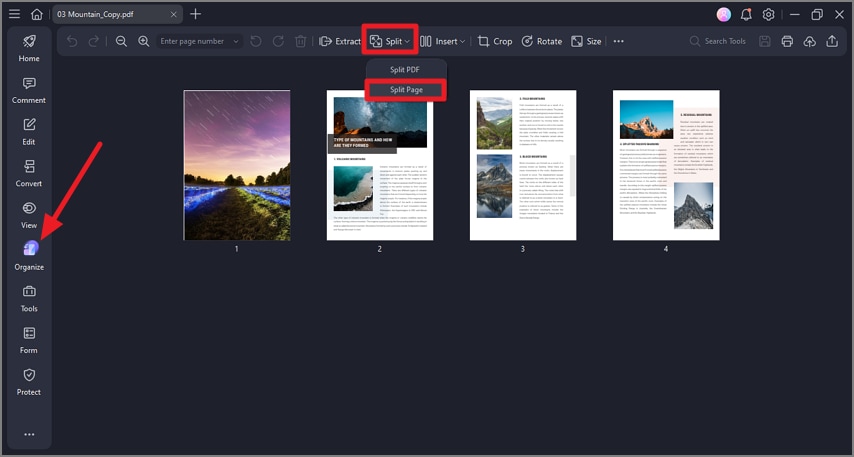
Step 2Set Split Lines and Apply
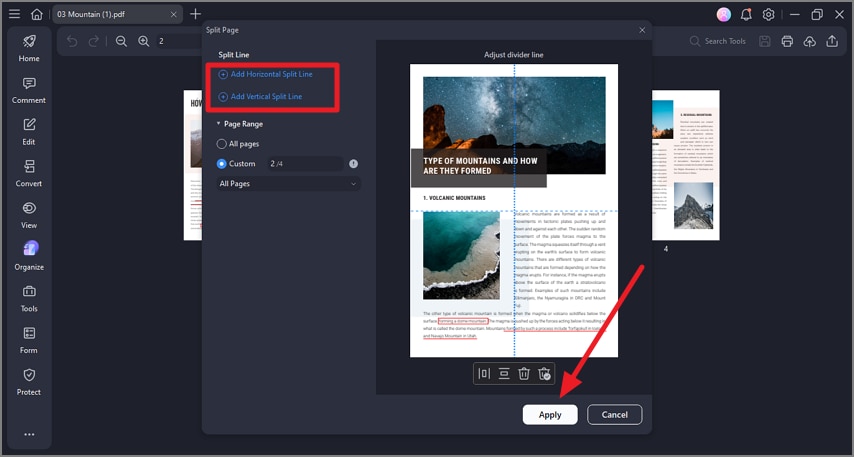
In the following window, select "Add Horizontal Split Lines" for a horizontal division or "Add Vertical Split Lines" for a vertical division. Adjust the guideline on the page, choose the page range, and once everything is positioned correctly, click "Apply" to perform the split.
Part 7. Step D — Only Need Specific Documents? Extract Pages Instantly
When you only require a few sections from a large scanned PDF, extraction is the fastest way to pull out exactly what you need. This method works perfectly for anyone searching for how to split scanned documents or separate scanned PDF pages without processing the entire file. PDFelement's Extract tool makes it effortless by offering a quick extraction procedure.
Steps for Extracting Pages Instantly
Having learned about this feature in detail, let us have a look at the step-by-step guide on how to extract pages using PDFelement:
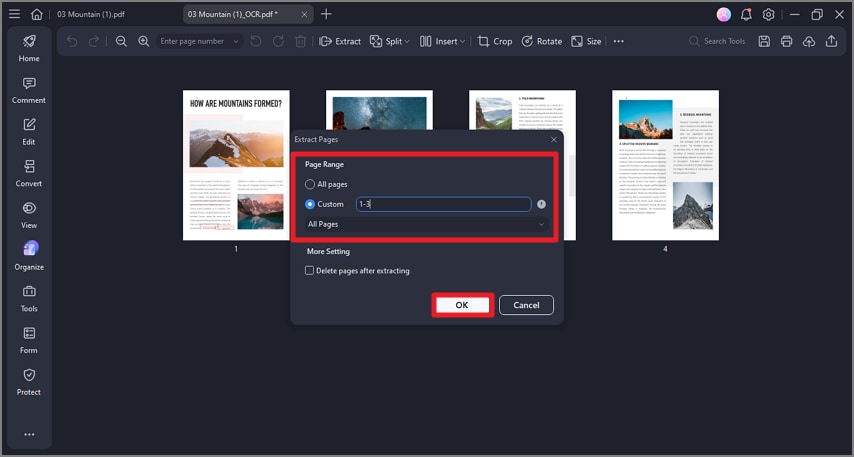
Step 1Begin by Accessing the Extract Feature
After opening the document and accessing the toolbar on the left, choose the "Organize" option. Next, click on the "Extract" option located at the top toolbar.
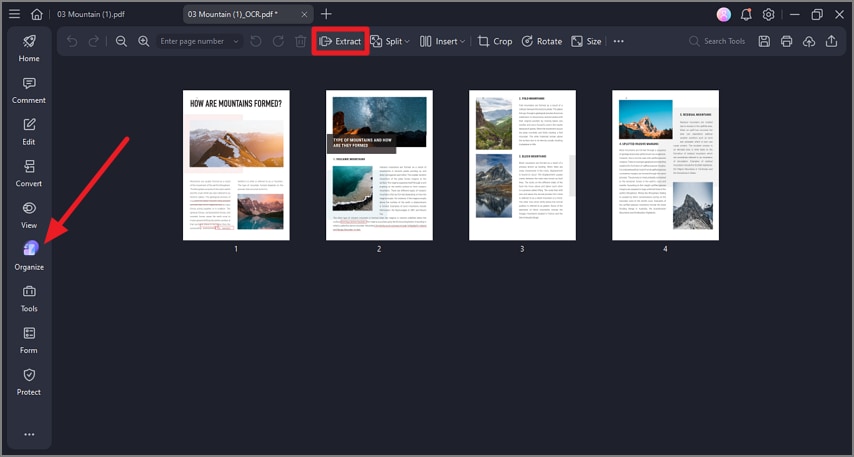
Step 2Select Pages and Extract
In the following interface, select the page range and hit the "OK" button to extract the pages from the PDF.
Part 8. Step E — Organize Your Output Files for Easy Access
Once you've separated your scanned documents, a little organization goes a long way in keeping everything easy to locate later. These habits save time and prevent mix-ups when you revisit the files.
Tips For Organizing Output Files
- Output Folder Strategy: Use a clear hierarchy like: …/Client/Case/YYMM/Separated/.
- Naming Templates: Try formats such as {filename}_doc{index}, {bookmark}, or {date}_{type}_{index} for uniformity.
- Quick Log: Maintain a brief note mapping Range → Document Name as you separate files.
Part 9. Optional Online Route (For Non-Sensitive Files Only)
If your scanned PDF isn't confidential, you simply need a quick, no-install solution. PDF splitters such as HiPDF can get the job done in no time. The tool allows custom page ranges or interval-based splitting, making them handy for light, occasional use. Just be mindful of limitations and privacy before choosing this method. To learn how to separate scanned PDF pages with this online tool, read the steps mentioned:
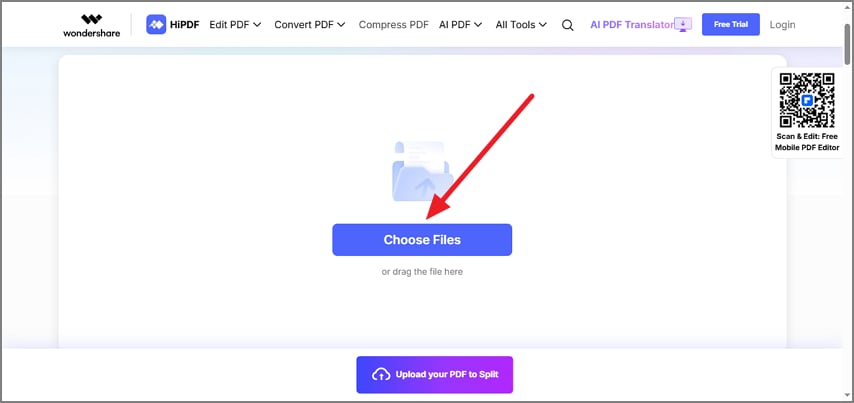
Step 1Open the Online Splitter and Upload PDF
Launch the splitter tool in your browser and upload your PDF using the "Choose Files" button on the interface.
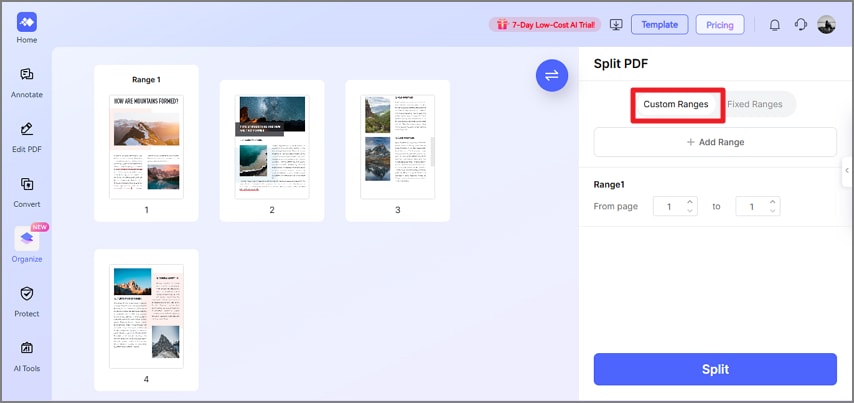
Step 2Enter Custom Ranges
After the upload completes, go to the "Custom Ranges" section and enter the page ranges you want to split according to your needs.
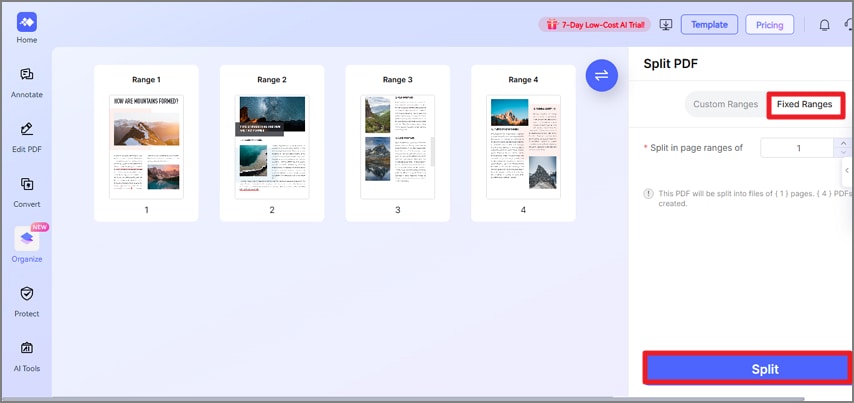
Step 3Use Fixed Ranges if Needed
Alternatively, select "Fixed Range" to split the document into set page intervals. Once your selection is ready, click the "Split" button at the bottom to start.
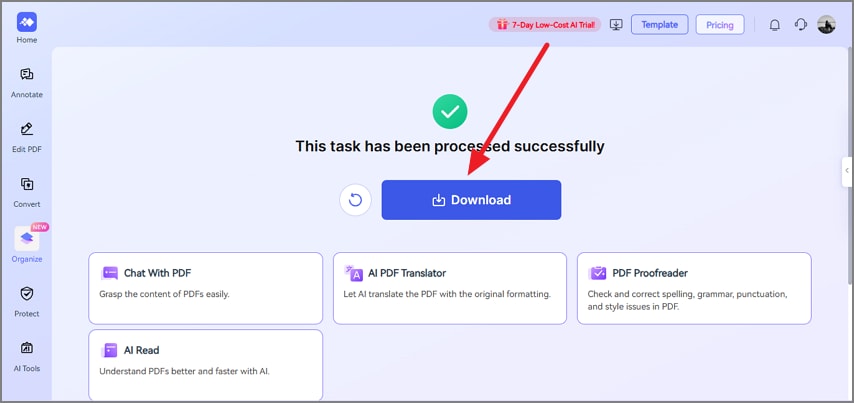
Step 4Download the Split PDF File
When the splitting process is complete, press the "Download" button to save the new PDF to your device.
Part 10. Run a Fast 30-Second Quality Check
Before you finalize your separated files, a rapid review helps ensure everything looks clean, accurate, and ready for use. These quick checks prevent small mistakes from slipping through in your split scanned PDF:
- Page Order and Completeness: Open a few of your newly separated files to ensure that the pages are in the correct sequence and that no pages are missing. This step prevents workflow issues later when sharing or reviewing documents.
- Gutter and Page Layout (Step Card C): For documents split from 2-up scans, make sure no content near the gutter was clipped during separation. Each page should be fully readable and aligned correctly.
- OCR Verification: Test the text layer by performing a keyword search to confirm that OCR has been applied successfully. This ensures you can search, copy, or review text efficiently.
- File Size and Optimization: Check the size of each output file to make sure it is manageable for storage or sharing. If any files are too large, run optimization or compression to reduce them without losing quality.
People Also Ask
-
How to separate scanned documents when each part has a different length?
Use PDFelement's custom range split feature to specify start and end pages for each document. This allows you to create individual files even when each section varies in length. -
How to separate scanned documents in PDF but keep text searchable?
Run OCR in PDFelement before splitting your PDF. This ensures the text layer is searchable and copyable while separating your documents efficiently. -
How to separate scanned PDF pages when each sheet holds two pages?
First, use PDFelement's Split Page tool to divide each 2-up scan into individual pages. Afterward, you can split or extract pages into separate files as needed. -
What's the fastest way to split a scanned PDF into named files?
In PDFelement, use the Split PDF function and set an output naming pattern like {filename}_part{index} or {bookmark}. This automates naming while producing clean, organized files. -
Can I do this online safely for large scans?
For non-sensitive files, you can use online splitters, but PDFelement is recommended for large or confidential PDFs to ensure privacy, reliability, and full control over output.
Conclusion
To summarize, this article provided a complete guide on how to separate scanned documents effortlessly. By deciding whether to split by ranges, bookmarks, or fix 2-up scans, and using the right step card, you can streamline the process. PDFelement makes it easy to split PDFs, extract specific pages, and apply OCR for searchable text, while keeping outputs organized.

