

You are working on a large report and only need to share specific sections with your team. Handling massive PDF files can be frustrating, especially when you want to extract pages without affecting the original document. PDF split software makes this process simple and efficient.
With the right tools, you can quickly divide PDFs by pages, size, or bookmarks, saving time and avoiding errors. From reports to eBooks, managing large files becomes hassle-free. In this guide, we'll explore fast methods to split PDFs on Windows and recommend free software for effortless file management.
In this article
- What You'll Achieve with PDF Split Software
- Split Methods That Matter
- Download & Go on Windows: PDF Split Software Free Download
- Workflow 1 — Split the Whole Document
- Workflow 2 — Split a Single Page into Multiple Pages
- Free Ways to Split PDFs (No Installation Required)
- Chapters Made Easy (Bookmark-Aware Splitting)
- Batch Split Many PDFs (Set Once, Run Once)
- Output Control & Housekeeping
- Quick Recipes for Common PDF Splits
Part 1. What You'll Achieve With PDF Split Software
Managing large PDF files on Windows doesn't have to be time-consuming. Whether you need to extract specific pages, divide chapters, or handle multiple files at once, the right PDF split software can make the process fast, safe, and hassle-free. Here's what you can achieve quickly using the best tools available:
- Fast, Offline Splitting: Get a reliable PDF splitter for Windows and complete your file divisions in minutes without an internet connection.
- Free One-Off Solutions: Use free PDF split options like Windows Print to PDF and HiPDF for occasional tasks without paying.
- Batch and Large File Handling: Efficiently manage chapters, large reports, or multiple files at once, ideal for Windows 10 split PDF needs.
Part 2. Split Methods That Matter
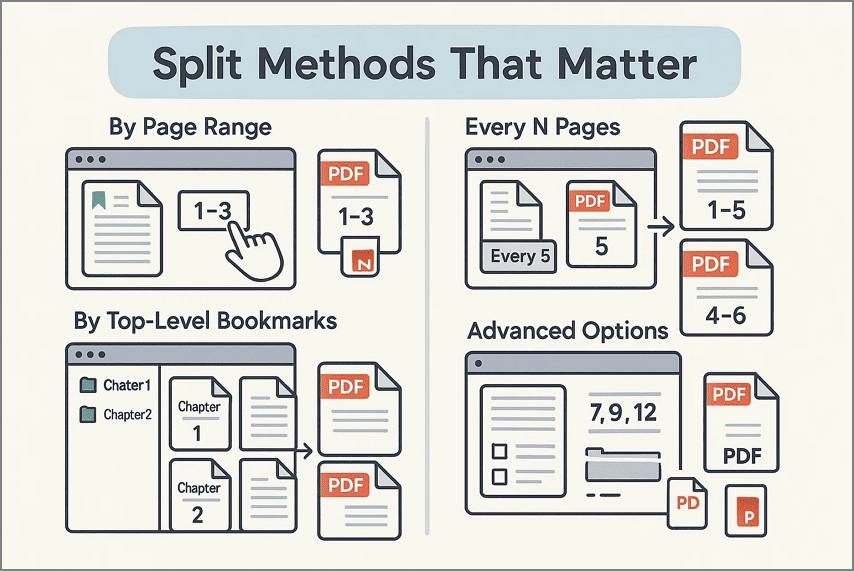
Choosing the right method to split a PDF in Windows 10 ensures your files are organized and ready for sharing or storage. Each approach serves a specific purpose, whether you need only a few pages or want to divide an entire document efficiently. Here are the key split methods that you can try when looking into this matter:
- By Page Range: Select specific pages, such as 1–3 or 8–12, to create a new PDF containing only the sections you need. This method is ideal when you only want certain parts of a document.
- Every N Pages: Divide a document into equal parts automatically, like every 5 or 10 pages. It works well for breaking large files into manageable chunks.
- By Top-Level Bookmarks: Split a PDF according to chapters or sections marked by bookmarks, producing one file per chapter. It helps keeps documents structured and easy to navigate.
- By Page Count or Size: Ensure each output file meets email or upload size limits by splitting according to page numbers or file size. This holds perfect for sharing or storing large PDFs.
- Advanced Options: Extract specific pages, batch split multiple files, and control output folders and file naming. This approach gives maximum flexibility for organizing PDFs efficiently.
Part 3. Download & Go on Windows: PDF Split Software Free Download
For anyone looking to split PDFs quickly on Windows, downloading reliable software such as Wondershare PDFelement is the fastest way to get started. This approach works perfectly for users searching for "PDF splitter software." It handles page-based, range-based, and bookmark-based splitting with impressive accuracy, ensuring zero formatting loss along the way.
Installer Note: Always choose a trusted PDF splitter software free download for Windows 10/11 to ensure safety and stability. Avoid unverified sources and prefer reputable downloads for peace of mind.
Why It's the Best Fit
- Offline Functionality: PDFelement works entirely offline, giving you dependable performance without internet limits. This also ensures that sensitive documents never leave your device.
- Full Privacy Protection: By processing files locally, PDFelement keeps your data shielded from online risks. You're in complete control of your documents from start to finish.
- Large File Handling: It manages heavy, multi-hundred-page PDFs smoothly without lag or crashes. This makes it an ideal choice for splitting manuals, reports, and scanned archives.
- Bookmark-Aware Splitting: PDFelement can detect chapter bookmarks and split your file accordingly. This feature saves tons of time by automating chapter-by-chapter separation.
- Batch Processing: You can split multiple PDFs at once, making repetitive work incredibly fast. It's a powerhouse for students, businesses, and bulk document workflows.
- Intuitive Interface: The clean, user-friendly layout makes splitting PDFs just a few clicks away. Even beginners can produce flawless results without any learning curve.


 G2 Rating: 4.5/5 |
 100% Secure
Part 4. Workflow 1 — Split the Whole Document
Goal: Break a single PDF into multiple files by pages, size, or chapters.
Steps for Splitting a Whole Document with PDFelement
With Wondershare PDFelement free PDF split software, splitting a large document into separate files, whether by page count, file size, or chapter markers, feels incredibly smooth. You get full flexibility over how the output looks and where each file goes. Follow the steps below to walk through the process and achieve a clean, accurate split every single time:
Step 1Load PDF and Open Organize
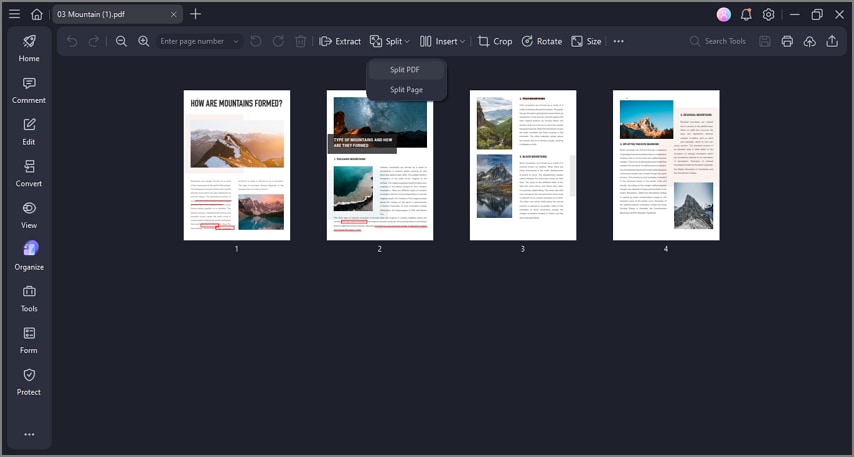
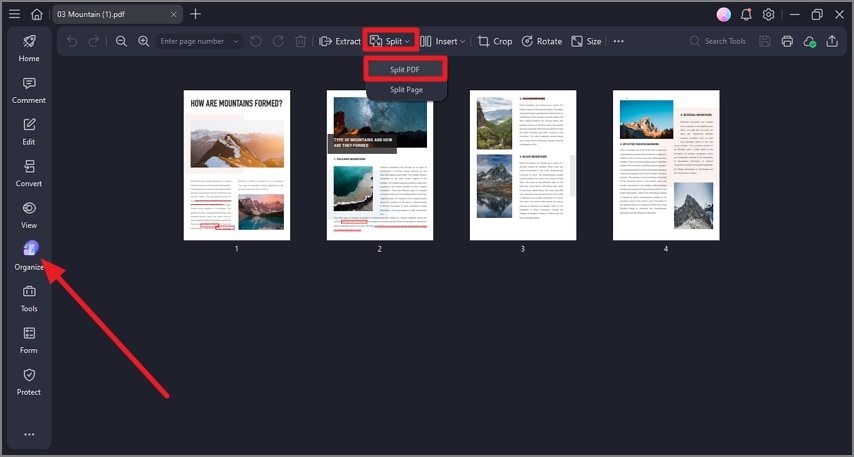
Start PDFelement on your device and bring in the large PDF you want to divide. Go to the left-side toolbar and choose the "Organize" section. After that, move to the top toolbar, hit "Split," and pick "Split PDF" from the dropdown menu.
Step 2Choose Split Method and Confirm
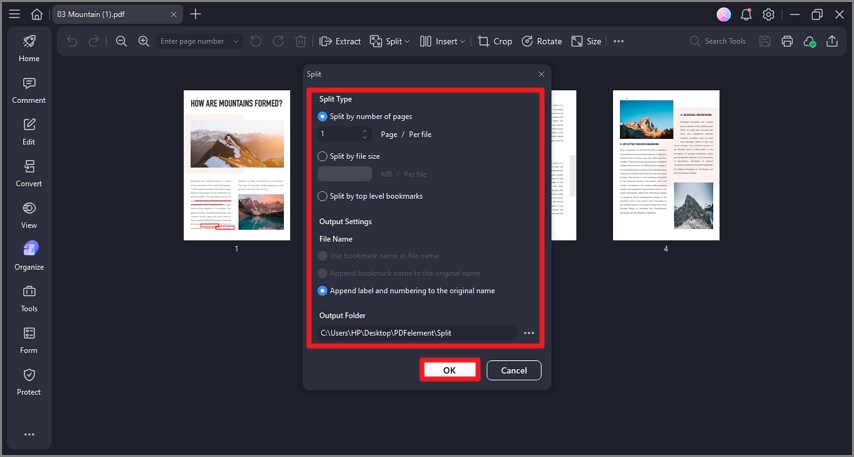
A small dialog box will appear where you can pick your preferred split method by marking the suitable radio button. Customize the output name and choose the destination folder before clicking "OK" to begin the splitting.
G2 Rating: 4.5/5 |100% Secure
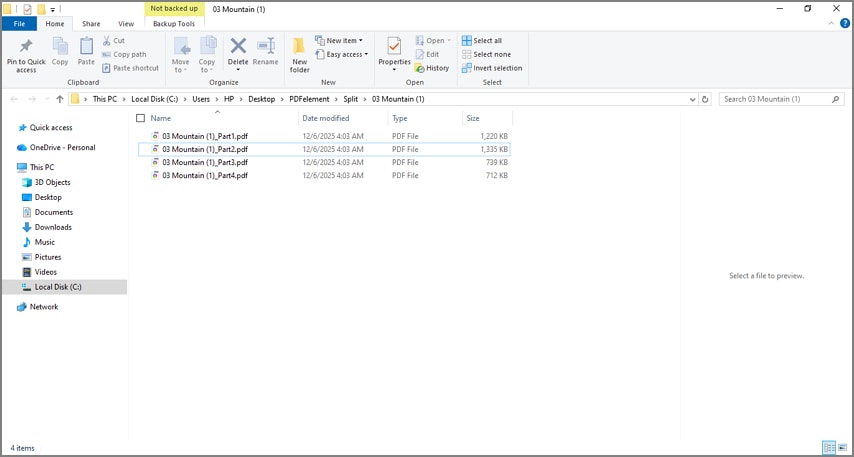
Step 3Check the Output Files
After the process completes, head to the selected output folder to view your newly created PDF parts. Open each file to ensure the split matches your expectations.
Part 5. Workflow 2 — Split a Single Page into Multiple Pages
Goal: Convert 2-up/4-up scans or grid layouts into clean, single pages for easier viewing and sharing.
Steps for Splitting a Single Page into Multiple Pages with PDFelement
With PDFelement, you can neatly separate grids, spreads, or multi-layout scans so each segment becomes its own clean page. The steps below walk you through the process smoothly using this PDF splitter for Windows:
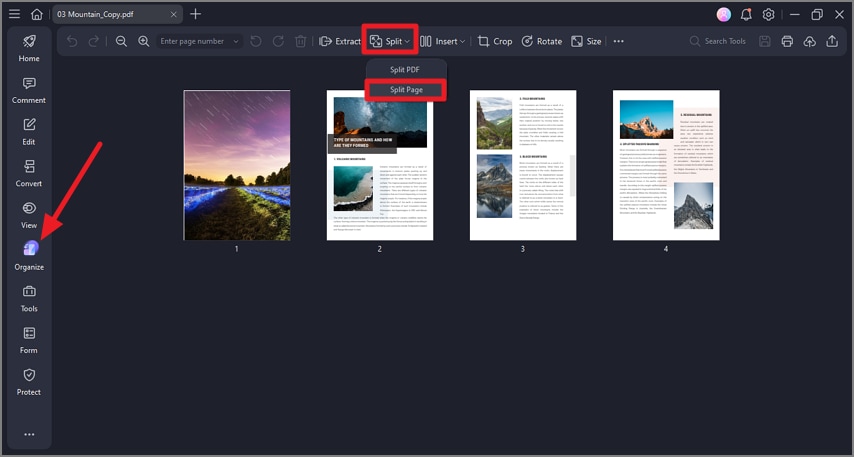
Step 1Import File and Access Split Page
Once the document is loaded into PDFelement, open the left-side toolbar and choose "Organize." Then go to the top toolbar, click "Split," and pick "Split Page" from the available options.
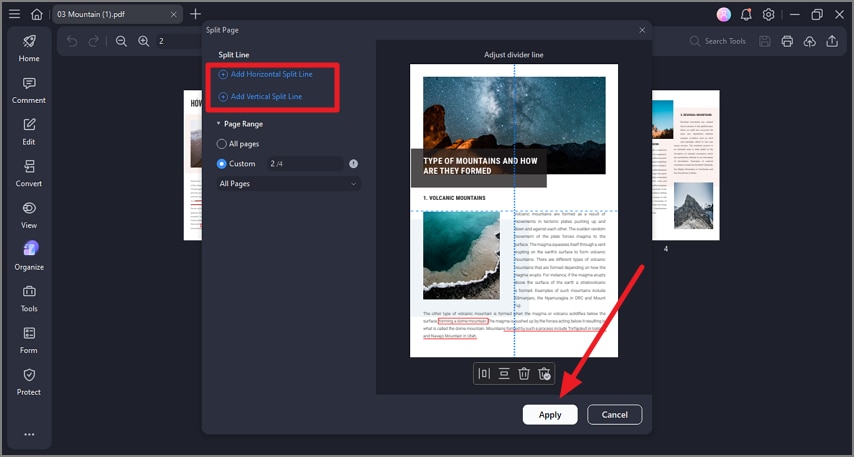
Step 2Define Split Lines and Confirm
In the next window, choose "Add Horizontal Split Lines" for a horizontal cut or "Add Vertical Split Lines" for a vertical cut. Adjust the guideline on the page and set the page range. When everything is aligned, hit "Apply" to complete the split.
Use Cases
- Lecture Slides: Splitting 2-up lecture slides into individual pages makes reading, annotating, and presenting much easier.
- A3 Spreads: Dividing A3 spreads into 2 A4 pages ensures proper printing and standard-size document sharing.
- Receipt Grids: Splitting receipt grids into single pages simplifies record-keeping, filing, and sharing with accounting teams.
Part 6. Free Ways to Split PDFs (No Installation Required)
If you don't want to install PDF splitter software, there are free methods to split PDFs quickly. These approaches work well for occasional tasks, though they come with some limitations compared to full-featured PDF split software.
Windows Print to PDF
Windows' built-in "Print to PDF" feature offers a simple way to split PDFs without installing extra software. It allows users to select specific page ranges and save them as new PDF files. While convenient for occasional tasks, this method is manual and repetitive for larger documents. To learn how to split a document using the Print to PDF feature, read the steps provided next:
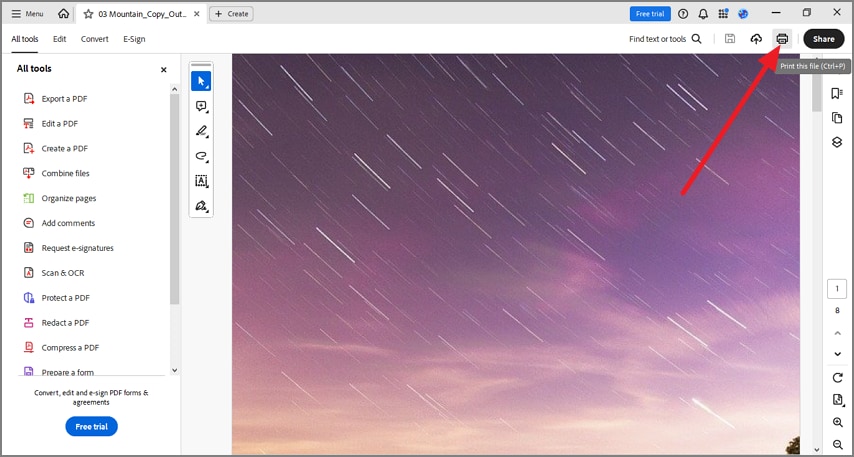
Step 1
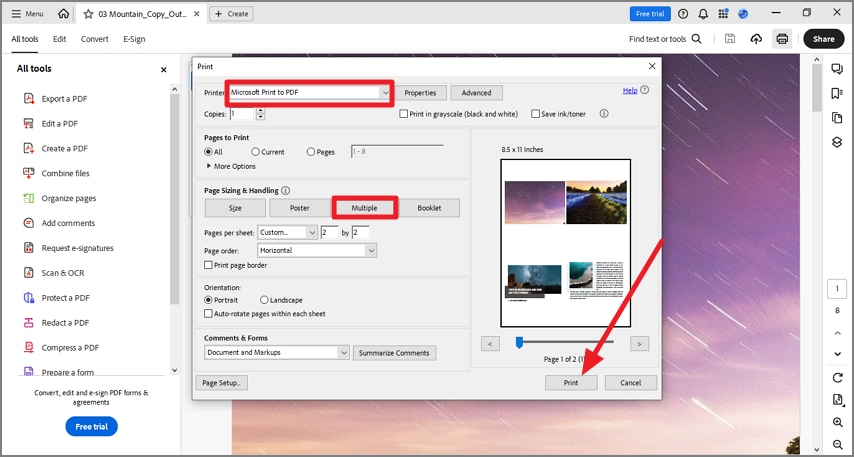
Open the document that you want to split and head to the top-right corner of the screen to press the "Print" icon.
Step 2
In the following window, select printer as "Microsoft Print to PDF" and select "Multiple" under the "Page Sizing and Handling" option. Configure other settings, such as pages per sheet and orientation, and hit the "Print" button to split the document.
Using an Online Tool
Online PDF splitters for Windows, like HiPDF, provide a fast way to divide documents directly from a browser. Users can upload files, select ranges, and download the split PDFs instantly. These tools are ideal for occasional or small-scale tasks but come with limitations, including privacy concerns, file size restrictions, and page caps. Follow the steps mentioned below to learn how to use this tool to split a PDF:
Step 1
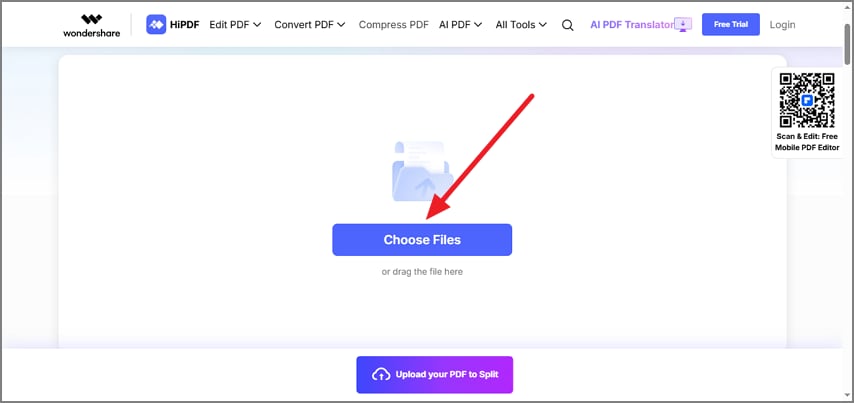
Open the tool's splitter on your web browser and upload the document to the tool's interface using the "Choose Files" button.
Step 2
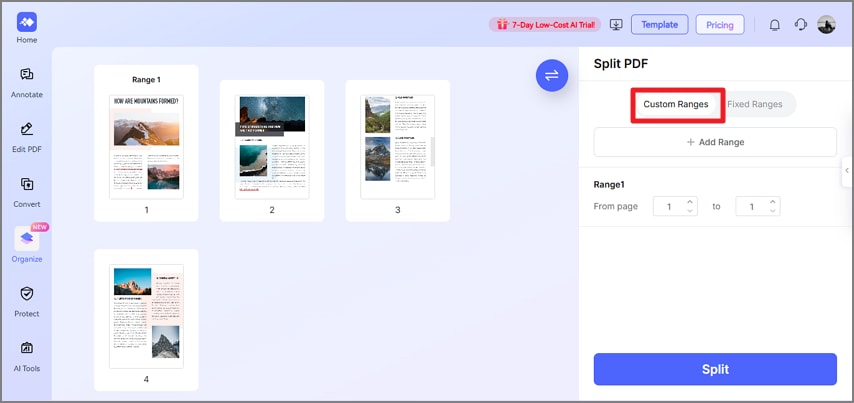
Once the document is uploaded, access the "Custom Ranges" section and input the page range for splitting according to your preferences.
G2 Rating: 4.5/5 |100% Secure
Step 3
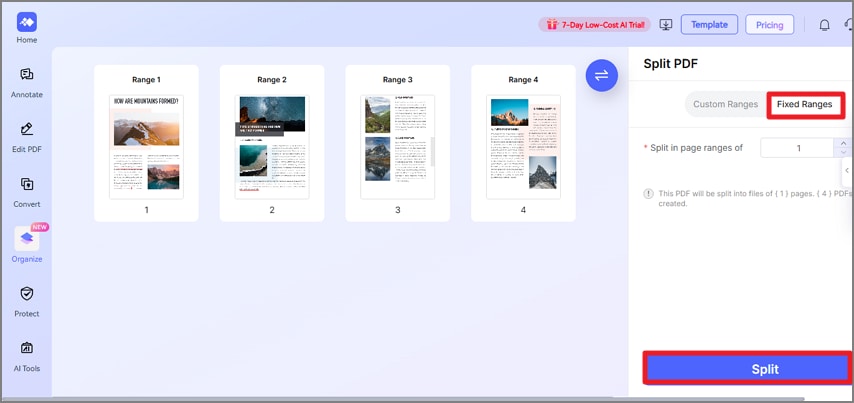
Alternatively, acquire "Fixed Range" to select fixed page ranges for splitting. Once selected, hit the "Split" button located at the bottom.
Step 4
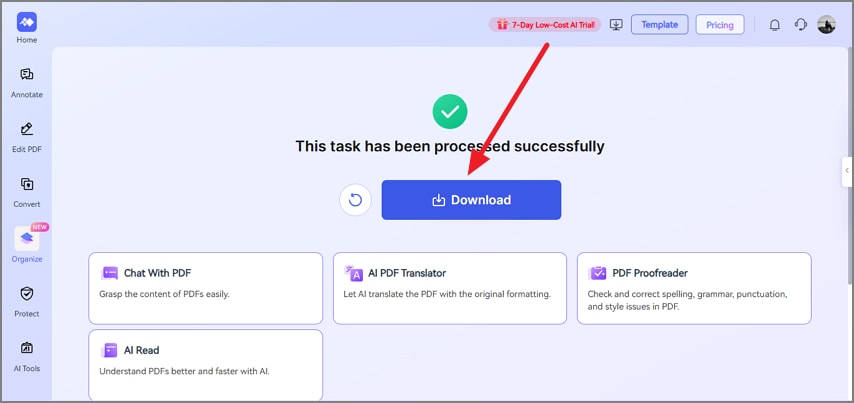
When the document is successfully split, press the "Download" button to save the file to your device.
Trade-Offs: These free solutions satisfy queries like "PDF splitter freeware" or "free PDF split software," but they lack the speed, batch processing, and advanced options of a full PDF splitter Windows solution such as PDFelement.
Part 7. Chapters Made Easy (Bookmark-Aware Splitting)
For lengthy documents like manuals or textbooks, organizing content by chapters is essential. Bookmark-aware splitting makes it simple to extract each chapter as a separate PDF file. PDFelement, a reliable PDF split software, offers top-level bookmarks, marking chapters or major sections for accurate splitting. Here is how you can perform bookmark-aware splitting with PDFelement:
Step 1Start by Accessing the Split PDF
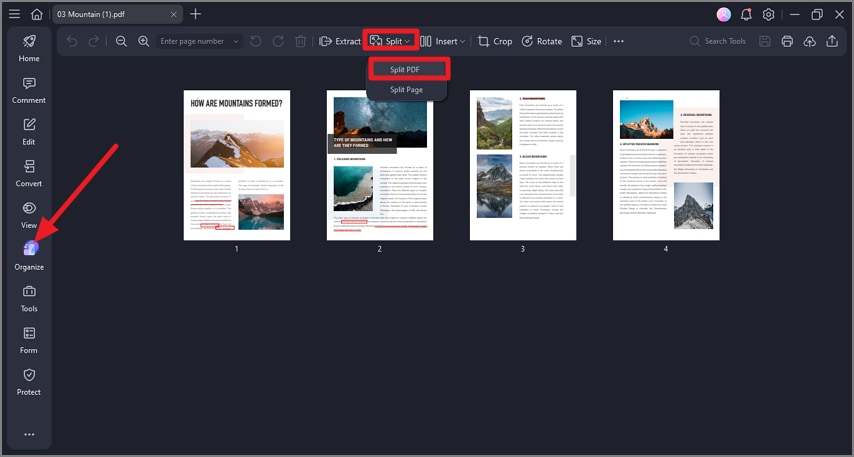
After opening the document that has bookmarks to the tool's interface, press "Organize" from the left toolbar. Next, head to the top toolbar and click on "Split" to select "Split PDF."
Step 2Choose Split By Bookmark
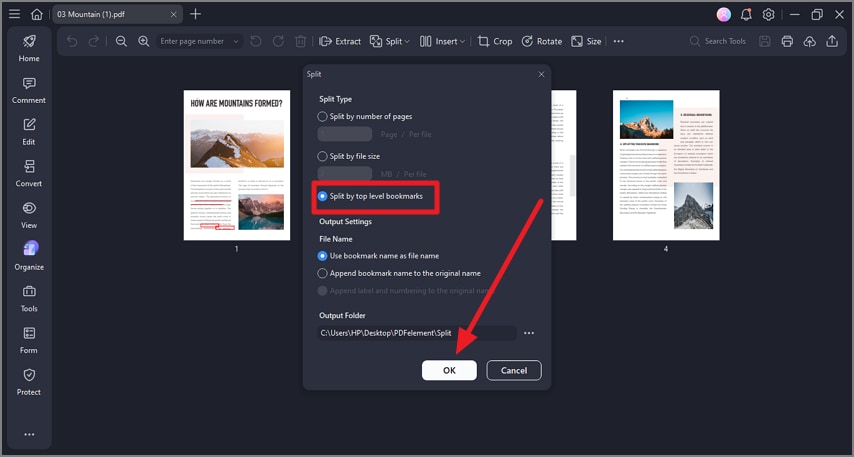
In the following interface, press the "Split by top level bookmark" radio button and configure output settings. Once done, press the "OK" button to execute the split.
Why It Matters: Bookmark-aware splitting is a hallmark feature expected from the best PDF splitter software, offering precision and professional-level organization.
G2 Rating: 4.5/5 |100% Secure
Part 8. Batch Split Many PDFs (Set Once, Run Once)
When dealing with multiple PDF files, batch splitting saves time by applying the same rules across all documents at once. This approach is especially useful for clearing backlogs or managing large-scale workflows efficiently using a PDF splitter freeware.
- Add Multiple Files: Import several PDFs and apply a single split rule, such as splitting every 20 pages.
- Output Folder & Naming: Use one output folder and a consistent naming template to keep all split files organized and easy to find.
- Practical Use: Ideal for backlogs, office tasks, or enterprise-level workflows where managing PDFs manually would be time-consuming and error-prone.
Part 9. Output Control & Housekeeping
Organizing your split PDFs properly ensures quick access, avoids confusion, and maintains a professional workflow. Setting clear output folders, consistent naming conventions, and dedicated subfolders makes file management easier, especially when handling multiple documents or projects.
- Output Folder Best Practices: Create separate folders for each client, project, or category to keep PDFs organized. This prevents mix-ups and makes retrieval faster.
- Naming Ideas: Use clear naming conventions like {filename}_{index}, {filename}_{range}, or {bookmark}. Consistent names help identify the content of each file at a glance.
- Dedicated Subfolder: Keep a "_SPLIT" subfolder within your main folder for all newly split files. This centralizes output and avoids clutter in the main directory.
Part 10. Quick Recipes for Common PDF Splits
These ready-to-use workflows help you handle everyday PDF tasks efficiently with your PDF splitter for Windows. You can copy and adapt them to fit emails, courses, presentations, or reports without reinventing the wheel:
- Email-Ready File Size Split: Use the Split PDF → Split by File Size option to create attachments that stay under common email limits like 15–20 MB. This ensures fast uploads and fewer bounce-backs when sharing large documents.
- Chapter-Based Course Packs: Choose Split PDF → Split by Top-Level Bookmarks to automatically break your file into chapter-named sections. It keeps the structure clean and instantly organizes long educational materials.
- 2-Up Slide Separation: Go to Split Page → Add Vertical Split Line to divide 2-up slides into individual pages. Apply it to your selected page range to quickly turn lecture slides or handouts into clean singles.
- Weekly Report Segments: Select "Split Every X Pages" and use a value like 10 to create consistent report chunks. PDFelement automatically names them using patterns such as {filename}_part{index} for effortless archiving.
Frequently Asked Questions
-
Is there a free PDF split software download that's safe?
Yes, there are safe, free PDF split software options available for Windows, such as PDFelement's trial version. Always download from official websites to avoid malware or unwanted programs. -
What's the difference between PDF splitter freeware and a full PDF splitter software on Windows?
Freeware typically offers basic splitting functions with limitations on batch processing or advanced options. Full software, like PDFelement, provides offline use, bookmark-aware splitting, batch processing, and better control over output files. -
How do I split a PDF on Windows 10 without watermarks?
Using free online tools or some freeware may add watermarks to output files. To avoid this, use full-featured software like PDFelement, which splits PDFs cleanly without leaving marks. -
Can I export one file per chapter via the PDF splitter for Windows tools?
Yes, bookmark-aware splitting allows exporting each chapter as a separate PDF. Tools like PDFelement make this process simple by automatically naming files based on bookmarks. -
What counts as the best PDF splitter software for large manuals and batches?
The best software handles large files, batch operations, and precise splitting without compromising file quality. PDFelement meets these requirements with offline processing, bookmark awareness, and flexible output settings.
Wrap Up
To conclude, this article discussed various methods for using PDF splitter software effortlessly. However, the fastest workflow comes from choosing reliable tools. Free options work for light tasks, but heavier jobs, splitting by pages, size, or bookmarks, demand specialized tools. PDFelement stands out as it offers Split PDF and Split Page modes with precise controls, batch handling, and clean output. It streamlines everything, making complex splits feel quick and organized.

