

Table of Contents
Saving a webpage as a PDF sounds simple until the result looks nothing like the page on your screen. Background colors disappear. Images move. A sticky menu covers the first paragraph. A long article gets cut in half. If you need to archive research, share a clean copy of an online receipt, submit a web-based report, or keep a permanent record of a page, knowing how to print website to PDF properly saves a lot of cleanup later.
The basic method is built into most browsers: open the page, press Ctrl + P on Windows or Command + P on Mac, then choose a PDF destination. That works well for many pages. The harder part is learning how to print website to PDF as it appears, especially when the page uses modern layouts, interactive elements, lazy-loaded images, or separate print styling.
This guide covers both: the quick browser method and the practical fixes for preserving the original look of a webpage.


 G2 Rating: 4.5/5 |
 100% Secure
Why Webpages Do Not Always Print Cleanly to PDF
A webpage is not designed like a Word document or a finished PDF. It is built from HTML, CSS, JavaScript, images, fonts, ads, scripts, and responsive layout rules. Your browser decides how to display those pieces on screen, then makes a second decision about how to print them.
Many websites use separate print CSS, which tells the browser what to remove or simplify when printing. That is why a printed PDF may omit navigation bars, background images, sidebars, comment sections, or buttons. Sometimes this is helpful. A recipe page without ads and pop-ups is easier to read. But if you need a visual record of exactly what you saw, print CSS can be a problem.
Other issues come from how webpages load. Some images do not load until you scroll to them. Some charts render through scripts. Some dashboards refresh after login. A browser’s PDF printer may capture the page before every element is fully loaded.
There is also a basic format mismatch. A webpage can be as tall as it wants, but a PDF is divided into pages. The browser has to cut a continuous webpage into Letter or A4 sheets. If the site was not designed with printing in mind, headings, tables, images, and forms may split awkwardly.
The best method depends on what you need:
If you need a readable document, browser print or reader view is usually enough.
If you need the page to look like the screen, use background graphics, rendering settings, or a full-page screenshot.
If you need to edit, annotate, combine, compress, or secure the PDF afterward, save it first and finish the workflow in a PDF editor such as PDFelement.
How To Print a Website to PDF in Your Browser
Most desktop browsers can print a web page to PDF without extra software. The exact labels vary slightly, but the workflow is similar: open the page, launch the print dialog, choose a PDF printer or “Save as PDF,” adjust settings, then save.
Before printing, give the page a few seconds to finish loading. If the page has images farther down, scroll to the bottom once, then back to the top. This can trigger lazy-loaded content so it appears in the PDF.
Chrome and Microsoft Edge
Chrome and Microsoft Edge use very similar print dialogs because both are based on Chromium. This is often the fastest way to print website to PDF on Windows, macOS, or Linux.
- Open the webpage you want to save.
- Press Ctrl + P on Windows or Command + P on Mac. You can also open the browser menu and choose Print.
- Under Destination or Printer, choose Save as PDF.
- Check the preview on the left side of the window.
- Open More settings if you need to change paper size, margins, scale, headers and footers, or background graphics.
- Click Save, choose a folder, and name the file.
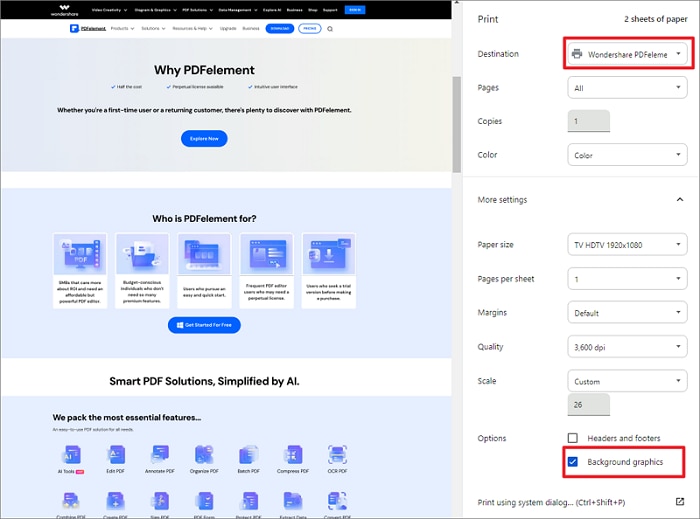
For most articles and static pages, this produces a clean PDF. If the preview looks too narrow, try changing Scale to a custom value such as 80% or 90%. If important background colors or images disappear, turn on Background graphics under More settings.
Safari
Safari includes a built-in PDF option in the macOS print dialog. It is especially useful for saving articles, invoices, confirmation pages, and documentation from websites.
Open the page in Safari, then press Command + P. In the print window, review the preview and adjust paper size, orientation, scale, and headers if needed. At the bottom of the dialog, open the PDF menu and choose Save as PDF.
If the page is cluttered, try Safari’s Reader mode before printing. Reader mode removes many ads, navigation items, and sidebars. It will not preserve the page exactly as it appears, but it often creates a more readable PDF for articles and blog posts.
Firefox
Firefox also supports saving pages as PDFs through the print dialog.
Open the webpage, press Ctrl + P on Windows or Command + P on Mac, then choose Save to PDF or a PDF printer depending on your system. Review the preview carefully. Firefox gives useful options for scale, orientation, margins, and whether to print backgrounds.
Firefox is also strong for screenshot-based saving. If you need the full webpage as a single long image before converting it to PDF, Firefox’s built-in screenshot tool is one of the simplest options.
Quick browser settings that improve the result
A few print settings make a big difference. Background graphics should be enabled if the page uses colored sections, banners, icons, or background images that matter. Scale helps fit wide pages, tables, and dashboards. Margins can be reduced if the page feels cramped, although setting margins too low may cut off content on some printers.
Headers and footers are optional. Browser-generated headers often add the page title, URL, date, and page number. For citations or records, that can be useful. For a polished PDF you plan to share, it may look cleaner to turn them off.
Paper size also matters. If the webpage is designed for a wide desktop layout, Letter or A4 portrait mode may squeeze it. Try landscape orientation if tables, charts, or side-by-side columns are being cut off.
How To Print a Website to PDF as It Appears
The phrase “as it appears” can mean two different things. Some users want the PDF to preserve the same colors, images, and spacing. Others want a literal snapshot of the entire page exactly as it looked on screen. Those require different methods.
Start with the least complicated fix: print with backgrounds enabled. If the preview is still wrong, try Chrome’s rendering setting. If you need a visual capture rather than a reflowed document, use a full-page screenshot and convert that image to PDF.
Turn on background graphics
Browsers often remove backgrounds by default to save ink. That choice affects PDFs too. If the website uses background colors for callout boxes, section blocks, buttons, charts, or headers, the PDF may look plain or broken unless backgrounds are included.
In Chrome or Edge, open the print dialog, expand More settings, and check Background graphics. In Firefox, look for background options in the print settings. In Safari, the availability of background controls can depend on the macOS version and page behavior, but the print preview will show whether backgrounds are being included.
This setting will not fix every layout issue. It mainly solves missing colors and background images. Still, it is the first option to check because it keeps the PDF as selectable text rather than flattening the whole page into an image.
Use screen rendering in Chrome
Some websites use separate styling for screen and print. The print version may intentionally remove images, hide menus, simplify colors, or rearrange blocks. If you want the screen version instead, Chrome’s Developer Tools can emulate screen rendering while printing.
Open the webpage in Chrome. Press F12 or Ctrl + Shift + I on Windows. On Mac, press Command + Option + I. In Developer Tools, open the three-dot menu, choose More tools, then select Rendering. Find Emulate CSS media type and choose screen.
Keep Developer Tools open while you print. Then press Ctrl + P or Command + P and save the page as a PDF. The goal is to make Chrome print the page using its screen styles instead of its print styles.
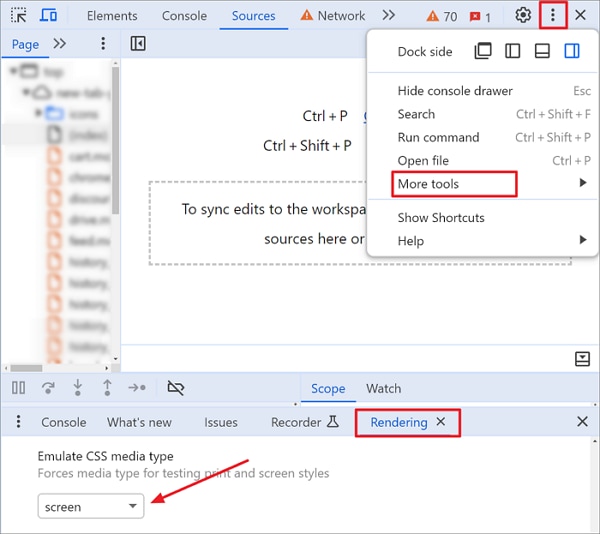
This is a useful fix for pages where the browser print preview strips too much content. It is not perfect for every website, but it can preserve visual layout better than the default print mode.
For more context on print and screen media rules, the MDN documentation on CSS media queries explains how websites apply different styles depending on output type.
Save the full page as a screenshot
If exact appearance matters more than selectable text, use a full-page screenshot. This captures the page visually, usually as a PNG image. You can then convert the image to PDF.
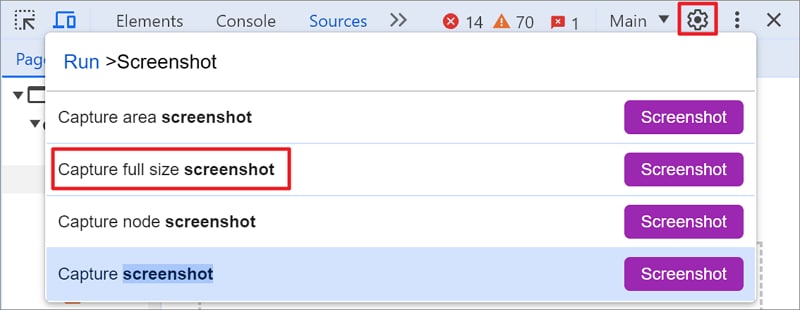
In Chrome, open Developer Tools with F12 or Ctrl + Shift + I. Open the command menu with Ctrl + Shift + P on Windows or Command + Shift + P on Mac. Type screenshot, then choose Capture full size screenshot. Chrome will save a full-page image of the current page.
In Firefox, right-click on an empty area of the page and choose Take Screenshot. Select Save full page, then download the image.
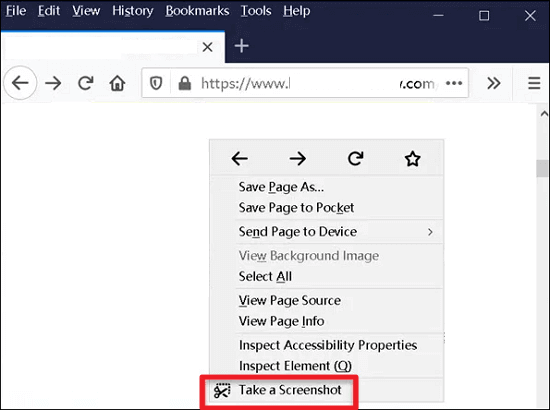
A screenshot method is best for visual records: landing pages, design reviews, social posts, dashboards, or pages where layout matters more than text extraction. The trade-off is that text inside a screenshot is not automatically selectable unless you run OCR afterward. If you plan to search, copy, highlight, or quote text from the file, a normal browser PDF is usually better.
Use reader view or print-friendly pages when accuracy is less important
Sometimes the best PDF is not the one that looks exactly like the page. If you are saving a long article for offline reading, a simplified layout may be easier to use. Safari Reader, Firefox Reader View, and similar browser features remove many page elements before printing.
Some websites also provide a Print or Print-friendly button. This version is often designed to fit neatly on PDF pages, with fewer ads and cleaner page breaks. Use it for recipes, help documents, public records, and long text pages where readability matters more than visual fidelity.
Convert and Manage Website PDFs With PDFelement
Browser printing is enough when you only need to save a page. The workflow gets more demanding when the PDF becomes part of a report, case file, project archive, class notes, or client handoff. That is where a dedicated PDF editor is useful.
PDFelement can help in two practical ways: creating a PDF from a webpage URL and improving the file after it has been saved. For example, you may print a website to PDF in Chrome, then open it in PDFelement to delete blank pages, crop wide margins, add comments, combine it with other PDFs, compress the file for email, or protect it with a password before sharing.
G2 Rating: 4.5/5 |100% Secure
Create a PDF from a webpage URL
PDFelement includes an option to create a PDF from HTML or a webpage URL. This gives you another route when browser printing does not produce the result you want.
Open PDFelement on your computer, choose the option to create a PDF, and select From HTML. Then enter the URL of the webpage you want to convert and start the creation process.
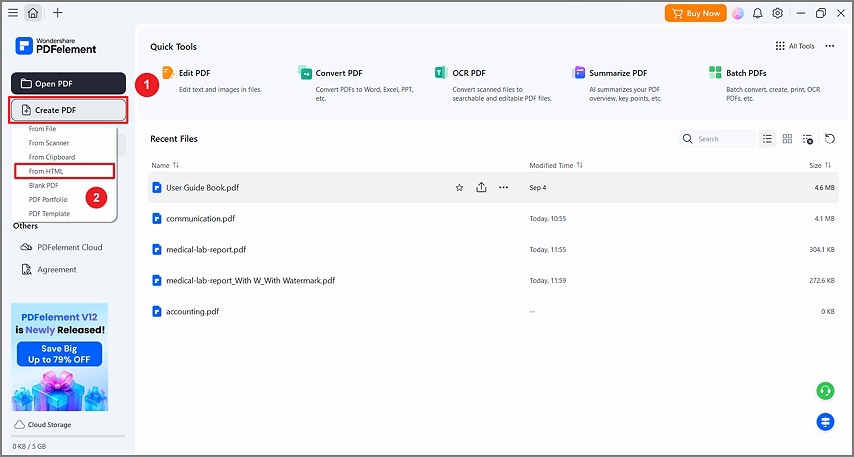
After you enter the URL, PDFelement converts the web content into a PDF file. Review the output before saving, especially if the webpage contains interactive content, login-only data, or scripts that may not convert like a static page.
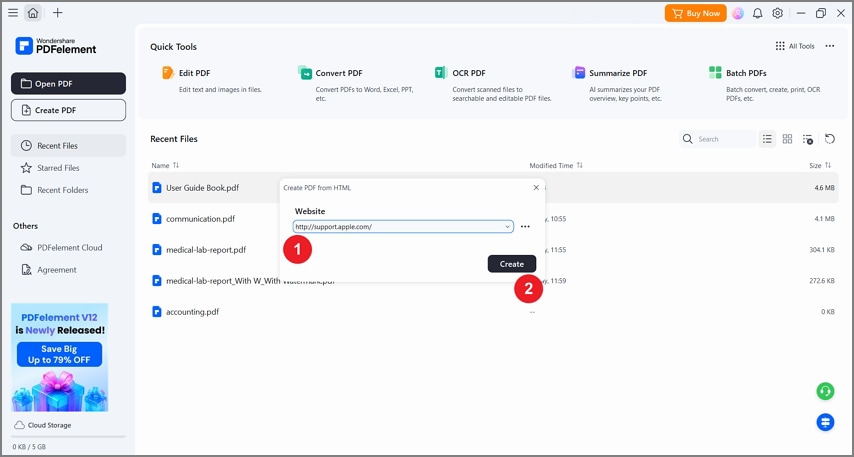
Once the PDF is created, save it to your preferred folder. Give the file a meaningful name that includes the page topic and date if it is for recordkeeping.
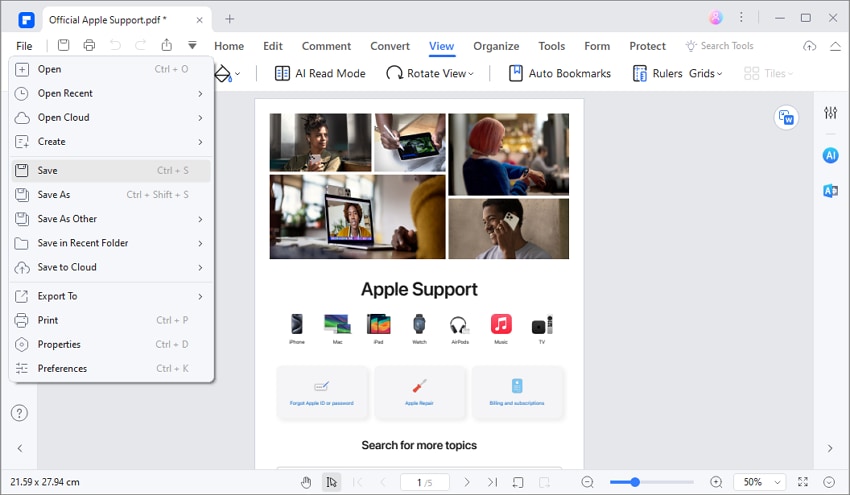
This approach is useful when you want the webpage in PDF format and plan to work with it immediately afterward, rather than leaving it as a one-off browser export.
Edit, annotate, compress, OCR, and organize the PDF afterward
A saved webpage often needs cleanup. Browser PDFs may include blank pages, oversized margins, repeated headers, or page breaks in odd places. A screenshot-based PDF may look right but behave like an image. PDFelement is helpful for these follow-up tasks.
If the PDF is too large, compress it before sending. If you captured the page as an image, use OCR so the text becomes searchable and easier to copy. If the PDF is part of research, add highlights, sticky notes, or text comments. If you are collecting several webpages, combine them into one PDF and reorder the pages.
This is the point where a PDF editor adds real value. It does not replace good capture settings in the browser, but it helps turn a raw webpage export into a document that is easier to file, review, and share.
G2 Rating: 4.5/5 |100% Secure
Troubleshooting: Fix Common Website-to-PDF Problems
Even with the right method, some webpages resist clean printing. Modern sites are built for screens first, not PDF pages. If your output is missing content or looks strange, the cause is usually one of the issues below.
Missing images or blank sections
If images are missing, scroll through the entire webpage before printing. Many sites use lazy loading, meaning images only load when they come into view. After scrolling, wait a moment, then open the print dialog.
If a chart, embedded post, or map appears blank, it may be loaded by JavaScript or blocked in print mode. Try Chrome’s screen rendering method, then print again. If the visual still does not appear, a full-page screenshot may be more reliable.
For pages with cookie banners or pop-ups, close them before printing. If they remain on screen, they may appear in the PDF or block the content beneath.
Cut-off pages and awkward page breaks
Wide tables and dashboards often get cut off because portrait pages are too narrow. Switch to landscape orientation first. If that is not enough, reduce the scale to 80% or 70% and check the preview again.
Awkward page breaks are harder to fix in a browser. A heading may land at the bottom of one page while its paragraph starts on the next. If you control the HTML, print-specific CSS can solve this with page-break rules. If you do not control the site, your options are limited to scale, orientation, margins, reader view, or post-editing in a PDF editor.
The W3C guidance on CSS paged media is useful for developers who need to design webpages that print more predictably.
Login pages, dashboards, and dynamic content
Private dashboards, online statements, learning portals, and admin pages can be tricky. They often require authentication and rely heavily on scripts. A URL-to-PDF converter may not have access to the logged-in version of the page, so browser printing from your active session may work better.
Before printing, make sure the exact data you need is visible. Expand collapsed sections, open necessary tabs, apply filters, and wait for charts to load. Then print or capture the page.
Be careful with sensitive information. A PDF is easy to forward, upload, and archive. If the webpage contains financial, medical, legal, or personal data, consider redacting unnecessary information before sharing.
Long webpages and infinite scroll
Long webpages can create very large PDFs. Infinite-scroll pages are even harder because there may be no natural end to the content. If you need only part of the page, do not save the entire site. Use a selected print area if available, copy the relevant content into a document, or capture only the section you need.
For full-page screenshots, very long pages may produce huge image files. If the browser fails, try saving sections separately and combining them later in a PDF editor. This is often more stable than forcing one massive capture.
Printing HTML Files and HTML Code to PDF
Printing a live website to PDF is not exactly the same as printing an HTML file or printing raw HTML code. The difference matters.
An HTML file rendered in a browser shows the finished page. Raw HTML code opened in Notepad or a code editor shows the source code. Both can be printed to PDF, but they serve different purposes.
Print an HTML page
If you have a local HTML file and want the rendered page as a PDF, open the file in a browser. You can usually double-click the file, or right-click it and choose a browser from Open with.
Once the page opens, print it the same way you would print a website to PDF: press Ctrl + P or Command + P, choose Save as PDF, review the preview, and save.
If you are the person editing the HTML, you can improve the print result by adjusting CSS. Print-specific styles can hide navigation, control page breaks, resize images, and set margins. Developers commonly use @media print rules for this. For example, a print stylesheet might remove buttons that make sense on screen but not on paper.
Print HTML code from Notepad or a code editor
If your goal is to save the source code itself, open the HTML file in Notepad, Visual Studio Code, Sublime Text, or another code editor. Then print from the editor and choose a PDF printer such as Microsoft Print to PDF on Windows.
This creates a PDF of the code, not the rendered webpage. It can be useful for assignments, documentation, code reviews, or archiving a simple source file. If line numbers and syntax highlighting matter, use a code editor that includes those options in its print settings.
For most ordinary users, though, printing the rendered page from a browser is the better choice. Printing raw HTML code will not preserve the visual appearance of the website.
People Also Ask
-
What is the easiest way to print website to PDF?
The easiest method is to open the webpage in your browser, press Ctrl + P on Windows or Command + P on Mac, choose Save as PDF, then click Save. This works in Chrome, Edge, Safari, and Firefox. Check the preview before saving so you can adjust scale, orientation, margins, and background graphics. -
How do I print website to PDF as it appears on my screen?
Start by enabling Background graphics in the print settings. If the page still changes too much, use Chrome Developer Tools to emulate the screen CSS media type before printing. For the most literal visual copy, capture a full-page screenshot and convert it to PDF. A screenshot preserves appearance well, but the text may not be selectable unless OCR is applied. -
Why does my PDF look different from the webpage?
Many sites use different styling for printing than for screen viewing. Browsers may also remove backgrounds, resize wide layouts, split content across pages, or skip elements loaded by scripts. The print preview shows what the browser plans to save, so always review it before creating the PDF. -
Can I save a webpage as a PDF on mobile?
Yes. On iPhone, Safari’s share menu includes options such as Print, Markup, or saving to Files as a PDF depending on your iOS version. On Android, Chrome can print to PDF through the share or print menu, usually with Save as PDF as the printer destination. Mobile PDFs may use a narrower layout because the page is rendered for a phone screen. -
Is a full-page screenshot better than printing to PDF?
It depends on your goal. A full-page screenshot is better when you need the page to look exactly like it did on screen. Browser printing is better when you need selectable text, smaller file size, proper pages, and easier annotation. If you use screenshots, OCR can help make the text searchable afterward. -
Can PDFelement convert a website to PDF?
PDFelement can create PDFs from HTML or a webpage URL, and it can also help manage PDFs created from browser printing. After saving a webpage as a PDF, you can use PDFelement to edit text, annotate, combine files, compress the document, OCR screenshot-based PDFs, add signatures, or protect the file before sharing. -
How do I keep images from disappearing when saving a webpage as PDF?
Scroll through the full page before printing so lazy-loaded images have time to load. Turn on Background graphics in the print settings. If images are still missing because of print styling or scripts, try Chrome’s screen rendering setting or use a full-page screenshot. -
Can I print only part of a webpage to PDF?
Yes, but browser support varies. You can select the content you want, open the print dialog, and look for an option such as Selection only in browsers that support it. Another option is to copy the relevant section into a document and save that as PDF. For visual content, take a screenshot of the selected area and convert it to PDF.




