
Table of Contents
Google Translate can read text from many photos, screenshots, and image files, then show the translation almost instantly. If you want to translate a menu, road sign, package label, textbook page, or screenshot, the fastest route is usually the Google Translate app on your phone. On a computer, you can also upload image files or text-based documents to Google Translate, though the workflow is a little different.
The confusing part is PDFs. A normal PDF with selectable text can often be translated by Google Translate. A scanned PDF, however, is really a set of page images. Google Translate may not recognize the text properly unless the file goes through OCR first. That is where a PDF tool such as Wondershare PDFelement becomes useful: it can turn scanned pages into editable, searchable text before you translate, edit, annotate, or save the document.
This guide explains how to translate picture with Google Translate on mobile and desktop, how the Google Translate image scanner works, what to do with PDFs, and how to handle scanned documents without losing too much time.


 G2 Rating: 4.5/5 |
 100% Secure
Can Google Translate Translate a Picture?
Yes. Google Translate can translate text inside pictures in two common ways: through the camera in the mobile app, or by uploading an image file. The feature is especially useful for short, visible text such as signs, forms, product labels, posters, receipts, and screenshots.
Google Translate supports many languages, including widely used languages such as English, Spanish, French, German, Chinese, Japanese, Korean, Arabic, and Portuguese. It also supports many less common languages, though image recognition quality can vary by language, font, handwriting, lighting, and image clarity. You can check Google’s current language support on the official Google Translate Help pages.
The feature many people call the Google Translate image scanner is the camera-based translation tool inside the Google Translate app. You point your phone camera at text, and the app detects the text and displays a translation. In some cases, the translation appears over the original text on the screen. In others, you may need to take or import a picture first and then select the text.

What Google Translate does well with pictures
Google Translate is best for quick understanding. If you are traveling and need to understand a train notice, restaurant menu, medicine box, or instruction label, the camera mode is hard to beat. It is also convenient for screenshots from websites, chat apps, or mobile documents because you can import the image instead of typing the text manually.
It can also preserve the visual position of translated text in many image translations, which makes it easier to match the translation to the original label, column, or paragraph. This is helpful when the image has multiple text blocks.
Where image translation becomes less reliable
Image translation is not the same as a professional document translation workflow. Google Translate may struggle with blurry photos, decorative fonts, handwritten notes, curved pages, glare, low contrast, or dense layouts with tables. It may also mistranslate industry-specific terms, legal wording, medical instructions, academic text, or text with cultural nuance.
For anything official, sensitive, or high-value, use Google Translate as a first-pass reading tool rather than the final version. If you need a clean translated document, you will usually need OCR, proofreading, and formatting after translation.
How To Translate a Picture With Google Translate on Phone
The mobile app is the best way to translate a picture with Google Translate because it includes both live camera translation and image import. The steps are similar on iPhone and Android, although button names may vary slightly depending on your app version.
Before starting, update the Google Translate app from the App Store or Google Play. Camera translation features change over time, and older versions may not show the same options.
Translate live camera text
Open the Google Translate app and choose the source language and target language. If you are not sure what language is in the image, use Detect language as the source. Then tap the Camera icon.
Point your phone at the text you want to translate. Try to keep the text flat, well lit, and fully inside the frame. For signs or labels, hold the phone steady for a moment so the app has time to detect the text. The translated words should appear on your screen.
This mode is useful when you only need to understand something quickly. For example, you can point the camera at a restaurant menu and see rough translations of dish names, or aim it at a washing machine panel to understand the settings.
If the app cannot read the text clearly, move closer, adjust the angle, or take a still photo instead of relying on live translation. A captured image often gives the app more time to recognize the letters.
Translate a saved picture from your gallery
If the text is already in a screenshot or photo, open Google Translate, tap Camera, and choose the option to import or select an image from your phone. Pick the picture from your gallery.
After the image opens, Google Translate scans the picture for text. You can usually translate all detected text or select only the part you need. This is better than live camera mode when the image contains multiple paragraphs, columns, or small text.
For example, if someone sends you a screenshot of a foreign-language message, you can save the screenshot and import it into Google Translate. The app will detect the text and show the translation without requiring you to retype anything.
Copy or reuse the translated text
After Google Translate recognizes text in an image, look for options such as Select text, Copy text, or Send to Translate Home. These options are useful when you want to paste the translated result into a note, email, document, or search box.
This step matters because image translation is often only the beginning. You may need to save the translation, compare it with the original, or include it in a report. Copying the text also lets you edit obvious translation mistakes manually.
If the text is long, review it in sections. OCR can sometimes merge lines incorrectly or read similar-looking characters wrong, especially in screenshots with small fonts.
How To Translate an Image With Google Translate on Computer
You do not have to use a phone every time. Google Translate on the web can translate uploaded images on a computer, which is helpful when the file is already saved on your desktop or when you are working with screenshots from a laptop.
Open Google Translate in your browser. Depending on the current interface in your region, you may see options such as Text, Images, Documents, or Websites. Choose Images if you want to upload a picture file such as JPG, JPEG, or PNG.
Upload the image from your computer, choose the original and target languages, and wait for Google Translate to process the file. If you do not know the source language, choose Detect language. Once the translation appears, check whether the text blocks match the original image correctly.
When desktop image translation is the better option
Desktop image translation is useful when you need a larger screen. Screenshots of web pages, app interfaces, scanned photo snippets, and presentation slides are easier to review on a computer than on a phone. If the image has small text, zooming in on a desktop can also help you compare the original and translated text.
A computer workflow also makes it easier to move between tools. You might translate a screenshot in Google Translate, copy the text into a Word document, then save or combine it with a PDF. If the image belongs to a larger document, however, you may want to use a document tool instead of translating images one by one.
Common desktop upload issues
If Google Translate cannot process the image, check the basics first: file type, file size, image clarity, and browser behavior. Try exporting the image as PNG or JPG. If the text is tilted, crop and straighten the image before uploading. If the image includes many unrelated visual elements, crop around the text area so Google Translate has less noise to interpret.
For images containing tables or forms, do not expect perfect formatting. Google Translate can help you understand the content, but it may not rebuild the original structure accurately.
How To Translate PDF With Google Translate
Google Translate can translate some PDFs, but the key question is whether the PDF contains real selectable text or only scanned page images. This distinction explains most failures people run into when they try to translate PDF with Google Translate.
To test your PDF, open it in a PDF reader and try selecting a sentence with your cursor. If you can highlight individual words, the PDF likely contains text. If the whole page behaves like one flat image, it is probably scanned.
Translate a text-based PDF with Google Translate
Go to Google Translate in your browser and choose the Documents tab. Select the source and target languages, then upload your PDF. Click Translate and wait for the translated version to generate. When it is ready, download the translated file or view the result in your browser.
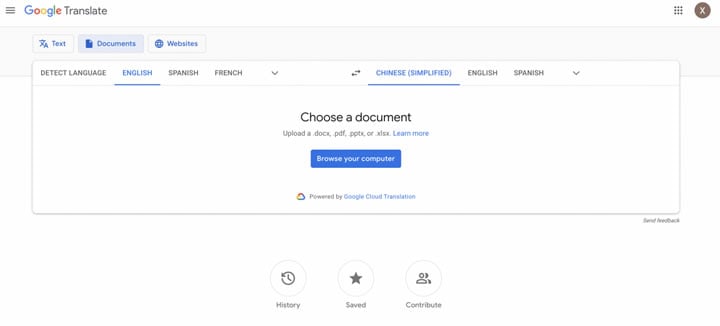
This method is convenient for simple documents such as letters, short reports, handouts, and text-heavy PDFs. It works best when the original file has a clean reading order and minimal complex formatting.
If your PDF has columns, tables, footnotes, headers, captions, or mixed languages, review the output carefully. Machine translation tools may translate the text but place it in an awkward order if the PDF structure is complicated.
Why scanned PDFs do not translate well in Google Translate
A scanned PDF is not automatically readable text. It may look like a document to you, but to software it can be just a picture of a page. Google Translate needs text it can detect or extract. If the document has not gone through OCR, the translation may fail, appear incomplete, or ignore entire pages.
This is why people searching for how to scan a PDF with Google Translate often run into a dead end. Google Translate is a translation tool, not a full OCR and PDF cleanup tool. It can translate text from images in certain workflows, but it is not designed to repair scanned documents, correct page recognition, preserve PDF structure, and export an editable file all in one place.
Quick file-type guide
Use this simple rule before choosing a method:
| File Type | Recommended Method | Why |
| Photo, screenshot, JPG, or PNG | Google Translate camera or image upload | Quickly recognize and translate text from images. |
| Text-based PDF | Google Translate Documents | The text can usually be recognized and translated directly. |
| Scanned or image-only PDF | Run OCR first, then translate | OCR converts image-based text into machine-readable content before translation. |
| Official or formatted PDF | Use OCR and a PDF editor | Allows you to review the translated wording, layout, and page structure. |
That last category is where many users need more than Google Translate. If the document must remain readable, searchable, and easy to share, OCR is not optional.
How To Translate a Scanned PDF or PDF Image With OCR
If your document is a scanned PDF, a photographed page, or a PDF made from images, use OCR before translation. OCR stands for optical character recognition. It analyzes the shapes of letters in an image and converts them into editable, searchable text.
You can then translate that recognized text with Google Translate or use a PDF application with translation features. This workflow is more reliable than uploading a scanned PDF directly and hoping the translation tool can guess what is on the page.
G2 Rating: 4.5/5 |100% Secure
Use PDFelement to OCR and translate scanned PDFs
Wondershare PDFelement is a practical option when the file you need to translate is a PDF rather than a single photo. It can apply OCR to scanned pages, create editable text, and help you continue working with the document after recognition. That matters if you need to correct OCR errors, keep the PDF organized, annotate it, compress it, sign it, or export it in another format.
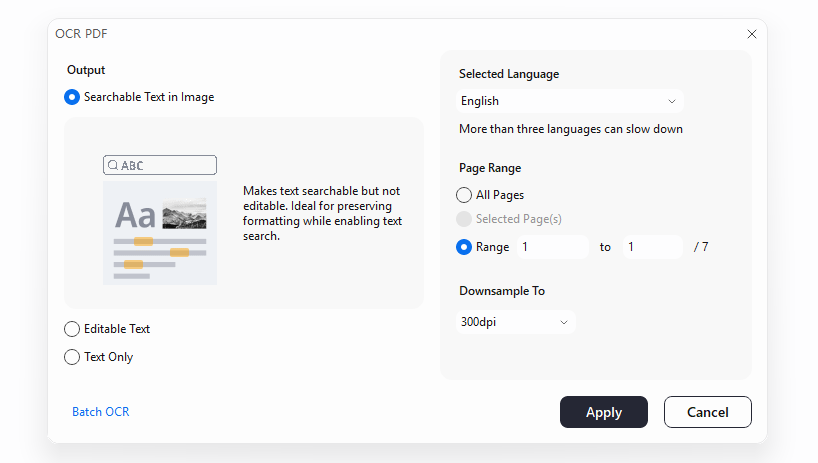
Open PDFelement and choose the OCR PDF option from the home screen. Select your scanned PDF from your computer. The software will prompt you to choose OCR settings such as document language, page range, and output type.

For the OCR output format, it is recommended to select “Editable Text” so you can review and correct any OCR errors. This helps ensure more accurate translation results. Then choose the language used in the original document. This is not the translation language yet; it is the language PDFelement should recognize during OCR. Selecting the right source language improves text recognition, especially for accented characters or non-Latin scripts.
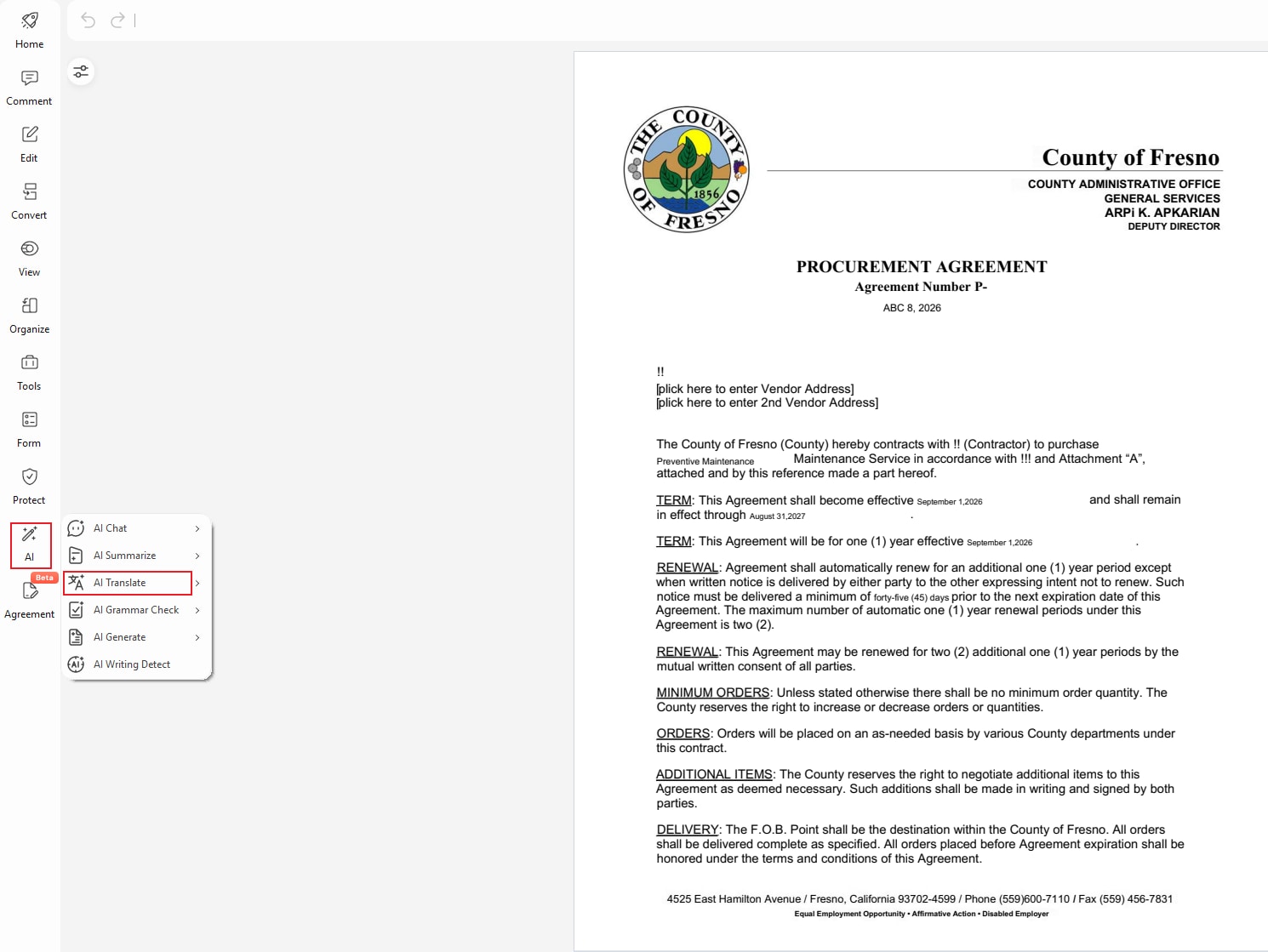
After OCR finishes, open the recognized file and check a few paragraphs. Look for common OCR issues such as missing accents, incorrect line breaks, confused characters, or broken table text. Fixing these before translation can improve the result.Once confirmed to be correct, the translation process begins.Select “AI” > “AI Translate”.
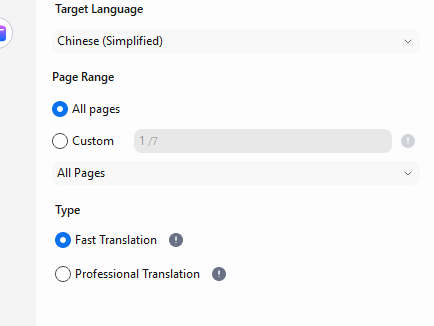
Select your target language(PDFelement currently supports 70+ languages), page range, and translation type(Choose “Fast Translation” for faster processing or “Professional Translation” for greater translation accuracy).
The main benefit is control. Instead of getting a rough translation from a flat scan, you can OCR the file, review the text, translate it, and then save a searchable PDF. If you work with contracts, manuals, academic articles, invoices, or scanned office files, that extra control can save a lot of cleanup later.
Convert an image to PDF before OCR if needed
If your source file is a photo rather than a PDF, you can still use a PDF workflow. Import the image into PDFelement and convert it to PDF first. Then run OCR on the PDF.
This is useful when you have multiple photographed pages. Instead of translating each image separately in Google Translate, combine the images into one PDF, OCR the file, and translate the recognized text. It is a cleaner workflow for multi-page documents such as scanned forms, textbook chapters, printed instructions, or archived letters.
G2 Rating: 4.5/5 |100% Secure
Use Google Translate after OCR
You do not have to use one tool for everything. Another workable route is to run OCR in PDFelement, export the recognized text or document, and then upload the text-based file to Google Translate.
This hybrid workflow makes sense if you prefer Google Translate’s language interface but need a separate tool to make the PDF readable first. The important step is OCR. Once the text is selectable, your translation options open up.
For short extracts, you can copy recognized text from the PDF and paste it into Google Translate. For full documents, uploading a text-based PDF or Word file is usually faster.
Tips for Better Image and PDF Translation Results
- Use a clear, high-quality source. Blurry or poorly scanned pages can cause OCR errors, which may lead to translation errors.
- Take photos in good lighting. Avoid shadows, glare, and steep camera angles. If photographing a book, flatten the page as much as possible to reduce text distortion near the spine.
- Use high-resolution screenshots. Avoid resizing or compressing images before translation.
- Check your PDF type first. If the text is selectable, you can usually translate it directly. If the PDF is scanned or image-based, run OCR before translation.
- Choose the source language manually when possible. Auto-detection is convenient, but manually selecting the language can improve accuracy, especially for short or mixed-language text.
- Translate formatted documents in manageable sections. Tables, headers, captions, and side notes can affect automatic text recognition and reading order.
- Review the original and translated content. For important documents, compare both versions and check the layout, wording, and formatting after translation.
- Double-check critical information. Pay particular attention to names, numbers, units, addresses, dates, and technical terms, especially in business, legal, medical, or academic documents.
People Also Ask
-
Can I translate a picture with Google Translate for free?
Yes. Google Translate is free to use for translating photos, screenshots, typed text, websites, and supported documents. You can use the camera translation feature in the mobile app or upload images on the web version where available. -
What is the Google Translate image scanner?
The Google Translate image scanner usually refers to the camera feature in the Google Translate mobile app. It scans text through your phone camera or from an imported image, recognizes the text, and displays a translation. -
Can Google Translate translate text from a screenshot?
Yes. Save the screenshot to your phone or computer, then import it into Google Translate using the camera/image option on mobile or the image upload option on desktop. Clear screenshots with standard fonts usually work better than low-resolution or heavily compressed images. -
Can I translate PDF with Google Translate?
Yes, if the PDF contains selectable text. Open Google Translate in a browser, choose the Documents option, upload the PDF, select the target language, and translate it. If the PDF is scanned or image-only, you should run OCR first. -
Why can’t Google Translate read my scanned PDF?
A scanned PDF often contains page images rather than real text. Google Translate may not be able to extract the words from those images in the document upload workflow. Use OCR software such as PDFelement first to convert the scan into editable and searchable text. -
How do I scan a PDF with Google Translate?
Google Translate itself is not a full PDF scanning or OCR tool. For a scanned PDF, use an OCR tool first, then translate the recognized text. You can OCR the PDF in PDFelement, then either use PDFelement’s translation features or upload the text-based document to Google Translate. -
Is Google Translate accurate for images?
It is good for quick understanding, especially with clear printed text. Accuracy drops with blurry photos, handwriting, unusual fonts, complex layouts, and specialized terminology. Always review important translations before sharing or relying on them. -
Can Google Translate keep the original image layout?
Sometimes. In camera and image mode, Google Translate may overlay translated text in a similar position to the original. For documents with complex formatting, tables, or multi-column layouts, the result may not match the original perfectly. -
What is the best way to translate a multi-page scanned document?
Convert or keep the pages as a PDF, run OCR on the full file, review the recognized text, and then translate the document. A PDF tool like PDFelement is better suited to this workflow than translating each page as a separate image. -
Should I use Google Translate or PDFelement for scanned PDFs?
Use Google Translate for quick image translation and simple text-based PDFs. Use PDFelement when the file is scanned, needs OCR, or requires editing, organizing, annotating, exporting, or saving as a searchable PDF after translation.