
How to Convert an Image PDF to a Searchable PDF
Read the article to learn how to convert image PDF to a searchable PDF using OCR.
 100% Secure |
 Powered by AI
 Home
>
Convert PDFs on Mac
> How to Convert an Image PDF to a Searchable PDF
Home
>
Convert PDFs on Mac
> How to Convert an Image PDF to a Searchable PDF
If you have a scanned or image-based PDF, the text inside it cannot be searched or edited. The solution is to convert the image PDF to a searchable PDF using OCR (Optical Character Recognition). OCR technology analyzes the image and converts the visual text into machine-readable text while keeping the original layout.
In this guide, you’ll learn three simple methods to convert image PDF to searchable PDF, including using PDFelement, Adobe Acrobat, and an online OCR tool. Each method includes step-by-step instructions so even non-technical users can follow along.
- Part 1. Image PDF vs Searchable PDF
- Part 2. Convert Image PDF to Searchable PDF with PDFelement
- Part 3. Convert Image PDF to Searchable PDF Using Adobe Acrobat
- Part 4. Convert Image PDF to Searchable PDF Online
- Part 5. Image to Searchable PDF: Best Practices
- Part 6. FAQs About Image PDF to Searchable PDF
Part 1. Image PDF vs Searchable PDF
Before converting files, it helps to understand the difference between these two PDF types.
What Is an Image PDF?
An image PDF is a PDF file created from scanned documents, photos, or screenshots. Instead of containing actual text data, the entire page is stored as a picture. Because the text is embedded inside an image, you cannot search, highlight, or copy the text.
Image PDFs are common when documents are scanned using printers or scanning apps.
What Is a Searchable PDF?
A searchable PDF contains both the original image and a hidden text layer created through OCR technology. The OCR engine detects characters in the image and converts them into readable text data.
This means you can search keywords, select text, copy content, and allow indexing by search engines or document management systems while maintaining the document’s visual layout.
Image PDF vs Searchable PDF Comparison
|
Feature
|
Image PDF
|
Searchable PDF
|
|---|---|---|
| Text searchable | ❌ No | ✅ Yes |
| Copy & paste text | ❌ No | ✅ Yes |
| File structure | Image only | Image + OCR text layer |
| Editing capability | Very limited | Much easier |
Part 2. Convert Image PDF to Searchable PDF with PDFelement
PDFelement is a popular PDF editor with a built-in OCR engine that can quickly convert scanned PDFs into searchable documents. Its OCR engine is one of the top-rated applications in this category and is well-known for its accuracy, speed, and ability to process large quantities of data (Batch Process) in a short time. It supports multiple languages and preserves original layouts during conversion.
- Advanced OCR recognition for scanned documents
- Fix blurry image PDF and enhance OCR accuracy
- Supports multiple languages
- Converts scanned PDFs into searchable and editable text while keeping the original formatting and layout
- Advanced PDF editing tools, including converting PDF to Word/Excel/PPT, removing or adding pages, merging files, text-editing, form-filling, e-signing, etc.


 G2 Rating: 4.5/5 |
 100% Secure
Steps to Convert Image PDF to Searchable PDF via PDFelement
Step 1. When you open an image PDF on PDFelement, you will see a notification bar and a prompt that says 'Perform OCR' above the document view. Click that.
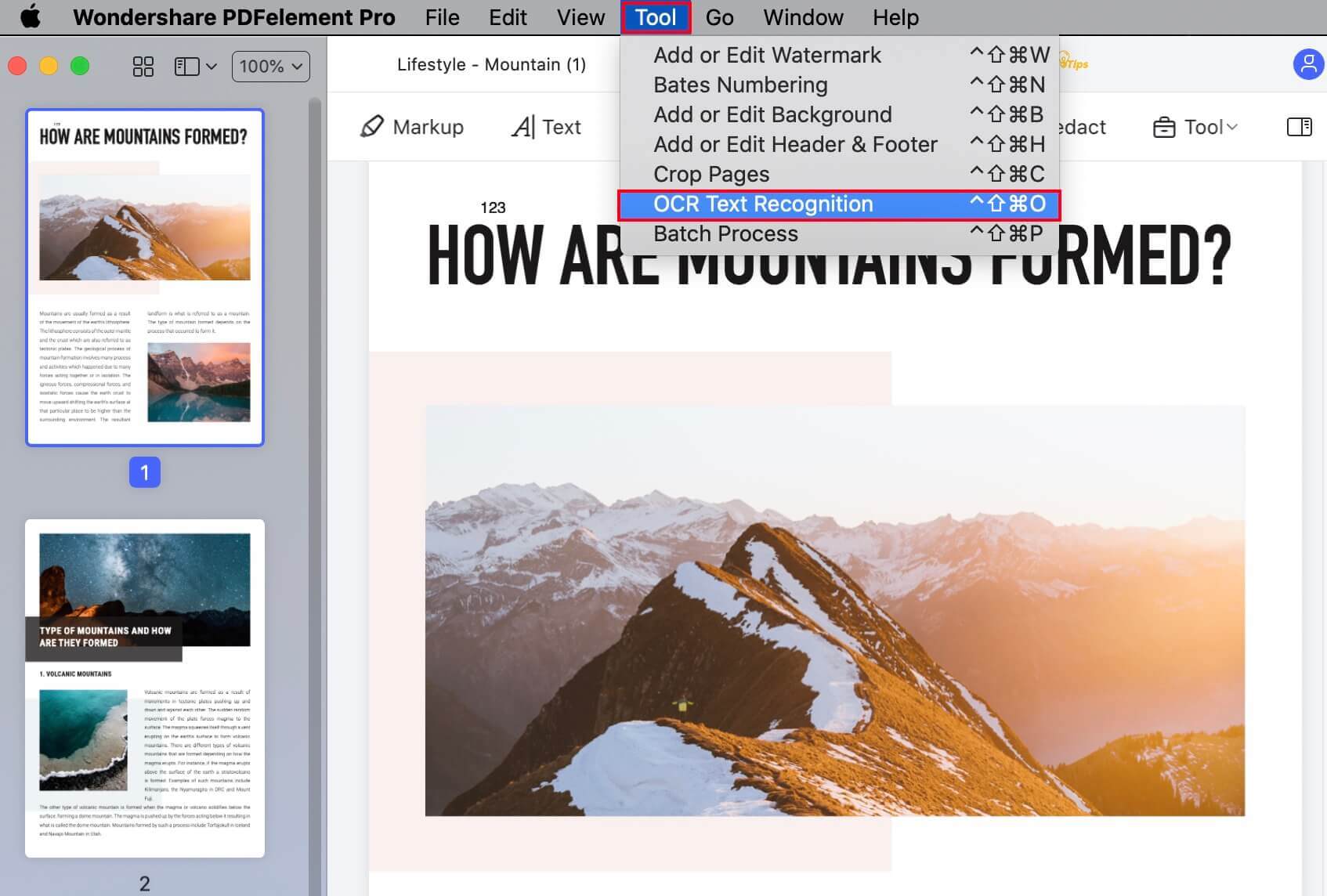
Step 2. In the small pop-up window, choose the page range to be converted. The options are All, Odd Pages, Even Pages, and Custom, which gives you the flexibility to choose the exact one you want. Click Ok to proceed.
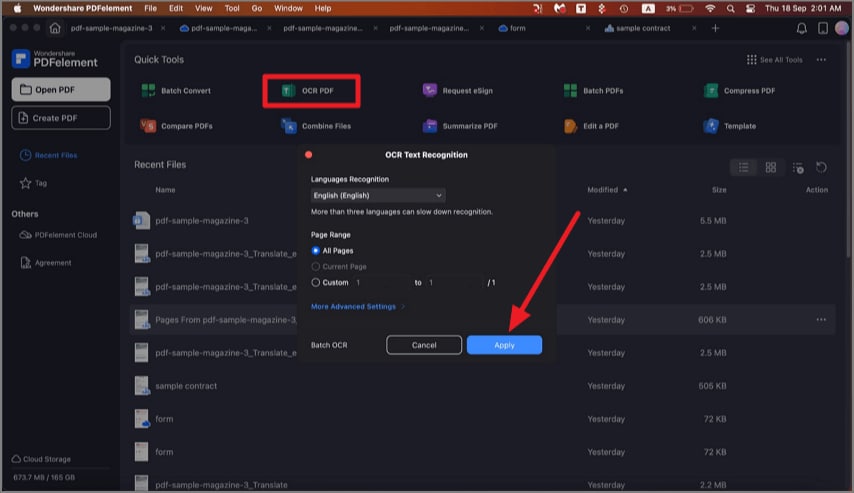
Step 3. In the Advanced Setting window, choose the downsampling resolution, and whether you want the converted text to be editable or just searchable.
Step 4. Click on Perform OCR and the file will be converted and displayed searchable in the software. You can now edit the file or search it depending on the option you chose in the previous step.
If you have more than one document to perform OCR on, you can use the OCR Batch Process for this.
G2 Rating: 4.5/5 |100% Secure
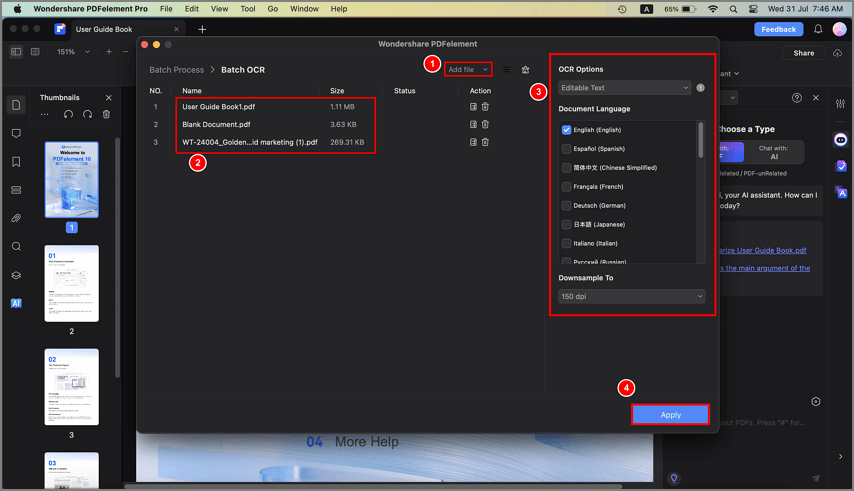
- Go to Tool → Batch PDFs > OCR PDF.
- Now drag and drop your files or use the Add Files button at the bottom to import several image PDFs.
- On the right sidebar panel, choose the OCR settings as described earlier.
- Click Apply to perform OCR on all these documents.
Best For
PDFelement is ideal for users who frequently work with scanned documents and want a simple, powerful desktop solution with strong OCR accuracy.
Part 3: Convert Image PDF to Searchable PDF Using Adobe Acrobat
Adobe Acrobat is one of the most widely used PDF tools and offers a powerful OCR feature called Recognize Text.
- Industry-leading OCR accuracy
- Automatic text recognition
- Batch OCR processing
- Integration with professional workflows
Steps to Convert Image PDF to Searchable PDF via Acrobat
Step 1. Open the PDF in Adobe Acrobat. Launch Adobe Acrobat Pro and open your image PDF.
Step 2. Go to Scan & OCR Tool. Click Tools and select Scan & OCR.

Step 3. Choose Recognize Text. Click Recognize Text > In This File.
Step 4. Adjust OCR Settings. Choose the document language and select pages to process if necessary.
Step 5. Click Recognize Text and wait for the process to finish. Save the searchable document after OCR is completed.
Best For
Adobe Acrobat is best for professional environments or businesses that need highly accurate OCR and advanced document management features.
Part 4: Convert Image PDF to Searchable PDF Online
If you don’t want to install software, an online tool like HiPDF OCR can convert image PDFs to searchable PDFs directly in your browser.
- Online OCR conversion
- Supports scanned PDFs and images
- Works on any device or operating system
- No software installation required
Steps to Convert Image PDF to Searchable PDF Online
Step 1. Open the HiPDF OCR Page to access the HiPDF OCR tool.
Step 2. Click Choose File and upload the image PDF.
Step 3. Choose the correct language for OCR recognition.
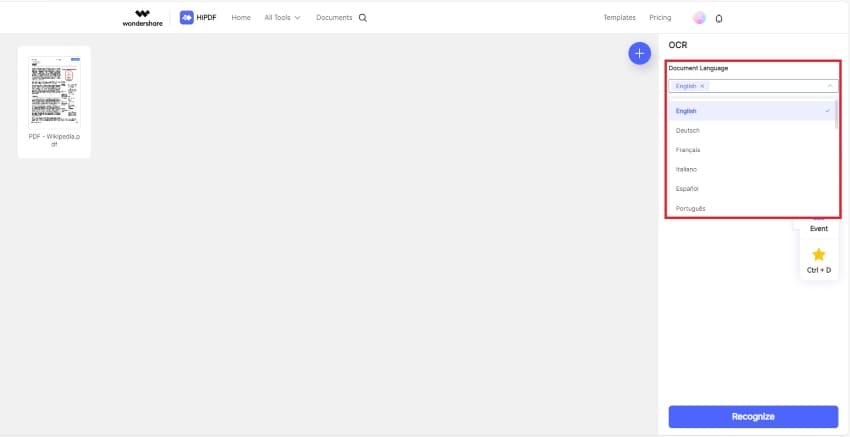
Step 4. Click Convert and wait for the process to complete.
Step 5. Download the Searchable PDF to your device.
Best For
HiPDF is perfect for quick one-time conversions or users who prefer an online solution without installing any software.
Part 5. Why Converting Image PDF to Searchable PDF
We all know that OCR is important. But why is that the case? Why can’t we leave image-based PDFs and scanned PDFs as they are? The reasons are many:
- These files are not easy to search for specific content, which becomes a problem with very large files.
- They cannot be converted to other editable formats such as Word, Excel, etc.
- Obviously, they cannot be edited in any way, so if the information inside becomes outdated and irrelevant, the file itself becomes useless unless there’s a way to update the information.
- Images cannot be extracted individually from such a file unless you use a workaround like taking screenshots. If you’re a designer, you’ll know that this is not the ideal way to work.
Similarly, there are several other reasons why OCR is a critical part of document workflows. Accessible PDFs are easier to archive, search, edit, convert, and do various other PDF tasks that can’t be done on a non-readable file.
G2 Rating: 4.5/5 |100% Secure
Image PDF to Searchable PDF: Best Pratices
Since OCR is not always 100% accurate under all conditions, it's better to follow some general practices to improve OCR results
Check if a PDF is searchable: try searching for text that you can see within the document by using the Cmd+F command.
Use high-quality scans: Blurry or low-resolution images reduce OCR accuracy. If you can read the document clearly, you’ll get much better OCR results. Documents that have been scanned from wrinkled paper or images that are hazy yield poor results.
Must be of medium or high resolution: Poor resolution text leads to poor OCR results, so make sure the images you use have the right resolution. You can use an image extrapolation tool to increase the resolution or dpi so you have a better chance of getting accurate OCR results.
Denoise the document: If the text is accompanied by other meaningless characters, it makes it harder for the OCR engine to segregate actual characters from random shapes. Use a denoiser to reduce image noise and increase the contrast of the text alone and you’ll get more accurate conversions.
Horizontal text is better than tilted text:OCR engines work by analyzing the document in a horizontal manner from top to bottom. If the text is slanted or tilted, it’s harder to convert. Therefore, make sure you de-skew the text before running OCR on it.
Frequently Asked Questions about Image to Searchable PDF
Why is my PDF not searchable?
Your PDF is likely a scanned image PDF, meaning it contains pictures of text rather than actual text data. Running OCR will fix this.
Can I convert image PDF to searchable PDF for free?
Yes. Many tools offer free OCR conversion, including HiPDF and some trial versions of PDF editors.
Can I convert image to searchable PDF using Preview?
No. Preview on macOS does not include full OCR functionality for creating searchable PDFs. You can view PDFs and annotate them, but converting image PDFs into searchable documents requires an OCR tool like PDFelement, Acrobat, or an online OCR service.
Does converting image PDF to searchable PDF change formatting?
Most modern OCR tools preserve the original layout, including fonts, images, and formatting. However, small formatting differences may occur depending on scan quality.
Can OCR convert handwritten text?
Yes, as long as the handwriting is legible and clear (not faded), and there’s no crumpling or wrinkling on the paper before it is scanned, OCR can read handwritten text fairly well. Of course, it won’t be as accurate as performing OCR on printed text, but it’s definitely possible to a degree.
Can I directly create an editable PDF from a scanner?
Yes, PDFelement has a File → New → PDF from Scanner option in the menu that you can use for this function. All you need to do is hook up your scanner to the same computer running PDFelement Pro, use this menu item to trigger the process, and follow the steps shown. You can make the scanned document editable or searchable.
Free Download or Buy PDFelement right now!
Free Download or Buy PDFelement right now!
Try for Free right now!
Try for Free right now!


Audrey Goodwin
chief Editor