
4 Free Ways to Convert PDF to PNG on Mac
Can I convert PDF to PNG on Mac? Yes, you can follow this guide and learn how to turn a PDF into a PNG on Mac.
 100% Secure |
 Powered by AI
 Home > Convert PDFs on Mac > 4 Free Ways to Convert PDF to PNG on Mac
If you ever need to convert PDF to PNG on a Mac, you should know that there are several options out there. However, not all of them will give you the flexibility and accuracy you’re looking for. That’s why you need a robust PDF editor like PDFelement. This versatile Mac software is easy to install, simple to use, and a pleasure to work with, all the while putting at your disposal the most basic to the most advanced PDF functionality at a fraction of what you’d be forced to shell out for an Adobe Acrobat license. This article shows you how to convert PDF to PNG on Mac using PDFelement.



Convert PDF to PNG on Mac with Desktop PDF Editor(Best for Batch Process)
PDFelement is a versatile PDF editor for Mac software that is easy to install, simple to use, and a pleasure to work with. It can easily convert PDF to PNG, JPG, TIFF, GIF, and more formats. Its batch processing feature allows users to convert multiple PDFs as a single batch, which lets you get through massive workloads in a short amount of time.
Key Features
- A complete PDF editor that can edit text, images, comments, watermarks, and other elements on PDF, plus annotate PDF files with highlights, notes, shapes, and freehand drawing for collaboration.
- It also creates PDFs, converts PDFs to formats like PNG, and supports many other business file types.
- Security tools include passwords, redaction, and watermarks, while built-in sharing works with cloud services.
- You can use batch processing for repetitive tasks.
Let’s take a look at how to convert PDF to PNG on Mac.
Step 1. Open PDF on Your Mac
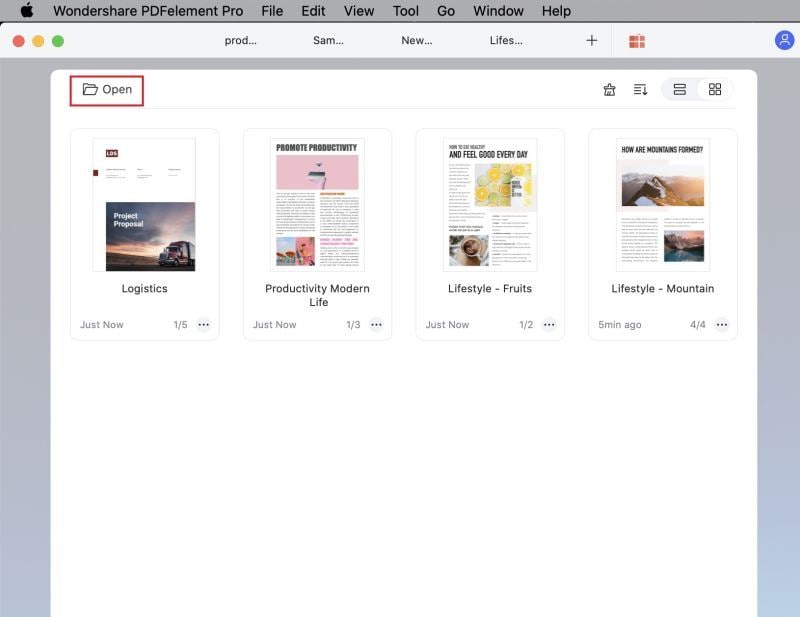
The first thing to do is to open your PDF file containing the image or images you want to extract. You can use the "Open File" option on the welcome page or use the drag-and-drop feature to import it into the program.
Step 2. Select PNG as Output Format
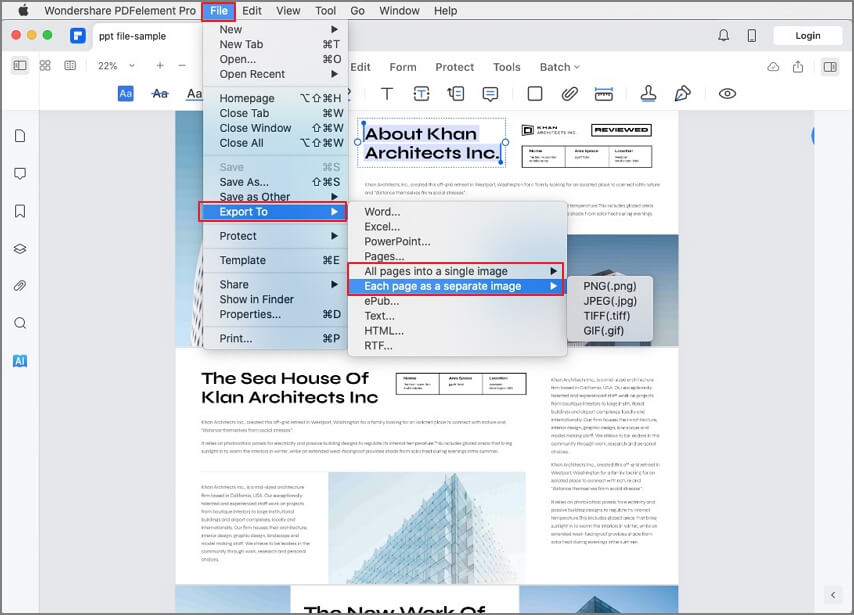
Next, click the "File" option in the top menu bar, then go to "Export To" → "Image" → "PNG (.png)" and select it.
Step 3. Convert PDF to PNG on Mac
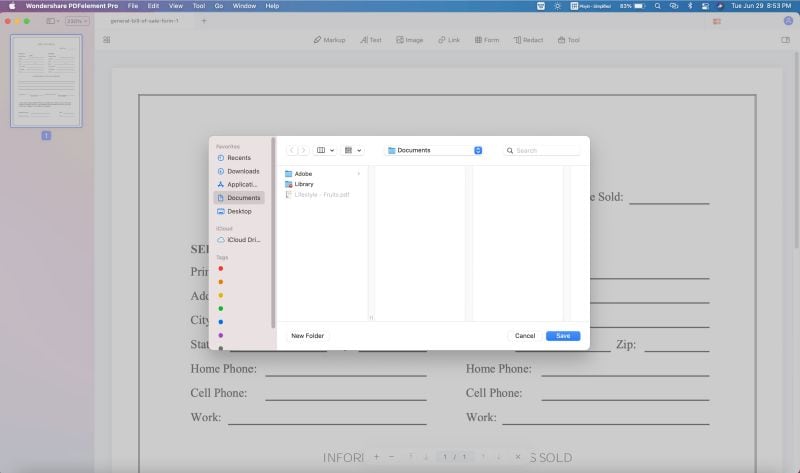
This will open a Finder window to save the output PNG file. Now give a name for the document and hit the "Save" button.
As you can see, the process is very simple. There is also another way to do this, by using the Batch Process feature of PDFelement. This is explained in the next section.
Tip: Batch Convert PDF to PNG Files
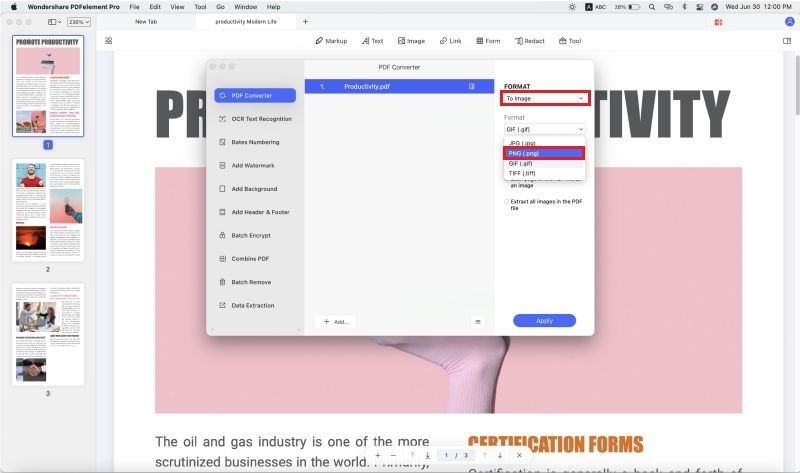
Select the "PDF Converter" option in the section that says "Batch Process".When you click the button, the PDF Converter window will appear on your screen. Use the "+ Add…" button to import one or more files into the software.
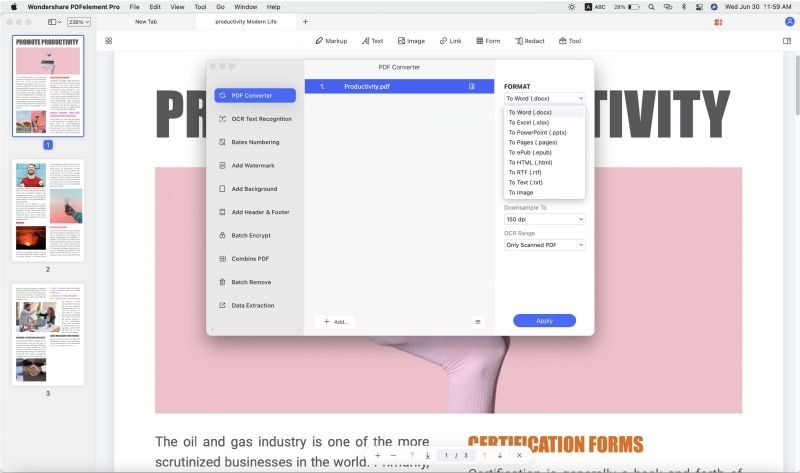
In the Format section in the sidebar on the right, choose "To Image" and then "PNG (.png)" in the respective dropdown menus. Click the "Apply" button to process the file(s) and save them to a folder of your choosing.
Convert PDF to PNG on Mac with Online PDF Converter(No Install)
PDFelement Online is a simple and convenient tool for users who want to convert PDF to PNG on Mac without installing desktop software. It works directly in your browser, so you can upload a PDF, convert it in seconds, and download the image files quickly. This is a good option when you need a fast online solution for occasional tasks.
Key Features
- Browser-based PDF converter that works without software installation.
- Supports converting PDF pages into image formats for quick sharing and reuse.
- Simple upload and download process that is easy for any user to follow. Works well for quick tasks when you do not need advanced editing tools.
Let’s take a look at how to convert PDF to PNG on Mac with PDFelement Online.
Step 1. Open PDFelement Online on Your Mac
First, open your browser on Mac and go to the PDFelement Online PDF to JPG tool page. Once the page opens, click the upload button to import the PDF file you want to convert.
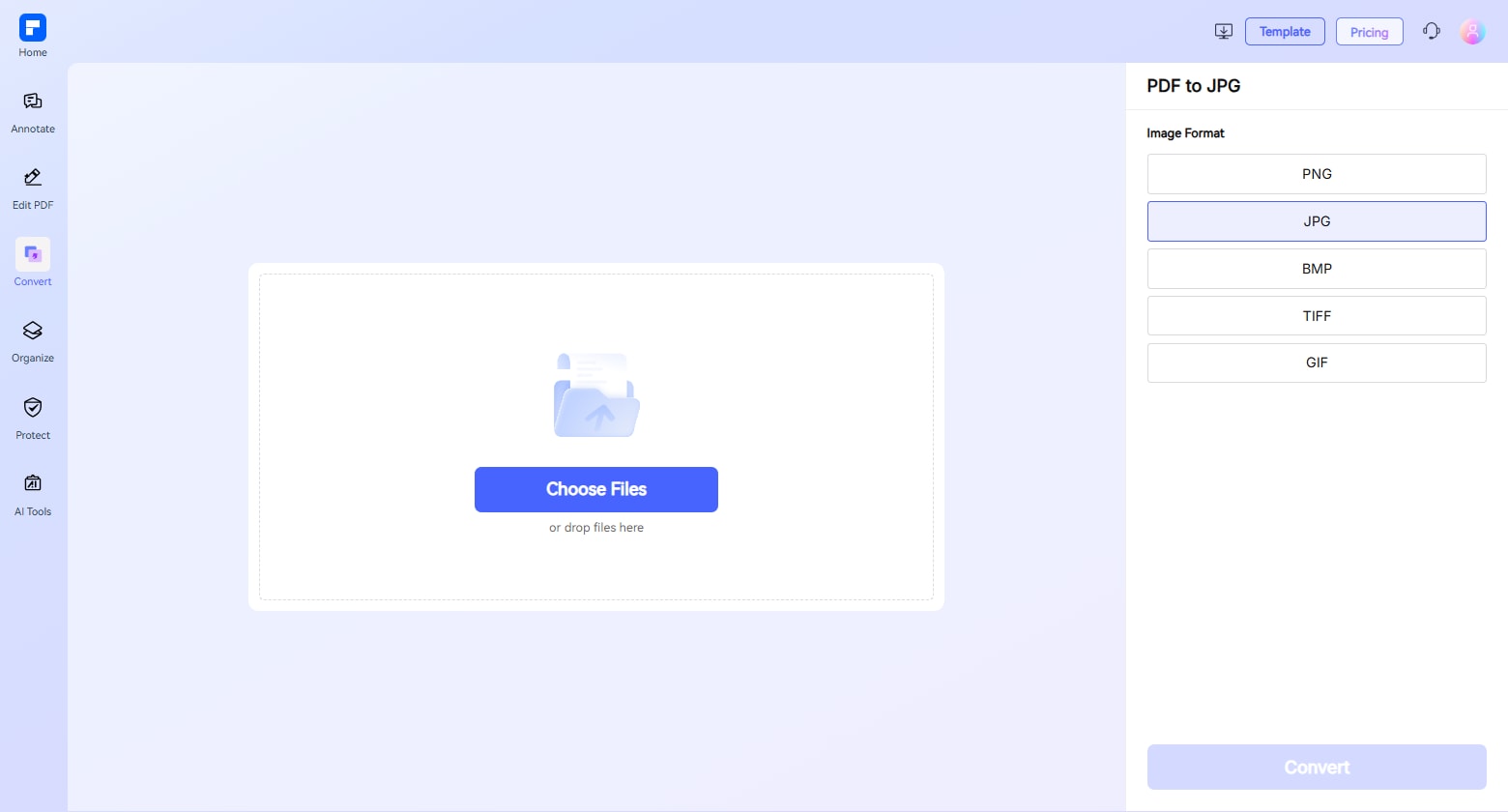
Step 2. Upload and Start the Conversion
Next, wait for the file to upload to the online converter. After that, choose the image conversion option and let the tool process your PDF file.
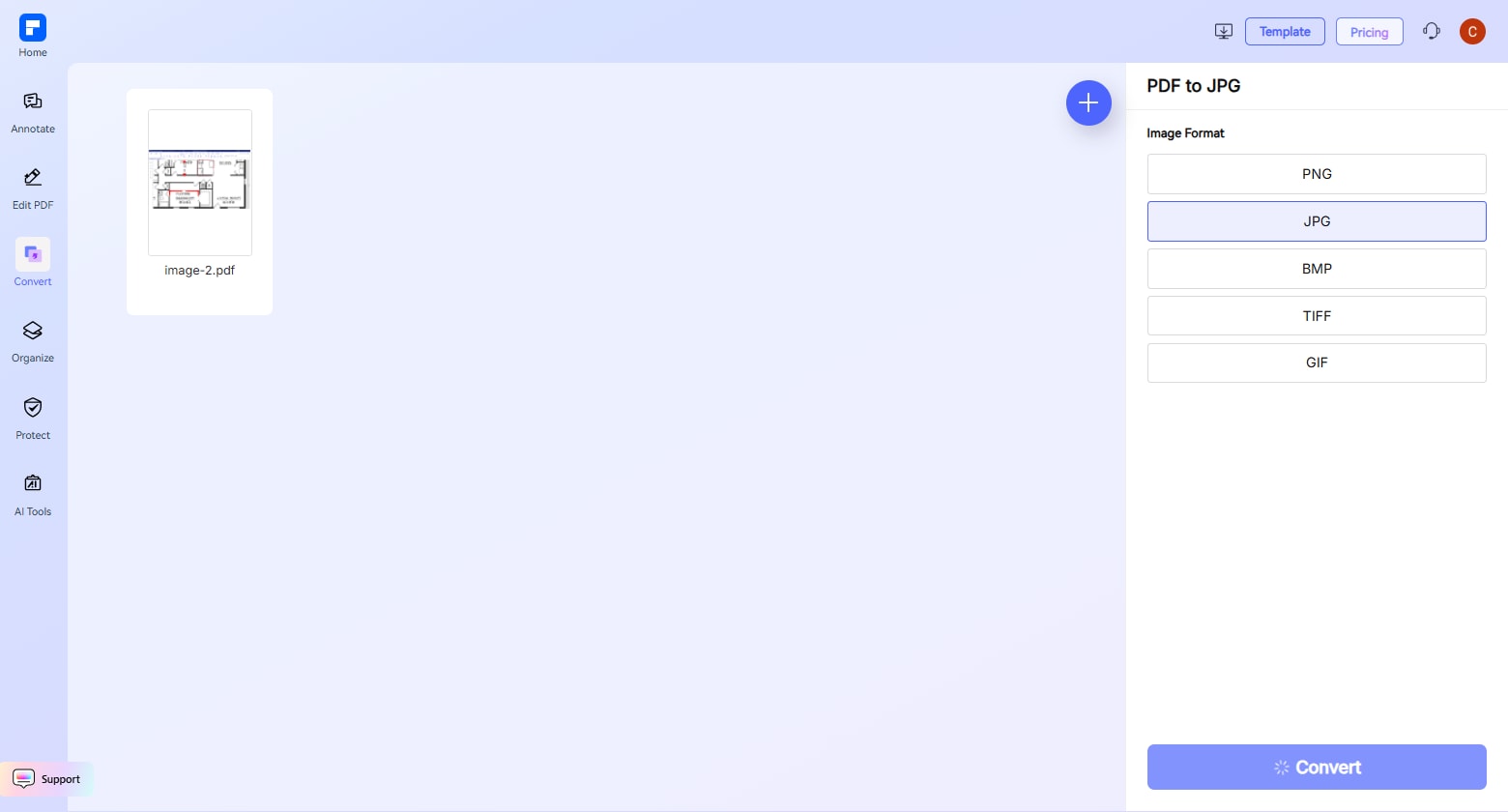
Step 3. Download the PNG File
When the conversion is complete, download the output image file to your Mac. You can then open it locally and use it however you need.
As you can see, this method is very simple for quick online conversions without using desktop software.
Convert PDF to PNG on Mac with Preview(Built-in)
Preview is the built-in PDF and image viewer on Mac, and it offers a quick way to convert PDF pages into PNG files. Since it comes pre-installed with macOS, you do not need to download anything extra. It is a convenient option for basic image conversion tasks.
Let’s take a look at how to convert PDF to PNG on Mac with Preview.
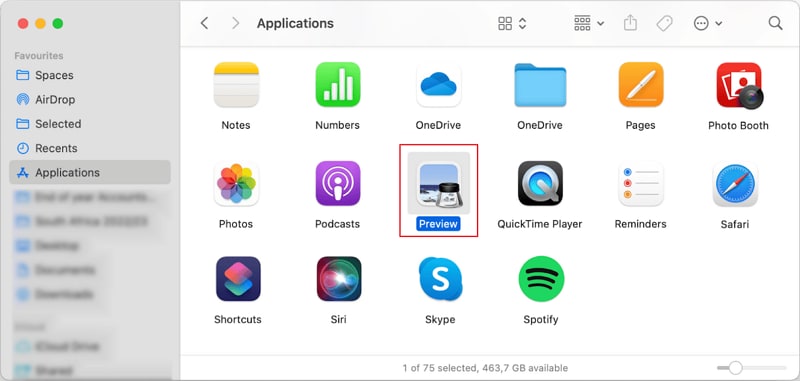
Step 1. Open PDF in Preview
The first thing to do is to locate your PDF file on Mac and open it with Preview. If it does not open in Preview by default, right-click the file and choose Preview from the “Open With” menu.
Step 2. Export the PDF as PNG
Next, click the “File” option in the top menu bar and choose “Export.” In the format options, select “PNG” as the output file type.
Step 3. Save the PNG File
Now choose the folder where you want to save the converted image, give the file a name, and click the “Save” button.
As you can see, Preview makes it easy to convert a PDF page to PNG using tools already available on your Mac.
Convert PDF to PNG on Mac with Automator(Easy workflow)
Automator is another built-in Mac tool that helps you create simple workflows for repetitive tasks. If you often need to convert PDF files into images, Automator can save time by automating part of the process. It is a useful solution for users who want a more efficient workflow on Mac.
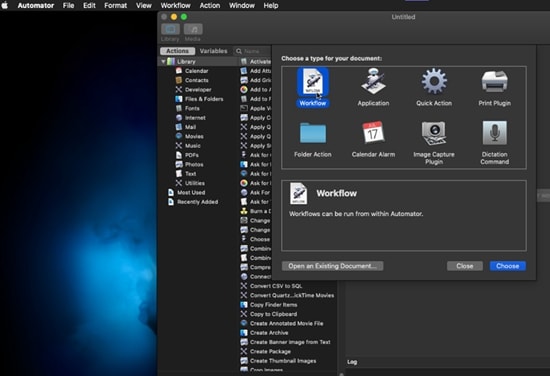
Step 1. Open Automator on Your Mac
First, launch Automator from the Applications folder on your Mac. Then choose to create a new workflow or quick action, depending on how you want to use it.
Step 2. Add the PDF Conversion Action
Next, search for the PDF-related actions in the Automator library and add the appropriate action for rendering PDF pages as images. Then set the output format based on your needs.
Step 3. Run the Workflow and Save the PNG Files
After that, add your PDF file to the workflow and run it. Automator will process the file and save the output images to your selected folder.
Free Download or Buy PDFelement right now!
Free Download or Buy PDFelement right now!
Buy PDFelement right now!
Buy PDFelement right now!


Elise Williams
chief Editor
Comment(s)