

In this article
Make Professional Signatures for Names Starting with M (Use Them to Sign PDFs)
Looking for a clean, professional signature for a name starting with M?
Whether your name is Michael, Matthew, Maria, Mark, Melissa, or Megan, having a well-designed signature matters—especially when you need to sign PDF contracts, official forms, or business documents.
Today, signatures are no longer just handwritten marks on paper. More people are signing documents digitally, and the right signature should not only look good but also work seamlessly in PDF files.
In this guide, you’ll discover:
- Popular signature styles for names starting with M
- How to apply these signatures directly to PDF documents
- A step-by-step walkthrough for creating and signing PDFs using Wondershare PDFelement
- Real-world examples and FAQs to help you sign with confidence
Signature Styles for Names Starting with M (Made for PDF Use)
Before choosing a signature, it helps to remember that not all styles work equally well in digital documents. A good electronic signature should remain clear, readable, and professional when placed into a PDF.
Below are several signature styles that work especially well for names starting with M. Each option is designed to stay clean on screen and practical for everyday PDF signing.
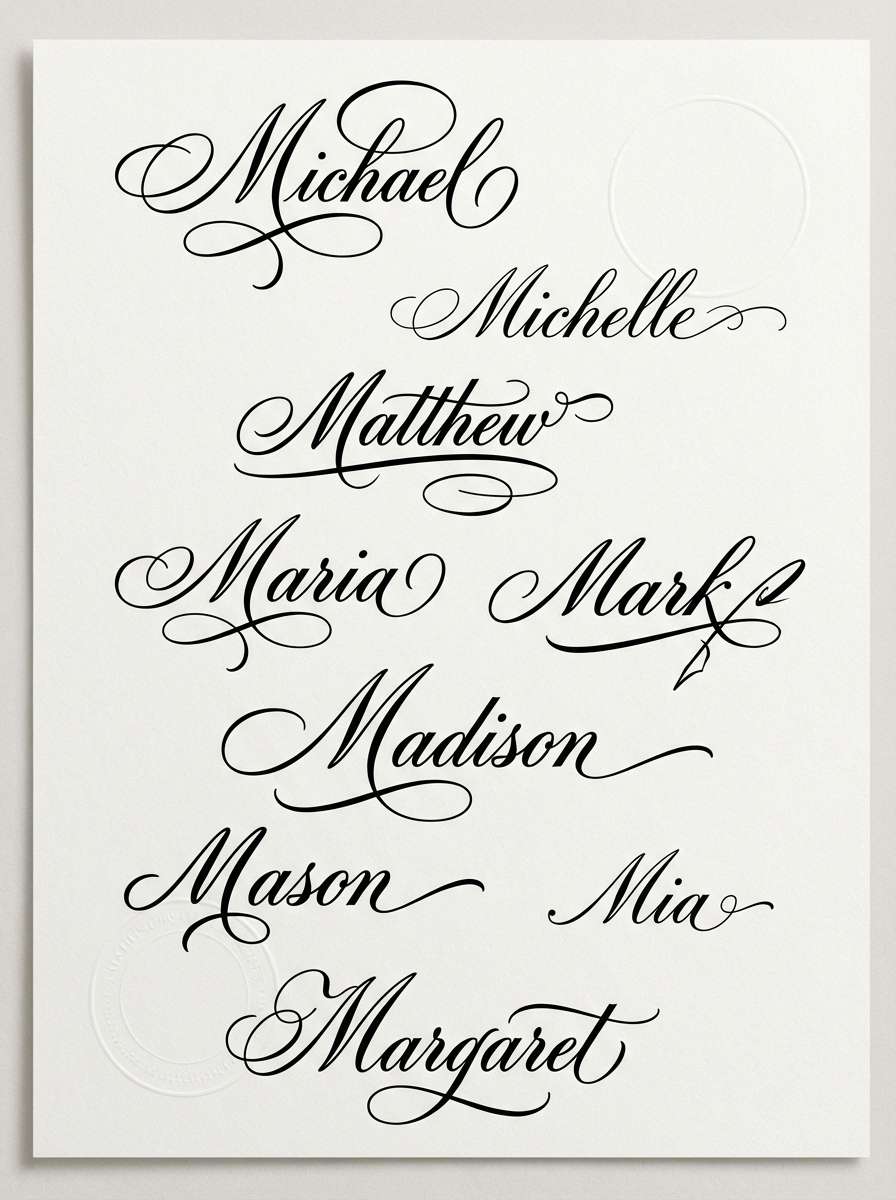
1) Elegant Script Signature (Professional & Formal)
Best for: Business contracts, legal agreements, and official PDF documents.
This style uses smooth, flowing strokes that naturally highlight the first letter “M.” It’s commonly used by professionals who want their signature to look polished and authoritative.
Why it works for PDFs: The lines remain sharp on screen, and the overall shape stays recognizable even if the PDF is compressed or viewed on mobile.
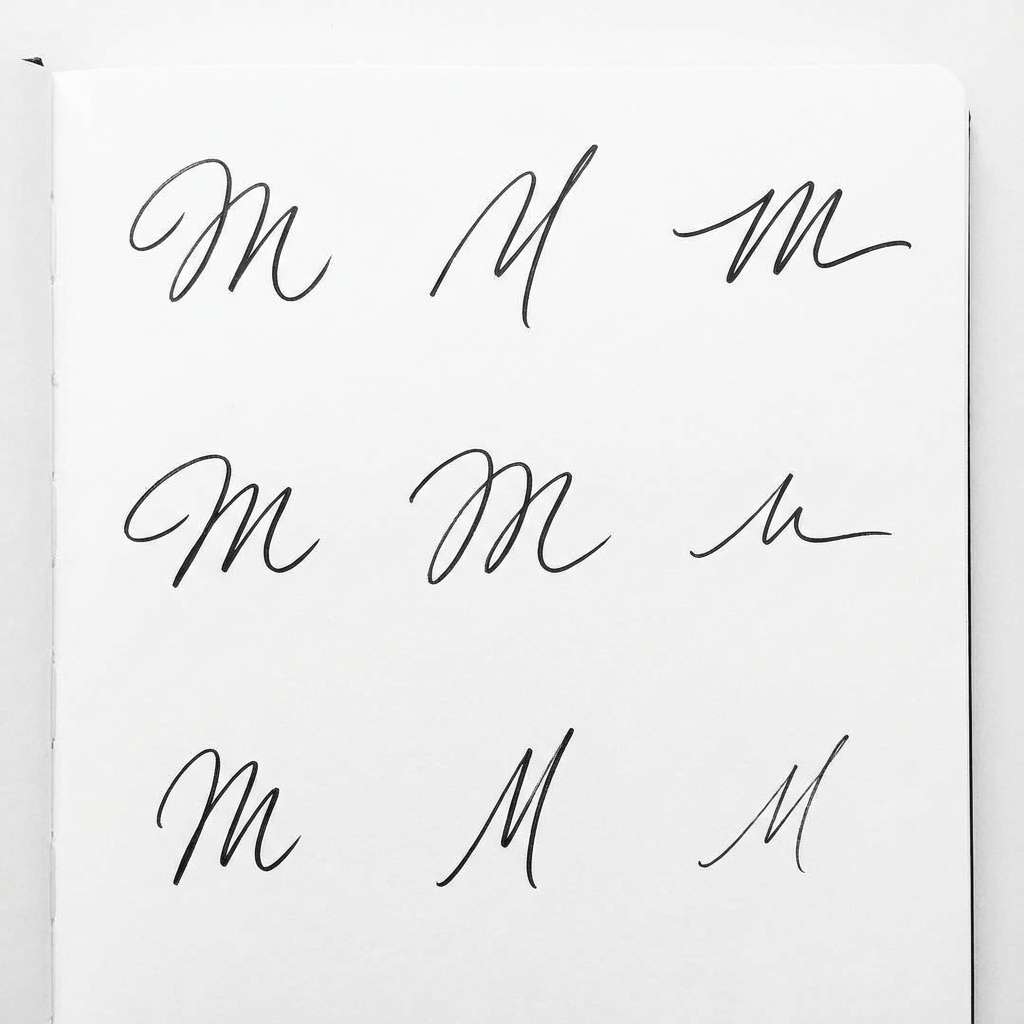
2) Minimal Handwritten Signature (Clean & Modern)
Best for: Fast approvals, internal documents, freelancers, and remote work.
This style simplifies the signature into its essential strokes. It looks modern and is easy to reproduce consistently—especially when signing on a trackpad or touchscreen.
Why it works for PDFs: It stays legible at smaller sizes and looks natural when placed into form fields.
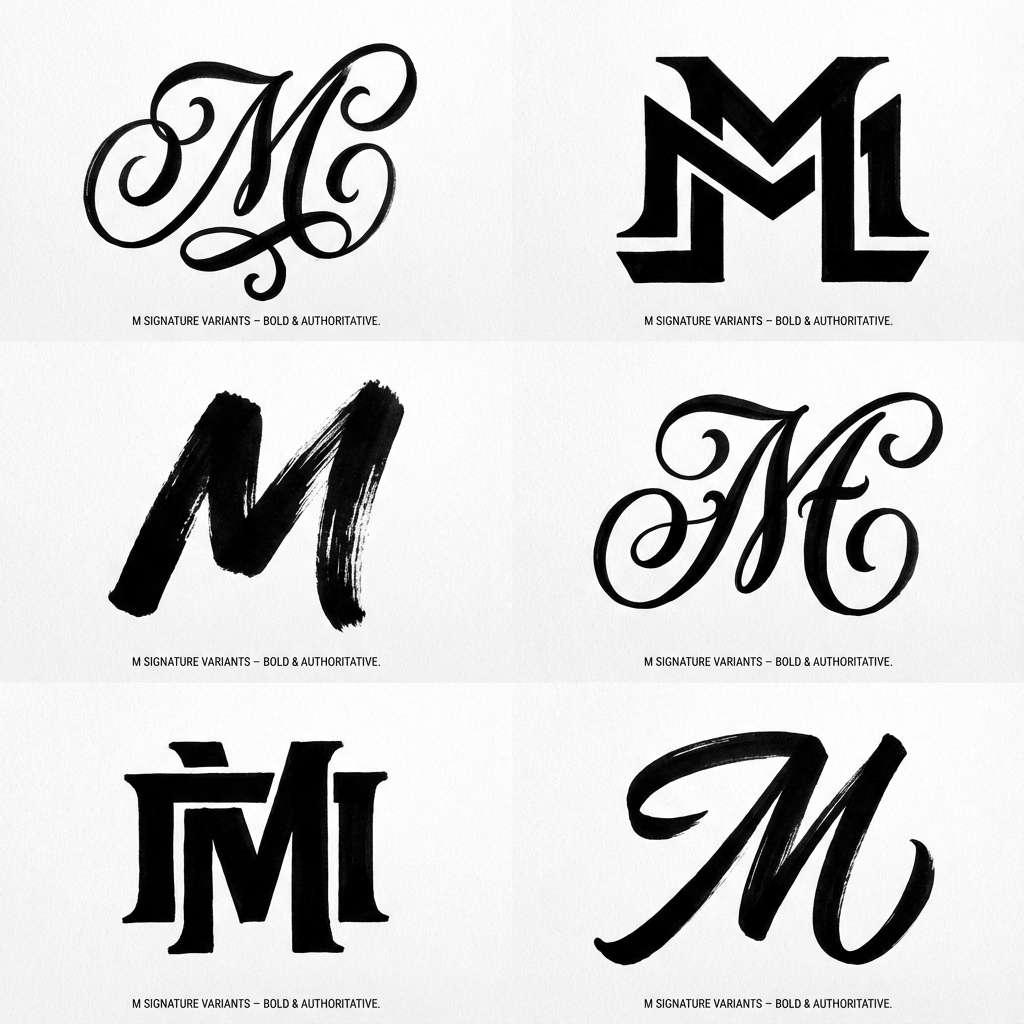
3) Bold Initial-Based Signature (Distinctive & Confident)
Best for: Personal branding, creative professionals, and informal agreements.
If you want your signature to stand out, a bold initial-based style is a strong choice. It emphasizes the “M” while keeping the rest compact.
Why it works for PDFs: It remains visually strong when embedded in a PDF and is easy to reuse across many documents.
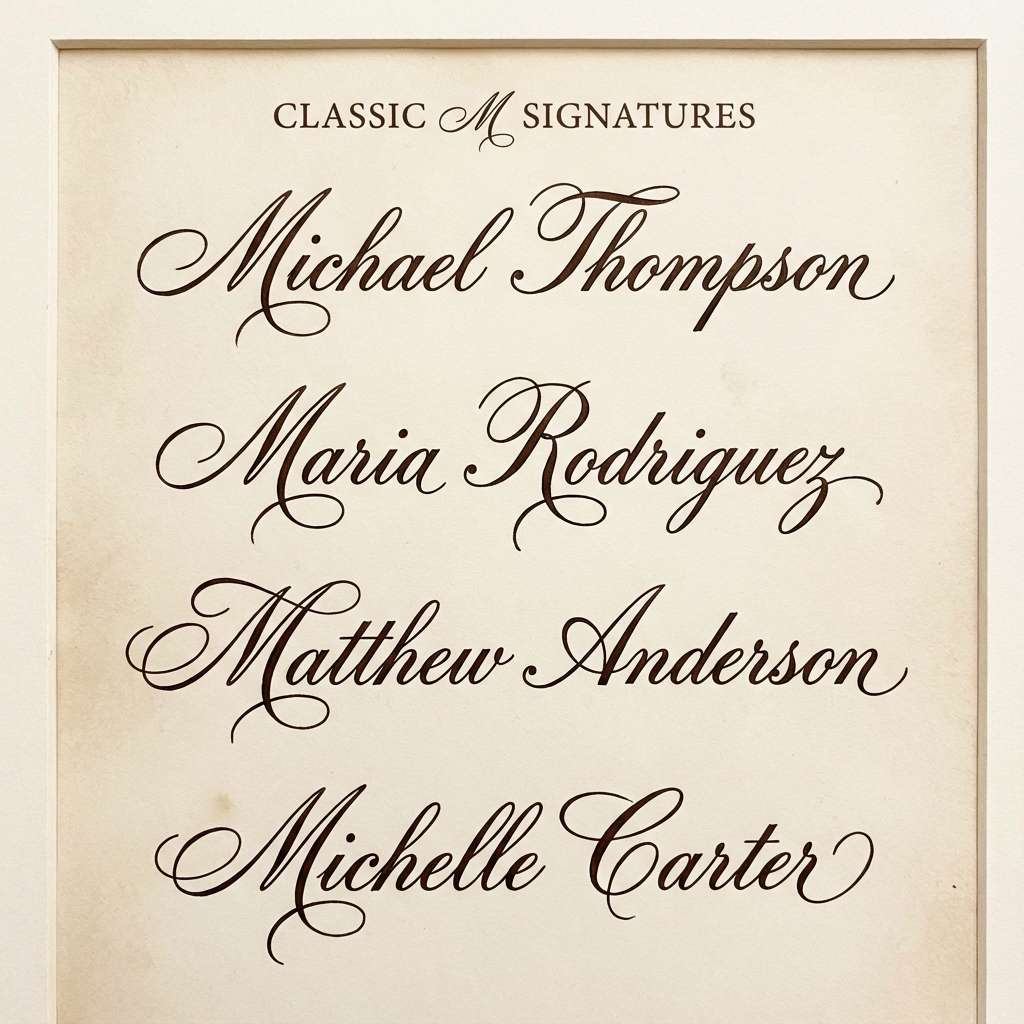
4) Classic Full-Name Signature (Traditional & Readable)
Best for: Government forms, applications, and long-term official records.
This style prioritizes readability by writing out your full name clearly. It’s a practical choice when your signature needs to be recognized quickly by reviewers.
Why it works for PDFs: It’s easy to verify, and it translates well when inserted into PDF signature fields.
How These Signatures Are Used in PDF Documents
Choosing a signature style is only half the job. The real goal is using it where it matters—on the documents you sign most often.
In practical workflows, signatures are commonly applied to PDF files, such as:
- Employment contracts
- Non-disclosure agreements (NDAs)
- Application forms
- Client approvals and statements of work
With Wondershare PDFelement, you can create a signature once and then insert it into any PDF, keeping the same look every time. This eliminates the old print–sign–scan cycle and helps you work faster, especially when collaborating remotely.
If you want a broader overview of electronic signing, you can also review this related topic: electronic signature.
For readers who specifically want a general guide on adding a signature to PDF files, this related article may help: how to add signature to PDF.


 G2 Rating: 4.5/5 |
 100% Secure
Step-by-Step: Create and Sign a PDF with PDFelement
Below is a straightforward workflow you can follow to create your signature and sign a PDF using PDFelement. If you want the official walkthrough, you can also reference: how to sign a PDF.
Step 1Open your PDF in PDFelement
Launch PDFelement on your computer or mobile device and open the PDF you need to sign. Make sure you are viewing the correct page that contains the signature field or signing area.
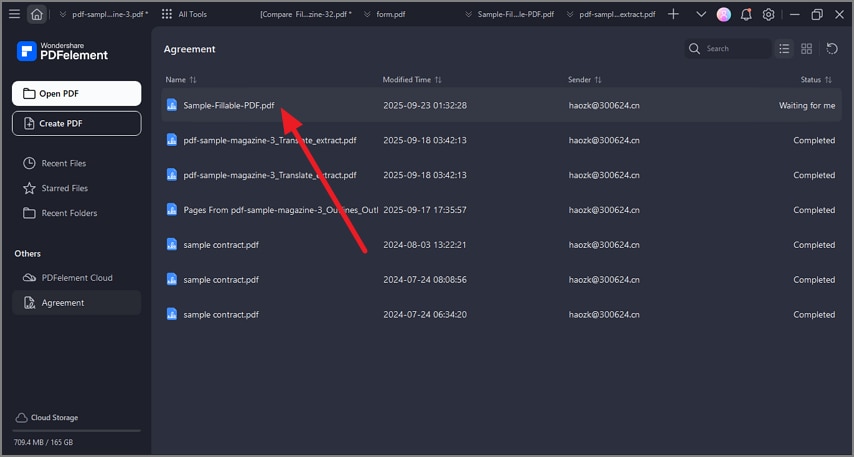
Step 2Find the signing tools
Go to the signing area in PDFelement (commonly under the related signing/comment tools depending on your device). You’ll see options to create or insert a signature so you can place it directly into the PDF.
G2 Rating: 4.5/5 |100% Secure
Step 3Create your signature (type, draw, or upload)
Choose the method that best matches your preferred style:
- Type for a clean, consistent look (great for minimal or classic styles)
- Draw for a more natural handwritten feel (best if you use a stylus)
- Upload if you already have an image of your handwritten signature
Once created, your signature can typically be reused in future documents, saving time for repeated signing tasks.
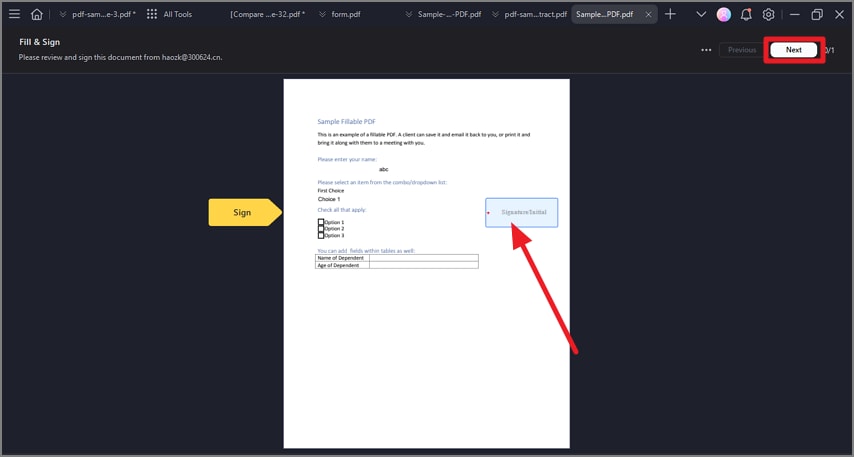
Step 4Place, adjust, and save the signed PDF
Click where the signature should appear, insert it, then resize or reposition it to fit the document layout. After signing, save your PDF and share it as needed.
If your workflow involves sending documents out for signing, you may also find this related topic helpful: send PDF for signature.
G2 Rating: 4.5/5 |100% Secure
Real-World Examples: How People Use M Signatures in PDFs
Signing a Business Contract
A consultant named Michael signs client agreements using an elegant script signature saved in PDFelement. He reuses the same signature across contracts to maintain consistency and keep documents looking professional.
Filling Out an Application Form
Maria completes scholarship and application forms digitally. Her minimal handwritten signature fits neatly into PDF fields and stays readable when submitted online.
Approving Internal Documents
Mark, a project manager, signs internal approvals quickly using a bold initial-based signature on his laptop and tablet—helping his team avoid delays.
People Also Ask
-
Are electronic signatures legally valid?
In many regions, electronic signatures are legally recognized when they meet applicable requirements and are used appropriately for the document type. If you’re unsure, confirm the rules that apply to your jurisdiction and the specific contract or form you are signing. For general background, see electronic signature. -
Can I reuse the same signature for multiple PDFs?
Yes. Once you create a signature in PDFelement, you can typically reuse it across multiple documents, which is ideal for recurring workflows like contracts, approvals, or forms. -
Can I sign PDFs on different devices?
Yes. PDFelement is available across common platforms, and you can sign PDFs on desktop and mobile. For platform-specific instructions, you can check sign a PDF on Mac or sign a PDF on iPhone/iPad. -
What if I just want to eSign a PDF quickly?
If your priority is speed, you may want a streamlined electronic signing workflow. You can also explore: eSign PDF.
Final Thoughts
If your name starts with M, having a professional, reusable signature can save time and make your documents look more credible. The key is choosing a style that stays clear in PDFs and using a reliable workflow to apply it consistently.
Once you have your preferred signature style, you can sign documents confidently using Wondershare PDFelement—without printing, scanning, or slowing down your process.




