
How to Add Text Box in Google Docs
Are you facing a problem of how to add text box in Google Doc? Don't worry. Here is a clear guide on how to add a textbox in Google Docs.
 100% Secure |
 Powered by AI
 Home
>
Google Tips and Tricks
> How to Add Text Box in Google Docs
Home
>
Google Tips and Tricks
> How to Add Text Box in Google Docs
Adding a text box in Google Docs can be useful when you want to highlight information, add a label, or place text in a specific area of a document. However, Google Docs does not place a Text box option directly in the main editing toolbar. Instead, you create a text box through the built-in Drawing tool.
In this guide, you'll learn how to add a text box in Google Docs, enter and format text.
Quick answer: How to add a text box in Google Docs
- Open your Google Docs document and select Insert > Drawing > New.
- In the Drawing editor, select Text box.
- Click and drag to create the text box, then enter your text.
- Format the text box by changing the font, text style, fill color, or border.
- Click Save and Close to insert the text box into your document.
How to Add Text Box in Google Docs
Unlike some word processors, Google Docs doesn't place a text box directly in its main editing toolbar. Instead, text boxes are created within the Drawing editor, which also gives you more control over their size, appearance, and position. Once you know where to find this tool, adding a text box only takes a few clicks.
Step 1. Open the Drawing Tool
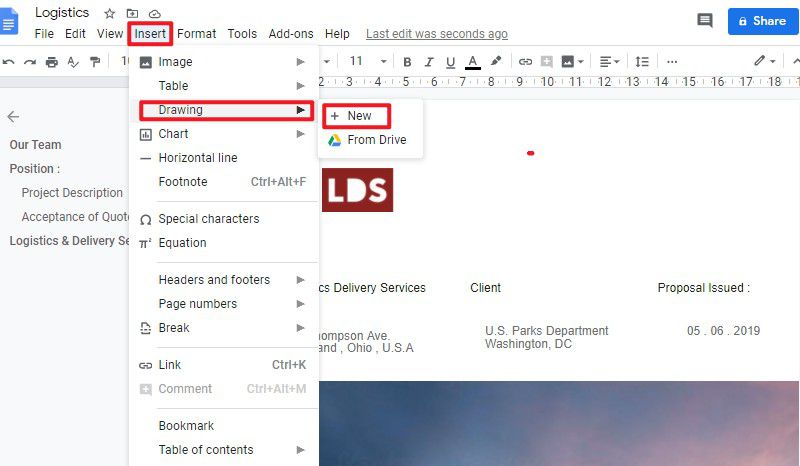
To add a text box in Google Docs, you need to click the "Insert" > "Drawing" > "+ New" button on the toolbar.
Step 2. Add a Text Box
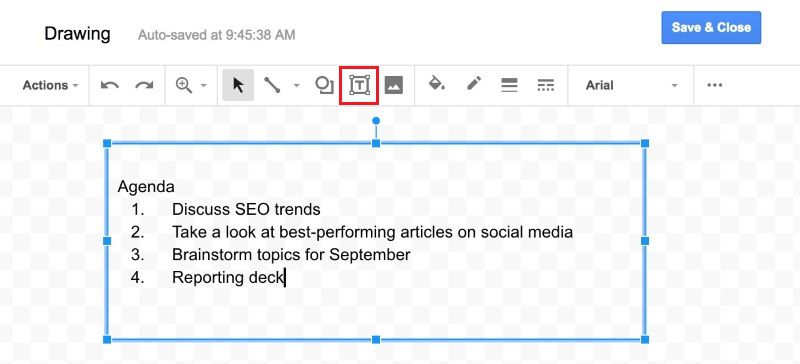
Now you can click on the "Text" button and drag the mouse to add the text box you need. Then you can insert the content in the box.
Step 3. Customize the Text Box
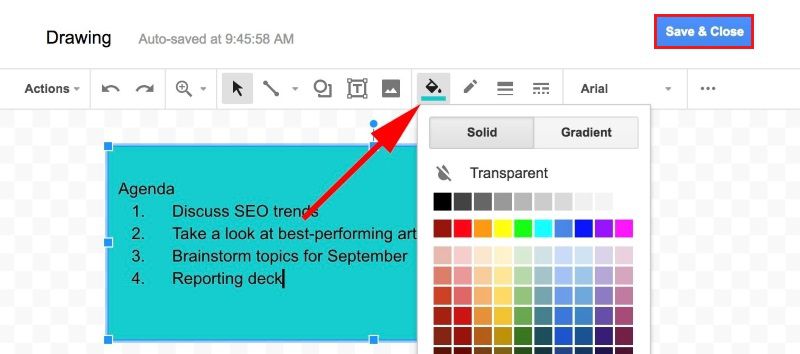
With the text box selected, you can adjust the text and the box to match your document. Change the font, text size, alignment, or text style, and use the formatting controls to adjust the fill color, border color, line thickness, or border style. When you finish setting these styles, you can click the "Save and Close" button. Finally, a text box can be added to Google Docs.
Add Text Box in Google Docs - An Alternative
Not every document needs a movable or highly customized text box. If you simply want to place text inside a bordered area while keeping it aligned with the rest of your document, a one-cell table can be a simple alternative.
To create one, go to Insert > Table and select a 1 × 1 table. Click inside the cell and enter your text. You can then adjust the cell's size, border, and background color to create the appearance of a text box.
A one-cell table works well when you want the text to stay within the normal document layout. If you need to move the text box more freely or position it independently on the page, use the Drawing-based Text Box instead.
How to Add and Edit Text Box in PDF
The method above works for documents you're creating in Google Docs. But once a document has been exported or received as a PDF, the editing workflow is different. If you need to place new text into an existing PDF or change text that is already there, you'll need a tool designed to edit PDF content directly.
For PDF files, Wondershare PDFelement V13 can be used to add or edit text directly in a PDF. Its PDF editing tools support text changes and formatting adjustments, while OCR can make text in scanned PDFs editable before further editing.
Step 1. Open the PDF File
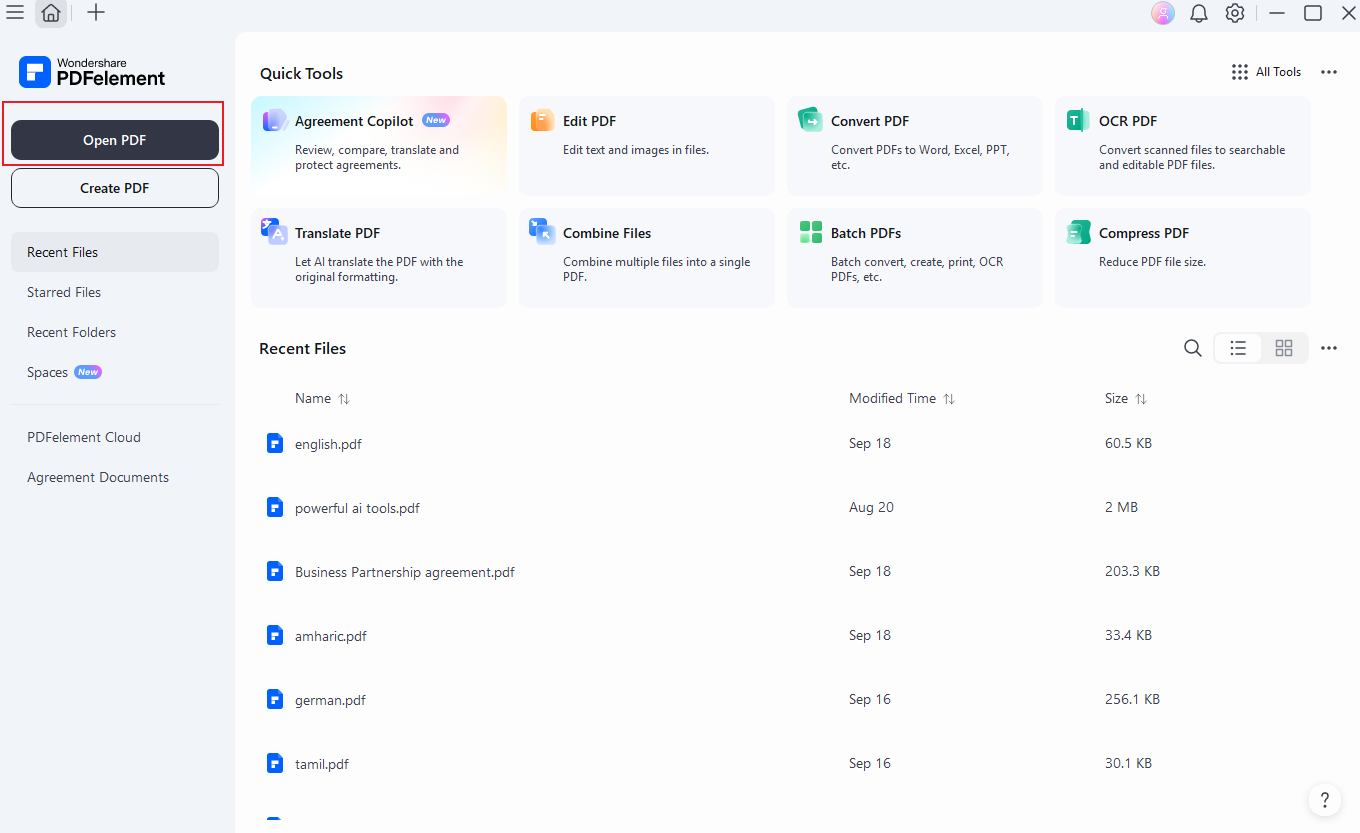
Launch PDFelement and upload your PDF document by clicking the "Open PDF" button.


 G2 Rating: 4.5/5 |
 100% Secure
Step 2. Add Text in PDF
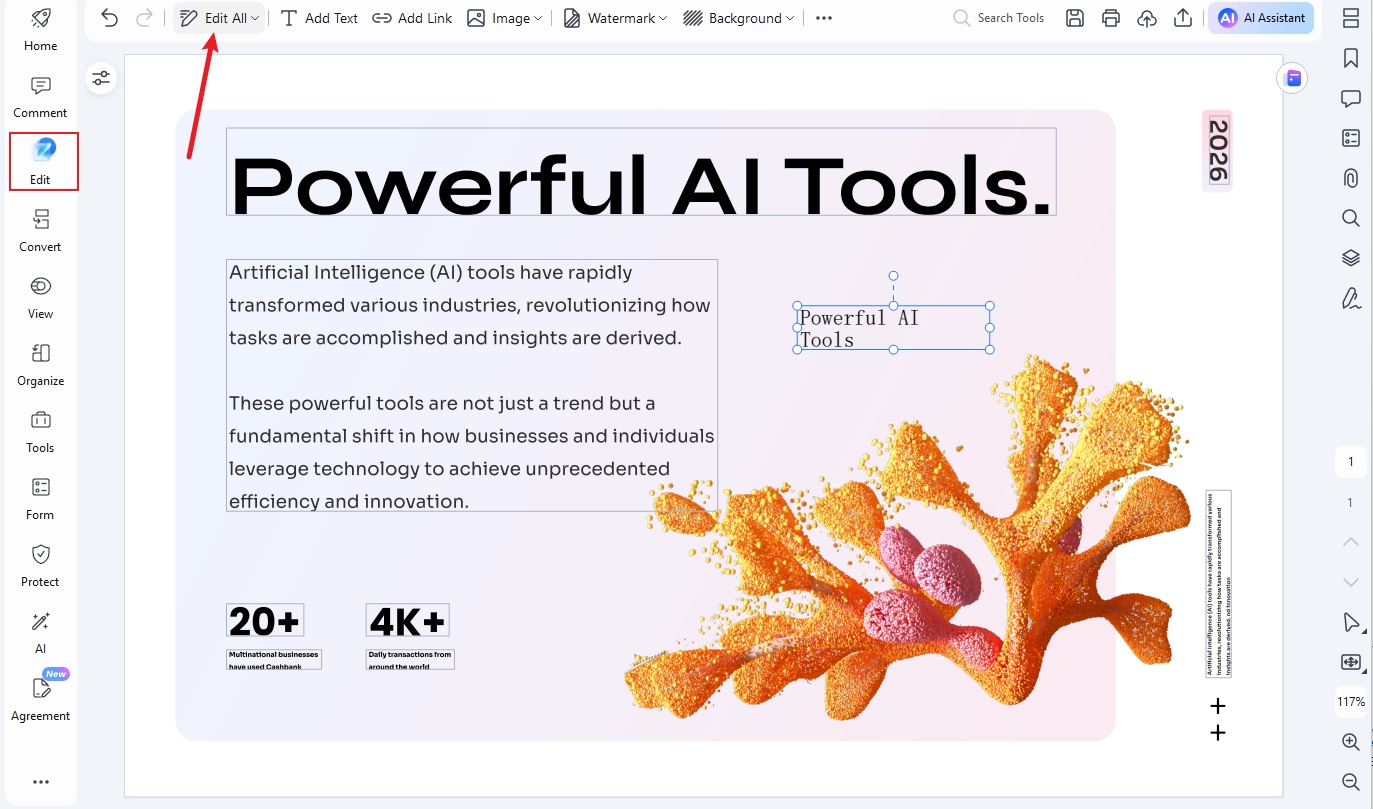
To add text in PDF, you need to go to the "Edit" tab and select the "Add text" option. Then you can draw a text box to add text.
Step 3. Customize the Text Box
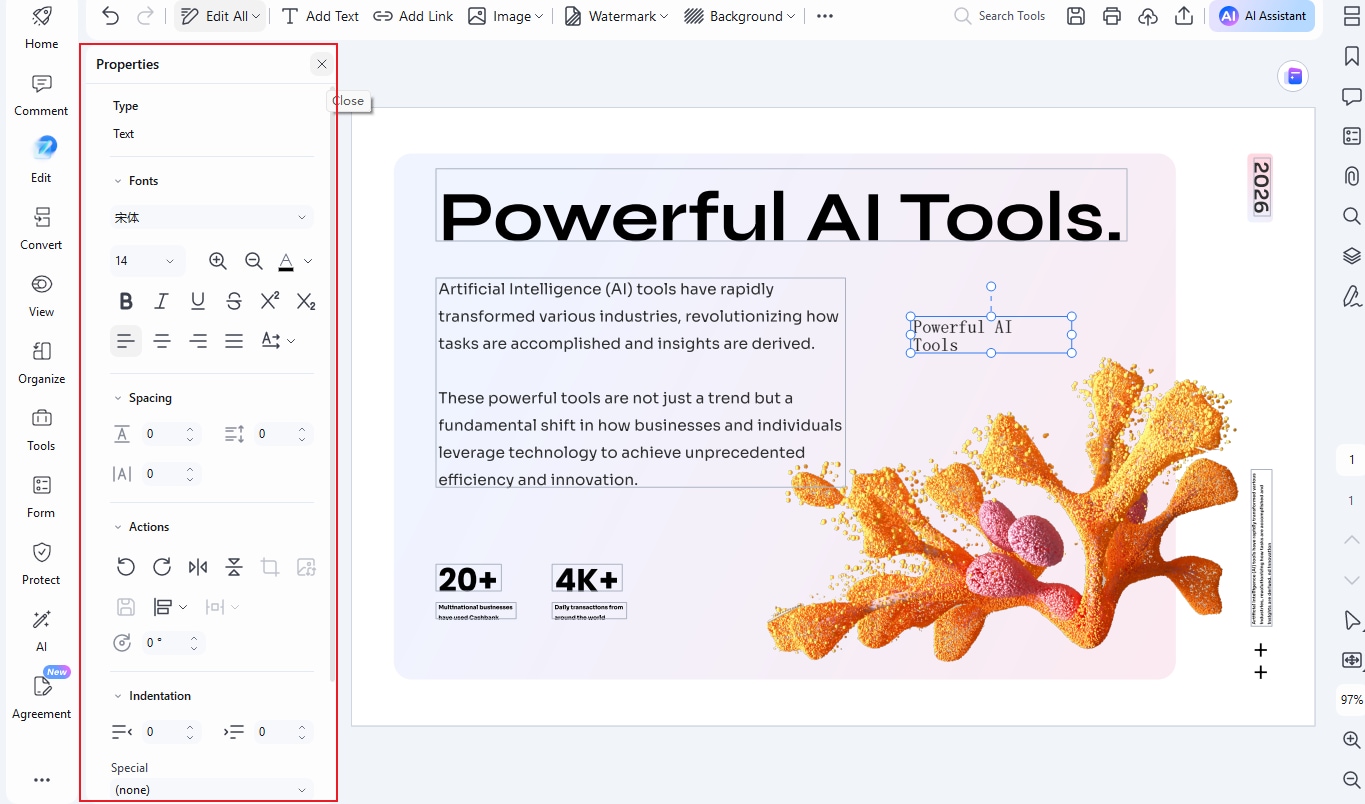
You can customize the text box font, color, and more according to your preferences.
A Powerful PDF Editor
It is known that adding and editing text in a word processor is quite easy, but hard in PDF. However, there is a powerful PDF editor, making PDF editing is equally easy and convenient like Google Docs or Word, that is Wondershare PDFelement - PDF Editor Wondershare PDFelement Wondershare PDFelement. It has advanced features that enable you to communicate easier, faster, and better with PDFs. This tool contains the important things that you might need to edit, review, compare, sign, protect, and convert PDF files. PDFelement is a big PDF annotator, converter, and editor that works in both Windows and Mac. It is used by various people like students and business persons to take notes and make conversions easily.
G2 Rating: 4.5/5 |100% Secure
- Create PDF - This feature enables you to convert any file format to PDF and vice versa on any device.
- Edit PDF - It allows you to edit any PDF file without going to the source file.
- Annotate PDF - It enables you to markup and review PDFs using commenting tools. You can access markups and view comments for review.
- Sign PDF - You can make signature workflows and send the file to other people for signature approval.
- PDF Forms - It also allows you to create fillable forms with a couple of clicks.
FAQs About Add Text Box in Google Docs
Does Google Docs have a text box?
Yes. Google Docs provides a Text box tool through the Drawing editor. Go to Insert > Drawing > New to access it.
Can I change the text box color in Google Docs?
Yes. You can format the text box and change its text and visual styling in the Drawing editor. Google specifically documents formatting and resizing options for text boxes.
Can I resize a text box in Google Docs?
Yes. Google Docs allows you to select and resize a text box in the Drawing editor.
Can I edit a text box after adding it?
Yes. Reopen the drawing containing the text box, make your changes, and save the drawing again.
Free Download or Buy PDFelement right now!
Free Download or Buy PDFelement right now!
Try for Free right now!
Try for Free right now!

Elise Williams
chief Editor