

Quick Answer:
The right AI document summarizer depends on the documents you work with and how much verification your task requires. For long PDFs, scanned files, research papers, business reports, or multiple documents, look beyond a short summary: check support for large and multiple files, OCR, source references, customizable output, privacy controls, and whether you can continue working with the original document after the summary is generated.
An AI document summarizer can turn a long PDF, research paper, report, contract, or other document into a shorter overview of its main ideas. But the useful question is no longer simply whether a tool can generate a summary. Different summarizers handle long documents, scanned pages, multiple files, source verification, and structured outputs differently.
For a quick first-pass reading, a basic summarizer may be enough. For research, business reports, contracts, or other high-stakes documents, choose a tool that helps you return to the source and verify important claims instead of treating the AI-generated summary as the final authority.
In this article
Part 1. What Should an AI Document Summarizer Do?
A useful AI document summarizer should do more than shorten text. It should help you identify the main argument, important findings, decisions, risks, or action items while keeping enough context for you to check the information that matters.
Speed Up First-Pass Reading
AI summarization is most useful as a first reading layer. Instead of reading every page before understanding a document's structure, you can begin with an overview and then return to the sections that need closer attention.
Surface Key Information
A well-structured document summary can highlight major arguments, findings, dates, action items, or conclusions. The exact information you need depends on the document: a research paper requires different details from a contract, technical manual, or quarterly business report.
Make Long Documents Easier to Navigate
For lengthy PDFs, a summary can provide a map of the document before you begin detailed reading. This is particularly useful for reports, academic papers, manuals, and other files where important information may be spread across many sections.
Support Follow-Up Questions
Modern document AI tools increasingly combine summarization with document chat. Instead of stopping at one generic summary, you can ask for specific findings, compare sections, clarify terminology, identify action items, or request a different summary format.
Help You Find What Needs Verification
An AI-generated summary should not replace the source document when accuracy matters. Numbers, quotations, legal conditions, research findings, exceptions, and other important claims should still be checked against the original file before they are reused in a report, assignment, contract review, or business decision.
Part 2. 8 Factors to Consider When Choosing an AI Document Summarizer
The best AI document summarizer is not the same for every user. Evaluate the tool against the documents you actually work with and the level of verification your task requires.
Factor 1. Summary Quality and Source Fidelity
A good summary should preserve the document's main argument and important qualifications instead of simply shortening isolated sentences. Check whether the tool captures conclusions, supporting evidence, exceptions, and key numbers without changing their meaning.
Factor 2. Long-Document and Multi-File Support
If you work with long reports or several related files, check whether the summarizer can process them directly. Multi-document support is especially useful when you need to compare reports, identify repeated themes, or create one overview from several PDFs instead of summarizing every file separately.
Factor 3. OCR for Scanned or Image-Based Documents
A scanned PDF may not contain a usable text layer. In that case, the summarization workflow should include OCR so the document becomes machine-readable before AI analyzes it. This matters for scanned reports, archived records, printed research papers, receipts, and image-based PDFs.
Factor 4. Supported File Types and Document Structure
Check whether the tool supports the formats you actually use and how it handles structured content such as headings, tables, lists, charts, and multi-column pages. Supporting a file extension does not always mean every part of a complex document will be interpreted equally well.
Factor 5. Source References and Verification
For research or professional work, look for a way to return from the AI answer to the source material. Page references, source markers, or an easy way to reopen the relevant section can make a summary easier to verify. A source reference is useful for checking an AI answer, but it should not automatically be treated as a formal academic citation.
Factor 6. Summary Length, Format, and Prompt Controls
Different tasks require different outputs. A manager may want a five-point executive brief, while a student may need section-by-section notes. Look for controls that let you request bullets, paragraphs, action items, key findings, a specific word count, or summaries focused on a particular audience or topic.
Factor 7. Privacy and Security
Before uploading confidential, legal, financial, medical, or internal business material, check how the service processes documents, how long uploaded files are retained, and what privacy or security controls apply. Do not assume every online AI summarizer handles sensitive documents in the same way.
Factor 8. What You Can Do After the Summary
A summary is often only the first step. Consider whether you need to annotate the original document, correct OCR text, translate a section, edit content, convert the file, or ask follow-up questions. A document-centered workflow can reduce the need to move files and generated text between several separate tools.
| Use Case | What Matters Most | What to Check |
| Long PDF or report | Coverage and context | Long-file support, structured summaries, follow-up questions |
| Research paper | Source verification | Methods, findings, limitations, source or page references |
| Scanned PDF | Readable source text | OCR before summarization |
| Multiple documents | Cross-file synthesis | Multi-file support and clear source handling |
| Business or confidential file | Privacy and decision-critical details | Security policy, key risks, actions, important numbers |
Part 3. Choose an AI Document Summarizer by Document Type
Instead of asking which AI summarizer is universally "best," start with the type of document and the decision you need to make after reading it.
For Research Papers: Prioritize Structure and Source Checking
A research summary should identify the research question, methodology, major findings, limitations, and conclusions. Source locations are particularly useful because important claims should be checked against the original paper before they are quoted, cited, or included in academic work.
For Business Reports: Prioritize Findings, Metrics, and Action Items
For financial reports, project updates, market research, or internal reports, ask for key findings, important figures, risks, decisions, and next actions. Do not rely on the summary alone for financial values or other decision-critical details; verify them in the source document.
For Scanned Documents: Prioritize OCR First
If text cannot be selected or searched in the PDF, run OCR before summarizing it. A clean text layer gives the AI a more reliable source to analyze and also lets you search, edit, or copy recognized text afterward.
For Multiple Documents: Prioritize Cross-Document Analysis
When several PDFs belong to the same project, summarizing each file independently can hide relationships between them. A multi-file workflow is more useful when you need to compare findings, identify agreements or contradictions, or generate one overview from a group of related documents.
Where PDFelement Fits
PDFelement AI PDF Summarizer is particularly relevant when the source is a PDF and the document still needs work after summarization. Its PDF workflow combines AI summarization with multiple-PDF support, customizable prompts, OCR for scanned PDFs, PDF chat, translation, editing, annotation, and document conversion.
That makes it different from a lightweight summarizer whose workflow ends after producing a block of text. It can be a stronger fit when you need to move repeatedly between the AI result and the original PDF. If you only need a quick summary of pasted text or a simple webpage, a lighter browser-based summarizer may be sufficient.


 G2 Rating: 4.5/5 |
 100% Secure
Part 4. How to Summarize Documents with PDFelement AI
PDFelement can generate a first summary of a PDF and then let you refine the output with follow-up prompts. For important documents, treat the generated result as a reading aid and check key facts against the original PDF before reuse.
Step 1 Open the PDF and Start AI Summarizer
Install and open Wondershare PDFelement, then import the PDF you want to summarize. From the AI Assistant options, choose the AI summarization feature and select the option to summarize the current PDF.
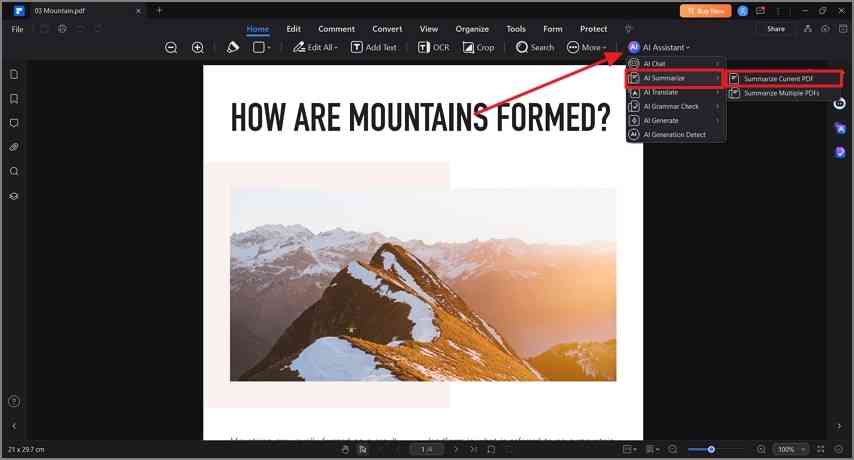
G2 Rating: 4.5/5 |100% Secure
Step 2 Review the Summary or Add Another PDF
Review the initial PDF summary in the AI panel. You can enter a follow-up prompt to focus on specific information or use the attachment option to add another PDF when you need to work with more than one document.
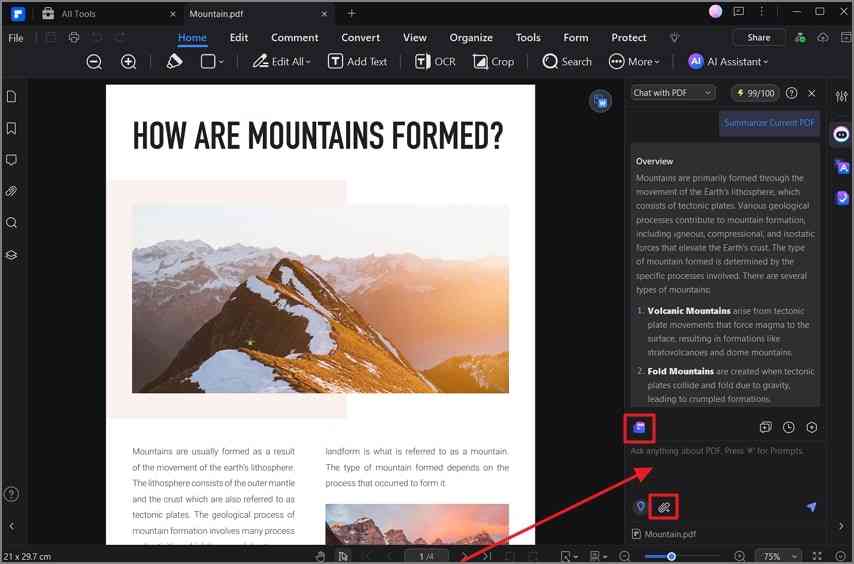
Step 3 Choose the Summary Format You Need
Refine the result with a more specific prompt. For example, ask PDFelement to "Summarize the document in five bullet points," "List the main findings and supporting evidence," or "Create an executive summary with key risks and action items." A specific output request is usually more useful than repeatedly asking for a generic summary.
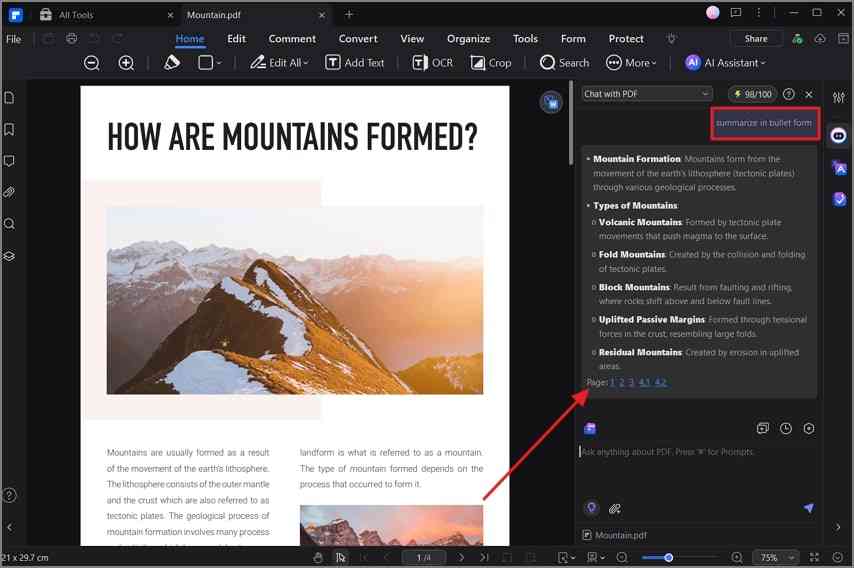
Step 4 Adjust Language, Tone, or Industry Context
If the available AI settings are relevant to your document, adjust the response language, tone, or industry context. These controls can help align the wording with academic, professional, or industry-specific use, but they do not replace verification of the underlying source information.
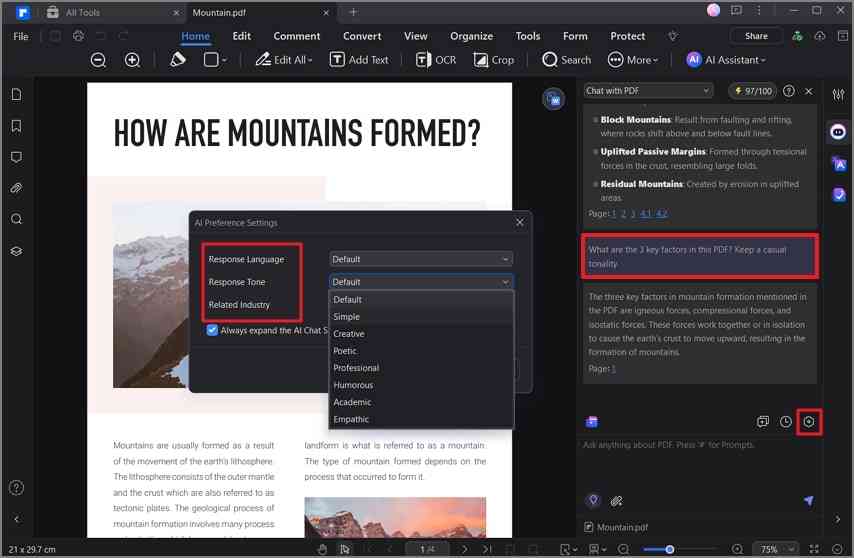
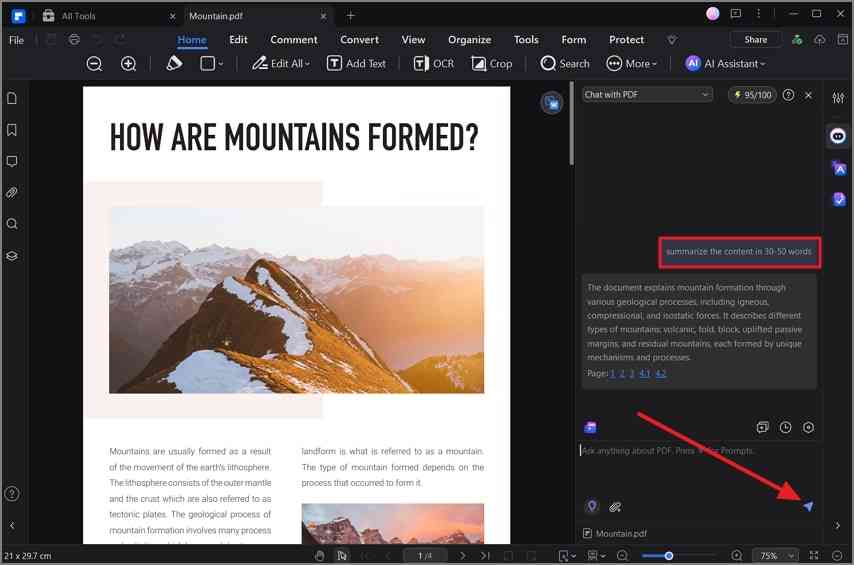
Step 5 Set the Length and Verify Important Details
Specify the length you need, such as "Summarize this document in 100 words" or "Create a 10-point summary." Before copying the result into another document, check important names, dates, figures, quotations, conclusions, and exceptions against the original PDF.
G2 Rating: 4.5/5 |100% Secure
Part 5. What to Do After AI Summarizes Your Document
The strongest document workflow does not end with the generated summary. Use the summary to decide what deserves closer attention, then return to the source PDF for verification and follow-up work.
- Run OCR when the source is scanned: If the PDF is image-based, use PDF OCR so the text becomes searchable and machine-readable before relying on AI analysis.
- Ask follow-up questions: Use Chat with PDF to clarify terminology, find supporting sections, identify risks, or ask how specific parts of the document relate to the overall summary.
- Compare related files: If the task involves several PDFs, use a multiple-PDF summarization workflow instead of treating every document as an isolated file.
- Check the source before reuse: Verify important figures, quotations, claims, legal wording, and research conclusions against the original pages. AI-generated summaries are useful reading aids, not substitutes for the underlying document.
- Continue working with the PDF: Once the important information is verified, you can annotate relevant passages, edit the PDF, translate sections, or convert the document into another format without separating the summary from the source workflow.
FAQs About AI Document Summarizers
1. What should I look for in an AI document summarizer?
Look for support for the document types you use, long and multiple files, OCR for scanned PDFs, customizable summary formats, source-checking options, privacy controls, and a workflow for reviewing or reusing the result. The best choice depends on whether you need a quick overview or a summary you must verify for research or professional work.
2. Can AI summarize long PDF documents?
Yes. Many document-focused AI tools can summarize long PDFs, but file and processing limits vary by product and plan. For a long document, start with an overview and then request section-level findings, risks, evidence, or action items instead of relying on one extremely short summary.
3. Can AI summarize a scanned PDF?
Yes, if the scanned PDF is processed with OCR or the tool can recognize text from image-based pages. OCR creates a machine-readable text layer that the AI can analyze. Check OCR results when the scan is blurry, handwritten, multi-column, or contains complex tables.
4. Can I summarize multiple PDF documents at once?
Yes. PDFelement supports working with multiple PDFs for AI summarization and document chat. A multi-file workflow is useful for comparing reports, synthesizing research, or finding recurring themes across related documents rather than summarizing each PDF separately.
5. How accurate are AI document summaries?
AI summaries can be useful for identifying main ideas and creating a first-pass overview, but accuracy varies with the document, scan quality, structure, and task. Always verify important numbers, quotations, conclusions, exceptions, and decision-critical information against the original source.
6. Is it safe to upload confidential documents to an AI summarizer?
Do not assume every AI summarizer handles confidential files the same way. Before uploading sensitive business, legal, financial, or personal information, review the provider's privacy policy, data-retention rules, security controls, and whether your organization permits the service.
Conclusion
Choosing an AI document summarizer should start with the document, not the brand. For a short, low-risk text, a basic summarizer may be enough. For long PDFs, research papers, scanned files, confidential reports, or several related documents, prioritize OCR, multi-file support, source verification, prompt controls, privacy, and the ability to continue working with the original file.
PDFelement is a strong fit when PDF summarization is part of a larger document workflow rather than the final step. You can summarize the document, ask follow-up questions, work with multiple PDFs, process scanned files with OCR, and then continue editing, annotating, translating, or converting the original PDF.
G2 Rating: 4.5/5 |100% Secure




