

Extracting specific pages is often required when preparing filings, sharing revisions, or separating approved sections from drafts. Therefore, the process must respect original pagination, margins, and embedded objects without altering document structure. In professional workflows, even minor extraction errors can disrupt reviews, printing alignment, or automated processing stages.
Furthermore, this guide explains how to extract pages from a PDF document using fast, controlled methods. It covers single-page selection, grouped extraction, and full-range separation for specific operational needs. The focus remains on producing clean, predictable page outputs without altering the original document structure.
In this article
- What Does "Extracting Pages From PDF" Mean?
- Quick Chooser: Pick Your Goal For PDF Extraction
- Method 1: Desktop Precision With PDFelement
- Method 2: Free & Online (Quick for Small, Non-Sensitive Files)
- Method 3: "Print to PDF" Workaround (One-Off Ranges)
- Method 4: Bookmark-Aware Extraction (Chapter Exports)
- Output Hygiene (Naming, Folders, Structure)
- Mini Module — Extract vs. Split
- Special Notes People Search For
- Quick Recipes (Copy & Adapt)
Part 1. What Does "Extracting Pages From PDF" Mean?
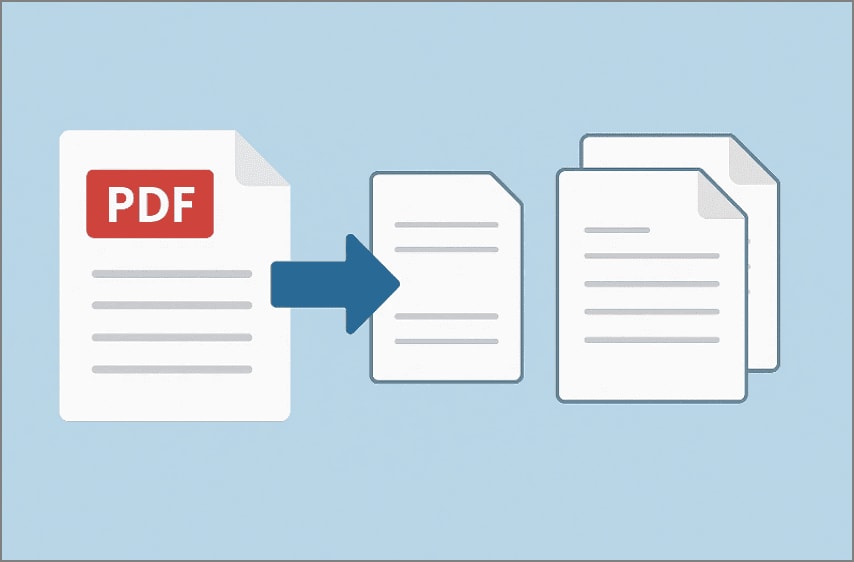
Extracting pages from a PDF is the exportation of chosen pages of a document to another new file, leaving the original document unbound. This proves helpful in printing a few sections, in separating pages to be passed, in making handouts, or organizing the work. Unlike deleting pages, extraction preserves the source file and generates separate, reusable PDFs for focused distribution or archiving.
When To Use Page Extraction
Below are common situations where page extraction becomes the most efficient option:
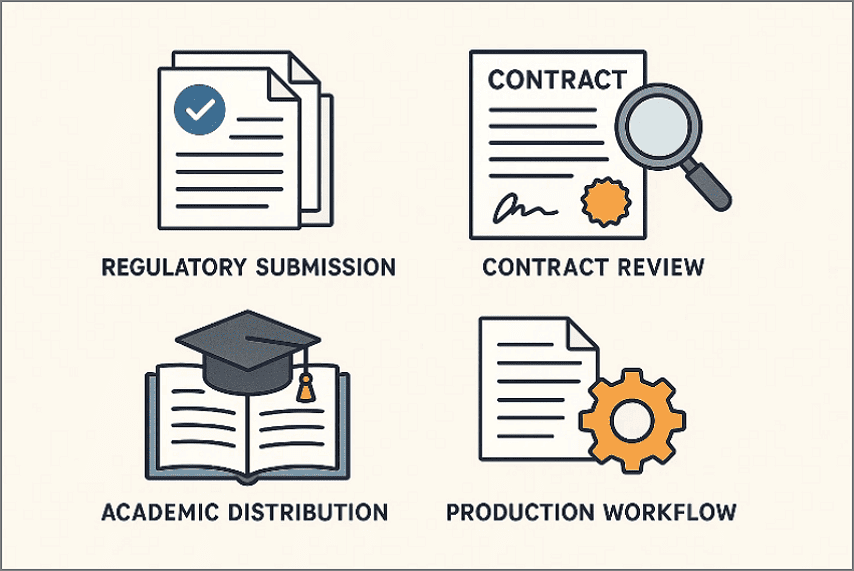
- Regulatory Submission: Extract only the required annexures from a compliance report to meet submission guidelines.
- Contract Review: Isolate signature or amendment pages before circulating documents for legal approval.
- Academic Distribution: Extract selected lecture slides or readings instead of sharing entire course PDFs.
- Production Workflow: Separate all pages into individual files for renaming, indexing, or automated processing systems.
Part 2. Quick Chooser: Pick Your Goal For PDF Extraction
Choosing the most effective extraction method, you should start by defining your particular aim below:
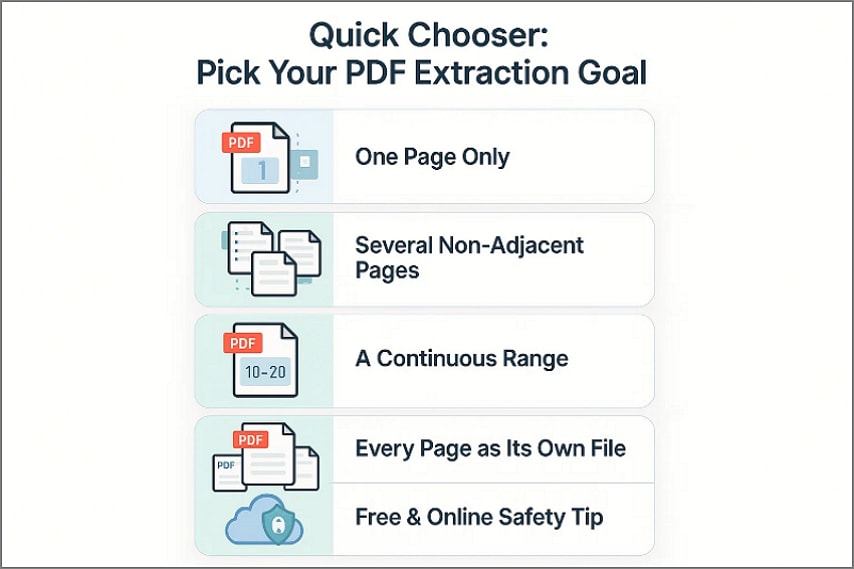
- One Page Only: Create a new PDF containing only one selected page, perfect for approvals or focused sharing tasks.
- Several Non-Adjacent Pages: Combine scattered pages into one file or separate PDFs when pages are needed independently for workflows.
- A Continuous Range: Extract a continuous block of pages into one PDF, useful for chapters or sections within documents.
- Every Page as Its Own File: Split a PDF into individual files, each containing a single page, for sorting or distribution.
- Free & Online (Safety Tip): Use free online tools only for non-sensitive PDFs; keep confidential files offline for basic tasks.
Part 3. Method 1: Desktop Precision With PDFelement
PDFelement is a desktop-based PDF editor designed for precise document control and offline reliability. It supports structured page management, layout preservation, and secure handling of sensitive files. As a result, professionals rely on it for reports, contracts, and production documents where accuracy matters. Moreover, its interface balances advanced tools with clear visual guidance for everyday document tasks.
Meanwhile, PDFelement streamlines page-level actions without disrupting original file integrity or formatting. Users can extract individual pages from PDF files using clearly defined workflows and visual page thumbnails. Therefore, the tool reduces selection errors while supporting complex document scenarios. Overall, it fits technical environments that demand speed, consistency, and predictable output results.
Guide To PDF Extraction With PDFelement
To access page extraction tools in PDFelement, follow the path shown below:
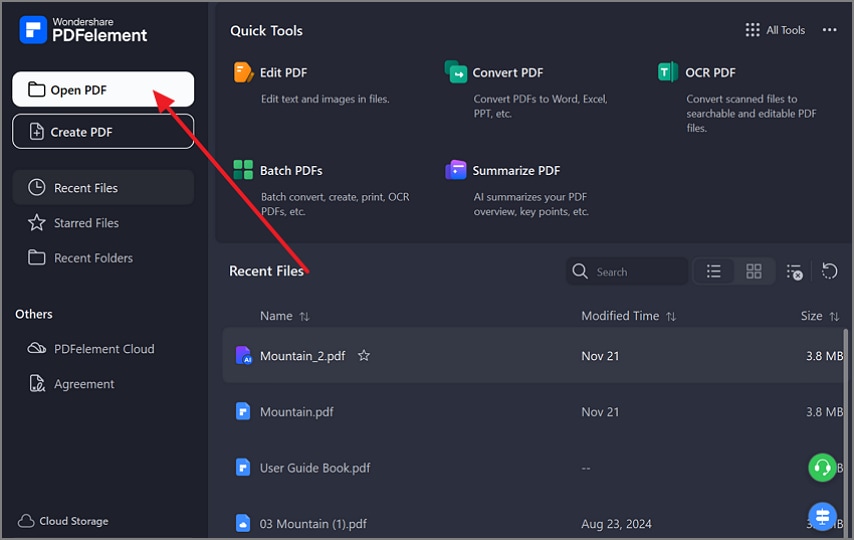
Step 1Load Your PDF into PDFelement
First, launch PDFelement and click "Open PDF" from the left panel. Then, select the document you want to work with from your system.
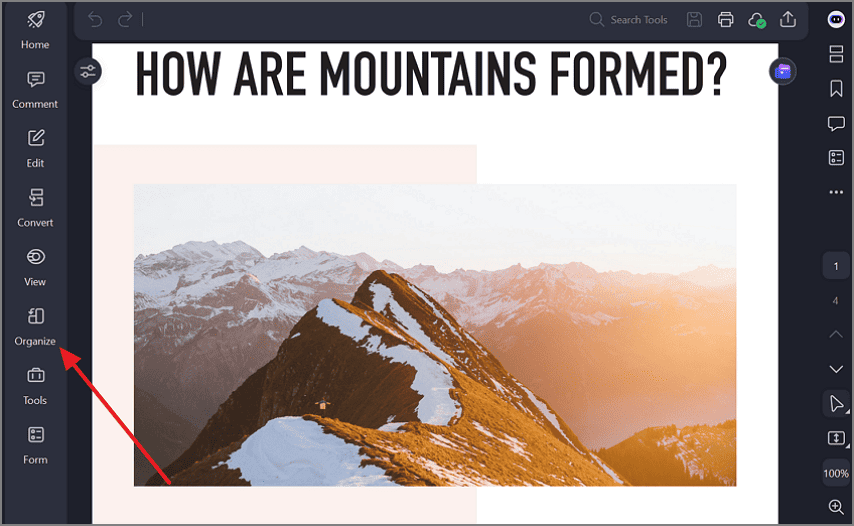
Step 2Switch to Page Organization View
Next, select "Organize" from the left sidebar to display page thumbnails. This view provides precise visual control for reviewing, selecting, and managing individual pages accurately.


 G2 Rating: 4.5/5 |
 100% Secure
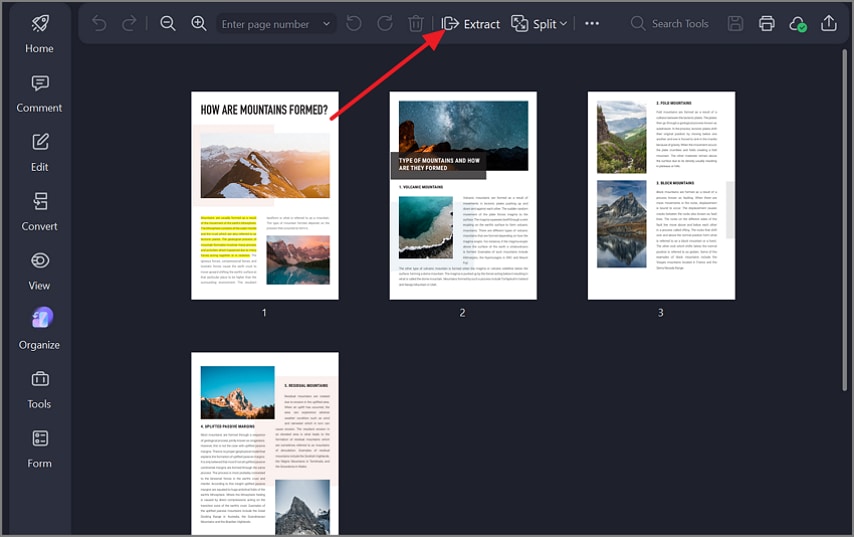
Step 3Access the Extract tool
Afterwards, click "Extract" from the top toolbar above the page thumbnails. In the dialog box, specify the pages by entering numbers, ranges, or choosing All, then confirm. PDFelement creates a new PDF with the selected pages; use "Save As" to store it in your preferred folder.
Pro Tip: Run OCR first if the PDF is scanned, so extracted pages remain searchable. Plus, use page thumbnails to confirm selections and visually avoid extraction errors.
Part 4. Method 2: Free & Online (Quick for Small, Non-Sensitive Files)
This method is suitable for quick page extraction when files are small and contain no sensitive information. Free online tools allow fast processing directly in a browser, making them useful for simple tasks without installing desktop software. Furthermore, the online extraction process follows a simple sequence, shown below:
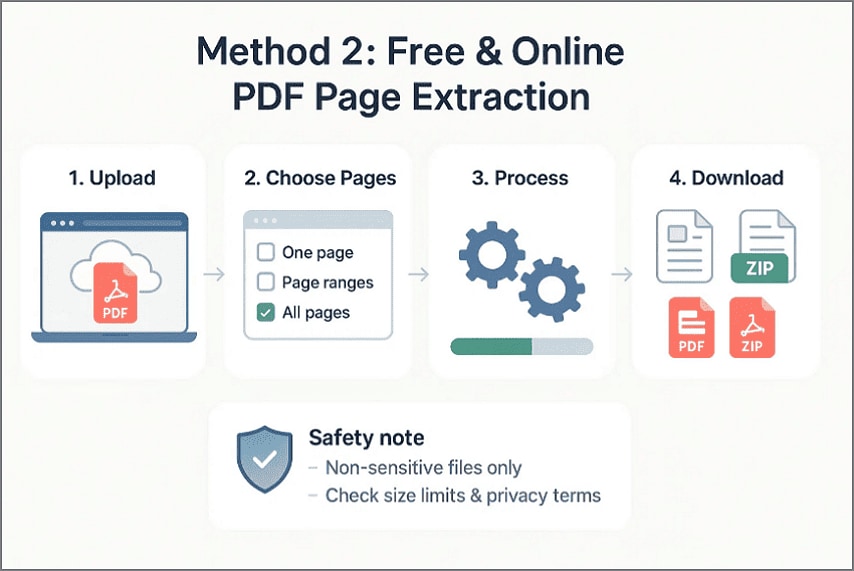
Workflow of Online Tools
- Upload: Choose a trusted free PDF extract pages tool and upload your PDF file.
- Choose Pages: Select a single page, specific ranges, or extract all pages separately.
- Process: Let the tool split and prepare the selected pages automatically.
- Download: Save the extracted pages as individual PDFs or a ZIP file.
Note: Before using any "extract pages from PDF online free tool", always check size limits and privacy terms.
Part 5. Method 3: "Print to PDF" Workaround (One-Off Ranges)
This option enables fast page separation when no PDF editor is available on your system. It uses the operating system's print function to create a new document from chosen pages. Moreover, the method fits best for single, continuous ranges and quick, one-off document needs. To apply this method correctly, use the print-based workflow shown below:
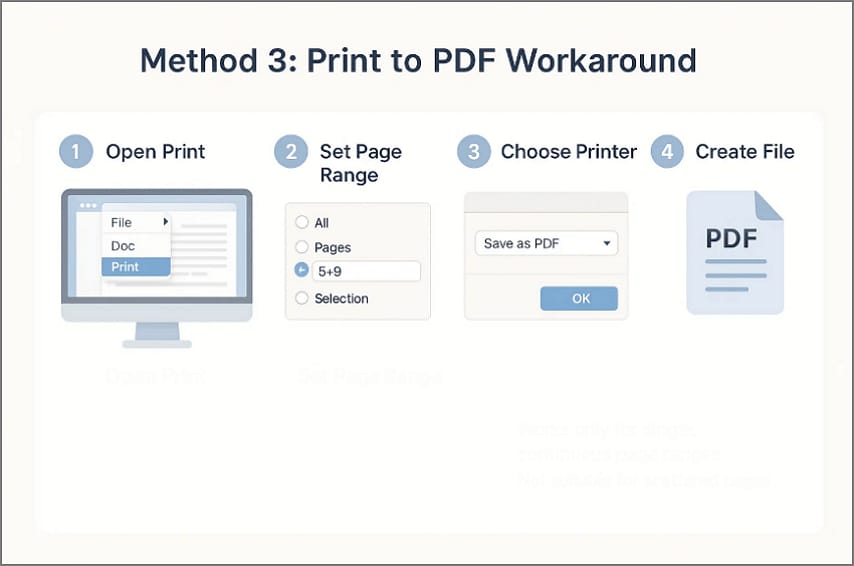
Workflow of Print to PDF
- Open Print: Load the PDF, then select the "Print" option from the file menu to continue.
- Set Page Range: Enter a continuous range, such as pages 5–9, in the pages field.
- Choose Printer: Select "Save as PDF" or "Microsoft Print to PDF" as the printer.
- Create File: Confirm the print action to generate a new PDF containing only the selected pages.
Limitation: This approach is not suitable for extracting scattered or complex page selections.
G2 Rating: 4.5/5 |100% Secure
Part 6. Method 4: Bookmark-Aware Extraction (Chapter Exports)
Bookmark-aware extraction uses document structure to export chapters cleanly, avoiding manual page ranges. It also helps manage an extra PDF page by assigning it to the correct section during chapter-based exports. The bookmark-based workflow is applied using the steps described next:
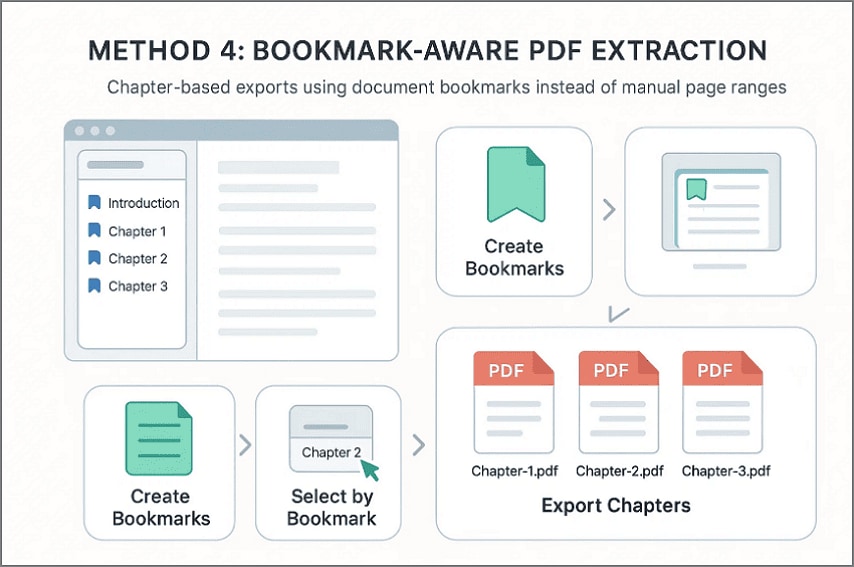
Workflow of Bookmark-Aware PDF Extraction
- Create Bookmarks: Add top-level bookmarks at the beginning of each main section for structured extraction.
- Select by Bookmark: Choose required sections using bookmarks rather than manually entering page numbers.
- Export Chapters: Generate separate PDF files automatically named after each corresponding bookmark.
- Ideal For: This approach works exceptionally well for manuals, reports, and books where chapter structure matters.
Part 7. Output Hygiene (Naming, Folders, Structure)
This section explains how to store and label extracted PDFs so every file remains traceable and easy to manage. Clear structure becomes essential when you extract pages from a PDF file repeatedly across projects or reporting cycles.
Folder Structure
Follow a consistent path such as /Project/Client/YYMM/Extracted/. Begin with the project name, add the client name, include a year–month code like 2503, then store outputs inside the Extracted folder.
File Naming Rules
To keep extracted files easy to identify, apply clear naming templates that describe the content immediately:
- {filename}_p{page} for single pages
- {filename}_{range} for continuous page ranges
- {bookmark} for chapter-based exports
Metadata and Tracking
Export pages with the original PDF metadata, including author name, title, and date of creation. It enables extracted files to be searchable and traceable to their document in the future. Also, note every extraction in a plain-text diary, including the date, the source file name, and the pages exported, so we can review it later.
Part 8. Mini Module — Extract vs. Split
This mini module helps you decide whether to extract selected pages or split an entire PDF into parts. Both actions sound similar, but they solve very different document problems.
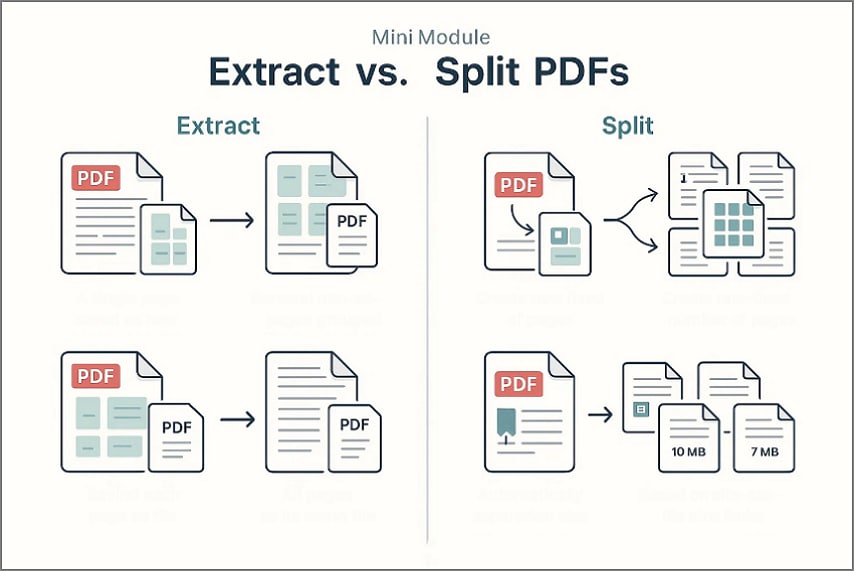
When to Use "Extract"
Choose Extract to pull specific pages while leaving the original PDF unchanged. Consider trying this option if you have the following needs:
- One page only, such as page 5, saved as a separate PDF.
- Several non-adjacent pages, like pages 2, 7, and 10.
- One continuous range, such as pages 15 through 28.
- Every page has its own file, without breaking the source document.
In PDFelement, this workflow is handled through Organize> Extract, which you have already seen earlier.
When to Use "Split"
Select Split to divide the complete PDF into multiple documents according to a defined rule. The option is most appropriate in the case when you have to conduct the following tasks:
- Divide a file into defined page ranges
- Create a new PDF every set number of pages
- Split documents by top-level bookmarks
- Automatically separate files based on size limits
In PDFelement, splitting is available under "Organize > Split > Split PDF," with options for pages, size, or bookmarks.
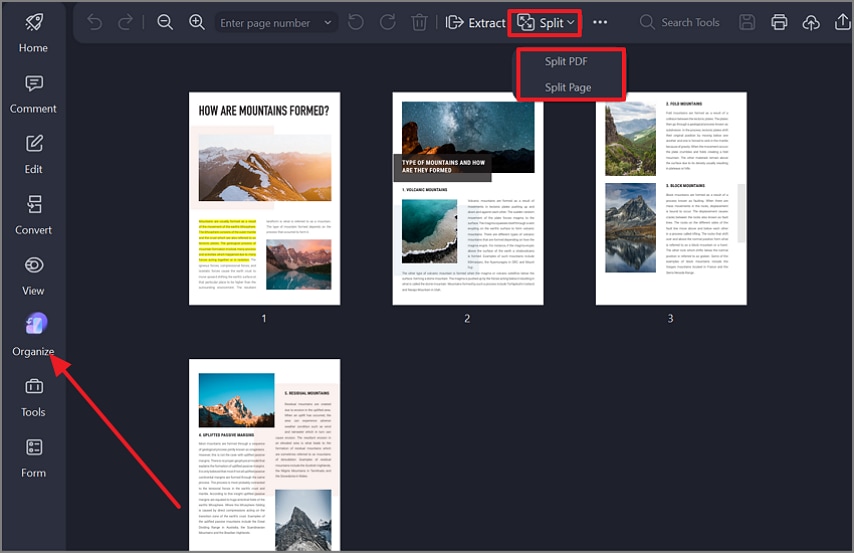
For advanced splitting scenarios, you can explore detailed guides on splitting PDFs by file size and splitting PDFs by top-level bookmarks. These links take you to step-by-step instructions, while this section stays focused on helping you choose between Extract and Split.
Part 9. Special Notes People Search For
Before moving on, it helps to clear up the following common search terms that often cause confusion:
Extra Page From PDF" or "Extra PDF Page
When users search for extra pages form PDF, they are usually trying to remove an unwanted page. This action involves deletion rather than extraction, which are two different document operations entirely. For this purpose, use "Organize Pages", select "Delete", and keep a backup to prevent accidental permanent data loss.
Extract All Pages From the PDF
In this case, extracting all pages from a PDF usually means separating every page into its own document. Therefore, select "All pages" during extraction and enable "Save as separate files," often called "export each page" in online tools.
Part 10. Quick Recipes (Copy & Adapt)
These reusable recipes show exact actions and outcomes, letting you apply them immediately using a small pdf extract without rethinking the workflow.
Sign-Off Sheet Only
PDFelement desktop extraction > Single page > {document}_approval_p{page}.pdf.
Use this when isolating approval or signature content while keeping the source document unchanged.
Non-Adjacent Highlights
PDFelement page selection > Pages 4, 7, and 10–11 > Combined output.
This approach works well for gathering scattered sections into one review-ready file.
Each Page as an Individual File
PDFelement or online extraction > All pages separated
This setup creates one file per page, making indexing, sharing, or downstream processing easier.
Free-Range Pages
Print-to-PDF workflow > Pages 21–40
Choose this option to generate a new document from a continuous range when editing tools are unavailable.
Frequently Asked Questions
-
How do I extract a single page from a PDF without losing quality?
Use a reliable PDF editor to extract the page, preserving original resolution and compression settings. Extraction copies page content directly, preserving the quality of the source document without alteration. -
Can I safely extract pages from a PDF online for free for large documents?
Online tools can extract pages safely, but large documents may face upload size limits. Avoid online extraction for confidential files, as privacy policies and data handling vary widely globally. -
What's the difference between extracting pages from a PDF and splitting?
Extracting pages creates a new PDF with selected pages, while splitting divides everything into files. Extraction focuses on chosen content, whereas splitting outputs multiple PDFs from the entire document set. -
How do I extract all pages from a PDF into separate files at once?
Use a PDF splitter or extractor feature that exports each page automatically as separate files. Most desktop tools support batch extraction, letting you save all pages simultaneously without repetitive effort. -
If my file is scanned, will the extracted pages be searchable?
Scanned PDFs contain images, so extracted pages are not searchable without optical character recognition applied. Running OCR after extraction converts images into text, making the pages searchable and accessible digitally.
Conclusion
In conclusion, PDF page extraction does not require resultant structure, quality, and workflow efficiency. By choosing the right method for each scenario, you can extract pages from a PDF document accurately. For professional control, predictable results, and offline reliability, tools like PDFelement offer a practical solution that fits real document workflows naturally.

