

Complex presentations are not easy to perceive, which calls for simplification of the existing content. Although PowerPoint provides different measures to improve the outlook of a presentation, converting complex content to notes is considered better. Not only does it help you simplify content, but it also helps you prepare for your presentation.
The challenge has been simplified with the integration of AI, which offers a fast and effective solution to convert presentations into mindful notes. One standout tool for this purpose is PDFelement, which is an AI-powered tool designed to turn PPT into notes. This article explores how this efficient document management tool can help you easily convert presentations into valuable notes for logical understanding.
In this article
- Part 1. Reasons for Converting PPTs into Notes
- Part 2. Advantages of Using AI For Precise PPT to Notes Conversion
- Part 3. Steps For Converting PPT into Notes Using PDFelement
- Part 4. How PDFelement is the Ultimate Solution to Convert PPT To Notes
- Part 5. Tips For Optimizing Presentations to Notes Conversion with PDFelement
- Part 6. How to Get Started for PowerPoint to Notes Conversion with PDFelement
Part 1. Reasons for Converting PPTs into Notes
Converting PowerPoints into detailed, organized notes can become challenging if you do not have a handy tool. Mentioned below are a few reasons why you should change the PPTs into notes:
- Efficient Study and Review: Generating notes simplifies the process of revisiting the key points within a presentation. It makes the process of reviewing easier for students and professionals to retain key information.
- Collaborative Learning: The process fosters collaboration among team members and ensures everyone is on the same page.
- Boost Productivity with AI: The PPT-to-notes AI conversion has been automated, which reduces manual effort. This results in enhanced productivity, especially when you are summarizing a file.
- Time Management: Automating the conversion of slides into notes can save you valuable time and let you focus on other important tasks.
Part 2. Advantages of Using AI For Precise PPT to Notes Conversion
AI-powered tools have become game-changers in efficiently transforming PPTs into structured notes. These tools offer several distinct benefits, making the process more accurate and streamlined:
- Enhanced Efficiency and Speed: AI accelerates conversion and quickly turns slide content into organized notes. This saves users considerable time and effort, enhancing the efficiency.
- Clear and Structured Summarization: AI tools excel at transforming lengthy content into concise, structured summaries in the form of notes. Users can easily understand and review the content for the desired purpose.
- Accuracy and Consistency: The adoption of AI ensures all the key points from the slides are captured accurately, unlike manual note-taking, in which users can miss any crucial point.
- Customization and Flexibility: These tools often allow users to select the format for the output of their created notes for PowerPoint to notes AI conversion. Moreover, it ensures that the generated notes align perfectly with users' needs.
Part 3. Steps For Converting PPT into Notes Using PDFelement
When it comes to transforming your presentation into quick notes, one efficient tool is PDFelement. This tool uses AI to provide users with the ability to create notes from the key points extracted. Mentioned below is the detailed step-by-step guide on how to generate meaningful notes from presentations using PDFelement:


 G2 Rating: 4.5/5 |
 100% Secure
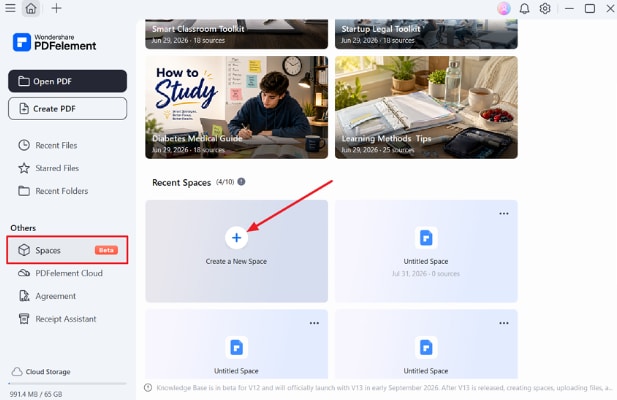
Step 1. Create a New Space in PDFelement
Once you open PDFelement, press the “Spaces” option in the left side panel and choose “Create a New Space.”
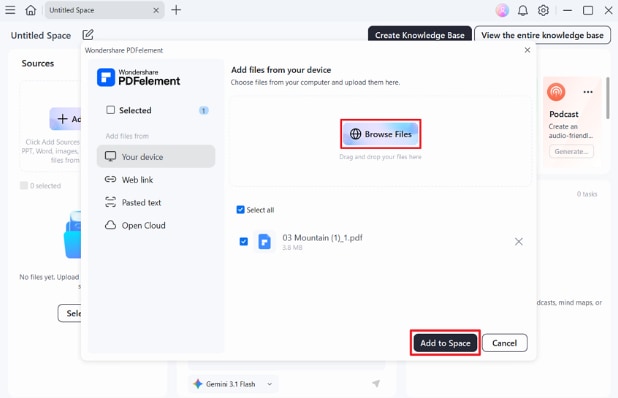
Step 2. Add Your PPT to Space
Afterward, press the “Browse Files” option and choose the PPT file you want to add. Next, press the “Add to Space” button.
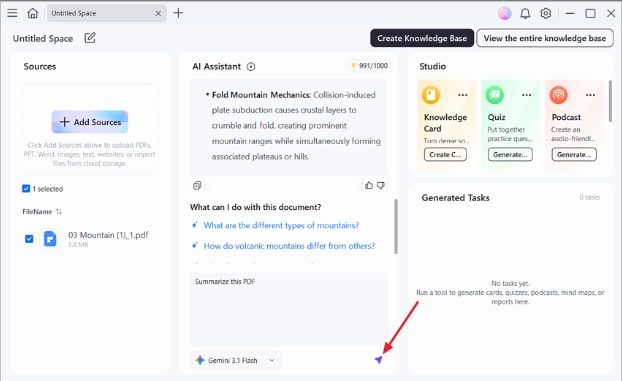
Step 3. Chat with The PPT
Next, you can ask questions about the PPT or ask AI to summarize the PPT in the chat section. Press “Send” to get a comprehensive AI assistant response.
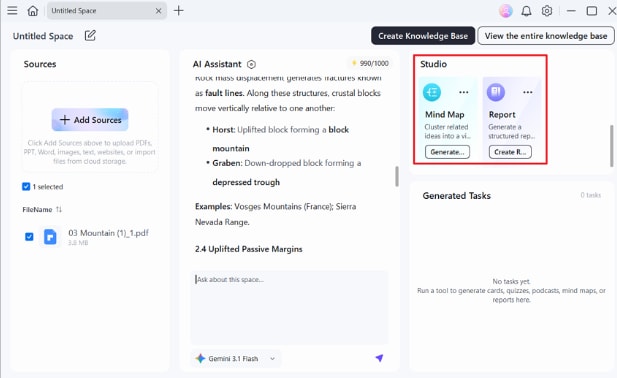
Step 4. Generate More Materials
In the “Studio” section, select “Knowledge Card”"Quiz"“Report” or “Mind Map” and press “Create Knowledge Card” to convert AI response to study material.
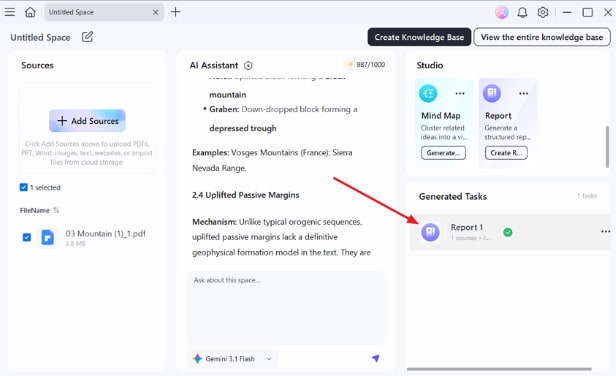
Step 5. Review the Generated Materials
In the “Generated Tasks” section, you’ll see the generatd study materials. Just click it to open.
Part 4. How PDFelement is the Ultimate Solution to Convert PPT To Notes
PDFelement stands out as an ideal tool for converting presentations into well-structured notes. The tool offers advanced features and an intuitive design for users. Moreover, it provides a seamless conversion process with the integration of artificial intelligence. Below are some coherent features that make PDFelement one of the most reliable options for AI-powered slides-to-notes AI conversion:
G2 Rating: 4.5/5 |100% Secure
- Advanced AI Summarization: PDFelement leverages advanced AI technology to summarize content efficiently. This tool makes sure that the key points are extracted efficiently for clear and readable note generation.
- Versatile and User-Friendly Design: The tool is designed with ease of use in mind for beginners and naive users. The intuitive design ensures an effortless user experience irrespective of the technical skill levels.
- Multiple Formats Support: Another incredible ability of this PowerPoint to notes converter is the multiple format options. Users can convert their PDF,PPT,Word,iamges and YouTube video to notes.
- Structured Notes Generation: Instead of creating a plain text summary, PDFelement organizes information into clear headings, bullet points, and logical sections. This makes the notes easier to read, review, and share.
Part 5. Tips For Optimizing Presentations to Notes Conversion with PDFelement
To make the most out of your PowerPoint to notes AI conversion, incorporate the following mentioned tips in your process:
- Organize Slides with Clear Headings: Presentations that use descriptive titles and logical section breaks are easier for AI to understand. A well-structured deck allows PDFelement to identify key topics and organize notes into a clear outline.
- Choose the Right Prompt for Your Goal : Instead of asking AI to simply "summarize the presentation," give it a specific instruction based on your needs.
- Review and Expand AI-Generated Notes with AI Chat : The first draft is only the beginning. After the notes are generated, use PDFelement AI Chat to ask for more detailed explanations.
- Convert Large Presentations in Sections : Instead of processing a 200-slide presentation at once, split it into logical chapters. This makes the generated notes easier to review and improves topic organization.
Part 6. How to Get Started for PowerPoint to Notes Conversion with PDFelement
As discussed, PDFelement provides a streamlined process for creating notes from presentations. Follow the instructions mentioned below to learn how to get started with the tools' installation.
G2 Rating: 4.5/5 |100% Secure
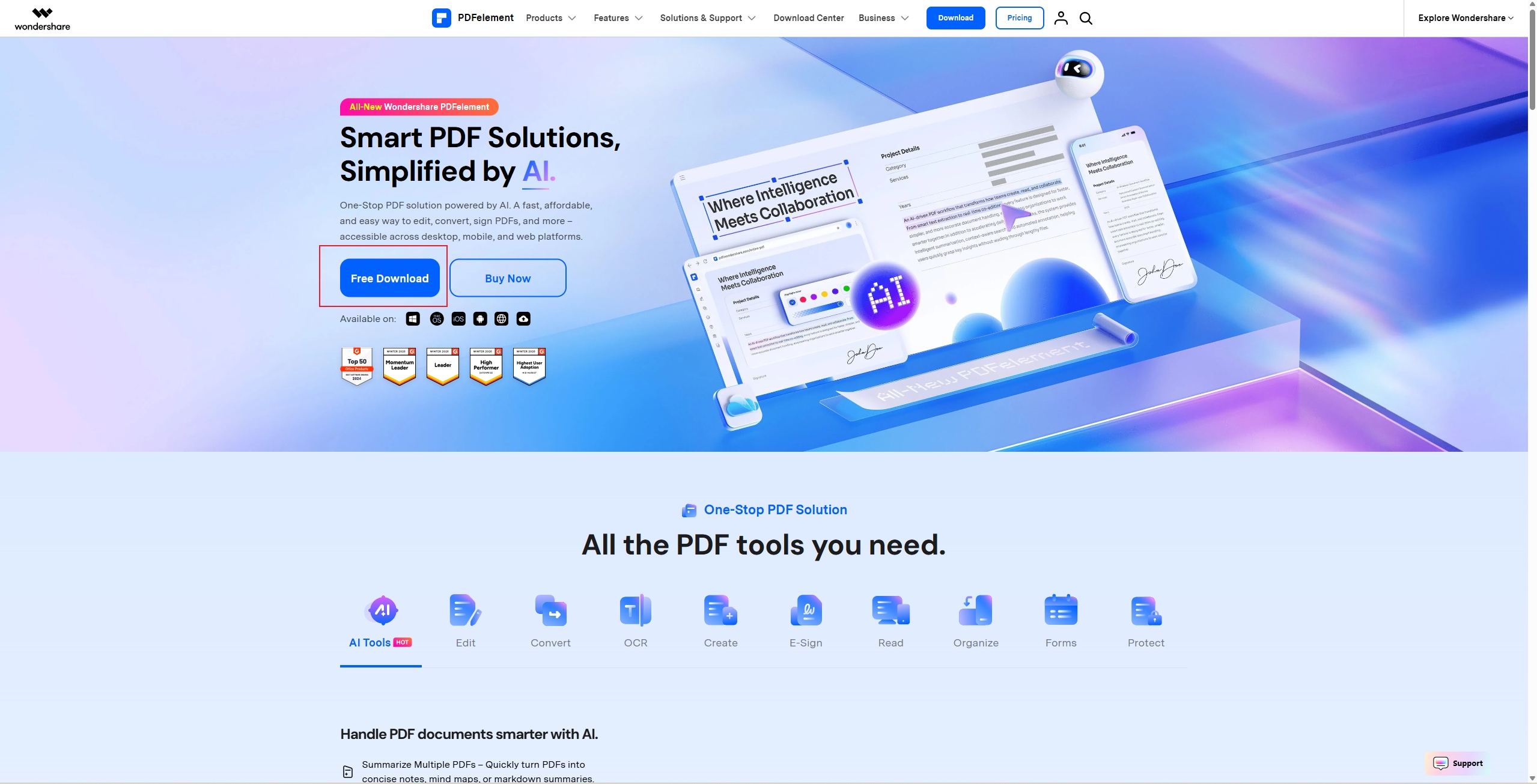
Instructions: To start turning slides into notes, download and install the latest version of PDFelement on your computer device. To do this, head to the official PDFelement website and press the “Free Download” button to follow the on-screen installation instructions.
Once installed, launch the tool and upload your presentation to the tool's interface with its free trial. With the free trial version of PDFelement, users get the ability to experience its robust capabilities, including AI summarization and other editing tools.
However, the number of trials for processing the content or PDF files is limited, which needs to be upgraded to a paid subscription for extensive use. This free trial is an excellent way for you to familiarize yourself with its user-friendly design and explore its PPT-to-notes abilities.
Conclusion
To conclude, this article discussed how PDFelement helps you generate effective notes from your PowerPoint presentation. Moreover, the article also explained how PDFelement is one of the most reliable options to create, edit, and organizing notes. The tool uses advanced artificial intelligence to convert PPTs to notes for effective sharing and collaboration.
G2 Rating: 4.5/5 |100% Secure




