

Late at night, you're staring at a PDF bank statement, trying to copy transactions one by one into a spreadsheet before tomorrow's deadline. The numbers won't align, columns break apart, and formatting errors keep appearing. You need clean data that uploads smoothly into your accounting software without manual corrections.
This is where the bank statement to CSV conversion becomes essential. Turning static statements into structured, import-ready CSV files saves time and eliminates formatting chaos. In this guide, you'll learn how to convert bank statements to CSV efficiently, ensuring your financial records are organized, accurate, and ready for analysis.
In this article
- Why CSV is Used For Bank Statements
- What a Bank Statement CSV File Should Contain
- Why Bank Statement PDFs are Hard to Convert to CSV
- Common Issues When Converting Bank Statements to CSV
- PDF to CSV Bank Statement Conversion: What Actually Works
- How to Convert a Bank Statement PDF to CSV with PDFelement
- Converting Scanned Bank Statements to CSV
- Free and Online Bank Statement to CSV Converters: What to Watch Out for
- Preparing CSV Files for Import into Other Systems
Part 1. Why CSV is Used For Bank Statements
Before converting financial records, it's important to understand why a CSV bank statement format is widely preferred for handling transaction data. Below are the key reasons this format is commonly used:
- Structured Data Format: CSV organizes transactions into clearly defined rows and columns. This ensures each field, such as date, description, and amount, remains properly aligned for processing.
- Software Compatibility: Most accounting platforms, banking tools, and spreadsheet programs support CSV imports. It allows seamless data integration without additional conversion steps.
- Lightweight File Size: CSV files store plain text data, making them smaller and faster to upload, download, and share compared to formatted documents.
- Easy Data Analysis: Analytical tools can quickly parse CSV files, enabling sorting, filtering, and financial reporting without complex formatting adjustments.
- Automation Friendly: CSV files integrate smoothly with scripts, APIs, and data pipelines, making automated reconciliation and bookkeeping processes more efficient.
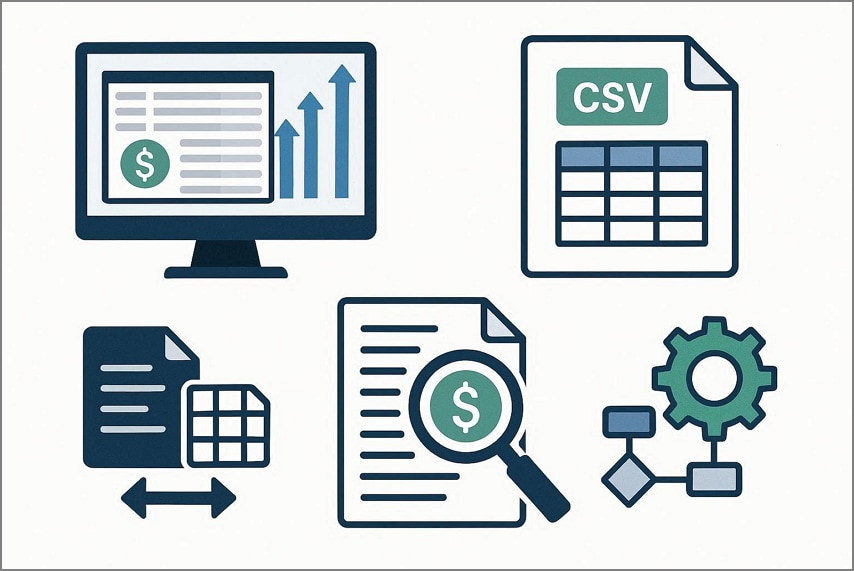
Why Many Systems Prefer CSV Over Excel
Many platforms favor CSV files because they store plain-text data without embedded formatting, macros, or proprietary structures. This makes CSV universally compatible across operating systems and software environments. Unlike Excel files, CSV loads faster, consumes less memory, and reduces corruption risks. Systems can easily parse CSV data for automation, database imports, and API integrations without relying on specific spreadsheet software versions.
Typical Use Cases for Bank Statement CSV Files
- Accounting Software Import: A CSV statement can be directly uploaded into accounting platforms to sync transactions, categorize expenses, and generate financial reports without manual entry.
- Bank Reconciliation: Businesses use CSV files to match recorded transactions with bank records, ensuring balances align accurately at the end of each period.
- Financial Analysis & Reporting: Analysts import transaction data into spreadsheets or BI tools to create summaries, cash flow reports, and performance dashboards.
- Tax Preparation: Organized transaction data helps streamline income tracking, deductible expense identification, and documentation for tax filing.
- Audit & Compliance Review: Structured CSV files allow auditors to quickly filter, sort, and verify transaction histories for compliance checks.


 G2 Rating: 4.5/5 |
 100% Secure
Part 2. What a Bank Statement CSV File Should Contain
Understanding the bank statement CSV format is essential before importing financial data into any accounting or analysis system. A properly structured file ensures transactions are accurately recognized, categorized, and processed without errors. Below are the core transaction fields every bank statement CSV file should contain:
- Date: Records the exact transaction date. It should follow a consistent format (e.g., YYYY-MM-DD) to prevent sorting or import errors.
- Description: Provides details about the transaction, such as merchant name, transfer reference, or payment type, helping identify and categorize entries.
- Debit: Lists outgoing amounts deducted from the account, typically recorded as positive numeric values in a dedicated column.
- Credit: Shows incoming funds deposited into the account, separated clearly from debit values for accurate reconciliation.
- Balance: Reflects the running account balance after each transaction, ensuring financial tracking and verification accuracy.
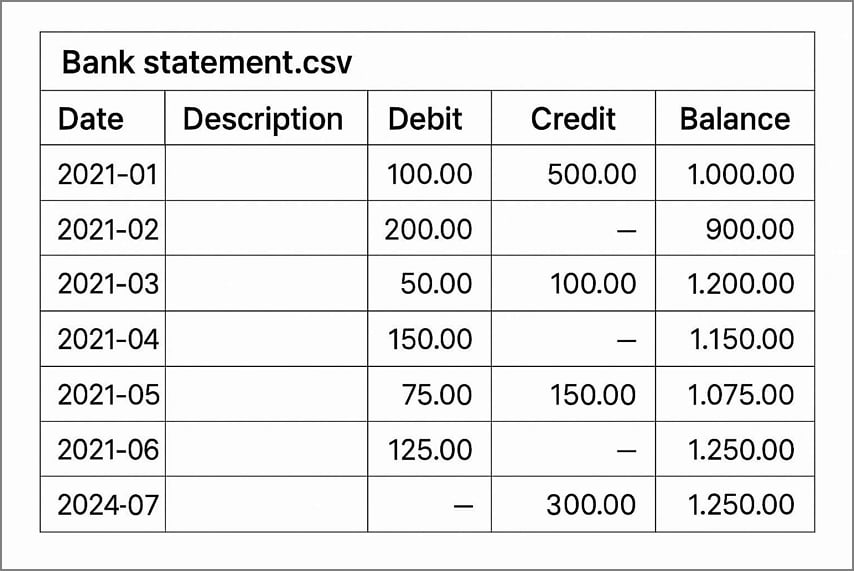
Importance of Consistent Column Order in CSV Files
Maintaining a consistent column order is critical for accurate data processing in a CSV bank statement. Accounting software and automated tools rely on fixed column positions to correctly map fields like date, debit, and credit. If columns shift or appear in a different sequence, imports may fail or misinterpret data. Standardized column order ensures smooth uploads, reduces errors, and supports reliable reconciliation and financial reporting workflows.
Why Formatting Matters More Than Appearance
- Data Recognition Accuracy: Systems read structured values, not visual styling. Proper numeric and date formatting ensures the software correctly interprets transaction details during imports.
- Error-Free Imports: Clean formatting prevents issues like misplaced decimals, incorrect date parsing, or merged fields that can cause upload failures.
- Automation Compatibility: Scripts and accounting tools rely on standardized formats to process data efficiently without manual corrections.
- Reliable Calculations: Correctly formatted debit, credit, and balance fields ensure formulas and reconciliation processes produce accurate results.
- Cross-Platform Consistency: Standard formatting guarantees the file works smoothly across different operating systems and financial applications.
G2 Rating: 4.5/5 |100% Secure
Part 3. Why Bank Statement PDFs are Hard to Convert to CSV
Converting a CSV format bank statement from a PDF can be challenging due to structural and formatting issues inherent in PDF files. Here are the main difficulties one can face during the conversion:
- Unstructured Data Layout: PDFs often display transactions visually with tables or columns that aren't recognized as data fields, making extraction complex.
- Inconsistent Formatting: Dates, amounts, and descriptions may vary in alignment or style across pages, causing parsing errors during conversion.
- Merged or Split Fields: Some entries combine multiple details into one line or split a single transaction across rows, disrupting CSV structure.
- Non-Text Elements: PDFs may contain images, logos, or scanned pages that cannot be read as text, requiring OCR tools for extraction.
- PDFs Are Designed for Viewing, Not Data Exchange: The format prioritizes visual presentation over machine-readable structure, making automated extraction into CSV difficult without specialized tools.
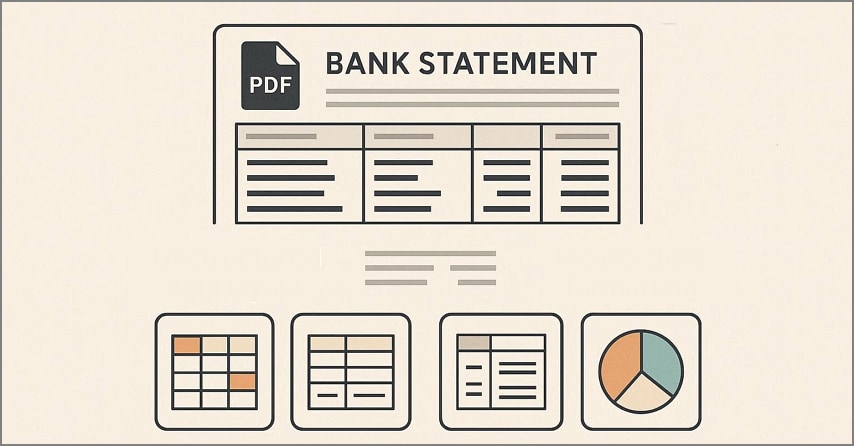
Table Structures vs. Visual Layouts in CSV Bank Statement
When preparing a CSV bank statement, understanding the difference between table structures and visual layouts is crucial. While PDFs and printed statements focus on visual appeal, CSV files rely on structured tables for accurate data processing. The comparison is highlighted below:
| Aspect | Table Structures | Visual Layouts |
| Purpose | Designed for machine readability and automated processing. | Designed for human readability and presentation. |
| Data Consistency | Each field occupies a fixed column, ensuring uniformity. | Columns may shift or vary in width, breaking alignment. |
| Automation | Easily parsed by scripts, accounting software, or import tools. | Difficult for software to interpret without manual correction. |
| Error Risk | Low, as the structure is predictable and standardized. | High, due to merged cells, inconsistent spacing, or page breaks. |
Differences Between Digital and Scanned Bank Statements
When working with bank data, distinguishing between digital and scanned statements is essential for a smooth CSV format bank statement conversion. Digital statements contain selectable text, while scanned statements are essentially images, requiring extra processing to extract data accurately. The differences are summarized below:
| Aspects | Digital Bank Statement | Scanned Bank Statement |
| Data Type | Text-based, machine-readable content. | Image-based, requires OCR to extract text. |
| Accuracy | High, minimal errors during conversion. | Lower, prone to OCR misreads and formatting issues. |
| Processing Time | Fast, can be directly exported to CSV or spreadsheets. | Slower, needs scanning and text recognition. |
| Formatting | Consistent table structures are easy to parse. | Visual layout only, may have misaligned or merged fields. |
G2 Rating: 4.5/5 |100% Secure
Part 4. Common Issues When Converting Bank Statements to CSV
When converting a PDF to a CSV bank statement, several challenges can compromise data integrity, making accurate imports and reconciliation difficult. Being aware of these common issues helps prevent errors and ensures clean, usable CSV files:
- Broken Rows and Merged Cells: Transactions that span multiple rows or have merged cells often misalign data, disrupting the column structure. This can result in incorrect mapping of fields like date, description, or amounts during import.
- Missing Delimiters: Inconsistent or missing commas, semicolons, or tabs prevent software from properly separating data columns. As a result, multiple fields may merge into one, making the CSV unusable without manual corrections.
- Incorrect Negative Values: Withdrawals or debit amounts may be incorrectly read as positive if minus signs are lost or misplaced. This can lead to inaccurate balances and errors in financial calculations.
- Header Repetition Across Pages: Multi-page statements often repeat column headers, which may be mistakenly treated as transaction data. These duplicate headers can interfere with sorting, filtering, and automated processing.
- Special Characters and Symbols: Currency symbols, accents, or other special characters may not translate correctly when converting to CSV. This can result in corrupted text or errors during software imports, affecting data reliability.
Part 5. PDF to CSV Bank Statement Conversion: What Actually Works
When you convert a PDF bank statement to CSV for free, the method you choose greatly affects accuracy and usability. Two main approaches are commonly used:
Table-Aware Conversion
This method detects and preserves the structure of tables in the PDF, ensuring each transaction aligns correctly in rows and columns. It maintains column order, avoids broken rows, and produces a CSV that can be directly imported into accounting or analysis software.
Text Extraction
Text extraction reads the content line by line without recognizing table boundaries. While simpler, it often misplaces data, merges fields, or loses formatting, requiring extensive manual cleanup before the CSV statement can be used reliably.
When OCR Is Required
OCR (Optical Character Recognition) is necessary when bank statement are scanned or saved as images rather than text-based PDFs. In such cases, the system cannot read transactions directly, and OCR converts the visual content into machine-readable text. This enables the extraction of dates, descriptions, and amounts for CSV statement conversion.
Why One-Click Tools Often Fail on Financial Tables
Using a PDF-to-CSV bank statement tool with a single click may seem convenient, but these tools often struggle with complex financial tables. Automated converters frequently misinterpret multi-line transactions, merged cells, or repeated headers, producing misaligned rows and missing data. They also cannot handle inconsistent formatting or special characters reliably. For accurate CSV output, table-aware software or manual verification is usually necessary to maintain data integrity.
Part 6. How to Convert a Bank Statement PDF to CSV with PDFelement
PDFelement is designed to convert a bank statement PDF to CSV with accuracy as the primary focus. It prioritizes structure by recognizing tables instead of extracting plain text. This approach helps preserve transaction rows and column alignment. It works effectively with both digital and scanned bank statements. OCR is applied when needed to turn image-based content into editable data.
The software is built for financial document conversion rather than generic file handling. It allows users to review extracted data before export. Manual corrections can be made to fix misread entries. Formatting can be adjusted to match system requirements. This review-first process ensures the final CSV file is clean, structured, and ready for reliable system import.
G2 Rating: 4.5/5 |100% Secure
Steps for Converting a PDF Statement to CSV with PDFelement
As discussed, PDFelement allows users to change their bank statements from PDF to CSV while maintaining the overall integrity. To learn how to perform this conversion, read the steps provided below:
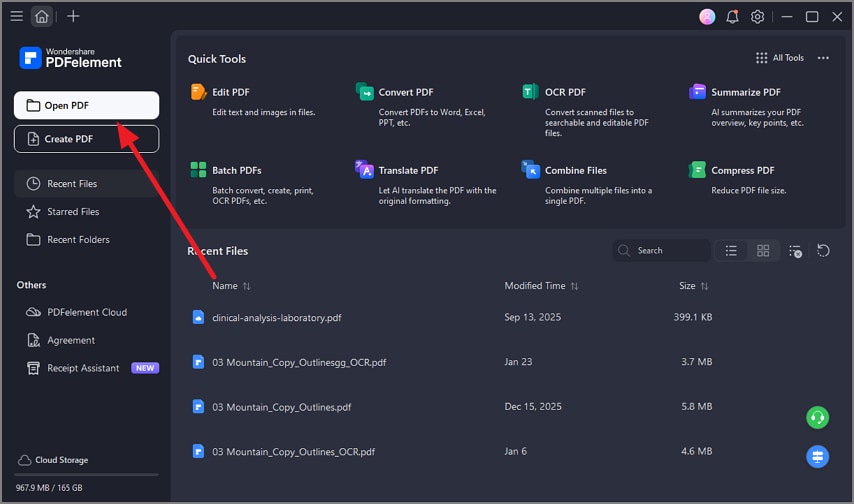
Step 1Begin by Opening the Bank Statement PDF
To start, launch PDFelement and click the "Open PDF" button to open the PDF bank statement.
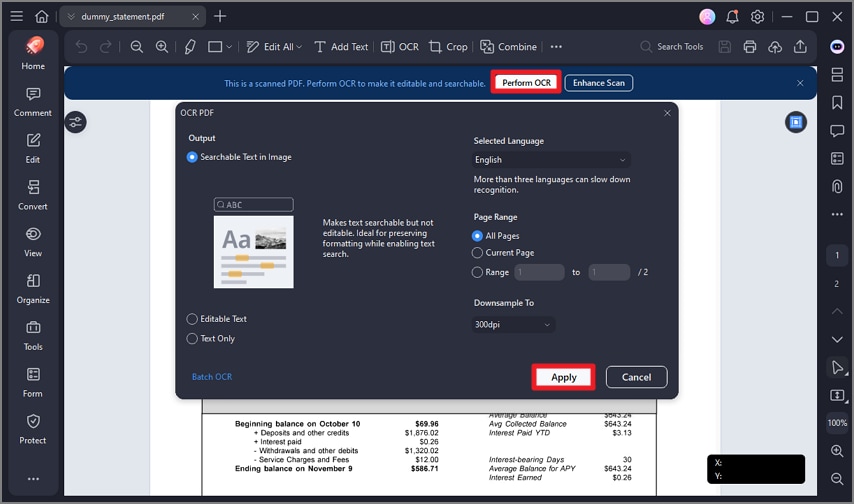
Step 2Perform OCR Across PDF
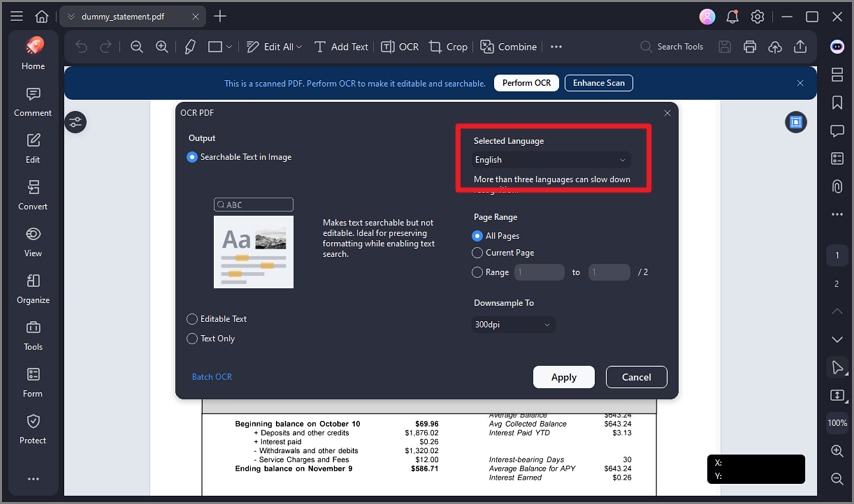
Once the document is loaded, the tool will recognize whether it is scanned or digital. If the document is scanned, press the "Perform OCR" option located above the page. Next, select the language, page range, and other settings, and press the "Apply" button to apply OCR.
G2 Rating: 4.5/5 |100% Secure
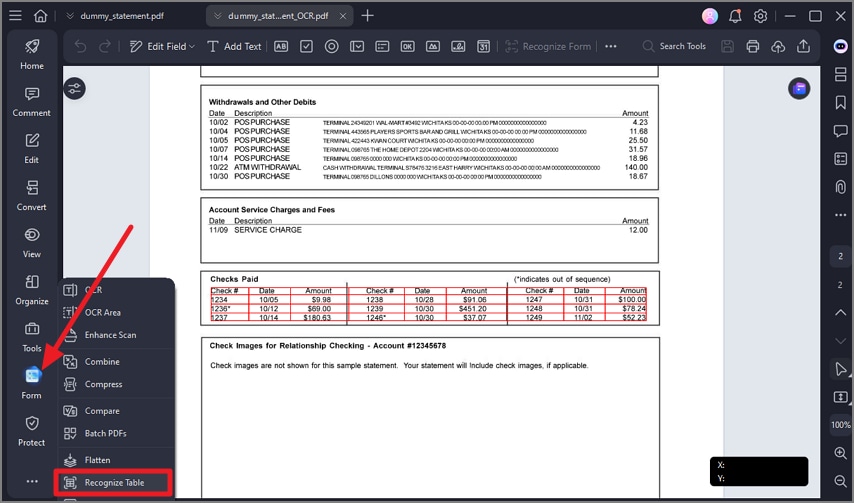
Step 3Recognize Table Fields
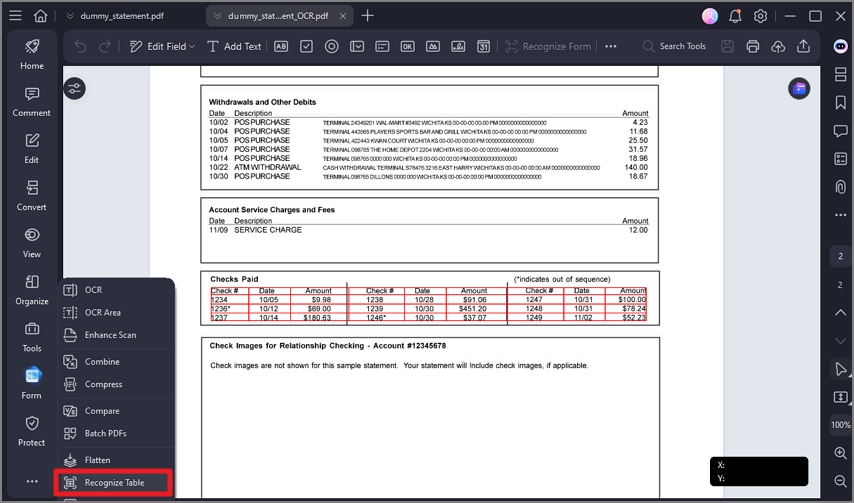
Access the toolbar on the left and click the "Tools" option. From the expanded list, choose "Recognize Table" to extract and preserve table structure. Now review the data for row and column accuracy by checking the data integrity.
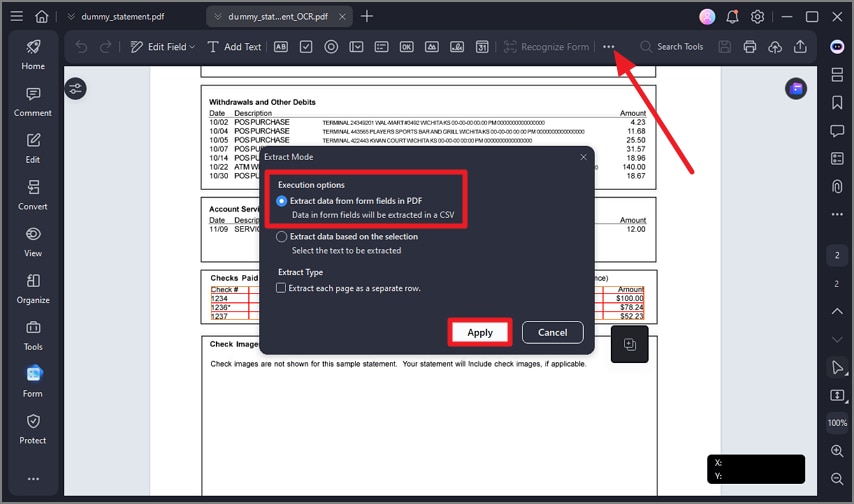
Step 4Review Data and Extract
Next, head to the toolbar on the left and choose the "Form" option. Now, click the "Three Dots" icon on the toolbar and opt for "Extract data." Choose the Extract Mode as CSV and press the "Apply" button.
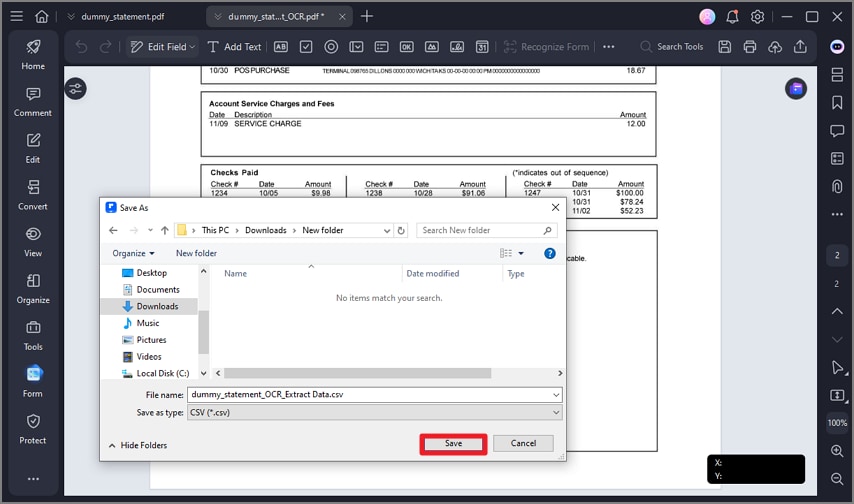
Step 5Save File as CSV
The tool will save the extracted file as a CSV in your system. Press the "Save" button to successfully complete the process.
Part 7. Converting Scanned Bank Statements to CSV
Scanned bank statements present unique challenges compared to digital PDFs because they are essentially images rather than text-based files. To convert them into a usable CSV bank statement, specialized processing is required to extract transaction data accurately. PDFelement's OCR (Optical Character Recognition) is often the solution, enabling image-to-text conversion so that rows and columns can be structured correctly in a CSV file.
When OCR Becomes Necessary
- Scanned or Image-Based Statements: If the statement is saved as a JPG, PNG, or scanned PDF, text cannot be read directly from the image. OCR is needed to convert the visual content into machine-readable text.
- Handwritten or Printed Entries: Some statements include printed or even handwritten notes that automated converters cannot recognize. OCR detects these characters and translates them into editable text.
- Complex Layouts: Multi-column tables, merged cells, or irregular formatting require OCR to correctly map data into proper CSV rows and columns.
- Data Recovery from Old Statements: Older or archived statements often exist only in scanned form. OCR allows the extraction of historical financial data for reporting, analysis, or reconciliation.
- Ensuring Automation Compatibility: Once OCR converts the image to text, the resulting CSV can be processed by scripts, accounting software, and other automated systems without manual correction.
Why Scanned Statements Increase Error Rates
Scanned statements can significantly raise the risk of errors when creating a CSV statement. Since these files are image-based, data extraction depends on OCR, which may misinterpret numbers, dates, or text. Multi-line transactions, irregular spacing, and poor scan quality can result in misaligned rows. These inaccuracies often require manual verification, slowing down processing and increasing the chance of financial discrepancies.
Steps to Improve Recognition Accuracy Before Export with PDFelement
Before exporting a scanned bank statement to a CSV statement using PDFelement, improving OCR accuracy ensures cleaner, error-free data. Key steps include:
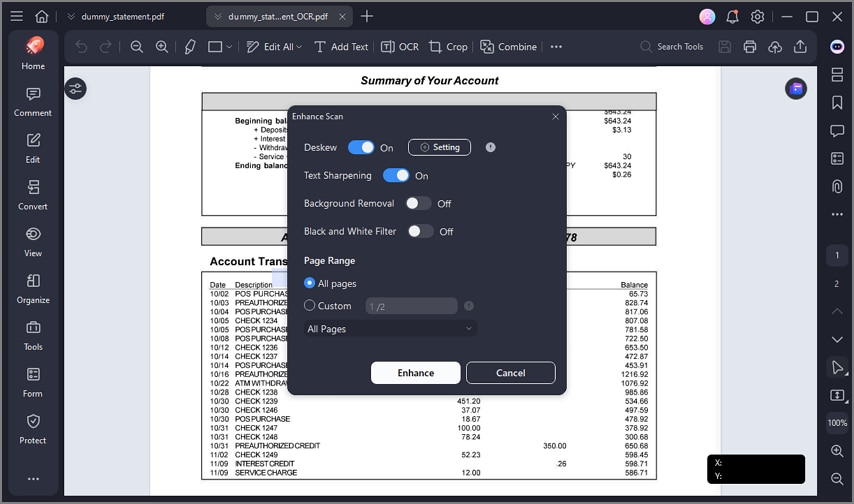
Step 1Enhance Scan Quality
Ensure the PDF is high-resolution and properly aligned. Clear scans reduce misreads and improve text recognition using the Enhance Scan feature.
Step 2Select the Correct Language
In PDFelement's OCR settings, choose the language that matches the statement to improve character recognition accuracy.
Step 3Use Table Recognition
Enable table recognition to preserve rows and columns, ensuring that transactions align correctly in the CSV output.
Step 4Crop or Straighten Pages
Remove unnecessary margins or rotate skewed pages to prevent OCR from misinterpreting text or splitting rows.
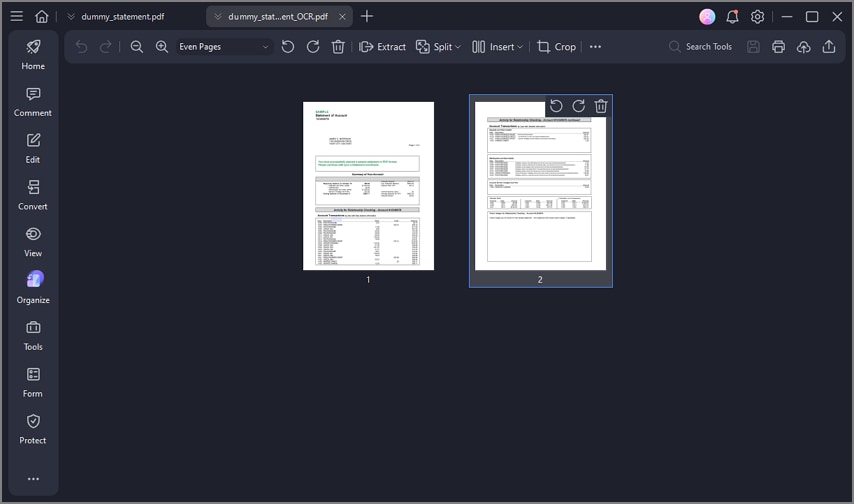
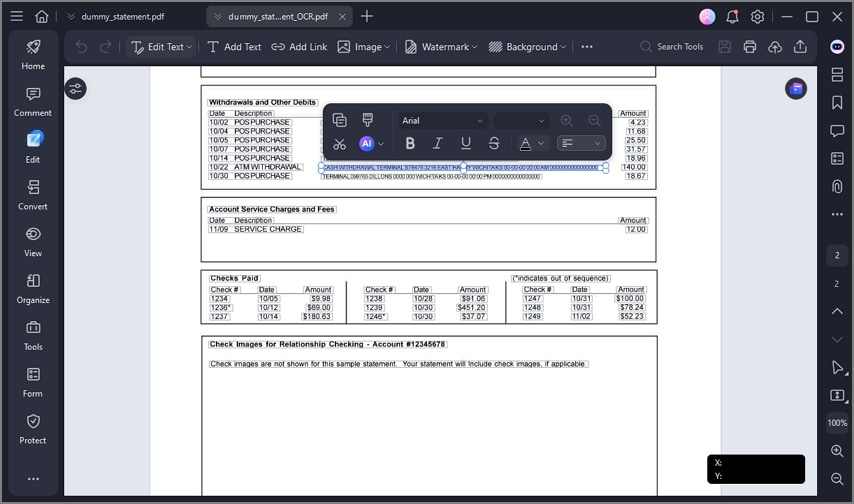
Step 5Preview and Correct Errors
After OCR, review detected text and correct misread entries before exporting to CSV to minimize post-export cleanup.
Part 8. Free and Online Bank Statement to CSV converters: What to Watch Out for
When looking for free or online bank statements to CSV converters, convenience can be tempting, but there are important considerations to keep in mind. Understanding these risks helps ensure safe and accurate conversions.
Advantages of Online Bank Statement to CSV Tools
Online tools for converting bank statements to CSV offer several benefits that make them appealing for quick or occasional use:
- Accessibility Anywhere: Online converters can be used on any device with an internet connection, eliminating the need to install software locally.
- No Installation Required: Users can convert statements immediately without downloading programs, saving storage space and setup time.
- User-Friendly Interface: Most online tools are designed for simplicity, with step-by-step workflows that require minimal technical knowledge.
- Quick Conversion: For small or straightforward statements, online tools often provide fast processing, producing a CSV in seconds.
- Cross-Platform Compatibility: These tools work across Windows, macOS, and mobile devices, making them versatile for different operating systems.
Common Limitations When You Convert a PDF Bank Statement to CSV Free
While free online tools make it easy to convert a PDF bank statement to CSV for free, they come with several limitations that can affect accuracy and security:
- File Size Limits: Many free tools restrict the maximum PDF size, making it difficult to process large or multi-page statements.
- Privacy Risks: Uploading sensitive financial data to online servers can expose personal information to security vulnerabilities or third-party access.
- Poor Table Handling: Complex tables, merged cells, or multi-line transactions are often misaligned or lost during conversion.
- Limited OCR Accuracy: Scanned statements may not be fully recognized, resulting in missing or incorrect entries in the CSV.
- Feature Restrictions: Free versions often lack advanced features like batch processing, table recognition, or error correction tools.
Part 9. Preparing CSV Files for Import into Other Systems
Before importing a CSV statement into accounting or financial software, it's crucial to ensure the file is clean, structured, and error-free. Proper preparation prevents import failures, misaligned data, and reconciliation issues. Below are key steps to ready CSV files for smooth integration:
- Validating Row Counts and Totals: Compare the number of transactions and total balances in the CSV with the original statement. This ensures no entries are missing or duplicated during conversion.
- Checking Delimiters and Encoding: Confirm that commas, semicolons, or tabs are consistent and that the file uses a compatible encoding (e.g., UTF-8) to avoid import errors or corrupted characters.
- Removing Unnecessary Headers or Footers: Extra page headers, footers, or notes can disrupt automated imports. Cleaning these ensures only transaction data is included.
- Standardizing Date and Number Formats: Ensure dates, debit/credit amounts, and balances follow a consistent format recognized by the target system to prevent misinterpretation.
- Verifying Column Order: Confirm that all required columns, such as date, description, and balance, appear in the expected sequence to maintain data integrity.
Why Cleanup Is Still Sometimes Required
Even after converting a bank statement to a CSV statement, cleanup is often necessary to ensure accuracy and usability. Automated tools may misinterpret multi-line transactions, merge cells incorrectly, or introduce formatting inconsistencies. Extra headers, footers, or special characters can remain in the file, and scanned statements may contain OCR errors. Manual review and correction help guarantee reliable imports and accurate financial reporting.
People Also Ask
-
How do I convert a bank statement to CSV?
You can convert bank statements by using software that extracts table data from PDFs or scanned documents. Tools like PDFelement allow you to perform OCR on scanned statements and export them directly to a clean CSV file. -
Is CSV better than Excel for bank data?
CSV files are plain-text and universally compatible, making them easier for automated processing and system imports. Excel offers formatting and formulas, but its proprietary structure can cause compatibility issues with some accounting software. -
Can scanned bank statements be converted to CSV?
Yes, scanned statements can be converted using OCR-enabled tools. PDFelement's OCR feature reads text from images and exports it into a structured CSV ready for analysis. -
Are free PDF to CSV converters accurate?
Free converters can handle simple statements but often struggle with multi-page tables, merged cells, or scanned PDFs. For reliable results, professional tools like PDFelement provide better accuracy and table recognition. -
Why does my CSV file break during import?
Import failures often occur due to misaligned columns, missing delimiters, or repeated headers in the CSV. Cleaning up the file and validating formatting before import can prevent these issues.
Conclusion
To wrap it up, this article provided a detailed guide on how to convert a bank statement to CSV efficiently and accurately. Successful CSV conversion is about maintaining data integrity rather than rushing the process, ensuring that every transaction is correctly captured. Bank statements often require table-aware extraction to preserve rows, columns, and balances accurately.
Reviewing the resulting CSV before importing it into accounting or financial systems is essential to catch errors or formatting issues. Tools like PDFelement simplify this process, allowing users to convert bank statement PDFs into clean, structured, and usable CSV files with confidence.

